This guide shows you how to change the root or administrator password of the operating system running inside your VPS, using the SolusVM control panel. This is the credential that SSH, RDP and the console ask for. It is set from outside the server, through the host, which is why it works even when you have lost access to the machine entirely.
Read this before you touch the form, because this is where most of the confusion lives. A VPS managed through SolusVM carries three separate passwords, and changing one has no effect on the other two:
- The VPS root or administrator password (this article). Authenticates you to the operating system itself: SSH on Linux, RDP or the console sign-in on Windows. Nothing in the panel uses it.
- The SolusVM control panel password. Authenticates you to the panel web interface only. See How to Change the SolusVM Control Panel Password.
- The VNC console password. Authenticates the browser console session that draws the server's screen. See How to Change the VNC Password in SolusVM.
If you are here because you cannot sign in to the panel, this page is the wrong one: you need the panel password article instead. If you are here because SSH is rejecting your password, you are in the right place. Never set any two of these three passwords to the same value.
Last reviewed: 27 July 2026, against the current SolusVM release. This guide is published by Noiz and is kept current against SolusVM. It complements, and does not replace, the official SolusVM documentation linked below.
Official Documentation Reference
- SolusVM Documentation: the vendor documentation set, covering both SolusVM 1 and SolusVM 2.
- Introduction to SolusVM and common notation and glossary: the vendor's own terminology, including what Master Node, Slave Node and Client actually mean.
- Change Root Password (SolusVM 1 API reference): the
vserver-rootpasswordaction, which is the same operation the button in the client area performs. - SolusVM 2 Quick Start Guide: Customers: the newer customer interface, which is laid out differently from the client area shown in the screenshots below.
- OpenSSH
sshd_configmanual page: the authority onPermitRootLoginandPasswordAuthentication, the two settings that decide whether your new root password is usable over SSH at all. - Microsoft
net usercommand reference: for changing the Administrator password from inside a Windows VPS once you are back in. - NIST SP 800-63B, Digital Identity Guidelines: the current public standard behind the password advice on this page.
Prerequisites
- Access to the SolusVM control panel for the VPS. The panel address and your sign-in details are in the welcome email issued when the service was set up. If you are not sure how to reach the login screen, see How to Log in to SolusVM Control Panel.
- The VPS online, or at least in a state where the panel can reach it. Check first with How to Check Whether the VPS Status is "online" or "offline" in SolusVM.
- The new password generated and saved before you open the form, not invented in the field. The next section explains why that ordering matters more here than it looks.
- A way back in once the password is changed: an SSH client, an RDP client, or the browser console. See How to Access VPS via VNC in SolusVM if SSH is not an option.
What This Password Change Actually Does
The panel does not log in to your server to make this change. It instructs the host that runs your virtual machine to write a new password into the guest operating system's own account database, from the outside. Two things follow from that, and both matter:
- It works when you are locked out. You do not need the old password, and you do not need a working SSH service. This is the standard recovery route when the root password has been lost, and it is usually faster and far less destructive than reinstalling the operating system.
- It is a privileged operation that leaves a trail. The new value passes through the panel to reach the guest. Treat any password you type into a hosting panel as a password the panel operator could in principle see. That is not a reason to avoid it, but it is a good reason to follow the next section.
Because of the second point, the strongest habit is to use the panel to regain access, then change the password again from inside the operating system with passwd on Linux or net user on Windows. The panel is your way back in; the in-server change is what sets the password you actually keep.
Choose the password before you open the form
Root is the account that can do anything on the server, and unlike the panel account there is no second factor protecting it. Two rules cover almost all of the risk:
- Make it long rather than clever. NIST SP 800-63B sets a minimum of 15 characters for a password used on its own as a single factor. A generated passphrase or a random string from a password manager clears that easily, and length beats forced character-class rules by a wide margin.
- Keep it plain. This one is specific to control panels. The password travels from the panel through the host to the guest, and passwords containing quotes, backslashes, backticks, semicolons or dollar signs have a long history of being mangled somewhere along that path. The change then reports success while the password that landed on the server is not the one you typed. Stick to letters and digits, and get your strength from length instead. If you want symbols, add them later with
passwdinside the server, where nothing is relaying the value on your behalf.
Generate it and save it in your password manager first, then paste it into the panel. Improvising a password into a form that is about to become the only credential for your server is how people lock themselves out.
Change the Root/Admin Password in SolusVM
Step 1: Sign in and select the VPS
Sign in to the SolusVM control panel. If your account holds more than one virtual server, select the correct one first. The panel acts on whichever server is currently selected, and the pages look identical from one server to the next, so this is a genuinely easy mistake to make.
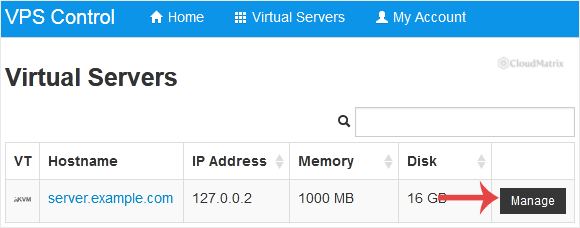
Confirm the hostname or IP address shown on the page matches the server you intend to change before you go any further. If more than one of your servers shares a similar hostname, check the details page first: see How to Check the RAM of VPS, IP, Disk Capacity and Virtualization Details in SolusVM.
Step 2: Open the Root/Admin Password tab and enter the new password
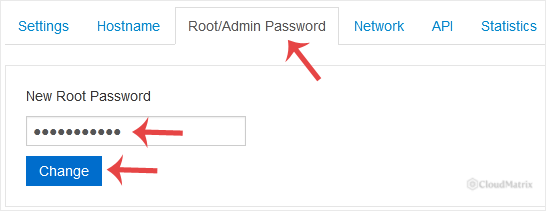
Scroll down the server management page to the Root/Admin Password tab. The tab carries both names because the same field covers the Linux root account and the Windows Administrator account, depending on what the server runs.
If a password field is shown, enter the password you prepared and click Change. If no field appears, the option is not available for this server, and the section If the Password Field Is Not There further down explains what to do instead.
Step 3: Confirm the change
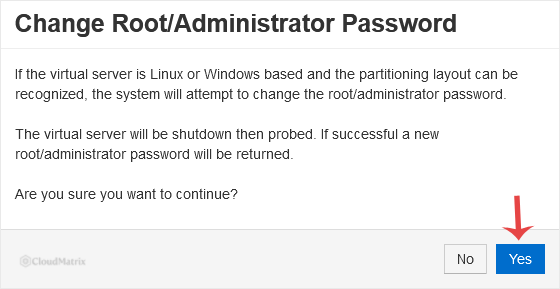
Click Yes to confirm. This prompt exists because the operation is not reversible: the panel cannot show you the old password, and it cannot put it back. Once you confirm, the previous root password is gone.
Step 4: Wait for the success message
The change is not instant. The panel has to pass the instruction to the host and wait for it to be applied inside the guest, so give it a few moments before assuming something has gone wrong. A success message appears when it completes.
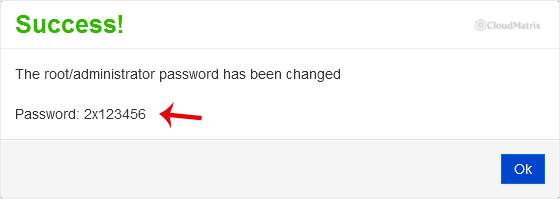
Save the new password in your password manager now, replacing the old entry rather than adding a second one. Do not leave it sitting in a text editor, and do not rely on the panel to remember it for you, because it will not show it to you again.
Verify That It Actually Worked
The success message means the panel accepted the request. It does not prove the password works. Confirm it the only way that settles the question, and do it now while you still have the panel and the console available as a fallback:
- Open a new session: SSH on Linux, RDP on Windows, or the browser console. Do not test in a session that is already open, because an existing session is already authenticated and will keep working regardless.
- Sign in as
rootorAdministratorwith the new password. - On Linux, run
idand confirm it returnsuid=0(root). That tells you both that the password worked and that you are the account you expected to be. - If SSH refuses the password, do not assume the change failed. Read the next section first: on a default Linux configuration it is supposed to refuse.
Why SSH May Still Reject Your New Root Password
This is the single most common outcome that gets reported as a broken password change, and it is not a fault. OpenSSH's own manual page states that the default for PermitRootLogin is prohibit-password, which disables password and keyboard-interactive authentication for root specifically. Most current Linux images ship with that default in place. The password change worked; SSH is simply declining to accept a password for root, exactly as configured.
You have three ways forward, in order of preference:
- Use the console instead. The VNC console attaches to the server's virtual screen rather than to SSH, so it is not bound by
sshd_configat all. Sign in there as root with the new password, then fix whatever locked you out. See How to Access VPS via VNC in SolusVM. - Sign in as your normal user and escalate. If the server has an ordinary account with
sudo, SSH in as that account and usesudo -i. This is the intended path on most modern distributions, and it is why root password logins are disabled by default. - Change the setting deliberately, if you must. Setting
PermitRootLogin yesre-enables password logins for root. It also puts the account every automated scanner on the internet tries first behind a single password. If you do it to recover access, undo it once you are back in and move to key-based authentication instead.
A related trap: if PasswordAuthentication no is set, SSH will not accept a password for any account, no matter what you change it to. In that configuration the server is key-only, and resetting root's password does nothing for SSH access. Use the console.
What Else Breaks When Root Changes
Changing the root password is a small action with a long tail. Before you close the panel, think about what else was holding the old value:
- Anything that logs in as root with a stored password. Backup jobs, monitoring agents, deployment scripts, file transfer clients with a saved profile, and any control panel installed inside the VPS that ties its own root login to the system account. These fail silently and you find out days later.
- Existing sessions stay open. A password change does not disconnect anyone who is already signed in. If your reason for changing the password was that someone else may have had access, the change alone achieves very little until those sessions are gone.
- SSH keys are completely unaffected. This is the one that matters most in a suspected compromise. Anyone whose public key is in
/root/.ssh/authorized_keyscan still log in as root without a password, before and after your change. Review that file, and the equivalent for every other account on the server, or the password change is theatre.
If the server has been accessed by someone who should not have had access, treat the whole machine as suspect rather than treating the password as the problem. Anyone holding the panel account could also have opened a console session or reinstalled the operating system without ever knowing the root password.
Harden the Account Once You Are Back In
A recovered root password is a starting position, not a finished job. While you have a working session:
- Set the password again from inside the server. Run
passwdon Linux, ornet user Administrator *on Windows, so the value you keep is one that never travelled through a panel. - Move to SSH keys and turn password authentication off. Once key access is proven working, set
PasswordAuthentication noinsshd_config. Test the key login in a second terminal before you close the first one. Locking yourself out at this step is common, and the console is what saves you when it happens. - Secure the panel account too. The panel can reinstall the operating system, which wipes the disk, without ever needing the root password. A strong panel password and two-factor authentication are therefore part of protecting the server, not a separate concern. See How to Change the SolusVM Control Panel Password and How to Enable or Disable the SolusVM VPS Login Alert.
- Do not put the change on a calendar. NIST SP 800-63B now states that passwords shall not be required to change periodically, and that a forced change belongs only where there is evidence of compromise. Scheduled rotation pushes people towards shorter, incrementable passwords. Change root when there is a reason: someone left, a device was compromised, the value was shared, or you see a sign-in you cannot account for.
If the Password Field Is Not There
The Root/Admin Password tab does not offer a password field on every server. Whether it appears depends on the virtualisation type your VPS runs on and on how the SolusVM installation has been configured by whoever operates it, because setting a password inside a running guest from the host is not possible in every combination. Check what your server runs using How to Check the RAM of VPS, IP, Disk Capacity and Virtualization Details in SolusVM.
When the field is absent and you still need to regain access, the options are:
- The console. If you can still sign in with any account, or the server offers single-user or recovery boot, the console is the least destructive route. See How to Access VPS via VNC in SolusVM.
- A reinstall, which sets a fresh root password as part of the build. This erases everything on the disk. Take a backup you have verified you can restore before you start. See How to Reinstall OS Using SolusVM OS-Reinstaller, or How to Manually Install/Reinstall an OS using SolusVM for a Customized Installation if you need control over the installation.
- Ask the provider who issued the server. An administrator on the SolusVM installation can reset a root password from the administrator side using the same underlying operation, which the vendor documents as the
vserver-rootpasswordaction. The support contact for your service is in your welcome email.
Troubleshooting
Symptom: the change reports success, but the new password does not work anywhere, including the console. Suspect the characters before you suspect the panel. Set it again using letters and digits only, at least 15 characters, with no quotes, backslashes, backticks, semicolons or dollar signs. If a plain password works and a complex one did not, the value was being mangled in transit, not rejected.
Symptom: SSH rejects the new root password, but the console accepts it. Working as designed. PermitRootLogin defaults to prohibit-password, so root cannot authenticate with a password over SSH. See Why SSH May Still Reject Your New Root Password above, and prefer signing in as a normal user with sudo.
Symptom: the change fails, times out, or the page returns an error. Check the server's state first. The panel applies the change through the host, and the request can fail if the server is not in a condition to accept it. Confirm the status with How to Check Whether the VPS Status is "online" or "offline" in SolusVM, and if it is stuck, a reboot often clears it: see How to Reboot/Restart VPS in SolusVM. Retry the password change once the server is back online.
Symptom: the panel password stopped working after you changed root. These are unrelated credentials and one cannot affect the other. You are almost certainly reaching for the wrong saved entry. See How to Change the SolusVM Control Panel Password.
Symptom: the console asks for a password you do not recognise before you even reach the login prompt. That is the VNC password, which sits in front of the console session and is separate again from both the panel and root passwords. See How to Change the VNC Password in SolusVM.
Symptom: services on the server started failing shortly after the change. Something was authenticating as root with the old password. Work through backup jobs, monitoring agents, scheduled scripts and any panel installed inside the VPS, and update the stored credential in each.
Symptom: the panel does not look like the screenshots at all. The layout above is the SolusVM 1 client area. SolusVM 2 presents customers with a different interface, organised around projects and servers, and its controls are not in the same places. Check the SolusVM 2 customer documentation instead. The three-passwords distinction at the top of this page holds in either version.
Getting Help
If you are not certain which of the three passwords you need to change, work through the list at the top of this page first, because that resolves most cases before any password is touched. For anything relating to your Noiz hosting account, the Noiz support team is available through the client area at www.noiz.co.za. For a control panel issued by another provider, use the support contact given in the welcome email for that service.






