This guide shows you how to read the specifications of a virtual private server from the SolusVM control panel: the memory (RAM) assigned to it, its IP addresses, how much disk capacity it has, and which virtualisation type it runs on. It is written for anyone who has been given a client login to a SolusVM panel and needs to know exactly what their VPS is, either to size a workload, to answer a support question, or to work out why a feature they expected is missing from the menu.
The last of those figures, the virtualisation type, is the one people skip and the one that matters most. It is not a trivia field. It decides whether you can boot an ISO, open a VNC console, load a kernel module, run a custom kernel, or change a disk driver. A great many "this option is not in my panel" questions are answered by that single line, so this guide explains what each type actually means for you rather than just telling you where to find it.
A note on wording, because SolusVM and its documentation use several names for the same things. A VPS is called a virtual server, a virtual machine or a VS depending on which screen you are looking at. Memory and RAM are the same field. Virtualization (SolusVM spells it with a z) is the same thing as the virtualisation type or the hypervisor type. Treat these as interchangeable throughout.
Last reviewed: 27 July 2026, against the current SolusVM release. This guide is maintained by Noiz and is kept current against SolusVM. It complements, and does not replace, the official SolusVM documentation linked below.
Official Documentation Reference
- Introduction to SolusVM (SolusVM 1): the vendor's own overview and glossary for the SolusVM 1 generation, which is the generation the classic client area belongs to.
- SolusVM 2 Overview: states which virtualisation technologies the current generation supports, namely KVM virtualisation and Virtuozzo or OpenVZ containers.
- SolusVM 2 Glossary: the vendor's definitions of compute resource, virtual server, plan and the other terms that appear on the specification screen.
- Customising the SolusVM Client Area: confirms that the client area is themeable, which is why the exact position and labelling of the fields below varies from one provider to another.
- KVM Project FAQ: authoritative background on what KVM is, for the virtualisation section below.
systemd-detect-virtmanual page: the command used later in this guide to confirm the virtualisation type from inside the VPS.
Prerequisites
- You can log in to the SolusVM control panel. The panel address, your username and your password are in the welcome email you were sent when the VPS was set up; SolusVM is installed per provider, so there is no single universal login URL.
- You know which VPS you are looking at, by hostname or by primary IP address, if more than one is attached to your account.
- Optionally, SSH or console access to the VPS itself. You do not need it to read the panel, but the cross-checking section below uses it, and cross-checking is what turns a number on a screen into something you can trust.
Open the Right VPS First
SolusVM shows specifications per virtual server, so the first job is making sure you are looking at the one you mean. If your account holds only one VPS, the client area opens straight onto it and there is nothing to choose. If it holds several, pick the one you want from the selector at the top of the client area.
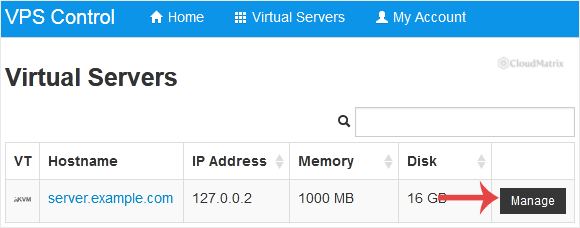
Identify the VPS by its primary IP address rather than by its hostname where you can. The hostname field in SolusVM is a label held in the panel's own database, and it does not have to match the hostname configured inside the operating system, so two VPS entries can easily carry similar or stale names. The primary IP is unique and is what the host node actually routes.
Read the Specification Panel
Once the correct VPS is selected, its specifications appear underneath the hostname on the main client area screen. This block is generated from the host node, not from anything running inside your VPS, so it reflects what has been allocated to the virtual server rather than what the operating system inside currently believes.
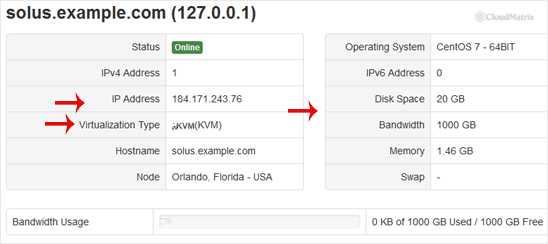
The fields you will normally see, and what each one is really telling you:
Hostname
The name the panel holds for this VPS. It is used in notification emails, in reverse DNS requests, and as the label in lists. It is not automatically the same as the output of hostname inside the server. If the two differ, neither is wrong; they are two separate records. See changing the hostname in SolusVM for how the panel field is edited, and remember that mail servers and TLS certificates care about the name inside the operating system and about DNS, not about the panel label.
Main IP address and additional IPs
The main IP address is the one SolusVM treats as the identity of this virtual server. Reverse DNS, console access and the panel's own health checks hang off it. Any further addresses assigned to you are listed separately, often with their netmask and gateway.
The gotcha here catches people every time: on a full virtualisation type such as KVM, an address listed in SolusVM is allocated to you, not necessarily configured inside the guest. Additional IPv4 and IPv6 addresses usually have to be added to the operating system's own network configuration before anything responds on them. Container types behave differently, because the host injects addresses into the container directly. So if an address appears in the panel but does not answer, the panel is not lying; the guest has simply never been told about it.
Operating system template
The template the VPS was built or last rebuilt from. Treat it as a record of origin rather than a live reading. If you upgraded the distribution in place, or installed an operating system yourself from an ISO, the panel will still show the template it started from until the VPS is rebuilt through SolusVM. Check the operating system inside the server with cat /etc/os-release when it matters.
Disk capacity
The disk allocation for this virtual server, usually shown as an amount used against a total. On KVM and other full virtualisation types this is the size of the virtual block device presented to the guest. On container types it is a quota applied by the host.
Expect the total here to be slightly larger than what df -h reports inside the server, and do not treat that as an error. A virtual disk of a given size loses a little to the partition table, to filesystem metadata, and, on ext4, to the five percent of blocks reserved for the root user by default. A difference of a few percent between the panel and the filesystem is normal and expected.
The real trap is a resize. If the disk allocation is increased, the guest sees a bigger block device but the partition and the filesystem inside it stay exactly the size they were. The extra space does not appear in df -h until the partition is grown and the filesystem is extended onto it. That is the single most common "my disk did not grow" report, and the panel figure being right while df is unchanged is the clue that it is what happened.
Memory (RAM)
The memory assigned to the virtual server, again usually shown as used against total. On a full virtualisation type this is a hard allocation: the virtual machine cannot exceed it, and processes are killed by the kernel's out-of-memory handler when it runs out. On a container type your provider may have configured a guaranteed amount plus a burst or vSwap allowance, in which case the panel may show more than one memory figure and the larger one is not a number you should plan capacity against.
Two things surprise people. First, free -h inside a KVM guest reports a total slightly below the panel figure, because the guest kernel and its virtual firmware reserve some memory before user space ever sees it. Again, a small shortfall is expected, not a fault. Second, a memory change made in the panel is defined when the virtual hardware is created, so it typically needs a full stop and start rather than a reboot issued from inside the operating system. A reboot from the shell keeps the same virtual machine running and will not pick up a new memory size; a reboot performed from the panel is the safer way to make a hardware change take effect.
Bandwidth
Traffic used against your allowance for the current period, counted by the host node at the virtual network interface. It will not match an in-guest counter such as vnstat, because the host counts traffic that reaches your virtual interface even when the guest firewall drops it. If you are close to an allowance, trust the panel figure, since that is the one your provider bills and shapes against.
Virtualisation type
Usually a short label such as KVM, OpenVZ, Virtuozzo, Xen HVM or Xen PV. What it means for you is covered in full in the next section, and it is worth reading before you plan anything on the server.
Status and node
Some client areas also show whether the VPS is running and, occasionally, which host node it lives on. If the specification block will not load at all, check the running state first: see checking whether the VPS status is online or offline.
What the Virtualisation Type Actually Means for You
SolusVM presents every virtual server through the same client area, but the technology underneath differs, and it changes what you are allowed to do. The current SolusVM generation supports KVM virtualisation and Virtuozzo or OpenVZ containers; older SolusVM 1 deployments may additionally be running Xen. The practical split is between full virtualisation, where you get your own kernel and virtual hardware, and containers, where you share the host's kernel.
| Shown as | What it is | Own kernel? | What that gets you |
|---|---|---|---|
KVM | Full hardware virtualisation. Your VPS is a virtual machine with virtual firmware, a virtual disk and a virtual network card. | Yes | Boot an ISO, use the VNC console, load kernel modules, run a custom or newer kernel, run non-Linux operating systems, choose disk and network drivers. |
OpenVZ or Virtuozzo | Operating-system-level virtualisation. Your VPS is an isolated container running on the host's kernel. | No | Fast, efficient and quick to provision, but no custom kernel, no kernel module loading, no ISO boot and no real VNC console. |
Xen HVM | Full virtualisation on the older Xen hypervisor. Behaves much like KVM. | Yes | Broadly the same freedoms as KVM, with a different set of virtual hardware. |
Xen PV | Paravirtualised Xen. Runs a kernel supplied by the host side rather than a full virtual firmware stack. | Partly | Lighter than HVM, but no ISO boot and limited control over the kernel. |
If it says KVM (or Xen HVM)
You have the most freedom, and most of the interesting controls in the SolusVM client area exist only for you. That includes the VNC console, which is a genuine virtual screen and keyboard and therefore works even when networking inside the guest is broken; installing an operating system yourself from an ISO; the APIC, ACPI, VNC and PAE toggles; and the driver choices for the network card and the disk. Because you run your own kernel, you can also load modules, which is what things like WireGuard, TUN/TAP devices, custom netfilter modules and some container runtimes need.
The cost is that memory and disk are hard allocations and there is a small amount of virtualisation overhead. If you change the virtual hardware, including its drivers, the guest has to be fully stopped and started for the change to be applied, and a driver change is one of the few settings that can leave a server unbootable if the guest kernel lacks the driver you switched to. Read the linked driver articles before changing either one on a production server.
If it says OpenVZ or Virtuozzo
You are in a container, sharing the host's kernel with other containers. It is efficient and it starts and stops almost instantly, but the shared kernel is a hard boundary:
- You cannot load kernel modules or run your own kernel. Anything that needs a module the host has not enabled will simply fail, no matter what you install. This is the usual reason a VPN, a firewall feature or a container runtime that works elsewhere refuses to start here.
- There is no ISO boot and no real console. A container has no virtual screen, so the VNC and manual installation options either will not appear or will not do anything useful. Reinstalling is done from templates instead, through the operating system reinstaller.
- Driver and firmware settings do not apply. There is no virtual network card or virtual disk controller to choose, so those menu entries are absent by design rather than broken.
- Resource reporting can be odd. Older container platforms let host-wide values leak into
/proc, so tools inside the container occasionally report the host's CPU count or memory rather than your limit. Where a container exposes/proc/user_beancounters, that file is the authoritative view of your limits and, importantly, of how many times you have hit them.
In exchange, container resources can be more elastic. Disk quota increases usually take effect immediately without you touching the partition table, and burst memory can absorb short spikes. Do not plan capacity against burst figures; plan against the guaranteed amount.
Why it is worth checking before you buy or build
If a piece of software you intend to run states that it needs a specific kernel version, a kernel module, /dev/net/tun, nested virtualisation, or a non-Linux operating system, the virtualisation type is the first thing to check. Finding out after deployment that the server is a container costs a rebuild. Checking one line in the panel costs ten seconds.
Cross-Check the Figures From Inside the VPS
The panel tells you what has been allocated. These commands tell you what the operating system can actually see. Running both is how you tell a real problem apart from a misunderstanding, and it is the first thing any support engineer will ask you for.
# Which virtualisation type does the OS think it is on?
systemd-detect-virt

# Same question, from the CPU's point of view
lscpu | grep -i hypervisor

# Memory the guest kernel can see
free -h

# Disk: allocation, partitions and filesystem usage
lsblk
df -h /

# Addresses actually configured on the interfaces
ip -brief address
How to read the results:
systemd-detect-virtprints a single word such askvm,xen,openvzorlxc. If it printsnoneon a machine you know is virtual, you are almost certainly on a container type that hides it, or on a system without systemd; fall back to checking whether/proc/vzor/proc/user_beancountersexists, which indicates an OpenVZ or Virtuozzo container.lscpushowing a Hypervisor vendor line ofKVMconfirms full virtualisation. Containers show no hypervisor line at all, because there is no hypervisor between you and the host kernel.free -hshould be a little under the panel's memory figure on KVM. Substantially more than the panel figure on a container is the host's memory leaking through, not a bonus.lsblkagainstdf -his the disk resize test. Iflsblkshows a device larger than the partition and filesystem on it, the allocation grew and the filesystem has not been extended yet.ip -brief addresslists only what is configured. An address present in SolusVM but missing here has not been added to the guest's network configuration.
Record the output alongside a screenshot of the specification block if you are opening a support ticket about a mismatch. The two views together identify the problem immediately; either one on its own rarely does.
Troubleshooting
- Symptom: the specification block is empty, stuck loading, or showing zeroes. The client area pulls these figures live from the host node. If the node cannot be reached, or the VPS record is mid-operation such as a rebuild or a migration, the fields do not populate. Check the running state first, wait for any operation in progress to finish, then reload. If it persists, it is a host-side condition rather than something inside your server.
- Symptom: the disk was increased but
df -hshows the old size. Expected on full virtualisation types. The virtual disk grew; the partition and the filesystem did not. Confirm withlsblk, then grow the partition and extend the filesystem, and take a backup before you touch a partition table on a live server. - Symptom: the panel shows more memory than
free -h. Normal on KVM. The guest kernel and virtual firmware reserve a slice before user space sees it. A gap of a few percent needs no action. A gap of half the allocation does, and usually means the memory change has not been applied yet because the VPS was rebooted from inside instead of being stopped and started from the panel. - Symptom: an additional IP address is listed in the panel but does not respond. On KVM and Xen HVM, allocated is not configured. Add the address, netmask and gateway shown in the panel to the guest's network configuration, then confirm with
ip -brief address. If the address is configured and still silent, the problem is routing or firewalling rather than allocation. - Symptom: VNC, ISO installation or driver options are missing from the client area. Check the virtualisation type. Those features exist only for full virtualisation. On a container they are absent by design. If the type does say KVM and the options are still missing, your provider has disabled them for client accounts.
- Symptom: the operating system shown does not match what is installed. The template field records what the VPS was built from, not what is running now. An in-place distribution upgrade or a manual installation does not update it.
cat /etc/os-releaseis authoritative. - Symptom: the figures do not match the plan you were quoted. The panel shows what is assigned to this virtual server right now, which reflects any add-ons, configurable options or later resizes. Compare it against the specification on your invoice rather than against the marketing page, and query the difference with whoever provides the VPS.
- Symptom: the fields are laid out differently from the screenshots above. The SolusVM client area is themeable and providers customise it, so labels move and some fields are hidden. The underlying values are the same; look for the memory, disk, bandwidth and virtualisation labels wherever the theme has placed them.
Getting Help From Noiz
Reading the specification block takes seconds and answers most questions about what a VPS actually is before anyone needs to open a ticket. Where it does not, a little preparation makes the ticket quick to resolve.
If a figure looks wrong, if a resize has not taken effect, or if you are weighing up whether the resources shown are enough for a website, mail service or application you are planning to run, the Noiz support team can go through the numbers with you. Include the memory, disk and virtualisation type from the specification block, plus the output of free -h, df -h / and systemd-detect-virt from inside the server. Those five values together are usually enough to settle it on the first reply. Keep the welcome email for the account to hand as well, since it identifies which panel and which virtual server the figures belong to.






