This guide explains how to find the power status of a VPS in the SolusVM control panel, what an online or offline status actually tells you, and what to check first when the status is not what you expected. The status field is sometimes called the power state, and some interfaces label the same two values running and stopped. It is the single most useful piece of information on the panel when a server stops responding, and it is also the most commonly misread, because an online status is not a promise that anything inside the server is working.
Last reviewed: 27 July 2026, against the current SolusVM release. This guide is kept current against SolusVM. It complements, and does not replace, the official SolusVM documentation linked below.
Official Documentation Reference
- SolusVM Documentation: Quick Start Guide Overview, the vendor's description of what SolusVM manages and how virtual servers sit on compute resources
- SolusVM Documentation: Customers, covering the customer-facing side of the panel, including deploying servers and connecting over the VNC console or SSH
- SolusVM Documentation: Recovering Inaccessible Servers with Rescue Mode, useful background on what happens when a server boots but stays unreachable
Prerequisites
- Access to the SolusVM control panel. If you are not sure where to sign in, see how to log in to the SolusVM control panel, and use the panel address given in the welcome email for the service.
- The hostname or IP address of the VPS you want to check, so that you pick the right one if the account holds more than one server.
Where the Status Is Shown
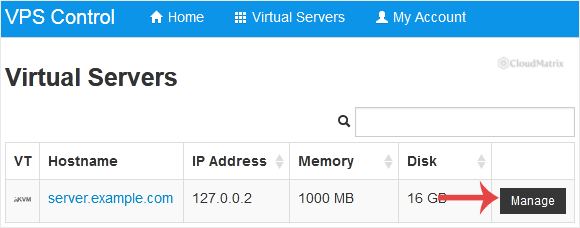
The status appears on the main server view of the SolusVM control panel, alongside the other headline details for the server.
- Log in to the SolusVM control panel.
- If the account has more than one VPS, select the one you want to check. Match on hostname or IP address rather than position in the list, because the order can change.
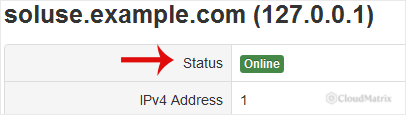
- Read the Status field shown under the VPS hostname, together with the other summary details such as bandwidth usage. A status of offline means the virtual machine is powered off.
The same status is normally mirrored in the billing client area for the service, which is convenient if you do not want to open the panel itself. The panel is the authoritative source: the client area displays a copy of what SolusVM last reported.
What Online and Offline Actually Mean
SolusVM reports what the host machine sees, not what the operating system inside the VPS is doing. Think of it as the switch on the wall rather than the light bulb.
- online: the virtual machine is powered on and the host is running it. CPU time is being scheduled and memory is allocated. That is the whole claim. The status does not know whether the operating system finished booting, whether SSH is listening, whether the web server is up, or whether the disk is full.
- offline: the virtual machine is powered off. Nothing inside it is running, no memory is allocated to it, and it will not answer on any port or protocol. A server in this state cannot fix itself, because there is no operating system running to act.
The exact mechanism behind the status depends on the virtualisation type of the server, which you can see alongside the other details covered in how to check the RAM, IP, disk capacity and virtualisation details in SolusVM. On full virtualisation such as KVM the status tracks the virtual machine process on the host. On container virtualisation it tracks whether the container is running. The practical meaning to you is the same in both cases.
Two states are easy to confuse with a simple power-off:
- Suspended: a server suspended for a billing or abuse reason will usually read as offline, and attempts to start it will either be refused or the server will stop again straight away. If a server refuses to stay on and nothing has changed inside it, check the account standing before hunting for a technical fault.
- Stale status: SolusVM polls the host rather than watching it continuously, so the value on screen can be a short way behind reality, particularly during a reboot. Reload the page before drawing conclusions from a status that has just changed.
The First Thing to Check
There are only two situations worth separating, and the useful next step is different for each.
The Status Is Offline
- Reload the panel. If the server was rebooted moments ago, an offline reading may simply be the gap between power off and power on.
- Ask whether it was shut down on purpose. A
shutdown,poweroff, orhaltcommand run inside the VPS powers the virtual machine off exactly as intended, and the operating system cannot switch itself back on afterwards. This surprises people who expect a reboot and get a shutdown. Only the panel can start it again. See how to forcefully or gracefully shut down the VPS in SolusVM for how the two shutdown types differ. - Start it. Follow how to start or boot your VPS in SolusVM. If it comes online and stays online, the cause was a clean shutdown and there is nothing further to fix.
- If it goes offline again within a minute or two, the server is stopping itself or the host is stopping it. Common causes are a kernel panic during boot, a bootloader broken by a failed kernel update, a filesystem that fails its check and drops to an emergency prompt, or a suspension. This is where you stop guessing and watch the boot.
- Watch it boot over the console. The VNC console attaches to the server's virtual screen, so it shows boot messages, panics, and emergency prompts even when networking never comes up. See how to access a VPS via VNC in SolusVM. Start the server and watch from the first moment: the message that matters usually scrolls past in the first few seconds.
The Status Is Online but the Server Is Unreachable
This is the more common of the two, and the status has already told you something valuable: the host is fine and the virtual machine is powered on, so the fault is inside the server or in the network path to it. Work through it in this order.
- Confirm the address. Check that the IP address you are connecting to is the one the panel shows for that server. An IP change after a reinstall or a migration is a quiet cause of a server that looks dead from your desk and healthy in the panel.
- Do not judge it by ping. ICMP is routinely blocked by server firewalls and by networks in between, so silence from
pingis not evidence that a server is down. Test the port you actually need instead:
Replacenc -vz 203.0.113.10 22 curl -I -m 10 http://203.0.113.10/203.0.113.10with the IP address of your own server. A connection refused means the server is reachable and something answered to say the port is closed, which is a very different diagnosis from a timeout, where nothing answered at all. - Log in over the VNC console. VNC does not depend on SSH, on the firewall, or on the server having a working network configuration, so it is the escape hatch that still works when everything else has locked you out.
- Check the three things that account for most cases, once you are on the console:
A full disk is the single most frequent cause of a server that reads online and behaves as though it is dead: services cannot write logs or temporary files, stop accepting connections, and in some cases fail to restart, while the virtual machine itself stays happily powered on. Exhausted memory is the next most frequent, with the kernel out-of-memory killer removing whichever process was largest, often the database or the web server.df -h free -m systemctl status ssh - Consider a firewall lockout. If the server became unreachable immediately after a firewall or SSH configuration change, that is almost certainly the cause. Fix it from the console rather than rebooting, because a reboot will not undo a saved rule set.
- Check whether your own address has been blocked by brute-force protection running inside the server. That produces a server which is reachable from everywhere except your office or home connection.
A reboot is a reasonable step once you have looked, and a poor first step before you have looked, because it destroys the evidence of what was wrong. See how to reboot or restart a VPS in SolusVM when you are ready to use it.
How to Verify a Status Change Really Took Effect
Watching only the status field will mislead you after a power action, because the panel and the operating system move at different speeds.
- After a start or a reboot, the status flips to online almost at once. That is the host confirming it has powered the virtual machine on. The operating system inside still has to boot, which typically takes anywhere from a few seconds to a couple of minutes depending on the system and its filesystem checks.
- Treat the status as the first checkpoint and a real service test as the second. The server is genuinely back when the port you care about answers, not when the panel turns green.
- Use the bandwidth figure shown next to the status as a corroborating signal. Even an idle server generates a trickle of traffic. If usage has been flat since a particular point in time, that timestamp is a good estimate of when the server actually stopped doing useful work, which is often earlier than when anyone noticed.
Troubleshooting
- Symptom: the status says online but nothing responds. The virtual machine is running, so the problem is inside it. Open the VNC console and check disk space, memory, and whether the service you need is running. Do not reboot before looking.
- Symptom: the status says offline and starting it does nothing. Either the start action is failing at the host, or the server powers on and immediately stops again. Watch the attempt on the VNC console to tell the two apart, then contact the support desk for the service with what you saw.
- Symptom: the server starts, runs for a while, then goes offline on its own. Something is shutting it down. Look for a scheduled task or an automation running
shutdown, for a thermal or resource action taken by the host, or for an account suspension that took effect. - Symptom: the panel and the client area disagree about the status. The client area shows a cached copy. Trust the panel, and reload it once before acting.
- Symptom: the status changed but the server behaves the same as before. You may be looking at the wrong server. Confirm the hostname and IP address on screen match the machine you are testing, particularly on an account with several servers.
- Symptom: ping fails but SSH works, or the reverse. That is normal and expected. ICMP and TCP services are filtered independently, so each protocol has to be tested on its own.
If you need to escalate, gather this first: the exact status shown in SolusVM and the time you read it, the hostname and IP address of the server, what you tried from the console, and the exact error text from your connection attempt. A ticket built from that detail gets a useful answer on the first reply, where "my VPS is down" does not.






