SolusVM (Solus Virtual Manager) is a browser-based VPS management system that lets the owner of a virtual server start it, stop it, rebuild it and inspect it without any access to the physical host behind it. This guide covers the part every VPS owner meets first: the client area login. It explains where the address, username and password come from, how to sign in, what two-factor authentication changes about the login screen, and how to work out what has gone wrong when the login fails. The client area is also called the SolusVM control panel, the VPS control panel, or simply "the panel", and all of those names refer to the same screen. It is the starting point for every other SolusVM guide in this knowledgebase.
Last reviewed: 27 July 2026, against the current SolusVM release. This guide is maintained by Noiz and is kept current against SolusVM. It complements, and does not replace, the official SolusVM documentation linked below.
Official Documentation Reference
- SolusVM Documentation: Introduction to SolusVM and Common Notation & Glossary, the vendor's definition of the product and of terms such as master node, slave node and template
- SolusVM Documentation: Two-Factor Authentication in the Client Area, the authoritative procedure for enabling, disabling and recovering 2FA on a client account
- SolusVM Documentation: Quick Start Guide for Customers, the equivalent workflow in SolusVM 2, whose login screen differs from the one described here
- SolusVM Documentation: clearauthlog.php, for administrators, the utility that clears the record of access attempts held in the authentication log
Prerequisites
- Your VPS welcome email, which carries the control panel address, your username and your initial password. Nothing on the panel itself will tell you the address if you have lost it.
- A current web browser with cookies and JavaScript enabled.
- Your authenticator app or a saved recovery code, if two-factor authentication has been enabled on the account.
Where Your Login Details Come From
SolusVM does not send its own welcome message. The control panel address, username and password are issued by whoever provisioned the VPS, normally in the welcome email sent when the server was set up. If that email has been deleted, ask the provider that supplied the VPS to reissue the details; there is no self-service recovery from the login screen for a lost panel address.
A typical set of details looks like the example below. Replace every value with the ones from your own welcome email.
- Control panel URL:
https://cp.example.com, or an address in the formhttps://198.51.100.10if the provider publishes an IP address rather than a hostname. - Username:
vmuser123, or a name-based login such asjohndoe. - Password: the value quoted in the welcome email, which should be changed after the first login.
Three separate sets of credentials exist around any VPS, and confusing them is the single most common cause of a failed login:
- The SolusVM client area login, described in this guide. It controls the virtual server from the outside: power state, reinstall, console, hardware settings.
- The VPS operating system login, normally
rooton Linux orAdministratoron Windows. This is used over SSH, RDP or the console, and it is never the same credential as the panel login. - The billing account login, held with the company that sold the VPS. Billing systems can be configured to hand off into SolusVM, which is why the two are easily mixed up, but the passwords are stored separately and changing one does not change the other.
How to Log In to the Client Area
- Open the control panel URL from your welcome email in a browser. Type or paste the address exactly as given, including
https://. - Enter your SolusVM username and password. The username is a panel username, not an email address, on the classic client area shown below.
- Click Login. You are taken to the SolusVM VPS management area, which lists the virtual servers attached to your account.
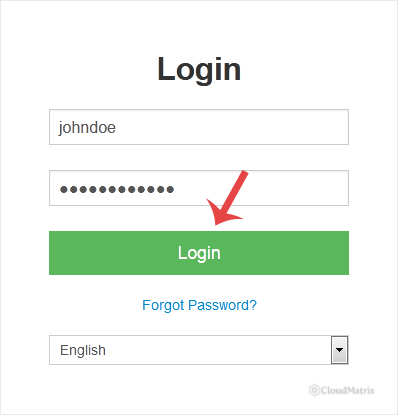
If two-factor authentication is enabled on the account, a second screen appears after the password is accepted and asks for a six-digit code. See the section on two-factor authentication below.
Once you are in, the landing screen is a list rather than a single server. An account can hold several virtual servers, so the first click after login is choosing which server to manage.
Which SolusVM You Are Logging In To
There are two generations of the product in the field, and they do not share a login screen. Identify yours before following any SolusVM guide, because the terminology and menus differ:
- SolusVM 1 client area: you log in with a username and password at the address the provider published, commonly a
cp.hostname or an IP address. This is the screen in the screenshot above, and it is the version this guide and its companion articles describe. The vendor now publishes the SolusVM 1 material as legacy documentation. - SolusVM 2: you log in with your email address and password at a
/loginpath on the management server, in the formhttps://cp.example.com/login. SolusVM 2 organises servers into projects and, where the provider allows it, supports self-registration and an email confirmation link.
If the login form asks for an email address and the interface talks about projects, you are on SolusVM 2 and should follow the vendor's customer quick start guide linked above rather than the SolusVM 1 steps in this knowledgebase.
Two-Factor Authentication at the Login Screen
Two-factor authentication (2FA) adds a time-based one-time code, generated by a phone app such as Google Authenticator or Microsoft Authenticator, on top of the password. With it enabled, a stolen password on its own is not enough to reach the panel, which matters more than usual here: the SolusVM client area can reinstall the operating system and wipe the disk, so it deserves stronger protection than an ordinary web login.
Points worth knowing before you switch it on:
- 2FA is off by default, and the account holder turns it on from My Account inside the client area. It does not need a request to the provider. The vendor documents client area 2FA as available from SolusVM version 1.30.01 upwards, so an older installation may not offer the setting at all.
- Enabling it produces eight one-time recovery codes, shown once. Save them somewhere that is not the phone holding the authenticator app, because that phone is exactly what you will have lost when you need them.
- Each recovery code works once. Generating a fresh set immediately invalidates every unused code from the previous set.
- 2FA settings do not survive an import into SolusVM 2. If the provider migrates the account, enable 2FA again on the new panel.
- If both the app and the recovery codes are gone, only the administrator of the SolusVM installation can clear 2FA from the account. There is no self-service route back in.
What a SolusVM Login Does Not Give You
The client area is deliberately narrow in scope, and knowing its limits saves a lot of fruitless clicking:
- It is not a shell on the server. Logging in to SolusVM does not log you in to the operating system. Managing files, services or websites still needs SSH, RDP or a console session.
- It is not the administrator panel. SolusVM's admin interface, which manages nodes, IP blocks and other people's servers, is a separate application on the master node and belongs to the provider. A client area account cannot reach it.
- It is not a billing panel. Renewals, invoices and plan changes live in the billing system, not here.
- Changing your panel password changes nothing inside the VPS. The client area password and the operating system root password are independent, and each has its own procedure.
Confirm You Are on the Right Server Before You Act
If the account holds more than one virtual server, the safest habit is to verify the server identity before using any control that interrupts service. Open the server's details and check that the main IP address and hostname match the server you intended to work on, then check its power state. Rebooting or reinstalling the wrong entry in the list is an easy and expensive mistake, and SolusVM asks for very little confirmation before carrying out either instruction.
Where to Go Next
Once you are logged in, these guides cover the tasks the client area is normally opened for:
- Check whether the VPS status is online or offline, the first thing to look at when a site or service stops responding.
- Check the RAM, IP address, disk capacity and virtualisation type, which also confirms you are looking at the right server.
- Change the SolusVM control panel password, which should be done as soon as you have logged in with the password from the welcome email.
- Enable or disable the VPS login alert, so that a successful login sends you a notification.
- Change the account email address, which is where alerts and panel notifications are delivered.
- Reboot or restart the VPS, and access the VPS console over VNC when the network is unreachable but the server is running.
- Change the VPS operating system root or administrator password, the credential that the panel password is often mistaken for.
Troubleshooting
- The username and password are rejected: check that you are using the panel credentials from the welcome email rather than the billing account or the server's root password. Type the password by hand once instead of pasting it, since a copied value often carries a trailing space, and confirm Caps Lock is off. On the SolusVM 1 client area the login field takes a username, so an email address will always fail.
- "Incorrect two-factor authentication code" although the code looks right: time-based codes fail when clocks drift. Check that automatic time is enabled on the phone, then try the next code rather than the one about to expire. If every code is refused, the clock on the management server itself may be out of sync, which only the administrator can correct, so use a recovery code and report it.
- The phone is lost and the recovery codes are gone: contact the administrator of the SolusVM installation. Recovery codes cannot be reissued from the login screen, and support cannot read the existing ones.
- The browser warns that the connection is not private: this is common when the panel is reached by IP address, because the certificate is issued for the hostname instead. Use the hostname form of the address from the welcome email. Never enter panel credentials on a page you reached from a link in an unexpected email; open the address from your own records instead.
- The login page loads but the Login button does nothing: cookies or JavaScript are blocked. Try a private browsing window with extensions disabled, then re-enable them one at a time to find the offender.
- The panel address does not load at all: this is a fault on the management server rather than on the VPS, and the two are separate machines. The virtual server itself can be running perfectly while the panel is unreachable, so test the server's own services before assuming an outage.
- You cannot tell whether your attempts are arriving: SolusVM records access attempts in an authentication log on the master node. The administrator can confirm whether the failed logins reached the panel, which quickly separates a wrong password from a network or DNS problem.
- The bookmark stopped working: bookmark the login page, not the page you land on afterwards. Internal panel URLs carry session information and expire.
If you are locked out, only the administrator of the SolusVM installation can reset a client area password or clear two-factor authentication, so use the support channel given in your VPS welcome email. If you are not sure who administers your server, open a support ticket with the Noiz support team, quoting the hostname or IP address of the VPS and the exact wording of the error shown at the login screen.






