The VNC console in SolusVM gives you a screen and a keyboard wired directly to your VPS, in the same way a monitor and keyboard are wired to a physical machine. It is variously called the console, the VNC console, the virtual console, or out-of-band access. This guide shows you how to open it from the SolusVM control panel, what it can and cannot do once it is open, and how to use it to recover a server you have locked yourself out of. It is written for anyone who administers a VPS through a SolusVM control panel.
The reason VNC matters is what it does not depend on. The session is served by the host node that runs your VPS, not by the VPS's own operating system or network stack. It therefore keeps working when the VPS has no network, when a firewall rule has blocked your IP address, when the SSH service has been misconfigured or has failed to start, when a filesystem check is waiting for an answer at boot, and during an operating system installation before any networking exists at all. When SSH is available, SSH is the better tool in almost every respect. VNC is what you reach for when SSH is not an option.
Last reviewed: 27 July 2026, against the current SolusVM release. This guide documents the SolusVM control panel itself and is kept current against SolusVM. It complements, and does not replace, the official SolusVM documentation linked below.
Official Documentation Reference
- SolusVM 1 Documentation, the panel generation whose client area presents the HTML5 VNC Client SSL and Java VNC Client buttons shown in the screenshots below.
- SolusVM 2 Quick Start Guide: Customers, which covers connecting to a server with the VNC console or SSH in the newer panel.
- The noVNC project, background on how a browser is able to speak VNC at all without any plugin installed.
- RFC 6143: The Remote Framebuffer Protocol, the specification behind VNC, including the limits of its built-in authentication.
Prerequisites
- The SolusVM control panel address, your username, and your password. These are in the welcome email sent when the VPS was provisioned. See How to Log in to SolusVM Control Panel.
- A VPS running full virtualisation. VNC needs an emulated graphics adapter, which KVM and Xen HVM provide and container virtualisation does not. See How to Check the RAM of VPS, IP, Disk Capacity and Virtualization Details in SolusVM.
- VNC switched on for that VPS. See How to Turn APIC, ACPI, VNC, or PAE On or Off in SolusVM.
- The VNC password, if the console prompts for one. It is a separate credential from both the panel password and the operating system root password. See How to Change the VNC Password in SolusVM.
- A current desktop browser. The HTML5 client needs nothing installed on your computer.
How to Open the VNC Console
- Log in to the SolusVM control panel.
- If the account holds more than one VPS, select the one you want to work on.
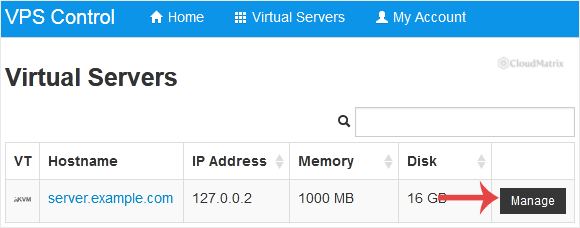
- Click VNC.

- A VNC page opens with the available client options. Click HTML5 VNC Client SSL. This is the option to use: it runs entirely in the browser and carries the session over an encrypted connection.
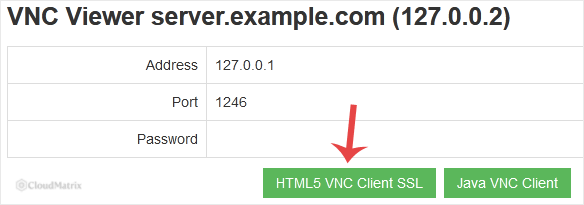
- The console appears in a new window or tab. If it asks for a password, that is the VNC password, not the operating system root password.
- Click once inside the console area to give it keyboard focus, then press Enter. A running server answers with a fresh login prompt or a new shell line. That single keypress is the quickest way to confirm the console is genuinely attached to a live machine rather than showing a stale image.
If pressing Enter changes nothing at all, the VPS is probably not running. Check its power state before assuming the console is broken: see How to Check Whether the VPS Status is "online" or "offline" in SolusVM and, if needed, How to Start/Boot Your VPS in SolusVM.
Working Inside the Console
The console is a live attachment to a running machine. Every keystroke goes straight to the server, with no shell history, no undo, and no confirmation prompt beyond whatever the operating system itself asks. Treat it as though you were standing at the machine with a keyboard in your hands.
The Keyboard Layout Is the Guest's, Not Yours
VNC sends raw key events. The operating system running on the VPS decides which character each event produces, using its own console keymap. A freshly installed Linux system usually defaults to a US layout, so on a UK or Irish keyboard the characters @, ", #, \, and | commonly come out as something else. Passwords fail silently as a result, because nothing is echoed while you type them.
The reliable trick is to type the password into the username field first, where the characters are visible, confirm each symbol arrives as expected, then clear the field and log in properly. If symbols are being mangled, log in with an alphanumeric account or set a temporary alphanumeric password, then fix the keymap from inside the system.
Key Combinations Your Own Computer Steals
Some combinations never reach the browser at all because your own operating system or window manager claims them first. Ctrl+Alt+Del is the usual example, and on many desktops so are the Windows or Command key, Alt+Tab, and the function keys. Browser shortcuts such as Ctrl+W and Ctrl+T are also intercepted before the console sees them, so a stray Ctrl+W closes the console rather than the window you meant to close inside it.
If the console toolbar offers a control for sending special key combinations to the guest, use that. Otherwise, do not try to force a restart through the keyboard: use the panel instead, as described in How to Reboot/Restart VPS in SolusVM.
A Blank Screen Is Usually Not a Fault
Linux blanks its text console after a period of inactivity, typically ten minutes. A console that opens on solid black is very often a healthy server with a blanked screen. Press Shift or Enter to wake it. Prefer Shift over a letter key, because a letter key wakes the screen and types the letter into whatever shell is sitting there.
Copy, Paste, and Scrollback Are Limited
Clipboard sharing between your desktop and the console ranges from awkward to absent, so plan on typing commands by hand. Long one-line commands are where mistakes happen, so break the work into short commands. Scrollback is whatever the guest's own console buffer holds, usually reachable with Shift+Page Up, and it is cleared when the machine reboots. If you need to read a long log, page through it with less or narrow it with journalctl filters rather than scrolling.
Log Out Before You Close the Tab
Closing the browser tab ends your VNC session, but it does not end the login session on the virtual screen. The shell stays logged in on that tty, and the next person to open the console sees it exactly as you left it, root prompt included. Always type exit or logout at the console before you disconnect. This is the single most commonly missed step in VNC hygiene, and it turns a password-protected console into an open door.
For the same reason, treat the VNC password as a root-equivalent credential. Change it if it has ever been shared, reused, or written into a ticket: see How to Change the VNC Password in SolusVM. It is worth knowing why the SSL option matters here. The classic VNC authentication scheme defined in RFC 6143 is a DES-based challenge and response that uses at most the first eight characters of the password, and the protocol itself carries no transport encryption. A longer VNC password is not more secure than an eight-character one, and a raw VNC connection across the internet exposes both the session and the keystrokes in it. The HTML5 VNC Client SSL option wraps the session in the panel's TLS connection, which is what makes it safe to use from anywhere.
Recovering a Locked-Out VPS from the Console
This is the situation VNC exists for. You will need the operating system root or administrator password, which is not the panel password and not the VNC password. If you no longer have it, reset it first: see How to Change the VPS OS Root/Admin Password in SolusVM.
Work Out Which Layer Is Broken
Once logged in at the console, establish whether the problem is the network, the firewall, or the SSH service, because the fix differs for each. On a Linux VPS:
ip a
ip route
ss -tlnp | grep ':22'
systemctl status sshd
Read them in that order. If ip a shows no address on the public interface, or ip route shows no default route, the problem is networking and nothing else will work until it is fixed. If both look right but ss shows nothing listening on port 22, SSH is not running, and systemctl status sshd (or journalctl -u sshd -n 50) will usually name the reason, most often a syntax error in a config file edited just before the lockout. If SSH is listening and the network is up, the block is almost certainly a firewall rule.
Inspect the Firewall Before Changing It
List the rules that are actually loaded, using whichever tool the system uses:
nft list ruleset
iptables -S
firewall-cmd --list-all
ufw status verbose
Look for a rule that drops or rejects your own public IP address, or a default deny policy with no matching allow rule for port 22. Removing the single offending rule is far better than flushing everything. A flushed firewall leaves the VPS completely exposed, and on a public IP address that exposure is measured in minutes, not hours. If you do flush as a last resort, restore a working rule set immediately afterwards and do not leave the machine in that state overnight.
Make Risky Network Changes from the Console, Not over SSH
The console cannot lock you out, so it is the right place to edit interface configuration, change the SSH port, tighten firewall rules, or apply a new network configuration. The classic failure is applying such a change over SSH and losing the connection mid-command, leaving the machine half-configured and unreachable. Doing the same work at the console removes that risk entirely.
Verify the Fix from Outside
Do not judge success by the absence of errors at the console. From your own machine, prove that the path works end to end:
ssh -v [email protected]Replace 203.0.113.10 with your VPS's own IP address. The -v flag shows where a failed attempt stops: no response at all points at the network or a firewall drop, a refused connection points at SSH not listening, and reaching the authentication stage means the network and firewall are fine and the remaining problem is credentials. Only close the console once an outside connection has succeeded.
Using VNC During an Operating System Installation
An installer has no network configuration and no SSH service, so the console is the only way to interact with it. This is the second main use of VNC, and it applies both to the panel's automated reinstaller and to a manual installation from an ISO image. See How to Reinstall OS Using SolusVM OS-Reinstaller and How to Manually Install/Reinstall an OS using SolusVM for a Customized Installation.
Two practical points. Choose the installer's text mode where it is offered: graphical installers rely on a mouse, and mouse tracking over VNC is frequently offset or laggy because the emulated pointer is a relative device rather than an absolute one, which makes precise clicking tedious. Second, keep the console open for the whole installation. The installer asks questions at unpredictable points, and an unanswered prompt simply waits indefinitely while the installation appears to have stalled.
The Java VNC Client Is Legacy
Older SolusVM panels offer a Java VNC Client alongside the HTML5 one. It ran as a Java applet inside the browser, and it prompted for confirmation before running:
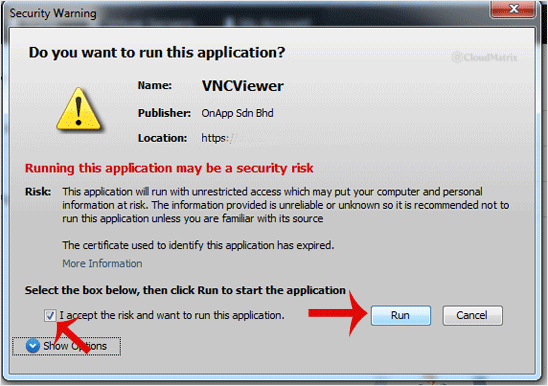
Once accepted, it presented a console window similar to this:
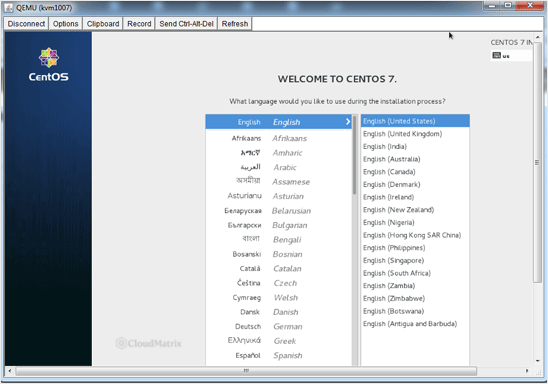
That path no longer works on any current browser, and no amount of configuration will bring it back. Browsers removed the plugin interface that applets depended on, Chrome ending NPAPI support in 2015 (see the Chromium NPAPI announcement) and Firefox following in version 52. Java itself deprecated the Applet API in Java 9 under JEP 289 and removed the browser plugin from the JDK entirely thereafter.
The practical consequence: if you see a Java Blocked message, a missing-plugin message, or a downloaded .jnlp file that does nothing, stop troubleshooting Java. The historical fix of adding the control panel address to the Java exception site list no longer has anything to apply to. Go back and use HTML5 VNC Client SSL instead, which needs nothing installed and is the supported option.
Troubleshooting
- There is no VNC button in the panel: either the VPS uses container virtualisation, which has no emulated display and therefore no VNC console, or VNC has been switched off for that VPS. Check the virtualisation type in the VPS details, then check the setting itself in How to Turn APIC, ACPI, VNC, or PAE On or Off in SolusVM.
- You enabled VNC but the console still will not connect: a change to the virtual hardware is read when the virtual machine process starts, so a reboot from inside the guest is not enough. Perform a full power cycle from the panel: shut the VPS down, wait for the status to show as offline, then start it again.
- The console opens black and stays black: press Shift first, because a blanked screen is the most common cause. If the screen stays black, check whether the VPS is online. A powered-off machine has nothing to display.
- The console asks for a password and rejects the one you have: you are being asked for the VNC password, which is separate from the panel password and the operating system root password. Reset it as described in How to Change the VNC Password in SolusVM, then reconnect. Remember that only the first eight characters of a VNC password are used, so a truncated copy and paste can still succeed while a mistyped fifth character will not.
- The console connects and then drops within a second or two: the virtual machine has usually just been stopped, rebuilt, or migrated, which invalidates the session. Refresh the panel, confirm the current power state, and open the console again.
- The console never loads on one network but works on another: the HTML5 client keeps the session open with a WebSocket connection, and some corporate proxies, captive portals, and older filtering appliances block the WebSocket upgrade. Test from a different network or a mobile connection to confirm, then ask the network administrator to allow it.
- Typed characters are wrong or passwords fail silently: the console keymap on the VPS does not match your physical keyboard. Type the password into a visible field first to see what actually arrives, then correct the keymap inside the operating system.
- The mouse pointer is offset or unresponsive during a graphical installer: switch to the installer's text mode. Relative pointer emulation over VNC rarely tracks accurately, and text mode is faster to drive over a console anyway.
- Ctrl+Alt+Del does nothing: your own computer intercepted it. Use the console toolbar's send-keys control if there is one, or restart the VPS from the panel instead.
Whoever supplied the VPS controls the host node and the VNC service running on it, so if the console itself will not start after the checks above, raise it with that provider's support desk and quote the exact error the browser shows. Noiz clients can open a support ticket with the Noiz support team at any point if something in this guide is unclear.






