This guide shows you how to change the password on your SolusVM control panel account: the credential that signs you in to the panel itself. SolusVM is a VPS control panel, meaning it is the web interface that issues reboot, shutdown, reinstall and console commands to a virtual server. The password covered here is the one that gets you into that interface, and nothing else.
Read this part first, because the distinction catches people out. A VPS normally carries three separate passwords, and changing one has no effect on the other two:
- The SolusVM control panel password (this article). Authenticates you to the panel. No service inside the operating system uses it.
- The VPS root or administrator password. Authenticates you to the operating system itself, over SSH or RDP. See How to Change the VPS OS Root/Admin Password in SolusVM.
- The VNC console password. Authenticates the browser console session that draws the server's screen. See How to Change the VNC Password in SolusVM.
Changing the panel password locks nobody out of SSH, and resetting root does not change how you sign in to the panel. Treat them as three unrelated credentials, and never set one to the value of another.
Last reviewed: 27 July 2026, against the current SolusVM release. This guide is published by Noiz and is kept current against SolusVM. It complements, and does not replace, the official SolusVM documentation linked below.
Official Documentation Reference
- SolusVM Documentation: the vendor documentation set, covering both SolusVM 1 and SolusVM 2.
- Introduction to SolusVM and common notation and glossary: the SolusVM 1 terminology, including what the vendor means by Client, Master Node and Slave Node.
- Two-factor authentication in the Client Area: the second factor you should add once the password is changed.
- SolusVM 2 Quick Start Guide: Customers: the newer customer interface, which is laid out differently from the client area described here.
- NIST SP 800-63B, Digital Identity Guidelines: Authentication and Authenticator Management: the current public standard behind the password advice further down this page.
Prerequisites
- You can already sign in to the panel. The form asks for your current password, so it is a change tool, not a recovery tool. If you cannot sign in at all, skip to Troubleshooting.
- The panel address and the username or email address on the account. These are in the welcome email sent when the service was set up. If you are not sure how to reach the login screen, see How to Log in to SolusVM Control Panel.
- The new password chosen and saved before you start, not invented in the form. See the next section for why.
Choose the New Password Before You Open the Form
The panel account is a higher-value credential than most people assume. Whoever holds it can reinstall the operating system, which wipes the disk, and can open a console session onto the running machine. None of that requires knowing the root password. So the panel login is, in practice, a route to full control of the server and to destroying its data.
Two consequences worth acting on:
- Make it long rather than clever. NIST SP 800-63B sets a minimum of 15 characters for a password used on its own as a single factor. A generated passphrase or a random string from a password manager clears that comfortably. Forced character-class rules (one capital, one symbol) add far less than length does.
- Make it unique to this panel. The panel account can be reset by the administrator who runs the SolusVM installation, so it is not a secret that only you can ever hold. Reusing it as the root password, or as a mail or billing password, spreads that exposure to systems that had nothing to do with it.
Generate and store the new password first, then paste it in. Typing an improvised password straight into a change form is how people end up locked out of a panel five minutes later.
Change the Password in the SolusVM Client Area
Step 1: Sign in and open My Account
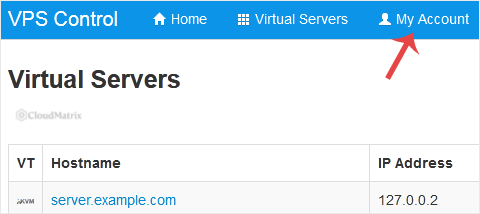
Sign in to the SolusVM control panel, then click My Account on the top navigation bar. This is the single page that holds the account-level settings: the password, the account email address and, on current versions, the two-factor authentication setting.
Step 2: Complete the Change Account Password fields
Find the Change Account Password section and fill in all three fields:
- Current Password: the password you signed in with just now.
- New Password: the password you prepared.
- Repeat New Password: the same value again.
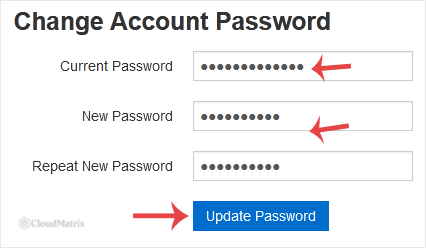
Paste into all three fields rather than typing, and paste the new password into both new-password boxes from the same source. Retyping the confirmation by hand is the most common cause of a rejected change, and a mismatch you cannot see is worse than one you can.
Step 3: Click Update Password
Click Update Password. The change applies to the panel account immediately. Nothing inside the virtual server is touched, no service restarts, and the server keeps running exactly as it was.
Verify That It Actually Worked
Do not take the on-screen confirmation as the end of it. Confirm the change the only way that proves anything:
- Save the new password in your password manager, replacing the old entry rather than adding a second one.
- Sign out of the panel completely.
- Sign back in with the new password. If that succeeds, the change is real.
- Sign out on any other browser or device where the panel was left signed in. Do not assume a password change ends sessions that are already open elsewhere. If your reason for changing the password was that someone else may have had access, closing those sessions is the part that matters.
If your browser offers to save the password, accept it only if the browser is the password manager you actually use. Two stores holding two different values for the same login is a problem you will meet again at the worst moment.
Harden the Account While You Are on the Page
A password change on its own does very little against a determined attacker, and nothing at all if the old password is already in someone else's hands along with a live session. The settings that genuinely raise the bar are on the same My Account page:
- Two-factor authentication. Available to any client account on SolusVM 1 version 1.30.01 and higher, and disabled by default. Enabling it means a stolen password alone is no longer enough. The panel shows eight one-time recovery codes once, and once only, so save them somewhere you can reach without the panel. One caveat the vendor documents: two-factor authentication does not survive an account being imported into SolusVM 2, so if that migration happens you have to enable it again on the new side. Full steps are in the vendor guide.
- A correct account email address. Password reset and alert mail goes to whatever address is on the account, so a stale address quietly breaks your recovery path. See How to Change the SolusVM Account Email Address.
- Login alerts. These tell you when the account is used, which is how you find out about an unwanted sign-in rather than guessing. See How to Enable or Disable the SolusVM VPS Login Alert.
How Often Should You Change It?
Older guidance, including earlier versions of this article, recommended rotating the panel password every ninety days. That advice has since been withdrawn by the standards bodies that issued it. NIST SP 800-63B now states that subscribers shall not be required to change passwords periodically, and that a change shall be forced only where there is evidence the credential has been compromised. Calendar-driven rotation reliably pushes people towards shorter, patterned passwords that they can increment, which is a net loss.
Change the panel password when there is a reason to, for example:
- You shared it with someone, including a developer or contractor who no longer needs it.
- Somebody who had it has left the business.
- You typed it on a machine you do not trust, or on a machine later found to be infected.
- It appears in a breach dataset, or your password manager flags it as reused or exposed.
- You see a sign-in you cannot account for.
Otherwise, a long unique password plus two-factor authentication beats any rotation schedule.
If the Panel Does Not Look Like the Screenshots
The My Account layout above is the SolusVM 1 client area. SolusVM 2 gives customers a different interface, built around projects and servers rather than a single account tab, and its account settings are not in the same place. If what you see does not match, check the SolusVM 2 customer documentation instead. The three-passwords distinction at the top of this page still holds in either version.
Troubleshooting
Symptom: the form rejects your current password, but you are certain it is right. You are signed in, so the password does work. The usual causes are a stale value pasted in by browser autofill, a trailing space picked up when copying, Caps Lock, or a different keyboard layout on the machine you are using. Clear the field completely and type the current password by hand once, as a test.
Symptom: the change fails on a mismatch you cannot see. Clear both new-password fields and paste the same value into each from your password manager. Do not retype the second one.
Symptom: you cannot sign in at all, so you cannot reach this form. This page requires the current password and cannot help you. Use the password reset link on the panel login screen if the operator of that installation has enabled it. If there is no reset link, or the reset mail never arrives, contact whoever issued the panel account: an administrator can reset a client password from the administrator side. The support contact for the service is in your welcome email.
Symptom: the panel password changed, but SSH still rejects the new password. Expected. SSH authenticates against the operating system, which never sees the panel password. Change the root or administrator password instead, using How to Change the VPS OS Root/Admin Password in SolusVM.
Symptom: the panel signs you in, but the VNC console then asks for a password you do not recognise. Also expected. The console has its own credential. See How to Change the VNC Password in SolusVM.
Symptom: you changed the password because you think someone else had access. The new password is the smallest part of the response. Anyone who reached the panel could have opened a console session or reinstalled the operating system, so treat the server itself as suspect: enable two-factor authentication, sign out every other session, change the root password, review the accounts and SSH keys on the server, and check what has been running on it.
Getting Help
If you are unsure which of the three passwords you actually need to change, work through the list at the top of this page first, since that settles most cases. If you are locked out of the panel altogether, the reset has to come from the administrator of the SolusVM installation, using the support contact in your welcome email. For anything to do with your Noiz hosting account, the Noiz support team is available through the client area at www.noiz.co.za.






