This guide shows you how to change the VNC password on a VPS from the SolusVM control panel. The VNC password is the credential that guards the browser console: the virtual screen and keyboard attached directly to your server. It is also the password most often confused with the other two a VPS carries, so the first job is making sure you are about to change the right one.
A VPS normally has three separate passwords, and changing one does nothing to the other two:
- The SolusVM control panel password. Signs you in to the panel itself. See How to Change the SolusVM Control Panel Password.
- The VPS root or administrator password. Authenticates you to the operating system over SSH or RDP, and at the console login prompt. See How to Change the VPS OS Root/Admin Password in SolusVM.
- The VNC password (this article). Authenticates the console connection, before the operating system has shown you anything at all.
The clearest way to tell which one you need: if you are being asked for a password by a login screen that is drawing your server's own boot messages behind it, that is the operating system, so you need the root password. If you are asked for a password before any server screen appears, while the console is still connecting, that is the VNC password and this is the right page.
Last reviewed: 27 July 2026, against the current SolusVM release. This guide documents the SolusVM control panel itself and is kept current against SolusVM. It complements, and does not replace, the official SolusVM documentation linked below.
Official Documentation Reference
- SolusVM Documentation: the vendor documentation set, covering both SolusVM 1 and SolusVM 2.
- SolusVM 1 Client Area: the panel generation whose virtual server page carries the VNC Password section shown in the screenshots below.
- SolusVM 2 Quick Start Guide: Customers: the newer customer interface, which is laid out differently from the client area described here.
- RFC 6143 section 7.2.2, VNC Authentication: the specification that defines what a VNC password actually is, and the limits this article explains.
- NIST SP 800-63B, Digital Identity Guidelines: the current public standard behind the advice on choosing and rotating passwords.
Prerequisites
- Access to the SolusVM control panel. The panel address, username and password are in the welcome email sent when the VPS was provisioned. If you cannot reach the login screen, see How to Log in to SolusVM Control Panel.
- A VPS that has a VNC console at all. VNC needs an emulated display adapter, which full virtualisation provides and container virtualisation does not. Check which type you have in How to Check the RAM of VPS, IP, Disk Capacity and Virtualization Details in SolusVM.
- A window in which the VPS can be restarted. The new password does not apply to a running machine, for reasons explained below.
- The new password decided and saved before you open the form, not invented in the field.
What a VNC Password Actually Is, and Why It Is Unusual
This is worth two minutes, because a VNC password does not behave like the other passwords you manage, and the differences change how you should choose and handle it.
Only the First Eight Characters Are Used
VNC authentication is defined in RFC 6143 section 7.2.2. The server sends a random challenge, and the client encrypts it with DES using the password as the key. In the words of the specification, "the password is truncated to eight characters, or padded with null bytes on the right".
The consequences are practical, not academic:
- A twenty-character VNC password is no stronger than its first eight characters. Everything after character eight is discarded.
- Two passwords that share their first eight characters are the same password as far as the console is concerned.
Correct1horsebatteryandCorrect1stapleboth authenticate against a server expecting either. - If the field lets you paste in something longer, do not assume the extra length is protecting anything. Equally, a copy and paste that silently truncated at eight characters will still work, which can leave you believing a longer password is in place when it is not.
This puts a VNC password permanently below the fifteen-character single-factor minimum that NIST SP 800-63B now sets. You cannot fix that by choosing a better password, because the protocol will not carry one. The right response is to stop treating the VNC password as the thing keeping people out, and to lean on the controls that genuinely do: a strong panel login with two-factor authentication in front of it, and an encrypted console session rather than a raw VNC port.
There Is No Username
VNC authentication has no username field. The password is the entire credential, so anyone who has the string has the console, with no second thing to guess. That is why it should never be shared in a chat message, pasted into a ticket, or reused anywhere else.
The Console Is Root-Equivalent Regardless of the Operating System Password
People often reason that a leaked VNC password is survivable because the attacker still faces the operating system login. On a typical Linux VPS that reasoning does not hold. Someone at the console can interrupt the bootloader during startup and boot the machine to a root shell without any operating system password at all. This is standard, documented behaviour on physical machines, and the VNC console is the virtual equivalent of standing in front of one.
Treat the VNC password as a root-equivalent credential. If it has ever been shared, reused, written into a ticket or sent over an unencrypted channel, change it, and change the root password too.
The Session Itself Is Not Encrypted by This Password
The specification is blunt about the scheme: "This type of authentication is known to be cryptographically weak and is not intended for use on untrusted networks." The password authenticates the connection but encrypts nothing afterwards. Screen content and every keystroke, including the root password you type at the login prompt, cross a raw VNC connection in the clear.
This is why the console option to use is the one that wraps the session in TLS, presented in older panels as HTML5 VNC Client SSL. Opening the console the right way is covered in How to Access VPS via VNC in SolusVM.
Choose the Password Before You Open the Form
Given the eight-character ceiling, the useful rules are narrow but they matter:
- Use eight random characters. Generate them with a password manager rather than inventing them. Eight random characters is the most this credential can hold, so there is nothing to gain from a memorable phrase and a great deal to lose.
- Keep to plain ASCII letters and digits. Accented characters, symbols outside the basic set, and anything non-Latin can be encoded differently by different VNC clients, which produces an authentication failure that looks exactly like a wrong password. Restricting yourself to
AtoZ,atozand0to9removes an entire category of failure for a trivial loss of entropy. - Never reuse the panel password or the root password here. They protect different things and they leak in different ways. Setting all three to the same value means one exposure hands over everything.
- Store it in your password manager as a distinct entry, labelled so nobody in your team mistakes it for the root password later. Naming it after the VPS and the word "VNC" is enough.
Change the VNC Password
Step 1: Sign in and select the VPS
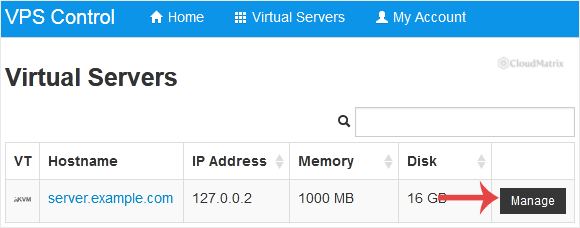
Log in to the SolusVM control panel. If the account holds more than one VPS, select the one you want to work on. The VNC password is per virtual server, not per account, so changing it on one VPS leaves every other VPS on the account untouched.
Step 2: Find the VNC Password section
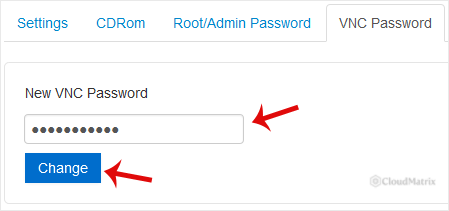
Scroll down the virtual server management page to the VNC Password section. It sits alongside the other per-server settings rather than under the account settings, which is the usual reason people cannot find it: they look under My Account, where the panel password lives, and conclude the option is missing.
Step 3: Enter the new password and click Change
Enter the new password in the field and click Change. There is no "current password" field to complete, because the panel is setting the value rather than verifying you know the old one. That is another reason panel access is the real security boundary here.
Step 4: Confirm
Click Yes to confirm. The panel reports the change immediately. At this point the new password is recorded in the VPS configuration, but it is not yet in force, which is the subject of the next section and the single most common reason people think this procedure has failed.
Restart the VPS, or the Change Does Nothing
The VNC password is a property of the virtual machine's emulated display, and that display is configured at the moment the virtual machine process starts on the host node. Saving a new password writes it to the configuration for next time. It does not reach into a virtual machine that is already running.
Two things follow, and the second one catches out experienced administrators:
- Until the VPS is restarted, the console continues to accept the old password. If you changed it because it may have been exposed, the exposure is still live until the restart happens. Do not close the ticket at step 4.
- A reboot issued from inside the operating system is not sufficient. Typing
rebootover SSH restarts the guest, but the virtual machine process on the host node keeps running throughout, and it keeps the display configuration it started with. The restart has to be issued at the virtualisation layer.
The reliable method is a full power cycle from the panel: shut the VPS down, wait until the status actually reads offline, then start it again. The panel's reboot option is usually enough as well, but a stop followed by a start is the one that always works, and it is worth the extra thirty seconds when the whole point of the exercise is that the old password must stop working.
Shut the operating system down cleanly first if you can. A forced power cycle is the equivalent of pulling the plug, and it risks the same filesystem damage.
Verify That It Actually Worked
The panel's confirmation message tells you the value was saved, not that it is in effect. Prove it:
- After the VPS has restarted and shows as online, open the console. See How to Access VPS via VNC in SolusVM.
- Enter the new password when prompted. The console should connect.
- Now do the test most people skip. Disconnect, open the console again, and try the old password. It must be rejected. If the old password still connects, the virtual machine process was never restarted, and everything you did at step 4 is still pending.
- Click once inside the console and press Enter to confirm you have reached a live machine rather than a stale image.
- Type
exitorlogoutbefore closing the tab if you logged in to the operating system. Closing the browser tab ends the VNC session but leaves the shell logged in on the virtual screen, waiting for whoever opens the console next.
Step 3 is the one that separates a completed change from a change you only believe you made.
When to Change the VNC Password
NIST SP 800-63B withdrew the old advice to rotate passwords on a calendar. Change this one when there is a reason, and the reasons are more common than for most credentials because of how consoles get used:
- You gave it to a support engineer, contractor or developer to fix something, and the work is finished.
- It was pasted into a ticket, a chat channel, an email or a shared document, all of which retain it long after the incident.
- Somebody who had it has left the business.
- You connected with a plain VNC client over the internet rather than the encrypted console option.
- You inherited the VPS from someone else and do not know who else holds the password. Change it as part of taking over, along with the panel password and the root password.
Because a VNC password is one of the routine credentials handed out during troubleshooting, rotating it after any support engagement that touched the console is a sensible habit rather than an overreaction.
If the Panel Does Not Look Like the Screenshots
The layout above is the SolusVM 1 client area. SolusVM 2 presents customers with a different interface, organised around projects and servers, and its console settings are not in the same place. If what you see does not match, work from the SolusVM 2 customer documentation instead. Everything on this page about what a VNC password is, the eight-character limit and the restart requirement applies to either version, because those come from the protocol and the virtualisation layer rather than from the panel.
Troubleshooting
Symptom: there is no VNC Password section on the page. Either the VPS uses container virtualisation, which has no emulated display and therefore no VNC console, or VNC is switched off for that server. Check the virtualisation type in the VPS details, then check the setting itself in How to Turn APIC, ACPI, VNC, or PAE On or Off in SolusVM. Some installations also hide the option from client accounts, in which case the administrator who issued the account has to make the change.
Symptom: the old password still works after the change. The virtual machine process has not been restarted. A guest reboot does not do it. Perform a full stop and start from the panel, wait for the status to read offline in between, and test again.
Symptom: the new password is rejected. Check the obvious first: the console is asking for the VNC password, not the root password, and not the panel password. After that, suspect truncation. If you set a password longer than eight characters, try just its first eight. If it contains symbols or accented characters, set a fresh eight-character alphanumeric password and try again, since character encoding differences between VNC clients produce failures that are indistinguishable from a wrong password.
Symptom: the console asks for a password you never set. A VNC password may have been set when the VPS was provisioned, or by whoever administered it before you. You do not need to recover it. Set a new one with the procedure above and restart the VPS.
Symptom: the console connects without asking for any password. That is normal in installations where the console is reached through an authenticated panel session, so the panel login is doing the authenticating. It also means your panel password and its second factor are the only things standing between the internet and a console on your server. If two-factor authentication is available on the account, this is the reason to switch it on: see How to Change the SolusVM Control Panel Password.
Symptom: the password field will not accept the length you want. Expected behaviour rather than a fault. Panels commonly cap the field at eight characters to match what the protocol uses. Use eight random alphanumeric characters.
Symptom: you changed the VNC password because you think someone had console access. The password is the smallest part of the response. Anyone with console access could have booted the machine to a root shell, added an account or installed an SSH key, none of which a new VNC password removes. Change the root password and the panel password as well, then review the user accounts, the authorised SSH keys and the services running on the server.
Getting Help
If you are unsure which of the three passwords you need, work back through the list at the top of this page, which settles most cases. For anything to do with your Noiz hosting account, the Noiz support team is available through the client area at www.noiz.co.za. For a control panel issued by another provider, the host node and the console service belong to that provider, so use the support contact given in the welcome email for that service and quote the exact message the console shows.






