This guide explains how to restart a VPS from the SolusVM control panel and from inside the operating system over SSH, and, more importantly, how to choose between the two ways a virtual machine can be restarted. A restart is sometimes called a reboot, a power cycle, or a reset, and those words are not interchangeable: one of them shuts the operating system down properly first, and one of them does not. Getting that choice wrong is the single most common way people turn a slow VPS into a broken one. This article is for anyone with access to a VPS managed through SolusVM, whether that is an end user in the client area or an administrator working on a customer's virtual server.
Last reviewed: 27 July 2026, against the current SolusVM release. This guide is maintained by Noiz and is kept current against SolusVM. It complements, and does not replace, the official SolusVM documentation linked below.
Official Documentation Reference
- SolusVM Documentation: Introduction to SolusVM, Common Notation and Glossary, the entry point for the legacy SolusVM 1 documentation set that the classic client area belongs to
- SolusVM Documentation: Customers Quick Start Guide, the customer-side workflow in the newer SolusVM interface, including how servers are created and connected to
- SolusVM Documentation: Glossary, the official definitions of terms such as compute resource, management node, and virtual server
- SolusVM Documentation: Recovering Inaccessible Servers with Rescue Mode, for the administrator-side recovery path when a virtual server will not boot at all
- Linux manual page:
shutdown(8), the authoritative reference for the command-line method described below - systemd manual:
systemctl, coveringsystemctl rebootand the related power state commands on systemd-based Linux distributions
Prerequisites
- Access to log in to the SolusVM control panel. The address you log in at is given in the welcome email for your VPS.
- For the command-line method, an SSH client and root or
sudoaccess on the VPS itself. - A rough idea of what the VPS is currently doing. A restart during a package upgrade, a database import, or an OS reinstall is far riskier than a restart on an idle server.
Graceful Restart Versus Forced Reset
SolusVM can restart a virtual server in two fundamentally different ways, and the panel does not always make the difference obvious. Understanding what each one does at the hypervisor level is the whole point of this article.
What a graceful restart actually does
A graceful restart asks the operating system to shut itself down, then brings it back up. On a KVM or Xen HVM virtual server, SolusVM signals the guest with an ACPI power event, which is the virtual equivalent of briefly pressing the power button on a physical machine. The guest sees that event and runs its normal shutdown sequence:
- Running services are told to stop, so databases close their tables, web servers finish or abandon in-flight requests, and mail queues are written to disk rather than left in memory.
- Filesystem write buffers are flushed to disk. Linux does not write every change to disk immediately, so this step is what turns "the application thinks it saved the file" into "the file is actually on the disk".
- Filesystems are unmounted cleanly and marked clean, so the next boot does not need to repair them.
- Only then does the machine reset and boot again.
This is the correct choice in almost every situation, including applying a kernel update, clearing a memory leak, or recovering a server that is sluggish but still responding.
The catch is that a graceful restart depends on the guest actually hearing and acting on the request. It will silently do nothing if ACPI is disabled for the virtual server, if the guest has no software listening for power events, or if the operating system is so badly hung that it cannot respond. Modern Linux distributions using systemd handle ACPI power events natively; older systems rely on the acpid daemon being installed and running. If your graceful restarts never take effect, check the ACPI setting for the virtual server in SolusVM before assuming the panel is broken.
Container-based virtual servers such as OpenVZ work differently. There is no BIOS or ACPI layer inside a container, so the host stops and restarts the container's init process directly. The practical effect is the same, and it is still the graceful path.
What a forced reset actually does
A forced reset, also described as a hard reset or a power cycle, cuts virtual power to the machine and starts it again. Nothing inside the guest is consulted. It is the exact equivalent of pulling the plug out of the wall on a physical server. Because none of the shutdown sequence runs, everything that sequence protects is at risk:
- Unwritten data is lost. Anything sitting in a write buffer when the power is cut never reaches the disk. Files that an application reported as saved seconds earlier can come back empty or truncated.
- Filesystems are left dirty. Journalling filesystems such as ext4 and XFS will usually replay their journal and recover, but a dirty filesystem can also trigger a full
fsckat the next boot, which on a large disk can take a long time and, on a serious inconsistency, will stop and wait for a human answer at the console. - Databases have to run crash recovery. InnoDB tables in MySQL or MariaDB normally survive this, at the cost of a slower start. MyISAM tables frequently do not and need repairing by hand.
- Interrupted package operations leave the OS half-configured. A reset in the middle of an
aptordnftransaction can leave packages unpacked but not configured, which on Debian and Ubuntu is what produces the familiardpkg --configure -arecovery step. - An interrupted OS reinstall is usually unrecoverable. If SolusVM is part-way through writing a fresh operating system to the disk, a forced reset leaves nothing bootable behind and the reinstall has to be started again from scratch.
A forced reset is a last resort, not a faster alternative. It is justified when the operating system is genuinely hung, ignores a graceful restart, and cannot be reached over SSH or the console. It is not justified because a graceful restart is taking a couple of minutes.
Choosing between them
Work down this list and stop at the first option that works:
- Restart from inside the operating system over SSH. This is the most graceful path available, because the OS is running its own shutdown rather than reacting to an external signal.
- If SSH is unreachable, use Reboot in the SolusVM control panel. This is still a graceful restart.
- If the panel reports the restart as sent but the server never goes down, open the console to see what it is stuck on. The VNC console in SolusVM shows boot and shutdown messages that SSH cannot, including a stalled service or an
fsckprompt waiting for input. - Only then force the machine down and start it again. That is a forced shutdown in SolusVM followed by a boot of the VPS.
If the panel offers snapshots or backups for your virtual server, take one before a forced reset. It costs a few minutes and it is the only thing that makes filesystem damage reversible.
How to Restart a VPS from the SolusVM Control Panel
Use this method when the operating system is unresponsive over SSH, or when you simply prefer the panel. The classic SolusVM client area labels this control Reboot; newer SolusVM interfaces label the same action Restart in the server's power controls. Both send a graceful restart request.
- Log in to your SolusVM control panel using the address in your VPS welcome email.
- If your account holds more than one virtual server, select the one you want to restart. Check the hostname and main IP address before going any further, because nothing in the confirmation step tells you which server you picked.
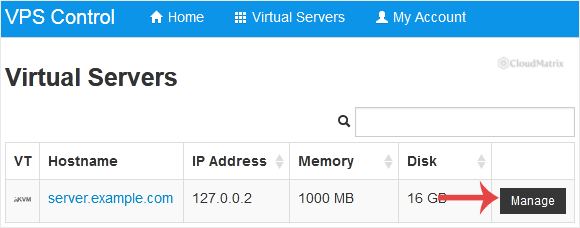
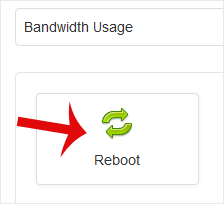
- Click Reboot.
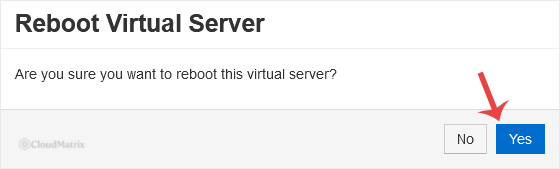
- Choose Yes to confirm. SolusVM queues the request and passes it to the host node that runs the virtual server.
- Wait. The panel confirms that the request was sent, not that the server has finished restarting. A small Linux VPS is typically back within a minute or two; a server with a large filesystem, many services, or a slow-stopping database can take considerably longer.
Two things worth knowing about the panel's behaviour here. First, the status SolusVM reports is the power state of the virtual machine on the host node, not the readiness of the software inside it. A virtual server can show as online in SolusVM while the operating system is still working through its boot sequence and refusing SSH connections. Second, every click queues another task. Clicking Reboot repeatedly because nothing appears to be happening can interrupt a filesystem check that is part-way through repairing a disk, which turns a recoverable problem into a much worse one.
How to Restart a VPS from the Command Line
Restarting from inside the operating system is the cleanest option available, because the OS initiates and controls its own shutdown rather than reacting to a signal from outside. Use it whenever SSH still works.
- Connect to the VPS with your SSH client as root, or as a user with
sudorights. - Run the restart command:
On systemd-based distributions,shutdown -r nowsystemctl rebootdoes the same job and is the more modern form. Both need root privileges, so prefix withsudoif you are not logged in as root.
Your SSH session will drop the moment the shutdown starts. That is expected and is not a sign of a problem.
If other people use the server, give them warning rather than restarting underneath them:
shutdown -r +5 "Restarting for scheduled maintenance"That schedules the restart five minutes out and broadcasts the message to logged-in users. If you change your mind, cancel it before the timer expires:
shutdown -cOne caveat that catches people out: a command-line restart is only as graceful as the operating system's ability to complete it. If a service refuses to stop, or a network filesystem mount has hung, the shutdown can stall part-way through and leave the server neither properly up nor properly down. At that point SSH is already gone and the panel is your only remaining route, which is exactly the situation the console is for.
One more thing that is specific to virtualisation. On KVM and Xen HVM virtual servers, a restart loads whatever kernel the guest has installed, so a restart is how a kernel update takes effect. On container-based virtual servers such as OpenVZ, the kernel belongs to the host node and is shared, so restarting the container will never give you a different kernel no matter how many kernel packages you install inside it.
How to Confirm the Restart Actually Happened
"It seems to be working again" is not confirmation. Once SSH accepts connections, check three things:
- Confirm the machine really restarted, rather than the network briefly dropping:
uptime -p
who -b
uptime -pprints how long the system has been running, andwho -bprints the timestamp of the last boot. Both should reflect the restart you just performed. - Confirm nothing failed to start. On systemd distributions:
An empty list is what you want.systemctl list-units --failed - Confirm the services you actually depend on came back, for example your web server, database, and mail service:
Substitute the service names your server uses.systemctl status nginx systemctl status mariadb
This last check is worth more than it looks. A service that was started by hand and never enabled will run perfectly until the first restart, then quietly fail to come back. That is the real reason a great many sites go down "after a reboot". Where a service should always start at boot, make it explicit:
systemctl is-enabled nginx
systemctl enable nginx
The first command reports whether the service is set to start automatically; the second sets it. Doing this once, on a working server, saves an outage later.
Troubleshooting
- You clicked Reboot and nothing happened at all: the guest is not acting on the restart request. Check that ACPI is enabled for the virtual server in SolusVM, and, on an older Linux distribution, that
acpidis installed and running. If both are correct, the operating system is likely hung and will need a forced shutdown followed by a boot. - The VPS has not come back after 5 to 10 minutes: open the VNC console before doing anything else. The console shows the boot messages that SSH cannot, and the cause is usually visible there: a filesystem check in progress, a service blocking the boot, a prompt waiting for input, or a bootloader that cannot find a kernel. Forcing another reset without looking first risks interrupting a repair that would have finished on its own.
- The panel shows the VPS as online but SSH refuses to connect: the virtual machine is powered on but the operating system is not finished booting, or the SSH service did not start. Give it a few more minutes, then use the console to log in locally and check
systemctl status sshd. A full disk is a common cause of services failing to start after a restart, so check withdf -hwhile you are there. - Everything came back except one website or database: the service behind it is almost certainly not enabled at boot. Check with
systemctl list-units --failedandsystemctl is-enabledfor the service in question, then enable it so the next restart is clean. - The server boots into a filesystem repair prompt: this is the normal aftermath of a forced reset. Answer the prompt at the console rather than resetting again. If the repair reports data loss, restore the affected files from your most recent backup.
- MySQL or MariaDB will not start after a forced reset: check the database error log for crash recovery messages. InnoDB usually recovers on its own; MyISAM tables often need repairing explicitly. Restore from backup if recovery cannot complete.
- You restarted while an OS reinstall was running: the disk is very unlikely to hold a usable system. Start the reinstall again rather than trying to repair the result.
If a restart leaves your VPS unreachable and the panel controls are not recovering it, escalate to the team that runs the SolusVM master server for your VPS, whose contact details are in your VPS welcome email. Noiz clients can open a support ticket with the Noiz support team; include the VPS hostname and main IP address, the time the restart was issued, whether it was a graceful restart or a forced reset, and anything visible on the VNC console.






