This guide explains how to reinstall the operating system on a VPS from the SolusVM control panel, what a reinstall actually does at the disk level, and the checks that separate a clean rebuild from a lost weekend. The same action is described in different places as a reinstall, a rebuild, an OS reinstall, or a reimage, and they all mean the same thing: SolusVM discards what is currently on the virtual server's disk and writes a fresh operating system template in its place. This article is for anyone with access to a VPS managed through SolusVM, whether that is an end user in the client area or an administrator working on a customer's virtual server.
Warning: a reinstall destroys everything on the virtual server. Websites, databases, mailboxes and stored mail, user accounts, SSH keys, cron jobs, TLS certificates and their private keys, firewall rules, application data, and any installed software are all erased. Nothing is moved to a recycle bin and there is no undo button in the panel. Take a full backup, copy it off the virtual server, and confirm you can read it back before you start. If you cannot answer the question "where exactly is my backup and have I opened it?", you are not ready to reinstall.
Last reviewed: 27 July 2026, against the current SolusVM release. This guide is maintained by Noiz and is kept current against SolusVM. It complements, and does not replace, the official SolusVM documentation linked below.
Official Documentation Reference
- SolusVM Documentation: Customers Quick Start Guide, the customer-side workflow in the newer SolusVM interface, including how servers are created and connected to
- SolusVM Documentation: Glossary, the official definitions of terms such as OS image, compute resource, and virtual server
- SolusVM Documentation: Custom Templates, what an operating system template is and how the list you choose from is built
- SolusVM Documentation: Single Partition Templates, the reason a freshly reinstalled disk sometimes appears smaller than the plan allows
- SolusVM Documentation: Automated Backups for VPS, the provider-side backup mechanism in the classic interface
- SolusVM Documentation: Backing Up and Restoring Servers, the equivalent in the newer interface, including what a provider-side backup does and does not cover
- SolusVM Documentation: Rebuild Virtual Server (API), the API call behind the panel button, useful if you need to script a rebuild
- Linux manual page:
ssh-keygen(1), the authoritative reference for clearing the stale host key your SSH client will complain about afterwards
Prerequisites
- Access to log in to the SolusVM control panel. The address you log in at is given in the welcome email for your VPS.
- A verified, off-server backup of everything you intend to keep. This is not optional and it is covered in detail below.
- A note of the virtual server's hostname and main IP address, so you can be certain which server you are about to wipe.
- A password manager or other secure place to store the new root password that SolusVM displays once and does not display again.
- A maintenance window. Everything the server hosts is offline from the moment the reinstall starts until you have rebuilt and restored it, which is almost always longer than the reinstall itself.
What a Reinstall Actually Does
Understanding the mechanism removes most of the surprises. SolusVM does not repair, upgrade, or reset your operating system. It throws the current disk contents away and lays down a prepared operating system template in their place, then generates a new administrator password and hands it to you.
What is destroyed
Assume the entire filesystem is gone, because it is. In practice the losses people underestimate are:
- Configuration you forgot you changed. Web server virtual hosts, PHP settings, mail routing,
sudoersentries, systemd unit overrides, and everything else under/etc. - Credentials and keys. Authorised SSH public keys, private keys used to reach other servers, API tokens in application configuration files, and TLS private keys. A certificate without its private key is useless, so exporting only the certificate is a common and painful mistake.
- Scheduled work. User and system crontabs, systemd timers, and the scripts they call.
- Mail that only exists on the server. Mailboxes held locally, plus anything sitting in the mail queue.
- Installed control panel software. A licence tied to the IP address may well survive, because the IP does not change, but the software and everything it managed is gone and has to be installed again from scratch.
If the virtual server has more than one disk attached, do not assume the extra one is safe. Treat every disk attached to the server as at risk and back it up too.
What survives
The virtual server itself is not deleted, so the container around the operating system stays intact:
- The virtual server keeps its IP addresses, so your DNS records and reverse DNS remain valid and there is nothing to update at the registrar or DNS provider.
- The plan resources stay the same. CPU, memory, disk allocation, and bandwidth limits are properties of the virtual server, not of the operating system on it. You can confirm them afterwards by checking the RAM, IP, disk capacity and virtualisation details in SolusVM.
- The hostname recorded in SolusVM is kept, and most templates apply it to the new system during the first boot. Check it once the server is up and change the hostname in SolusVM if it did not take.
- Your SolusVM login is unaffected. Reinstalling the operating system has nothing to do with the panel account you signed in with.
One important consequence of the IP addresses surviving: if the server had additional IP addresses beyond the main one, the fresh operating system is usually configured with the main IP only. The extra addresses are still assigned to the virtual server in SolusVM, but you will often have to add them to the new system's network configuration by hand before they respond.
How it differs by virtualisation type
The end result is the same, but the timing and the mechanics are not. On container-based virtual servers such as OpenVZ, the host destroys the container's filesystem and extracts a fresh template into it, which is usually quick because it is a file-level operation. On full virtualisation such as KVM and Xen HVM, the host writes a disk image over the virtual disk, which is a block-level operation and takes longer on larger disks. SolusVM reports that the installation can take up to 10 minutes; a small container is often finished in well under that, and a large virtual disk can take longer.
The rule that matters in both cases is the same: do not interrupt a reinstall. A reboot or a forced power cycle part-way through leaves a disk that is neither the old system nor the new one, and nothing bootable on it. The recovery from that is to start the reinstall again, so clicking the power controls out of impatience only costs you more time.
Back Up Before You Start
A reinstall is the one panel action where a missing backup is unrecoverable. Provider-side backups or snapshots may exist for your virtual server, but do not rely on an assumption. Confirm what exists, how old it is, and how it would be restored, before you wipe anything.
What to capture
Work through this list rather than trusting memory:
- Website files and application code, including anything outside the obvious web root.
- Database dumps, taken with the database's own tooling rather than by copying its data directory while it is running. A file-level copy of a live database is frequently unusable.
- Mail data, if mail is hosted on this server.
- The whole of
/etc, or at minimum the configuration for every service you run. - Crontabs for every user, not just root.
- TLS certificates and their private keys, along with any certificate authority account data.
- Authorised SSH keys, and a list of which users had access.
- A written note of installed packages and versions, so the rebuilt server can be brought back to a known state.
Verify the backup before you wipe anything
Copy the backup off the virtual server, to your own machine or to separate storage. A backup stored on the disk you are about to erase is not a backup. Then actually open it: list the contents of the archive, and check that the database dump ends in a complete statement rather than being truncated. Restoring is the only real test, but reading the archive catches the majority of failures, and those failures are common. Backup scripts that have been silently failing for months are one of the most frequent causes of data loss during an otherwise routine reinstall.
One further caution if you are reinstalling because the server was compromised. A clean operating system does not help if you restore the attacker's foothold along with your data. Restore only content you have inspected, rebuild configuration by hand rather than copying it back wholesale, and rotate every credential the server held, including passwords and API keys used by applications on it.
Choosing an Operating System
The list of operating systems you can pick from is not a list of everything that exists. It is the set of templates or images made available for your virtual server by whoever runs the SolusVM master server, filtered by the virtualisation type. That has two practical consequences.
First, template lists tend to accumulate. Old entries are often left in place long after the distribution behind them has reached end of life, and an end-of-life release receives no security updates at all. CentOS 8, the example used in older versions of this guide, is a case in point: it reached end of life at the end of 2021. Check the current support status of a distribution release with its own vendor before selecting it, rather than picking the entry you recognise.
Second, if the operating system or the exact release you need is not in the list, or you need a custom partitioning scheme, encrypted storage, or a specific installer option, a template reinstall cannot give you that. That is what a manual installation is for: see how to manually install or reinstall an OS using SolusVM for a customised installation, which boots the virtual server from installation media and lets you drive the installer yourself over the console.
How to Reinstall the OS in SolusVM
The classic SolusVM client area presents this as a Reinstall control on the virtual server. Newer SolusVM interfaces present the same operation as a reinstall or rebuild in the server's management screen, with an OS image chooser instead of a template list. The sequence below follows the classic client area.
- Log in to your SolusVM control panel using the address in your VPS welcome email.
- If your account holds more than one virtual server, select the one you want to reinstall. Check the hostname and main IP address now, and check them carefully. Nothing later in this process tells you which server you picked, and the confirmation prompt looks identical whichever one it is.
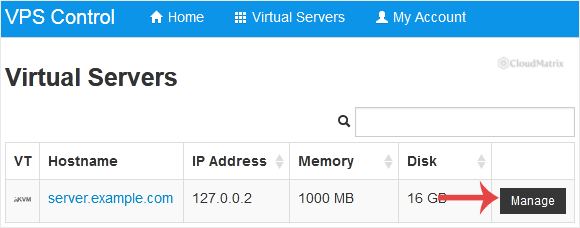
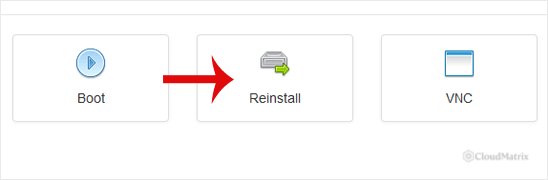
- Click Reinstall.
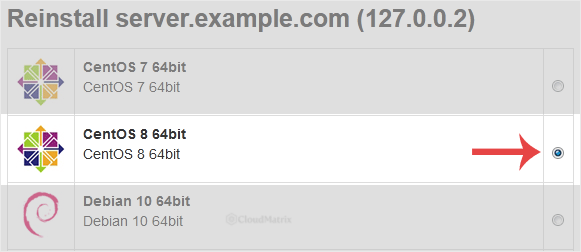
- Select the operating system you want installed. Only the templates available for this virtual server's virtualisation type are shown.
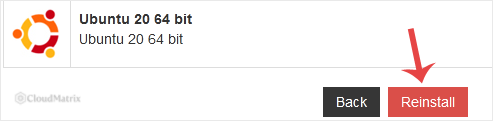
- Scroll to the bottom of the page and click Reinstall. A confirmation box appears. This is the last point at which stopping costs you nothing. Choose Yes to proceed.
- SolusVM reports that the installation can take up to 10 minutes and displays the generated administrator or root password for the new system. Copy that password into a password manager now. It is shown once. If you lose it you are not locked out permanently, because you can change the VPS OS root or admin password in SolusVM, but that is an avoidable extra step.
- Wait for the reinstall to finish without touching the power controls. If you want to watch progress, use the VNC console in SolusVM, which shows the installer and boot output that SSH cannot.
A note on what the panel status means afterwards. Once the virtual server shows as online in SolusVM, that reports the power state of the machine on the host, not the readiness of the operating system inside it. A freshly installed system commonly spends its first boot generating host keys, expanding filesystems, and starting services, and will refuse SSH connections while it does. Give it a few minutes before concluding something went wrong. If the server never boots at all, it can be started from the panel.
After the Reinstall
Clear the old SSH host key
This trips up almost everyone, and it looks far more alarming than it is. The new operating system generated brand new SSH host keys, but your SSH client still remembers the old ones for that IP address and hostname. On connecting you will get a block of warning text beginning:
WARNING: REMOTE HOST IDENTIFICATION HAS CHANGED!That warning exists to flag interception, so never dismiss it blindly. In this specific case, immediately after a reinstall you performed yourself, the change is expected. Remove the stale entry from your own machine's known hosts file and connect again:
ssh-keygen -R 203.0.113.10
ssh-keygen -R server.yourdomain.com
Replace 203.0.113.10 and server.yourdomain.com with your own IP address and hostname; both are examples. Run the command for each name you use to reach the server, because the entries are stored per address. If you connect through a jump host or a shared workstation, the same clean-up is needed there too.
Verify what was actually installed
Do not assume the template gave you what its label promised. Log in over SSH, or over the VNC console if SSH is not answering, and confirm the basics:
cat /etc/os-release
df -h
lsblk
ip -4 addr
Each of these answers a specific question. cat /etc/os-release confirms the distribution and release that actually landed, which occasionally differs from the template name. df -h shows whether the root filesystem is the size your plan allows. lsblk shows the whole disk, so if df reports less space than you pay for, this reveals the unallocated remainder. That mismatch is a known consequence of template partition layout: templates built around a single partition expand to fill the disk cleanly, while multi-partition templates frequently do not, which is why the single partition template documentation exists. ip -4 addr confirms which IP addresses the new system has configured, and is where you will notice that additional IPs need adding by hand.
Secure the fresh system before restoring anything
A newly installed server is at its most exposed in its first hour: it is reachable on a public IP, running whatever the template shipped with, with a password that was displayed in a browser window. Work through this before you put data back on it.
- Change the root password to one of your own, rather than keeping the generated one. You can do this from inside the operating system with
passwd, or from the panel. - Apply all available updates. Templates are built at a point in time and are frequently months behind on security patches:
on Debian and Ubuntu, or:apt update && apt upgrade
on Fedora, Rocky Linux, AlmaLinux, and related distributions.dnf upgrade - Install your SSH public keys, then disable password authentication for SSH once key access is confirmed working. Confirm it works in a second session before closing the one you already have, so that a mistake does not lock you out.
- Configure the firewall. The template's default rules are a starting point, not a policy, and they rarely match the services you are about to run.
- Restore your data and configuration, then enable every service you depend on so that it starts at boot. A service started by hand and never enabled will work perfectly until the first restart, then quietly fail to come back:
Substitute the service names your server actually uses.systemctl is-enabled nginx systemctl enable nginx - Set up backups again. The reinstall removed the backup agent, scripts, and schedules along with everything else, and a server with no backup is exactly how the last emergency started.
Troubleshooting
- There is no Reinstall option, or it is greyed out: client-side reinstall can be disabled for a virtual server by whoever administers the SolusVM master server, and the control is also unavailable while the server is suspended or already running a task. Check with the provider named in your VPS welcome email.
- The reinstall has been running far longer than 10 minutes: open the VNC console before doing anything else. The console shows the installer output, and the cause is usually visible there. Do not power cycle the virtual server to "restart" the process, because interrupting a disk write leaves nothing bootable behind.
- The panel shows the VPS as online but SSH refuses to connect: first boot tasks may still be running, so wait a few minutes. If it persists, log in over the VNC console and check that the SSH service is running and that the firewall is not blocking your source address.
- SSH reports that the remote host identification has changed: this is expected after a reinstall. Clear the stale host key with
ssh-keygen -Ras described above. - The root password shown after the reinstall is not accepted: it was most likely mis-copied, since generated passwords mix similar-looking characters. Reset it from the panel rather than guessing, then log in with the new value.
- The wrong operating system was installed: templates are occasionally labelled inaccurately. Confirm with
cat /etc/os-release, then either reinstall selecting a different template or perform a manual installation from installation media, which puts you in control of exactly what is installed. - The disk is smaller than the plan allows: check
lsblkagainstdf -h. If there is unallocated space, the template's partition layout did not expand to fill the disk. Growing the partition and filesystem is possible, but on a fresh install it is usually simpler and safer to reinstall from a template built for a single partition, if one is offered. - Additional IP addresses do not respond: they are still assigned to the virtual server, but the new operating system was configured with the main IP only. Add them to the network configuration inside the server.
- Your website and databases are gone and you have no backup: a template reinstall overwrites the disk, so there is nothing on the virtual server to recover. Ask whoever runs the SolusVM master server whether a provider-side backup or snapshot exists from before the reinstall. That is the only remaining possibility.
If a reinstall leaves your VPS unreachable and the panel controls are not recovering it, escalate to the team that runs the SolusVM master server for your VPS, whose contact details are in your VPS welcome email. Noiz clients can open a support ticket with the Noiz support team; include the VPS hostname and main IP address, the operating system template you selected, the time the reinstall was started, and anything visible on the VNC console.






