The SolusVM client area can send you an email every time somebody signs in to your account. SolusVM calls this the Login Alert, and it is a single checkbox under My Account. This guide shows you where that checkbox lives, explains exactly what the alert does and does not cover, and gives you a way to confirm the change actually saved.
You may see the same feature referred to as a login notification, a sign-in alert or an email alert on login. Inside SolusVM the label is Login Alert.
Last reviewed: 27 July 2026, against the current SolusVM release. This guide is published by Noiz and is kept current against SolusVM. It complements, and does not replace, the official SolusVM documentation linked below.
Official Documentation Reference
- SolusVM Client Area documentation
- Two-factor authentication in the SolusVM Client Area
- SolusVM Client API overview
- Introduction to SolusVM, notation and glossary
Prerequisites
- A working sign-in to the SolusVM control panel. See How to Log in to SolusVM Control Panel.
- A mailbox you actually read on the address held against the SolusVM account. If it is stale, fix it first: How to Change the SolusVM Account Email Address.
Turn the Login Alert On or Off
Step 1: Sign in to SolusVM
Open your SolusVM control panel address in a browser and sign in with your panel username and password.
Step 2: Open My Account
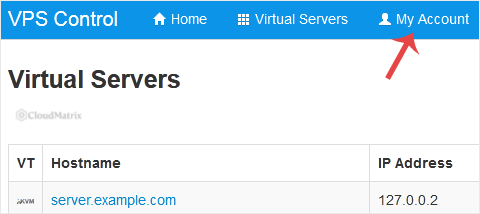
In the top navigation bar, click My Account.
Step 3: Toggle the Login Alert checkbox
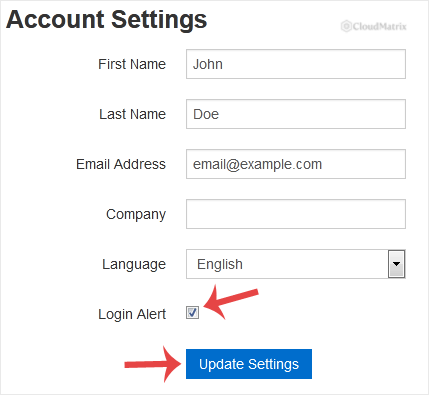
Under Account Settings you will find Login Alert. Tick it to receive an email on every sign-in, or clear it to stop those emails. Save the page if SolusVM presents a save or update button, then reload My Account and confirm the checkbox is in the state you left it. A setting that silently reverts on reload has not saved.
What the Login Alert Actually Covers
This is the part that catches people out, so it is worth being precise.
- It covers the SolusVM panel, not the server. The alert fires when somebody authenticates to your SolusVM client area account. It has no visibility into the operating system running inside your VPS, so an SSH or RDP session straight into the guest will never generate one of these emails. If you want alerting on operating system logins, that is configured inside the guest itself.
- It is a detection control, not a prevention control. The alert does not challenge, delay or block anything. By the time the message lands in your inbox, the session already exists and whoever opened it can act on it.
- It goes to the SolusVM account address only. That address is a property of the SolusVM account and is not necessarily the same address as your billing or hosting account. Changing one does not change the other.
- It is set per account, not per VPS. If one SolusVM account holds several virtual servers, the alert is about the account sign-in, not about any individual server.
Why the Alert Is Worth Keeping On
The value of the alert is proportional to what panel access lets somebody do, and in SolusVM that is a lot. A signed-in session can reboot or forcibly shut down the machine, open a VNC console, change the root password, and reinstall the operating system, which destroys the contents of the disk. None of those actions need the guest password.
In other words, the SolusVM panel is a route around every control you configured inside the server. The Login Alert is the tripwire on that route, and it costs you nothing but one email per sign-in.
When Turning It Off Is Reasonable
There are only two situations where clearing the checkbox is a sensible engineering decision rather than a shortcut:
- Automation is signing in on a schedule. A monitoring script that logs into the client area every few minutes will generate an alert every few minutes, and you will stop reading them within a day. Fix the cause rather than the symptom: SolusVM exposes a client API with its own key, and moving the automation onto the API means it is no longer performing interactive sign-ins at all. See the SolusVM Client API overview.
- Several people share one login. Shared credentials make the alert useless, because every message is ambiguous and you can never tell a colleague from an intruder. Again, the right fix is separate accounts rather than a silenced alert.
If neither of those applies, alert fatigue is not a real reason. Once the alert is off you have no way of learning that your panel credentials have been used until something visible breaks, and by then the reinstall may already have run.
Verify That It Worked
- Sign out of SolusVM properly using the sign-out control rather than just closing the tab, so the session is genuinely ended.
- Sign back in.
- Check the mailbox on the SolusVM account address within a few minutes.
If you enabled the alert, a message should arrive. If you disabled it, nothing should arrive. If the message includes a source IP address, compare it with your own connection so you know what a legitimate alert looks like before you ever have to judge a suspicious one.
Pair It With Controls That Actually Stop a Login
The alert tells you afterwards. These stop the sign-in in the first place, and are worth doing in this order:
- Enable two-factor authentication on the SolusVM account. Even a leaked password is then not enough on its own. SolusVM documents the client-side procedure in Two-factor authentication in the Client Area, including the one-time recovery codes, which are shown once and must be stored somewhere you will still be able to reach if your phone is lost.
- Use a unique panel password that is not reused anywhere else. See How to Change the SolusVM Control Panel Password.
- Treat the VNC password as separate. It is a distinct credential with distinct reach: see How to Change the VNC Password in SolusVM.
Troubleshooting
Symptom: the alert is enabled but no email arrives. Check the address held against the SolusVM account first, since a typo there sends every alert into nothing. Then check the junk or quarantine folder, because automated notifications from an unfamiliar sender are a classic false positive. Finally check for a mailbox rule or forwarder that is filing or discarding the messages before you see them. Add the sender address to your allowed senders once you have identified it.
Symptom: alerts keep arriving after you cleared the checkbox. Reload My Account and confirm the checkbox is genuinely clear rather than showing a cached page state. If it has reverted, the save did not take, and a different browser or a fresh session usually settles it.
Symptom: an alert arrives that you cannot account for. Treat it as a compromise until proven otherwise, and work in this order so you close the panel route first. Change the SolusVM panel password (guide), then the VPS root or administrator password (guide), then the VNC password (guide). After that, review the authentication logs inside the guest operating system, because the panel cannot tell you what happened at that level. Only consider an operating system reinstall (guide) once you have a verified backup, since the reinstall wipes the disk.
Symptom: an alert every few minutes. Something is signing in on a timer. Look for monitoring, uptime checks or a saved browser session refreshing itself, and move that workload onto the client API rather than interactive sign-ins.
Symptom: there is no Login Alert option under My Account. The SolusVM client area is customisable by whoever operates the panel, and account settings can be hidden or restyled, so a missing option is usually presentation rather than a missing feature. Confirm you are on the account settings page itself rather than a customised dashboard view, and raise a support ticket if the option is still absent.
Getting Help
Noiz publishes this guide as part of its VPS and server administration documentation. If you have a question about a service you hold with Noiz, open a ticket from the Noiz client area and the support team will pick it up. Include the SolusVM account address and the approximate time of the sign-in you are asking about, so the request can be actioned without a round trip.






