This guide explains how to change the network card a VPS presents to its operating system from the SolusVM control panel, and, more usefully, how to decide which of the options to pick. The setting is often labelled Network Card, NIC, or NIC driver, and the choices are normally Virtio, Intel PRO, and Realtek. Those are not three brands of hardware, because there is no hardware involved. They are three different ways the hypervisor can pretend to be a network adapter, and the difference between them is worth roughly an order of magnitude in throughput and CPU cost. This article is for anyone with access to a VPS managed through SolusVM, whether that is an end user in the client area or an administrator working on a customer's virtual server.
Last reviewed: 27 July 2026, against the current SolusVM release. This guide is maintained by Noiz and is kept current against SolusVM. It complements, and does not replace, the official SolusVM documentation linked below.
Official Documentation Reference
- SolusVM Documentation: Introduction to SolusVM, Common Notation and Glossary, the entry point for the legacy SolusVM 1 documentation set that the classic client area belongs to
- SolusVM Documentation: Customers Quick Start Guide, the customer-side workflow in the newer SolusVM interface
- QEMU Documentation: Network Emulation, the authoritative list of the emulated adapter models behind the panel's friendly names, including
virtio-net-pci,e1000, andrtl8139 - KVM Project: Virtio, a plain explanation of what paravirtualised devices are and why they exist
- Linux Kernel Documentation: Virtio on Linux, the guest-side driver model that the
virtio_netdriver is built on - virtio-win: KVM Guest Drivers for Windows, the source project for the NetKVM adapter driver that Windows guests need before Virtio will work
- Linux manual page:
ethtool(8), used below to confirm which driver a Linux guest actually loaded
Prerequisites
- Access to log in to the SolusVM control panel. The address you log in at is given in the welcome email for your VPS.
- A hardware-virtualised VPS. The network card selector belongs to full virtualisation, where a virtual machine has its own emulated PCI bus. Container-based virtual servers share the host kernel and its networking stack, so they have no adapter model to choose and the option is simply absent. If you are not sure which type you have, check the virtualisation details for the VPS in SolusVM.
- Console access you have tested at least once. Changing the network card is one of the few settings that can cost you SSH access to your own server, so know how to reach the VNC console in SolusVM before you change anything, not after.
- A maintenance window. The change only takes effect on a full power cycle, so the VPS will be offline for a short period.
What the Network Card Setting Actually Changes
A virtual machine has no network chip in it. The hypervisor runs a device model in software that behaves, from the guest operating system's point of view, like a specific piece of silicon on a PCI bus. The Network Card setting selects which device model gets attached. The guest then probes the PCI bus at boot, sees a particular vendor and device ID, and loads whichever of its own drivers claims that ID.
That is why the setting is effectively a driver choice, and why it can only change while the machine is being built rather than while it is running. It is also why the guest has to already own a driver for whatever you pick, which is the single fact that determines whether the change succeeds or leaves you with no network at all.
Virtio
Virtio is not an emulation of any real network card. It is a paravirtualised interface: the guest knows perfectly well that it is a virtual machine, and instead of pretending otherwise it talks to the host through shared ring buffers in memory. Packets are handed over in batches, and the expensive part of device emulation, trapping out to the host on every register access, largely disappears.
In Linux the driver is virtio_net and it has shipped in the mainline kernel since version 2.6.24, released in January 2008, so every current distribution has it and most build it into the installer image. In Windows it is called NetKVM and it is not part of Windows at all, so it must be installed from the virtio-win driver package before the adapter will work.
Intel PRO/1000
This option emulates an Intel gigabit-class controller, presented to QEMU as the e1000 family. It is the most widely recognised virtual network card in existence: almost every operating system released this century, including Windows installers running from unmodified media, has a driver for it already. That universality is the whole point of it. The cost is that every packet passes through a full register-level emulation of a physical chip, which burns host CPU that Virtio does not.
Realtek RTL8139
This emulates a Realtek Fast Ethernet controller, the rtl8139 model in QEMU. It is a 100 Mbit part, and the emulation is honest about that, so the link tops out around 100 Mbit no matter how much bandwidth the host has available. It exists for compatibility with genuinely old guests that predate reliable gigabit drivers. On anything modern it is the worst of the three: slowest link, heaviest emulation overhead per byte moved. Treat it as a last resort rather than a middle option.
Why Virtio Is Normally the Right Choice
For any current Linux distribution, and for any Windows guest with the virtio-win drivers installed, Virtio is the correct setting and the others are compromises. The reasons are concrete rather than theoretical:
- Throughput is not capped by an imaginary chip. Emulated cards inherit the limits of the hardware they imitate. Virtio has no fixed line rate, so the ceiling is what the host and the network can actually deliver.
- CPU cost per packet is far lower. Emulating a real controller means intercepting the guest's reads and writes to device registers, and each interception is a transition out of the guest. Virtio moves descriptors through a shared queue, so a burst of packets costs a fraction of the transitions. On a small VPS, where CPU is the resource you are most likely to run short of, that difference shows up as headroom for your application rather than as a benchmark number.
- Modern offloads work properly. Checksum offload and segmentation offload let the guest hand over one large buffer instead of many small packets. Virtio supports these cleanly, which is a large part of why bulk transfers such as backups and database replication improve so noticeably.
- It is the path everything else is tested against. Virtio is the default for virtually all KVM-based platforms, so it receives the most testing in both the host stack and the guest kernels.
If the VPS is running a current Linux distribution and the network card is currently set to Realtek, you are leaving a large amount of performance unclaimed for no benefit at all.
When Virtio Is Not the Right Choice
There are real cases where one of the emulated cards is the correct answer. Recognising them beforehand saves an hour on the console:
- The guest has no Virtio driver yet. This is by far the most common failure. A Windows Server installation that has never had virtio-win installed will boot with Virtio selected, find an unknown PCI device, and have no network. Install NetKVM first, while the adapter is still Intel PRO and the machine is still reachable, then switch.
- You are installing an operating system from an ISO. Installers boot with whatever drivers are on the media. Windows installation media does not include NetKVM, so a Virtio adapter is invisible during setup. Install with Intel PRO, add the drivers inside the installed system, then change the adapter. The same caution applies when doing a manual OS installation in SolusVM.
- The guest is old, unusual, or an appliance. Very old Linux kernels, older BSD releases, and firewall or router appliances built on cut-down operating systems may have no Virtio support compiled in. Appliance images in particular are often built for a fixed hardware profile, and Intel PRO is the profile they expect.
- You need to network boot. Booting from the network depends on an option ROM in the adapter's firmware. Support for that is far more consistent on the emulated Intel card than on Virtio, so if PXE is part of your workflow, test before committing.
- You are diagnosing a network fault. Temporarily switching to Intel PRO is a genuinely useful test. If packet loss, stalls, or odd MTU behaviour disappear when the adapter changes, the problem is in the driver or offload path rather than in the network. Switch back afterwards.
Realtek is left over from an era of guests that most people no longer run. Choose it only when a specific operating system refuses to work with the other two.
How to Change the Network Card in SolusVM
Before you start, note which adapter is currently selected and what the working network configuration inside the guest looks like. If the change goes badly, the fastest recovery is putting the old value back, and that only works if you wrote it down.
- Log in to your SolusVM control panel using the address in your VPS welcome email.
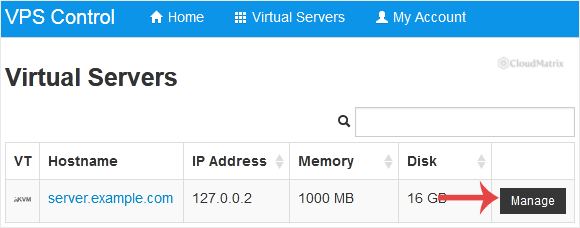
- If your account holds more than one virtual server, select the one you want to change. Check the hostname and main IP address before going any further, because nothing later in the process tells you which server you picked.
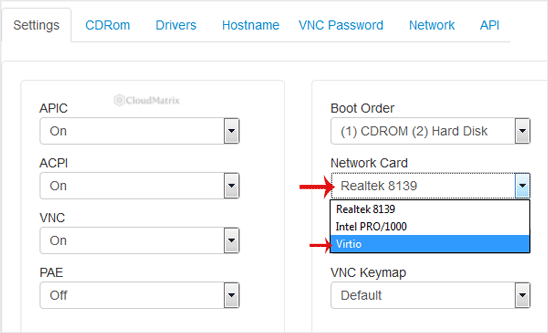
- Scroll down to the Settings tab and find the Network Card option. Select the adapter you want from the drop-down menu. The list is drawn from what the virtualisation type supports, so you may see fewer than three options.
- Save the change. SolusVM records it against the virtual server's configuration on the host node. Nothing happens to the running machine at this point, and the guest still has the old adapter.
- Power cycle the VPS so the virtual machine is rebuilt with the new device. The reliable way to do this is a graceful shutdown from the panel followed by a boot of the VPS. A panel reboot usually achieves the same thing, but a
rebootissued inside the guest operating system will not: that restarts the operating system without ever tearing down the virtual machine, so the old adapter is still there when it comes back.
Two things about this that catch people out. First, the setting may be greyed out or rejected while the VPS is running, because some configurations only accept hardware changes against a stopped machine. If the panel refuses the change, shut the VPS down first, change the setting, then boot it. Second, the option can be hidden by whoever operates the SolusVM master server. If the Network Card option is not on the Settings tab at all, it has been disabled for your account or your virtualisation type, and it will need to be changed for you.
Your IP addresses are not affected by any of this. They are assigned by SolusVM to the virtual server rather than to the adapter model, and the MAC address is normally carried across unchanged. Normally is not always, though, and a changed MAC is the root cause of most of the problems in the troubleshooting section below, so confirm it rather than assume it.
How to Confirm the Change Took Effect
"The site still loads" is not confirmation. The guest may have quietly fallen back, or it may be running on a different interface name than your configuration expects. Check the driver directly.
On a Linux guest, look at what is on the PCI bus and which driver claimed it:
lspci | grep -i ethernet
ip -br link
ethtool -i eth0
Substitute your own interface name in the last command. What you are looking for is:
- Virtio:
lspcireports aVirtio network device, andethtool -ireportsdriver: virtio_net. Do not be alarmed thatethtool eth0reports the speed as unknown. Virtio has no emulated line rate to report, and that is the expected result rather than a fault. - Intel PRO:
lspcireports an Intel gigabit controller, andethtool -ireportsdriver: e1000, with a link speed of 1000 Mb/s. - Realtek:
lspcireports an RTL-8139 controller, and the driver is one of the8139variants, with a link speed of 100 Mb/s.
On a Windows guest, open Device Manager and expand Network adapters. A working Virtio adapter appears as Red Hat VirtIO Ethernet Adapter. A yellow warning icon on an Ethernet Controller under Other devices means the opposite: the adapter is present but Windows has no driver for it, and NetKVM needs installing from the virtio-win package.
Finally, confirm the network itself, not just the driver. Check that the interface has its address, that the default route is present, and that name resolution works:
ip -4 addr show
ip route show default
ping -c 3 1.1.1.1
An interface with a driver loaded but no IP address is the classic symptom of the rename problem described below.
Troubleshooting
- The VPS boots but has no network at all after the change: the guest almost certainly has no driver for the adapter you selected. Open the VNC console, log in locally, and put the old adapter back from the panel. Then install the correct driver while the machine is reachable, and change the adapter afterwards. On Windows this means installing NetKVM from virtio-win before selecting Virtio.
- The adapter is there, the driver loaded, but the interface has no IP address: the interface has been renamed and your configuration is still referring to the old name. On systems using predictable interface names, the name is derived from the adapter's position and identity, so a driver change can turn
eth0intoens3or similar. Runip -br linkat the console to see the real name, then update the network configuration to match, whether that is a netplan file, anifcfgfile, or a NetworkManager connection profile. - The interface came back as
eth1instead ofeth0: this is the older udev persistent naming rule, which binds a name to a MAC address it has seen before. If the MAC changed with the adapter, the old rule keepseth0reserved and the new card is given the next free number. On distributions that still use it, remove/etc/udev/rules.d/70-persistent-net.rulesand reboot so the rule is regenerated. - The old network settings vanished on Windows: Windows binds TCP/IP settings to a specific adapter instance, so a new adapter model appears as a brand new connection with default settings, and the previous one becomes a hidden device that is still holding the static IP. Set the address again on the new adapter. If Windows warns that the address is already assigned to another adapter, show hidden devices in Device Manager and remove the old one.
- The change appears to save but the guest still shows the old card: the virtual machine was never actually rebuilt. An in-guest
rebootdoes not do it. Shut the VPS down from the panel, confirm it reports as offline in SolusVM, then boot it again. - Throughput did not improve after switching to Virtio: confirm the driver first with
ethtool -i, because a guest that silently fell back to the old configuration will look fine until you check. Ifvirtio_netis loaded and throughput is still poor, the bottleneck is elsewhere: the host node, the upstream link, a bandwidth limit applied to the virtual server, or the application itself. Test with something that is not your web stack before drawing conclusions. - The connection is fast but unstable, with stalls on large transfers: suspect offload or MTU behaviour rather than the panel setting. Temporarily selecting Intel PRO is a valid diagnostic. If the instability follows the adapter, the driver or its offload settings are involved; if it does not, look at the path outside the VPS.
- You changed both the network card and the disk driver at once and the VPS will not boot: change one thing at a time. A disk driver the guest cannot use will stop the machine booting entirely, which looks identical to a network problem from the outside. Put the disk driver back first, then deal with the network separately.
If a network card change leaves your VPS unreachable and the console does not get you back in, escalate to the team that runs the SolusVM master server for your VPS, whose contact details are in your VPS welcome email. Noiz clients can open a support ticket with the Noiz support team; include the VPS hostname and main IP address, which adapter you changed from and to, whether the guest is Linux or Windows, and the output of ip -br link from the console.






