This guide shows you how to power a virtual private server back on from the SolusVM control panel, and, just as importantly, how to tell whether the boot actually worked. SolusVM is a virtualisation management panel used by hosting providers to hand VPS customers direct control over their own virtual machines, so that powering a server on does not require a support ticket. People describe this task in several ways: starting the VPS, booting it, powering it on, or bringing it back up after it went offline. In SolusVM they are all the same single action, and the button that performs it is usually labelled Boot. Depending on the SolusVM release and the theme your provider uses, the same control may instead read Start or appear as a power icon; the behaviour underneath is identical.
Last reviewed: 27 July 2026, against the current SolusVM release. This guide is published by Noiz and is kept current against SolusVM. It complements, and does not replace, the official SolusVM documentation linked below. SolusVM's client interface has been reworked between major versions, so a label or an icon may sit differently in your copy; the sequence and the underlying behaviour described here hold across releases.
Official Documentation Reference
- SolusVM Documentation (home): the vendor's documentation hub. If a control in your panel is worded differently from the one described here, search this site for the current wording.
- Quick Start Guide: Customers (SolusVM): the vendor's walkthrough of the customer side of SolusVM, covering logging in, projects, server creation and the ways you can connect to a server once it is running.
- Recovering Inaccessible Servers with Rescue Mode (SolusVM): written for administrators, but worth reading if a server powers on yet the operating system never comes up. It explains the rescue path your provider would use.
- SolusVM Release Notes: the authoritative record of what changed in each release, useful when a control has moved or been renamed since a screenshot was taken.
Prerequisites
- Access to the SolusVM control panel address, username and password issued when the VPS was set up. These arrive in your welcome email; do not guess the panel address. If you are not signed in yet, start with How to Log in to SolusVM Control Panel.
- Confirmation that the VPS is genuinely powered off rather than merely unreachable. See How to Check Whether the VPS Status is "online" or "offline" in SolusVM, and the section below on why this distinction matters.
- If the VPS is already running and you simply want it to come back cleanly, you want a restart instead: see How to Reboot/Restart VPS in SolusVM.
What "Boot" Actually Does
It is worth understanding what you are asking for, because this is the difference between a boot that fixes the problem and one that changes nothing at all.
Boot is a power-on instruction sent to the host machine that runs your virtual server. The panel asks the hypervisor to switch the virtual hardware on. That is the whole of it. It is the exact equivalent of pressing the power button on a physical machine that is currently switched off, and it carries the same limitation: it starts the hardware, and then whatever is installed on the disk takes over. If the operating system on that disk is broken, a boot will start the machine and the machine will fail in exactly the same way it did before.
What happens next depends on the virtualisation type behind your VPS. A full virtual machine, such as a KVM guest, runs a complete start-up sequence: virtual firmware initialises, a bootloader loads, then the kernel starts and the operating system brings up its services one after another. A container-style VPS has no firmware or bootloader stage and starts far more quickly, often in a couple of seconds. This is why two VPS plans on the same panel can behave so differently after you click the same button, and why "it is taking too long" means different things for each.
The critical point for troubleshooting is this: SolusVM reports the power state of the virtual machine, not the health of the operating system inside it. The panel will happily show online for a server whose kernel has panicked, whose disk is full, or whose network configuration is wrong. A power state of online is the floor, not the finish line.
Before You Start: Make Sure It Is Really Off
Check the status in the panel before you do anything. If the status already reads online, clicking Boot will not help you, and in many builds the button is greyed out or simply returns an error saying the server is already running. Reaching for Boot when a server is unreachable but powered on is the single most common wasted step, because the fault in that case is inside the operating system or the network, and no amount of powering on will touch it.
So split the problem in two before you act:
- Status
offline, server unreachable. The virtual machine is switched off. Boot is the correct action, and the rest of this guide applies. - Status
online, server unreachable. The machine is powered on and something inside it, or in front of it, is at fault. Do not boot. Connect to the console over VNC to see what the server is actually doing, using How to Access VPS via VNC in SolusVM, or restart it cleanly using How to Reboot/Restart VPS in SolusVM.
One further check is worth thirty seconds of your time: think about why the server went off. A VPS that you shut down deliberately will boot straight back up. A VPS that switched itself off, or that was switched off by the provider, usually has a reason behind it, such as an unclean shutdown that left the filesystem dirty, an out-of-memory condition, or an account or resource suspension. Knowing which of these you are dealing with tells you whether to expect a clean start or a repeat of the same failure.
Step 1: Sign In to SolusVM
Open the SolusVM control panel using the address in your welcome email, and sign in with the panel credentials issued for the VPS. Note that these are the control panel credentials, which are entirely separate from the root or administrator password of the operating system running inside the VPS. Confusing the two is a frequent cause of failed sign-ins.
Step 2: Select the VPS You Want to Start
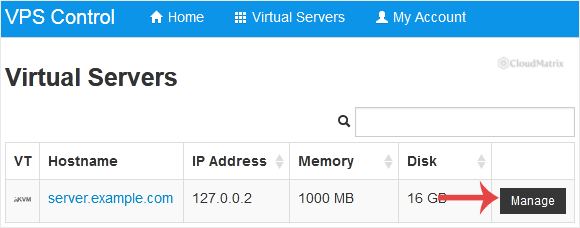
If your account holds more than one virtual server, the panel presents a list or a selector so you can choose which one you are working on. Pick the correct server before you touch any power control. This matters more than it sounds: the power buttons act immediately on whichever server is currently selected, and there is nothing in the confirmation prompt that will save you from having selected the wrong one. Check the hostname or the primary IP address shown alongside the entry, not just its position in the list, because the ordering can change as servers are added or removed.
Step 3: Click Boot
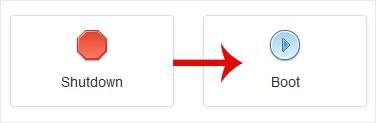
With the correct server selected, click Boot. On panels where the control is worded differently, this is the Start button or the power icon, and it is the only power control that acts on a server that is currently switched off.
Step 4: Confirm the Action
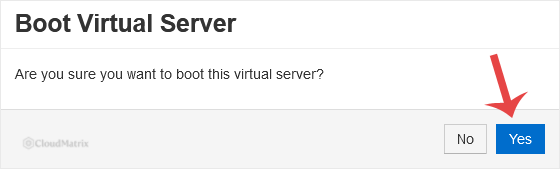
SolusVM asks you to confirm before it sends the instruction. Click Yes. The confirmation step exists because the power controls sit next to each other and act instantly, so read the prompt and check that it names the action you intended and the server you selected.
Once confirmed, click nothing further. The panel queues the instruction with the host machine and reports back when the state changes, which is not instantaneous. Clicking Boot repeatedly does not make the server start faster, and on a busy host it can leave a queue of conflicting power tasks that take longer to clear than the boot itself would have taken.
How Long It Should Take
Expect the power state to flip to online within a few seconds. That is the fast part, because it only reflects the virtual hardware being switched on.
The operating system inside takes considerably longer to become useful. As a rough guide, a container-style VPS is usually accepting connections within five to fifteen seconds, while a full virtual machine typically needs thirty seconds to two minutes to work through firmware, bootloader, kernel and services. A server carrying databases, mail services or a control panel of its own can easily take longer still, because those services start after the network does. So a VPS that answers a ping but refuses an SSH connection twenty seconds after boot is almost certainly still starting, not broken. Give it a couple of minutes before you conclude anything.
One case genuinely does warrant more patience: a server that was forcibly powered off rather than shut down cleanly may run a filesystem check on the way up. On a large disk that can add several minutes, during which the server appears completely unresponsive from outside. This is normal, it is not a fault, and interrupting it by forcing another power cycle is the one thing that can turn a recoverable situation into a damaged one. If you suspect this, watch the console over VNC rather than guessing.
How to Confirm the Boot Actually Worked
Do not rely on the panel alone. Work through these in order, because each one tests something the previous one does not:
- Panel status. Refresh the page and confirm the status reads
online. This proves the virtual hardware is powered on and nothing more. - Network reachability. Ping the server's primary IP address from your own machine. A reply proves the kernel is up and networking is configured. Note that some providers filter ICMP, so no reply here is suggestive rather than conclusive.
- Service reachability. Connect over SSH, or for a Windows guest over RDP. This proves the operating system reached a usable state and started its remote access service.
- Uptime. Once connected, run
uptimeon a Linux server. A value of a few minutes confirms you are looking at a freshly booted machine rather than a stale session or, worse, the wrong server entirely. - Your own services. Load the site or application the VPS exists to run. Services set to start automatically will be up; anything that was started by hand before the outage will not be, and will need starting again.
If the panel says online but steps 2 and 3 fail, the boot succeeded and the problem is inside the operating system. That is the point to open the VNC console, because VNC attaches to the virtual screen and shows you the boot messages, the login prompt or the error that is stopping it, none of which are visible from the network side.
Troubleshooting
- Symptom: the Boot button is greyed out or returns an error saying the server is already running. The server is powered on and the status is
online, so there is nothing to start. If it is unreachable, use VNC to look at the console, or perform a restart rather than a boot. - Symptom: the status flips to
onlineand then straight back tooffline. The virtual machine is starting and then failing or halting immediately. Common causes are a kernel or bootloader that cannot find its root filesystem, a disk that is completely full, or a guest configuration change made since the last successful boot. Open the VNC console and boot again while watching the screen; the failure message on the console is what identifies the cause. - Symptom: it will not boot at all, and the panel reports an error from the host. This usually points at something outside your control, such as the host machine being out of free memory, a storage problem, or the service being suspended. Contact your provider with the exact error text and the time it occurred.
- Symptom: the server stopped booting immediately after a hardware setting was changed. Changing the disk driver is the classic case: switching a guest to Virtio when its operating system has no Virtio driver installed leaves it unable to see its own disk, so it powers on and then stalls at the bootloader. Set the driver back to its previous value using How to Change the Disk Driver to Virtio or IDE in SolusVM, then boot again. The same logic applies to the ACPI, APIC and PAE toggles, covered in How to Turn APIC, ACPI, VNC, or PAE On or Off in SolusVM: an older or 32-bit guest can refuse to start when these do not match what it expects.
- Symptom: it boots, but takes far longer than it used to and the console shows a filesystem check. The server was previously powered off without a clean shutdown. Let the check finish. To avoid a repeat, shut down gracefully in future rather than forcing the power off, as explained in How to Forcefully or Gracefully Shut Down the VPS in SolusVM.
- Symptom: the panel shows
onlinebut nothing responds on the network, and the VNC console shows a normal login prompt. The operating system is healthy and the fault is in networking: a firewall rule inside the guest, an IP or gateway configuration that was changed and not made permanent, or a network interface that did not come up. Log in at the VNC console and inspect the interface configuration from there, since that session does not depend on the network working. - Symptom: the VPS boots but your website or application does not come back. Powering on starts only the services configured to start at boot. Anything started manually during a previous session is not running. Log in and start those services, then enable them at boot so the next outage recovers on its own.
- Symptom: nothing above helps and the operating system is unrecoverable. Reinstalling is the last resort and destroys everything on the disk, so treat it as the end of the road rather than a troubleshooting step, and only after you are certain of your backups. The procedure is in How to Reinstall OS Using SolusVM OS-Reinstaller.
Good Habits That Prevent the Next Outage
Two things save most of the pain around VPS power states. The first is to shut down gracefully whenever you have the choice, so that the operating system flushes its writes and closes cleanly; a forced power-off is for a server that has already stopped responding, not for routine use. The second is to make sure every service you depend on is enabled to start at boot and tested by actually rebooting once, deliberately, at a quiet time. A server that has never been rebooted since it was configured is a server whose start-up behaviour nobody has verified, and finding out during an unplanned outage is the expensive way to learn.
If a VPS will not start, or it starts and the operating system does not come up, gather the evidence before escalating: the status shown in the panel, the exact error text, the time it happened, and anything you can see on the VNC console. Those details are what separate a fault inside the guest operating system from a fault on the host underneath it, and whoever you raise the ticket with will resolve it far faster for having them. If you are a Noiz client and you are unsure how to read what the console is telling you, open a support ticket with the Noiz support team and they will help you interpret it.






