This guide covers stopping a virtual private server (VPS) from the SolusVM control panel, and choosing correctly between the two ways SolusVM can do it: a graceful Shutdown, which asks the operating system to close down in an orderly way, and a forced Power Off, which stops the virtual machine dead. It is written for anyone holding client-level access to a SolusVM panel. SolusVM refers to a VPS as a virtual server; the two terms mean the same thing here.
Warning: a forced Power Off can corrupt data and, in the worst case, leave the VPS unbootable. Always try Shutdown first, and keep Power Off for a server that has genuinely stopped responding.
Last reviewed: 27 July 2026, against the current SolusVM release. This guide is maintained by Noiz and is kept current against SolusVM. It complements, and does not replace, the official SolusVM documentation linked below.
Official Documentation Reference
- SolusVM Documentation, the vendor documentation home.
- Legacy SolusVM 1 documentation and glossary, which covers the older client area whose Shutdown and Power Off controls are shown below.
- How to configure guest VM shutdown behaviour, the administrator-side settings (
ON_SHUTDOWN,SHUTDOWN_TIMEOUT) that decide how long a guest gets to close down when the host itself is shutting down. - systemd
systemctl(1)manual page, the authority on whatpoweroffand its--forcevariants actually do inside a Linux guest. - libvirt
virshmanual, which documents the underlying distinction between a gracefulshutdownand a harddestroyon KVM hosts.
Prerequisites
- Client-level access to the SolusVM control panel. The panel address and your login details are in your welcome email. See How to Log in to SolusVM Control Panel.
- A way to start the server again afterwards. Once a VPS is off, SSH is gone, so the SolusVM panel is your only route back in. See How to Start/Boot Your VPS in SolusVM.
- Optional but strongly advised for a forced power off: console access, so you can watch the server come back up. See How to Access VPS via VNC in SolusVM.
Graceful Shutdown and Forced Power Off: What Actually Happens
The two buttons sit next to each other in the panel and look almost identical. They are not. Knowing which one you are about to click is the whole of this article.
Shutdown, the graceful option
On a KVM virtual server, Shutdown sends an ACPI power button event into the guest. It is a polite request, not an instruction. Inside the guest, an ACPI handler catches the event and starts the operating system's normal shutdown sequence: services stop in dependency order, databases flush their buffers and close their files, filesystem journals are committed, the filesystems are unmounted cleanly, and only then does the guest ask the hypervisor to cut the power. On a healthy server this takes somewhere between five seconds and a minute.
The important consequence is that the request can be ignored. If the guest has no ACPI handler running, or a service refuses to stop, the panel will happily report that the request was sent while the VPS carries on running. On container-based virtualisation such as OpenVZ there is no ACPI layer at all; the platform stops the container's processes directly, which is why container shutdowns tend to be faster and more reliable than KVM ones.
Power Off, the forced option
Power Off is the virtual equivalent of pulling the plug out of the wall. The hypervisor terminates the virtual machine immediately. Everything still held in RAM is discarded, and that includes the guest's dirty filesystem cache: writes your applications believe succeeded, but which the kernel had not yet committed to disk.
Journalling filesystems such as ext4 and XFS will normally replay their journal on the next boot and recover without help. That protects the filesystem's internal bookkeeping. It does not protect your data. A database table halfway through an update, a file halfway through an upload, or a package install halfway through unpacking is still halfway through, and no journal replay will finish the job for you. Databases that were not shut down cleanly may also need to run their own crash recovery on the next start, which can take a long time on a large data set.
Warning: use Power Off only when the server is genuinely unresponsive and a graceful Shutdown has already been tried and has failed. It is a recovery tool, not a faster shutdown.
Before You Shut Down
- Confirm you have the right server selected. SolusVM lists every VPS on the account, and the panel does not ask twice. The hostname beside the selector is usually the only thing distinguishing one from another.
- Tell anyone who depends on it. A shutdown drops every connection at once: web, mail, database, SSH and any control panel running on the VPS.
- Take a backup or snapshot first if the server holds anything you cannot rebuild, particularly before a forced power off.
- Know that shutting down is not cancelling. A powered-off VPS keeps its plan resources, its disk contents and its IP addresses reserved, and it stays billable. Shutting a server down to save money does not work.
- If you only want the server to come straight back up, reboot instead. A reboot is a single, supervised operation and avoids the window in which you have a powered-off server and no plan for starting it. See How to Reboot/Restart VPS in SolusVM.
How to Gracefully Shut Down a VPS in SolusVM
- Log in to your SolusVM control panel using the address and credentials from your welcome email.
- If more than one VPS is attached to the account, select the one you intend to stop.
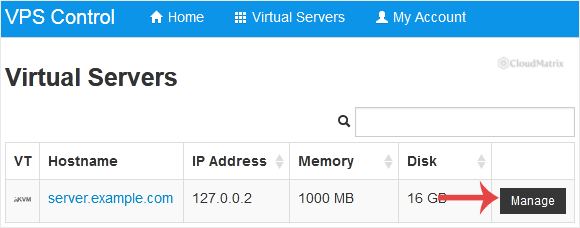
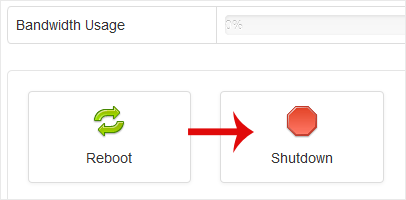
- Click Shutdown.
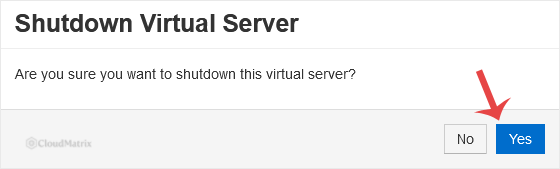
- Click Yes to confirm.
- Wait, then check the status. The panel confirms that the request has been sent, which is not the same as the server being off. Refresh the page after thirty seconds or so and confirm the status has changed to
offline.
If the status is still online after two or three minutes, the guest is not acting on the request. Go to the troubleshooting section below rather than clicking Shutdown repeatedly, which achieves nothing: each click sends another power button event to an operating system that is already ignoring the first one.
How to Force a Shutdown with Power Off
Use this only after a graceful shutdown has failed, or when the VPS is unresponsive to the point that waiting has no value.
- Select the correct VPS, exactly as above. This step matters more here than anywhere else in the panel, because there is no undo and no grace period.
- Click Power Off and confirm.
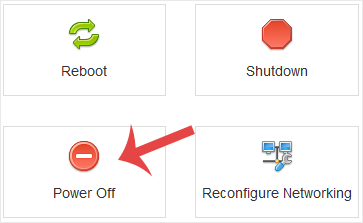
- The status changes to
offlinealmost immediately, because nothing inside the guest is being waited for.
When you start the server again, watch the boot over the VNC console rather than assuming it came back. A forced power off is exactly the situation in which a filesystem check runs on boot, and a server sitting at an fsck prompt looks identical from outside to a server that is simply slow to come up.
How to Shut Down from Inside the VPS over SSH
You can also shut the server down from within the guest operating system, which is often cleaner than the panel because you can see what is happening as it happens.
On any modern systemd-based Linux distribution, poweroff is an alias for systemctl poweroff. It is a graceful shutdown, not the equivalent of pulling the power cord, and it is the safest way to stop a server you can still log in to:
sudo poweroffYour SSH session will drop partway through as networking stops. A sudden Connection closed by remote host is the expected outcome, not an error.
The forced equivalent from inside the guest is --force given twice, which tells systemd to power the machine off immediately without stopping any services or unmounting any filesystems:
sudo systemctl poweroff --force --forceThat carries the same corruption risk as the panel's Power Off, and there is rarely a good reason to prefer it over simply using the panel. A single --force is the middle ground: it skips the normal service shutdown but still syncs and unmounts filesystems.
Gotcha: once the server is off, SSH is gone with it. Nothing inside a powered-off VPS runs, so there is no command that will bring it back. Starting it again is a control panel operation, and the SolusVM panel is the only place to do it.
How to Confirm the VPS Really Powered Off
- The panel status is the authority. Refresh the server page and confirm it reads
offline. See How to Check Whether the VPS Status is "online" or "offline" in SolusVM. - Do not rely on ping. A server that stops answering ICMP might be off, or might simply be filtering ICMP, or might have lost networking while still running. It tells you nothing definitive.
- Check the console if in doubt. Opening the VNC console of a powered-off server shows a blank, unresponsive screen rather than a login prompt. On a server that is merely hung, the console will usually still show its last output.
Troubleshooting
Symptom: you clicked Shutdown, the panel confirmed the request, and the status stays online. The guest is not acting on the ACPI power button event. On minimal Linux images this is usually because no handler is listening: systemd distributions rely on systemd-logind, while older or heavily stripped images need acpid installed and enabled. Windows guests can also stall on a prompt asking whether to force running applications to close. Fix: open the VNC console and shut the server down from inside, and install or enable an ACPI handler so the panel button works next time.
Symptom: the shutdown eventually completes, but takes several minutes. A service is refusing to stop and systemd is sitting out that unit's stop timeout, ninety seconds each by default, before killing it. Watch the console during shutdown to see which unit is named in the "A stop job is running for..." message, then fix that service rather than reaching for Power Off.
Symptom: Shutdown never works on this server, no matter what is running inside it. ACPI may be switched off for the virtual server itself. On KVM servers SolusVM exposes ACPI as a per-server setting, and with it disabled the graceful shutdown button has nothing to talk to. See How to Turn APIC, ACPI, VNC, or PAE On or Off in SolusVM. Changing that setting requires the server to be fully powered off and then started again; it will not take effect on a running server.
Symptom: after a forced power off, the server boots into a filesystem check or comes up with a read-only root filesystem. The journal replay found damage it could not repair unattended. Connect over VNC, because SSH will usually be unavailable in this state, and run the check the console prompts for. Do not force another reboot out of it, which tends to make matters worse.
Symptom: a database or application will not start after a forced power off, and its log mentions recovery, a corrupt table or a stale lock file. This is the expected consequence of the write cache being discarded. Let any automatic crash recovery finish before intervening, and restore from backup if it cannot complete.
Symptom: the VPS shut down on its own, without anyone clicking anything. If the host itself was being shut down or rebooted for maintenance, the platform asks every guest on it to shut down gracefully and waits only a fixed period before stopping them regardless. That window is an administrator setting, not a client one, and is documented as SHUTDOWN_TIMEOUT in the guest shutdown behaviour reference linked above. A guest that is slow to close down can therefore be cut off mid-shutdown during host maintenance.
Related SolusVM Guides
- How to Start/Boot Your VPS in SolusVM, the other half of this operation and the only way back from a powered-off server.
- How to Reboot/Restart VPS in SolusVM, for when the server should come straight back up.
- How to Check Whether the VPS Status is "online" or "offline" in SolusVM.
- How to Access VPS via VNC in SolusVM, for watching a boot or rescuing a server with no working SSH.
- How to Turn APIC, ACPI, VNC, or PAE On or Off in SolusVM, if graceful shutdowns never work on a KVM server.
- How to Log in to SolusVM Control Panel.
Noiz maintains this guide as part of its hosting knowledgebase. If you are a Noiz client and a server is not behaving the way this article describes, open a ticket from the Noiz client area with the server name and the time of the shutdown, and the support team will take a look.






