This guide explains what the Disk Driver setting in the SolusVM control panel actually controls, why Virtio is normally the right answer, when IDE is the safer one, and why changing this setting on a server that already has an operating system installed is one of the few clicks in SolusVM that can leave a working VPS unable to boot. SolusVM is a virtualisation management panel used by hosting providers to give VPS customers direct control over their own virtual machines. The same setting is described in several ways depending on where you read about it: disk driver, storage driver, disk bus, block device driver, or simply "the disk controller". They all refer to the same thing, which is the type of virtual disk controller the hypervisor presents to the operating system inside your VPS.
Last reviewed: 27 July 2026, against the current SolusVM release. This guide is published by Noiz and is kept current against SolusVM. It complements, and does not replace, the official SolusVM documentation linked below. SolusVM's client interface has been reworked between major versions, and the options a provider exposes vary, so the wording and the list of available drivers in your copy may differ; the behaviour described here holds regardless.
Official Documentation Reference
- SolusVM Documentation (home): the vendor's documentation hub. If a control in your panel is worded differently from the one described here, search this site for the current wording.
- Quick Start Guide: Customers (SolusVM): the vendor's walkthrough of the customer side of SolusVM, covering sign-in, server selection and the controls available on a server.
- SolusVM Release Notes: the authoritative record of what changed in each release, useful when a setting has moved or been renamed since a screenshot was taken.
- Virtio (KVM project): the project's own description of what paravirtualised drivers are and why they exist. This is the concept behind the Virtio option in the panel.
- Virtio driver API (Linux kernel documentation): the kernel-side reference, worth a look if you want to know exactly which module has to be present for a Linux guest to see a Virtio disk.
- QEMU block device documentation: the emulator-side reference for how virtual disks are attached and what features, such as discard, each interface supports.
- Creating Windows virtual machines using Virtio drivers (Fedora): the clearest public write-up of how a Windows guest obtains Virtio storage drivers, which is the part that trips people up.
- virtio-win driver packages: where the signed Windows Virtio driver ISO comes from, including the stable and latest builds.
Prerequisites
- Access to the SolusVM control panel address, username and password issued when the VPS was set up. These arrive in your welcome email; do not guess the panel address. If you are not signed in yet, start with How to Log in to SolusVM Control Panel.
- A VPS running under full virtualisation. This setting exists only where the hypervisor emulates hardware for the guest, such as KVM or Xen HVM. Container-style virtual servers share the host kernel and have no virtual disk controller to choose, so the option is absent or greyed out. Check which type you have with How to Check the RAM of VPS, IP, Disk Capacity and Virtualization Details in SolusVM.
- A verified, tested backup, or a server with nothing on it yet. Treat this setting as one that can cost you a boot, and act accordingly.
- Working VNC console access, or at least the knowledge of how to reach it. If the guest does not come back, the console is how you find out why. See How to Access VPS via VNC in SolusVM.
Read This First: When It Is Safe to Change
There is one rule that matters more than everything else on this page.
Change the disk driver before the operating system is installed, not after. The right moments are immediately before an OS reinstall, or on a freshly provisioned VPS you have not built anything on yet. At that point the setting costs you nothing, because the installer will detect whatever controller it is given and configure itself around it.
Changing it on a server that already has an operating system installed is a different proposition entirely. The guest was configured at install time for the controller it was given, and swapping that controller underneath it can leave the operating system unable to find its own disk. When that happens the VPS powers on normally, the panel reports it as online, and the machine never reaches a login prompt. Nothing is lost from the disk, but the server is down until you put the setting back or repair the guest. The section on recovery below covers both.
If your VPS is already installed and running perfectly well on IDE, the honest answer is usually to leave it alone unless you have a specific reason to move, and to schedule the change alongside a reinstall rather than on its own.
What the Disk Driver Setting Actually Does
Your VPS does not have a disk. It has a file or a logical volume on the host machine, which the hypervisor presents to the guest as though it were a disk attached to a disk controller. The Disk Driver setting chooses which kind of controller it pretends to be. That choice is invisible from outside the server and enormously consequential inside it, because the operating system will only see a disk it has a driver for.
IDE: emulated, universally understood, slow
Choosing IDE tells the hypervisor to emulate a real, decades-old ATA disk controller in software, right down to its register layout. The advantage is compatibility that is as close to guaranteed as anything gets: every operating system worth installing has supported IDE since long before virtualisation was common, so it works with no drivers, no preparation and no thought. That is exactly why it is the safe fallback.
The cost is performance. Every read and write the guest issues is a sequence of operations against emulated hardware registers, and each one forces a transition out of the guest into the hypervisor to be handled. The emulated controller is also single-queue and shallow by design, because that is what the real hardware was. On a busy server the result is measurably lower throughput, far lower IOPS under concurrency, and a chunk of CPU spent emulating a disk controller instead of running your workload.
Virtio: paravirtualised, fast, needs a driver
Virtio takes the opposite approach. Instead of imitating hardware that never existed in this machine, it presents an interface designed for virtual machines, on the understanding that the guest knows it is a guest. The guest and the hypervisor exchange work through shared memory ring buffers, so a batch of requests can be handed over with a single notification rather than a stream of register writes. There is no hardware behaviour to reproduce, so there is far less overhead per operation.
In practice that means materially higher throughput and IOPS, meaningfully lower CPU cost per unit of disk work, and much better behaviour when many requests are in flight at once, which is the normal state of affairs for a database or a busy web server. Virtio also carries capabilities that emulated IDE simply does not expose, the most useful being discard and TRIM support: on thin-provisioned host storage, that is what lets deleted data actually give space back instead of the image growing forever.
The single condition is that the guest must have the Virtio block driver available at boot, before it has mounted anything. On Linux that is the virtio_blk and virtio_pci modules, and they must be inside the initramfs, not merely installed on the root filesystem, because the kernel needs them in order to reach the root filesystem in the first place. On Windows the driver has to be installed and registered as boot-critical before the switch, not afterwards.
So which should you pick
Choose Virtio in almost every case. Every current mainstream Linux distribution ships the modules and builds them into its initramfs automatically when it detects a Virtio disk during installation, so a normal install onto a Virtio disk simply works and runs faster for it. Windows Server and current Windows desktop releases support Virtio well too, provided the driver is loaded during installation from the driver ISO.
Choose IDE when compatibility beats speed:
- You are installing an operating system whose installer cannot see a Virtio disk and offers no way to load a driver. This is the classic reason, and it covers a lot of older or niche images.
- You are installing Windows from an ISO and have no way to supply the Virtio driver at the disk selection screen. Windows will report that it found no drives, and IDE is the pragmatic way past it.
- You are installing something old, unusual or minimal: an ancient kernel, a router or firewall distribution, a rescue image, or a stripped-down appliance that was never built with Virtio in mind.
- You are recovering a server that stopped booting after a switch to Virtio, and you need it back up now.
If your panel offers other options such as SCSI or Virtio SCSI alongside these two, they are further points on the same scale rather than exceptions to it, and the same rule applies: the guest must have a driver for whatever you select, present at boot.
Step 1: Sign In to SolusVM
Open the SolusVM control panel using the address in your welcome email, and sign in with the panel credentials issued for the VPS. These are the control panel credentials, which are entirely separate from the root or administrator password of the operating system running inside the VPS. Confusing the two is a frequent cause of failed sign-ins.
Step 2: Select the Correct VPS
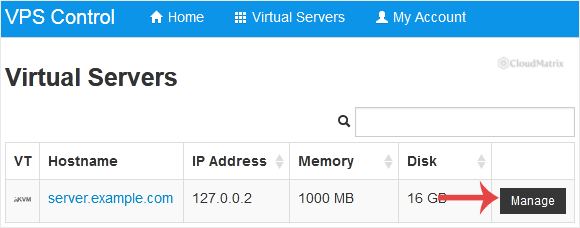
If your account holds more than one virtual server, the panel presents a list or a selector so you can choose which one you are working on. Pick the correct server before you change anything. Check the hostname or the primary IP address shown alongside the entry rather than its position in the list, because the ordering changes as servers are added and removed, and this particular setting is not one you want to apply to the wrong machine.
Step 3: Change the Disk Driver
Scroll down to the Settings tab and find the Disk Driver option. Select the driver you want from the drop-down menu and save the change.
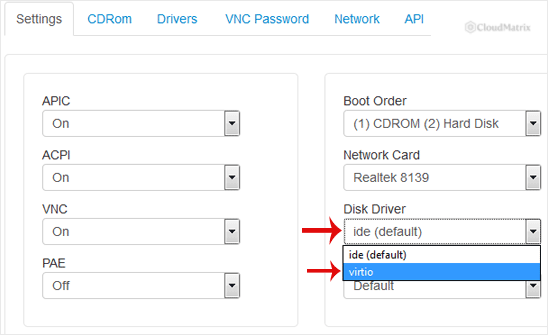
Nothing happens to the running server at this point. You have edited the virtual machine's definition on the host, not the machine itself. The guest continues running on whatever controller it was given when it was last started, and will keep doing so until it is stopped and started again.
Step 4: Power Cycle for the Change to Take Effect
The new setting is only read when the virtual machine is created afresh on the host, which means a full stop followed by a start. A reboot issued from inside the guest often does not qualify, because on many hypervisors that restarts the operating system without tearing down and rebuilding the virtual machine, so the old controller is still attached afterwards. This catches people out regularly: they change the setting, reboot from the shell, see no difference, and conclude the setting did not save.
Do it from the panel instead. Either use the panel's own restart control, described in How to Reboot/Restart VPS in SolusVM, or, if you want to be certain, shut the server down cleanly and then start it again, using How to Forcefully or Gracefully Shut Down the VPS in SolusVM followed by How to Start/Boot Your VPS in SolusVM. Before you do, open the VNC console and leave it open, so that if the server does not come back you are already watching the screen that will tell you why.
How to Confirm It Actually Took Effect
The panel showing the new value proves only that the setting was saved. To prove the guest is really using it, look from inside the server after the power cycle.
On a Linux guest, the device name is the quickest tell. A Virtio block device appears as /dev/vda, with partitions /dev/vda1 and so on. An emulated IDE disk appears as /dev/sda on any modern kernel, or as /dev/hda on a very old one. List the block devices:
lsblkThen confirm the driver is genuinely loaded and bound, rather than the device merely being present:
lsmod | grep virtio
lspci | grep -i virtio
On a Windows guest, open Device Manager and look under Storage controllers. A VirtIO SCSI or block controller listed there without a warning icon means the driver is installed and working. A yellow exclamation mark against it means Windows can see the device but has no working driver for it, which is the state that produces a failure to boot the next time round.
If the VPS Will Not Boot After the Change
This is the failure this setting is known for, and it looks alarming without being dangerous. The panel reports the server as online because the virtual hardware is powered on, but nothing responds and the VNC console shows the machine stuck early. Your data is untouched. The operating system simply cannot see the disk it lives on.
What you see on the console tells you where it stopped:
- A bootloader that cannot find a bootable device, or a firmware screen offering a network boot, means the disk was not visible before the operating system even started loading.
- A Linux kernel panic along the lines of
Unable to mount root fs on unknown-block(0,0), or a dracut or initramfs emergency shell, means the kernel started but its initramfs contains no driver for the new controller. - A Linux boot that hangs waiting for a device, or drops to a maintenance shell complaining about a filesystem it cannot find, usually means the disk is visible but under a different name, and
/etc/fstabor the bootloader configuration is still referring to the old one. - A Windows
INACCESSIBLE_BOOT_DEVICEstop error means the same thing in Windows terms: the boot-critical storage driver for the new controller is not registered to start at boot.
The fix, in every case, is to put the setting back to what it was and power cycle again. Change Disk Driver to its previous value, stop the server, start it, and it will come up exactly as before. Do that first and troubleshoot afterwards, from a running server, rather than experimenting on a machine that is down.
Preparing the guest so the switch does work
Once you are back up, you have three ways forward, in descending order of how much you should like them.
The reliable option is to reinstall on Virtio. Set the disk driver first, then reinstall, and the installer configures the guest for Virtio from the outset with nothing left to go wrong. This is the approach worth taking whenever the server is new, rebuildable, or due a rebuild anyway. See How to Reinstall OS Using SolusVM OS-Reinstaller, or, if you need control over partitioning or a specific image, How to Manually Install/Reinstall an OS using SolusVM for a Customized Installation. Reinstalling destroys everything on the disk, so confirm your backups before you start.
The workable option on Linux is to prepare the running guest first, while it is still on IDE and still bootable. Two things have to be true before you switch. First, the Virtio modules must be inside the initramfs rather than only on disk, which means adding virtio_blk, virtio_pci and, if your panel offers a SCSI variant, virtio_scsi to the initramfs configuration and rebuilding it for every installed kernel. The mechanics differ by distribution: consult the dracut manual on distributions that use dracut, or the mkinitcpio documentation where that is the tool, and check your distribution's own guidance if it uses neither. Second, nothing in the boot path may refer to the disk by name, because the name is about to change from /dev/sda to /dev/vda. Convert every entry in /etc/fstab and every root device reference in the bootloader configuration to a UUID, which does not change when the controller does. You can list the UUIDs with:
blkidReboot once on IDE after making those changes, to prove the server still boots with the new initramfs and the UUID-based configuration. Only then change the disk driver and power cycle. That intermediate reboot is the step people skip and then regret, because it separates "the initramfs rebuild broke something" from "the driver switch broke something", and finding out which is far easier before both have happened at once.
On Windows, the equivalent preparation is to get the driver installed and marked boot-critical before the switch. The usual approach is to attach a second, small Virtio disk to the running machine so that Windows detects the new controller and installs the driver for it normally, at which point the boot-start registration is in place and the system disk can be switched safely. Doing this on a hosted VPS generally needs your provider's involvement, since attaching an extra disk is not something the client panel exposes. The Fedora guide to Virtio drivers on Windows covers the underlying mechanics, and the drivers themselves come from the virtio-win packages. If the Windows install is not precious, reinstalling with the driver loaded at the disk selection screen is considerably less work.
Troubleshooting
- Symptom: the setting saves but nothing changes inside the guest. The virtual machine has not been recreated on the host. A reboot issued from inside the operating system is not enough on many hypervisors. Shut the VPS down from the panel, then start it again, and check
lsblkonce it is up. - Symptom: the VPS shows
onlinein the panel but never becomes reachable after the change. The operating system cannot see its disk. Set the disk driver back to its previous value and power cycle. Then read the section above on preparing the guest before trying again. - Symptom: the console shows a dracut or initramfs emergency shell. The kernel booted but has no driver for the new controller in its initramfs. Revert the setting, boot on the old driver, add the Virtio modules to the initramfs, rebuild it for every installed kernel, reboot once to prove it still works, and only then switch.
- Symptom: Linux boots but drops to a maintenance shell over a filesystem it cannot find. The disk is visible under a new name. Revert, convert
/etc/fstaband the bootloader's root device reference to UUIDs, verify with a reboot, then switch again. - Symptom: Windows stops with
INACCESSIBLE_BOOT_DEVICE. The Virtio storage driver is not registered as boot-critical. Revert the setting to restore the server, then install and register the driver from within the running system before trying again. - Symptom: the operating system installer reports that it cannot find any disks. The installer has no driver for the controller you selected. Either supply the driver during installation, which is what the driver ISO exists for on Windows, or set the disk driver to IDE, complete the installation, and treat moving to Virtio as a separate exercise afterwards.
- Symptom: there is no Disk Driver option in your panel at all. Either the VPS is container-based and has no virtual disk controller to configure, or your provider has not exposed the setting to client accounts. Confirm the virtualisation type first with How to Check the RAM of VPS, IP, Disk Capacity and Virtualization Details in SolusVM.
- Symptom: disk performance is no better after switching to Virtio. Confirm the guest is genuinely on Virtio by checking for
/dev/vdarather than/dev/sda. If it is, the limit is elsewhere: host storage contention, an I/O-bound workload that was never controller-limited, or a filesystem or database configuration issue inside the guest. Virtio removes emulation overhead; it does not make the underlying storage faster. - Symptom: everything works but you cannot reach the network after also changing the network card. That is a separate setting with the same failure mode, and it is covered in How to Change the Network Card to Virtio, Intel PRO, or Realtek in SolusVM. Change one hardware setting at a time so you always know which one caused the problem.
Related Settings Worth Knowing About
The disk driver sits alongside several other virtual hardware options in the same part of the panel, and they share a characteristic: each is a change to the machine the operating system was installed on, so each can produce a server that powers on and then does nothing useful. The network card driver is the closest relative, covered in How to Change the Network Card to Virtio, Intel PRO, or Realtek in SolusVM. The APIC, ACPI and PAE toggles are the other set, described in How to Turn APIC, ACPI, VNC, or PAE On or Off in SolusVM, and they can stop an older or 32-bit guest from starting for much the same reason.
The habit that keeps this straightforward is to change one of them at a time, power cycle, confirm the server comes back, and only then move on to the next. It takes a few minutes longer and it removes all the guesswork from the moment something breaks.
If a VPS does not come back after a disk driver change, revert the setting first and investigate second; the server being up is worth more than knowing immediately why it went down. If you are a Noiz client and you are unsure what the VNC console is telling you, open a support ticket with the Noiz support team, including the exact error text on the console, the driver you changed from and to, and the time of the change. Those three details are usually enough to identify the cause without further back and forth.






