How to clean up your WordPress media library
Your WordPress media library is usually the largest thing on your hosting account, and most of its weight is copies of images rather than the images themselves. This guide shows you how to measure the uploads folder, stop WordPress making image sizes your site never displays, remove images nothing uses, and rebuild the thumbnails so the old copies go. It is written for a Noiz client running WordPress on sLegacy or sPremium, does everything from the WordPress dashboard, and takes an afternoon on a large site.
Last reviewed: 19 October 2026, against the current WordPress release. This guide is written for Noiz hosting and is kept current against WordPress. It complements, and does not replace, the official WordPress documentation linked below.
Official Documentation Reference
- Media Library Screen (WordPress Documentation): the grid and list views, the filters and bulk deletion.
- Settings Media Screen (WordPress Documentation): the Thumbnail, Medium and Large size fields.
- big_image_size_threshold (WordPress Developer Resources): why large uploads gain a
-scaledcopy.
Why the Media Library Matters on Noiz Hosting
Disk is the one resource on Noiz shared hosting that is metered. Your plan's disk figure covers your website files, databases, mailboxes, logs and any backups you keep in your own space, and use above it is billed on the highest figure recorded in the billing cycle, as our Billing and Overage Charges policy sets out. Every file in the uploads folder is also copied into your weekly backup, so a bloated library makes every backup larger and slower.
One upload is never one file. WordPress keeps the original and makes several resized copies (a thumbnail, medium, medium-large and large size, plus two larger sizes for big images). Your theme and plugins usually register more sizes, each made for every image. A photo larger than 2,560 pixels also gets a scaled-down -scaled copy, which your pages use, while the full original stays on disk. Ten or more files per upload is normal.
So there are two jobs: stop making copies nothing displays, and remove images nothing uses.
Before You Start
- You can log in to WordPress as an Administrator.
- You have a full backup taken today. Deleting media is permanent. Take one in Plesk with How to Generate a Full Backup in Plesk, download it, then delete the copy from the server: a backup left in your own space counts towards your disk.
- You are happy to install two free plugins from the WordPress plugin directory, named in the steps below. Both sLegacy and sPremium sites use the same dashboard steps.
Step 1: Measure the Uploads Folder
- In Plesk, open Statistics and note the total disk your subscription uses. How to Check Disk and Bandwidth Usage in Plesk shows where.
- Open Files, go to your site's
wp-contentfolder and note the size ofuploads. - Write both figures down. If
uploadsis a small part of the total, the space is going elsewhere (mail, a database, old backups), and this guide is not the fix.
Step 2: See Which Image Sizes Your Site Makes
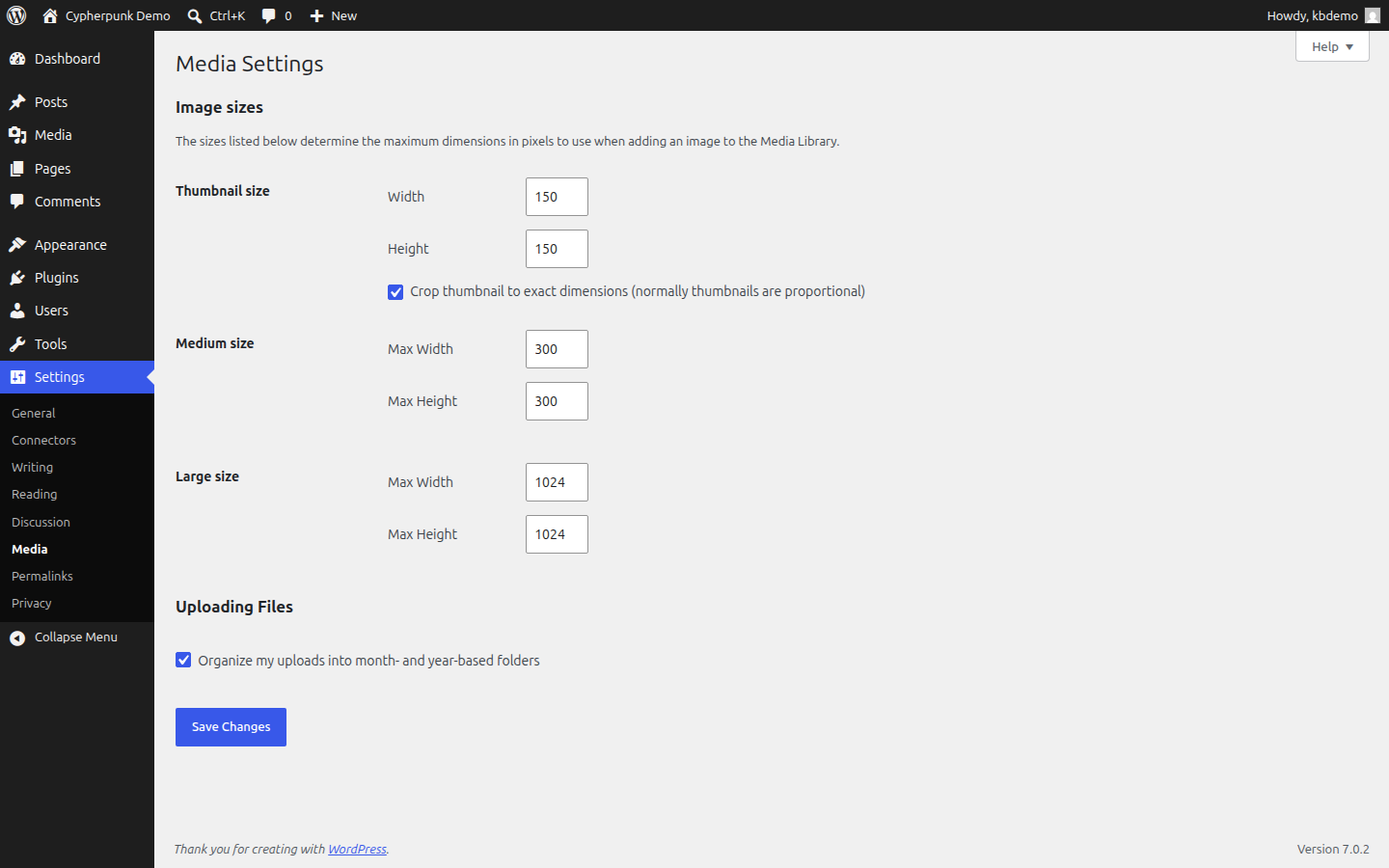
Go to Settings > Media to see the three sizes you control. The sizes your theme and plugins add are not listed there, and the dashboard has no list of them. The plugin in Step 5 rebuilds whatever is registered, so you can skip the list and go on.
Step 3: Stop the Sizes Nothing Displays
- In Settings > Media, set the width and height of a size to
0to stop WordPress making it. Change one size at a time, upload a test image and check your pages, because many themes rely on Thumbnail and Medium. - To retire a size a theme or plugin registers, remove it with a small code snippet:
add_action( 'init', function () {
    remove_image_size( 'unwanted-size-name' );
} );
Replace unwanted-size-name with the name of a size your theme or plugin documents, and add the snippet the safe way described in How to Add Code Snippets to WordPress Safely. Never paste it into the theme's own files: the next theme update removes it.
A change of size only affects future uploads. The copies already on disk stay until Step 5.
Step 4: Remove Images Nothing Uses
Treat "Unattached" as a shortlist, not a delete list
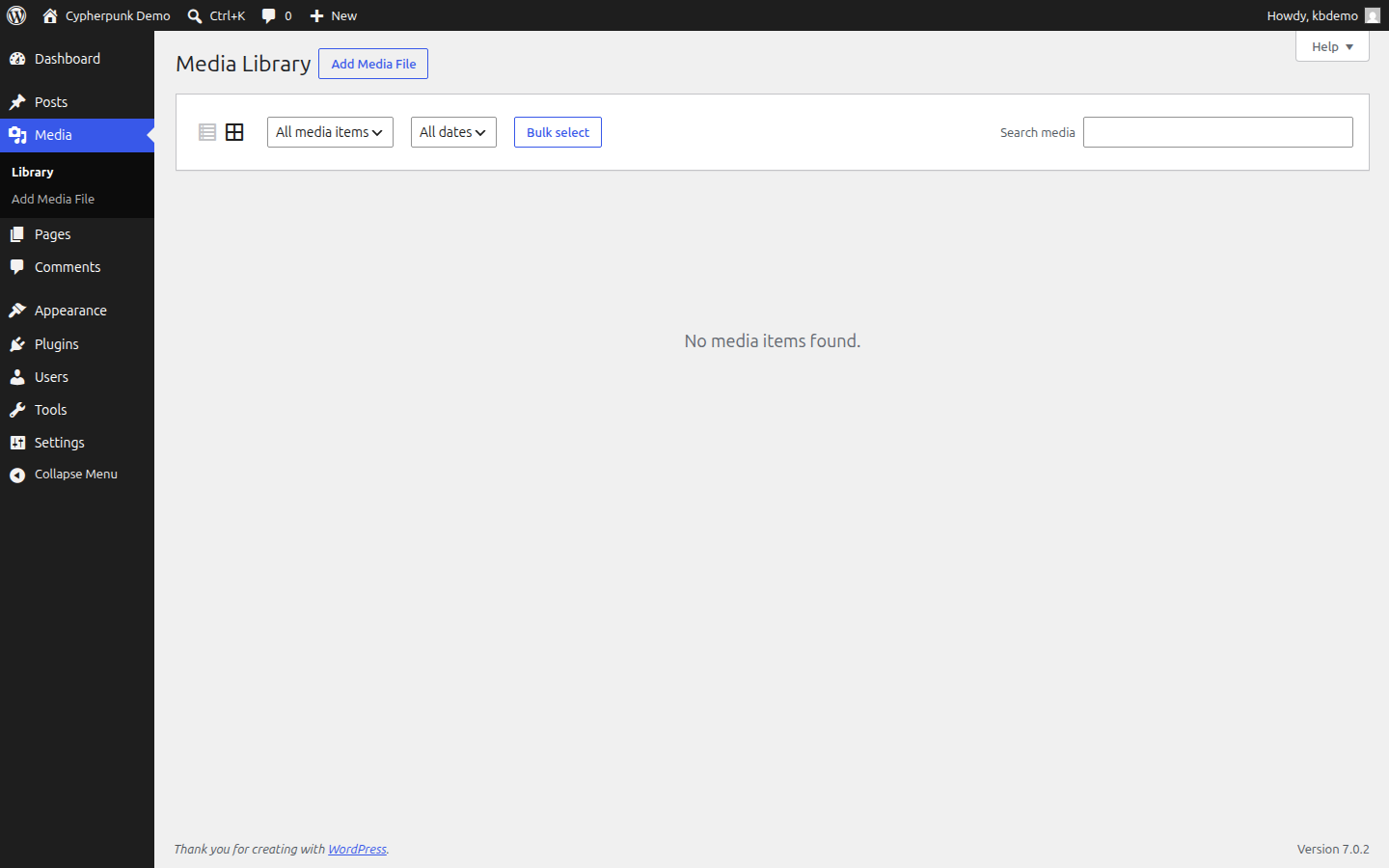
In Media > Library, switch to the list view and choose Unattached in the filter. Unattached means the image is not linked to a post or page in WordPress's records. It does not mean nobody sees it: an image uploaded straight to the library and then used as your logo, or placed by a page builder, is unattached and still on every page.
Remove by hand on a small library
- Open an image you think is unused and select Copy URL to clipboard.
- Search your site for the file name. If nothing uses it, tick it in the list view.
- Choose Delete permanently from the bulk actions and confirm. WordPress has no bin for media: the image and its resized copies go at once.
Use a scanner on a large library
The free Media Cleaner plugin from the WordPress plugin directory scans your posts, pages and settings for each item in the Media Library and lists the ones it finds no reference to. Deleting from its list moves files to its own trash first, so you can put them back.
- Go to Plugins > Add New Plugin, search for Media Cleaner, then install and activate it.
- Run its scan from the Media Cleaner screen.
- Review the results page by page and move the confirmed items to its trash.
The free version checks the items in your Media Library. Files sitting in the uploads folder without a library entry need its paid version, which is beyond this guide.
Whatever you use, work in batches, keep the plugin's trash for a week while you browse the site, and only then empty it. A scanner cannot see an image named only in custom CSS, a slider's settings or a template file, and it will offer those for deletion.
Step 5: Rebuild Thumbnails and Delete the Old Copies
Rebuilding makes each image's copies match your current sizes and deletes the copies of sizes you retired. This is where most of the space comes back.
The free Force Regenerate Thumbnails plugin rebuilds every image and deletes the old copies first, which is the part that frees the space. It can take a long time on a very large library, so run it outside your busy hours: it uses your plan's processor while it runs, and your site shares that.
- Go to Plugins > Add New Plugin, search for Force Regenerate Thumbnails, then install and activate it.
- Open Tools > Force Regenerate Thumbnails and start it. Leave the browser tab open until it finishes.
- Deactivate and delete the plugin when you are done.
Before you install it, read the plugin's own compatibility note on its WordPress.org directory page and check it against the WordPress version you run.
Step 6: Measure Again
Repeat Step 1. The uploads folder should be smaller, and your next weekly backup will be too. The Plesk figure updates on a schedule, not instantly, so check again the next day before you judge the result.
Keep It Small From Now On
- Resize before you upload. A web page rarely needs a photo wider than about 2,000 pixels. Exporting at that width keeps the giant original off the server.
- Delete images with the content. Deleting a post does not delete its images. Clear them when you retire old pages or products.
- Check the sizes again when you change theme. A new theme brings its own sizes.
Troubleshooting
- Images are missing from pages after the clean-up: an image was still in use. Restore it from the plugin's trash, or restore the uploads folder from the backup you took before starting.
- You deleted many images but the folder barely shrank: the space is in the resized copies and the large originals. Do Steps 3 and 5.
- Nothing changed on disk after editing Settings > Media: expected. Size changes apply to new uploads until you rebuild in Step 5.
- The rebuild stops part way or the site slows down: you have hit your plan's processor or memory figure for a while, which is normal during a big job. Run it again at a quiet time.
Let Noiz Look After It
If you would rather not delete anything yourself, WordPress Care keeps your WordPress core, plugins and themes current with a restore point before every change, and on Noiz hosting your plan's weekly backup is there as well. Clean-up work beyond that care is quoted separately, so tell us what the uploads folder is using and we will say what it needs.