How to improve WordPress search
WordPress's built-in search only looks at the title, excerpt and body of your posts and pages, and only for whole words. This guide shows you how to see whether that is enough for your site and, if it is not, how to replace it with the free Relevanssi plugin, which searches tags, categories and custom fields, matches partial words and lets you weight titles above body text. It is written for a Noiz client on any shared plan and takes about half an hour, most of it waiting for the index to build.
Last reviewed: 19 October 2026, against the current WordPress release. This guide is written for Noiz hosting and is kept current against WordPress. It complements, and does not replace, the official WordPress documentation linked below.
Official Documentation Reference
- WP_Query search parameters (WordPress Developer Resources): what the built-in search looks at.
- WP_Query::parse_search_order() (WordPress Developer Resources): how the built-in search ranks results.
- Search Block (WordPress Documentation): placing a search box.
- Relevanssi (WordPress.org plugin directory): the free plugin this guide uses.
What the Built-in Search Does
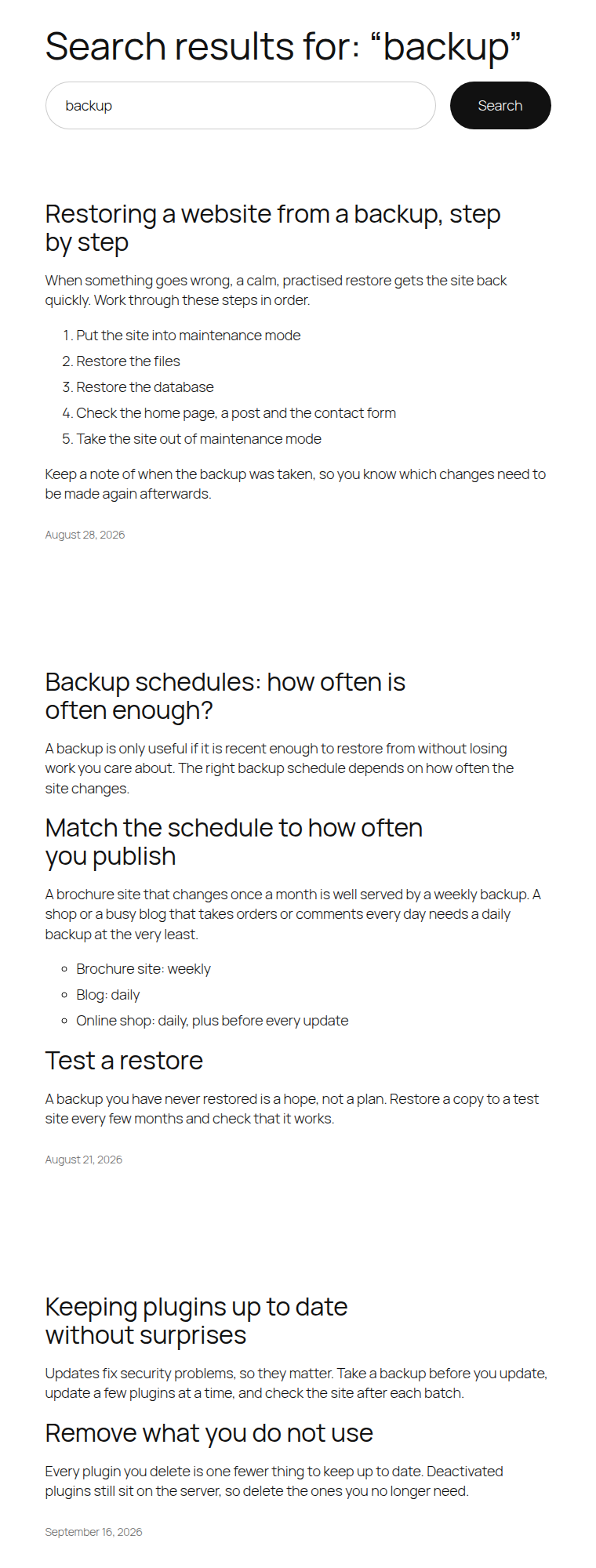
When a visitor searches, WordPress looks for the words in three places: the title, the excerpt and the content of each post or page. It ranks a result higher when the whole phrase is in the title, then when all the words are in the title, then any of them, then the excerpt, then the body.
It does not look in:
- tags and categories,
- custom fields, where page builders, WooCommerce and many plugins keep their text,
- the middle of words, so "paint" does not find "painting".
On a small blog that is often enough. On a shop, a directory or a site built with a page builder, the right page may be one search never sees.
Step 1: Test the Search You Have
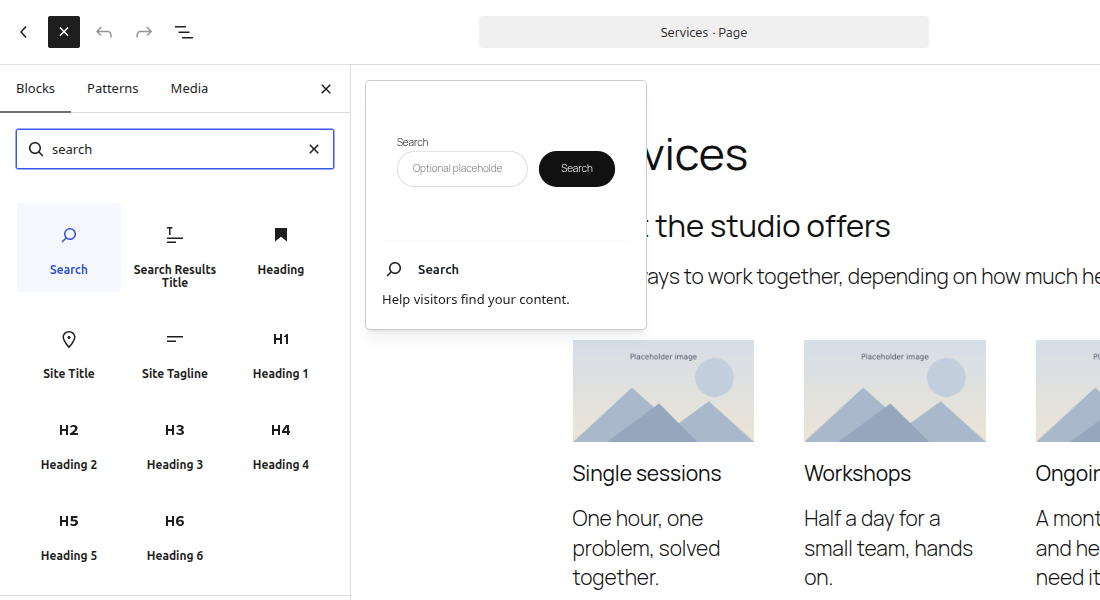
- Make sure your site has a search box. On a block theme, add the Search block to the header or a page.
- Write down five searches your visitors actually make: a product name, a service, a place, a misspelling, a partial word.
- Run each one and note whether the right page comes first.
If all five work, stop here. If they fail because the words live in tags, custom fields or longer words, carry on.
Before You Install Relevanssi
- You need administrator access to install a plugin.
- Check your disk. Relevanssi keeps its own index in your WordPress database, and its documentation warns the index can be about three times the size of your posts table. Your database counts towards your plan's disk, which you can check under Statistics in Plesk: How to Check Disk and Bandwidth Usage in Plesk.
- Take a database backup first: How to Export a Database Backup in Plesk.
Step 2: Install Relevanssi and Build the Index
- Go to Plugins > Add New Plugin, search for Relevanssi, then install and activate it.
- Open Relevanssi in the dashboard menu and select the Indexing tab.
- Under Post types to index, tick what visitors search for: posts, pages and, on a shop, products. Leave out types visitors never see.
- Under Taxonomies to index, tick categories and tags, and product categories on a shop.
- Under Custom fields to index, choose visible custom fields if your page builder or shop keeps its text there.
- Save the settings, then select Build the index. Keep the tab open until it reports that it is done. On a large site this takes several minutes and uses your plan's processor while it runs.
Step 3: Tune How It Searches
Open the Searching tab.
- Default operator: AND finds pages with all the words, which suits most sites. Relevanssi falls back to OR when AND finds nothing.
- Keyword matching: choose Partial words if no hits for whole words. "paint" then finds "painting" when nothing matches exactly.
- Adjust Weights: raise the weight for titles, so a page called "Pricing" beats a post that mentions pricing once.
- Save the settings.
Step 4: Show Better Results
Open the Display & UI tab and turn on Create custom search result snippets. The results page then shows the part of each page where the words appear, with the words highlighted, instead of the page's opening lines.
Step 5: Test Again
Run your five searches from Step 1. Each should now put the right page first. If one does not, look at where its words are stored: a custom field not in the index, or a post type you left out. Change the setting and build the index again.
When a Plugin Is Not Enough
A site with tens of thousands of products, or one that needs instant results as visitors type across several languages, is better served by a dedicated search engine. Open-source engines such as Typesense and Meilisearch run as their own program all day, which shared hosting does not allow, so they need a server of their own, such as a self-managed Cloud server. If your site has reached that point, get in touch.
Troubleshooting
- Search finds nothing after installing Relevanssi: the index has not been built. Open Relevanssi > Indexing and select Build the index.
- New posts do not appear in results: Relevanssi indexes posts as you save them. Re-save the post, or build the index again after a large import.
- Indexing stops part way: the site reached its plan's processor or memory figure during the build. At a quiet time, select Index unindexed posts, which carries on from where the build stopped.
- Your disk use jumped: the index is in the database. Index fewer post types or custom fields and rebuild, or move to a plan with more disk.
- Results include pages you do not want found: untick that post type under Post types to index and build the index again.
Let Noiz Keep It Running
WordPress Care keeps WordPress and plugins such as Relevanssi updated every week, with a restore point first and checks afterwards, so a plugin update does not quietly break your search.