How to use the WordPress block editor efficiently
The WordPress block editor (also called Gutenberg) already does most of what people install plugins for: accordions, buttons, galleries, reusable sections and lists of recent posts. This guide shows you how to work quickly in it with the keyboard, the command palette and List View, how to reuse content with synced patterns, and which core blocks to try before you add a plugin. It is for anyone who writes or edits pages on a WordPress site hosted with Noiz, and nothing here needs to be installed.
Last reviewed: 19 October 2026, against the current WordPress release. This guide is written for Noiz hosting and is kept current against WordPress. It complements, and does not replace, the official WordPress documentation linked below.
Official Documentation Reference
- Keyboard Shortcuts in the Block Editor (WordPress Documentation): the full list for Windows, Linux and Mac.
- Command Palette (WordPress Documentation): searching for any screen or action.
- Synced Patterns (WordPress Documentation): content that updates everywhere at once.
- Core Blocks Reference (Block Editor Handbook): every block that ships with WordPress.
Why Fewer Plugins Matters on Shared Hosting
Every plugin is code that runs each time a page is built, and each one needs updating when its author releases a fix. On a Noiz shared plan your sites share the processor and memory figures printed on your plan, so a plugin that duplicates a core feature costs you capacity and adds one more thing that can break at update time. Checking the editor first is the cheapest performance and security work you can do.
Before You Start
- You can log in to WordPress with a role that can edit posts or pages.
- Open a post or page: Posts > Add New Post, or an existing item.
Add Blocks From the Keyboard
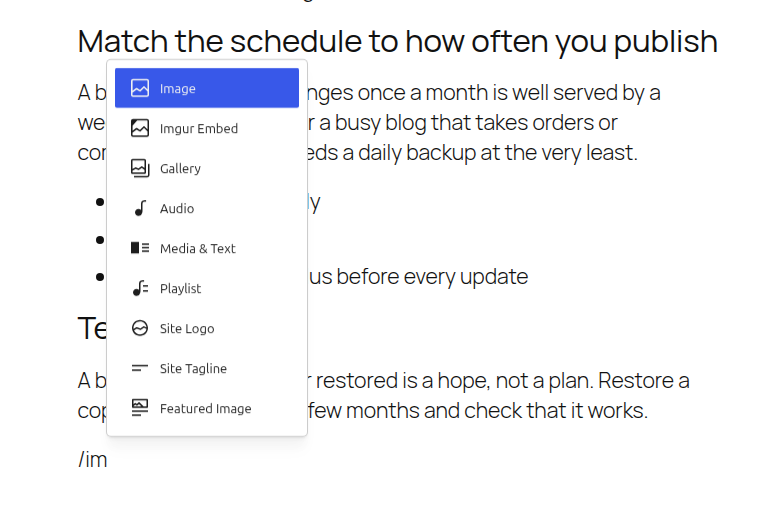
- Type
/on a new line and start typing a block name, for example/imageor/details. Press Enter to insert it. - Type
##and a space at the start of a line to turn it into a level 2 heading. On Windows and Linux, Shift + Alt + 3 turns the line into a level 3 heading, and the other numbers work the same way; the shortcuts list gives the Mac keys. - Type
[[to search your own posts and pages and insert a link to one.
Keyboard Shortcuts Worth Learning
Press Shift + Alt + H (Mac: Control + Option + H) in the editor to see the full list. These are the ones that save the most time:
| Action | Windows and Linux | Mac |
|---|---|---|
| Open the command palette | Ctrl + K | Cmd + K |
| Open List View | Shift + Alt + O | Control + Option + O |
| Duplicate the selected block | Ctrl + Shift + D | Shift + Cmd + D |
| Remove the selected block | Shift + Alt + Z | Control + Option + Z |
| Insert a block before | Ctrl + Alt + T | Option + Cmd + T |
| Insert a block after | Ctrl + Alt + Y | Option + Cmd + Y |
| Group the selected blocks | Ctrl + G | Cmd + G |
| Paste styles onto a block | Ctrl + Alt + V | Cmd + Option + V |
| Distraction free mode | Ctrl + Shift + \ | Shift + Cmd + \ |
Most shortcuts act on the selected block, so click the block first.
Jump Anywhere With the Command Palette
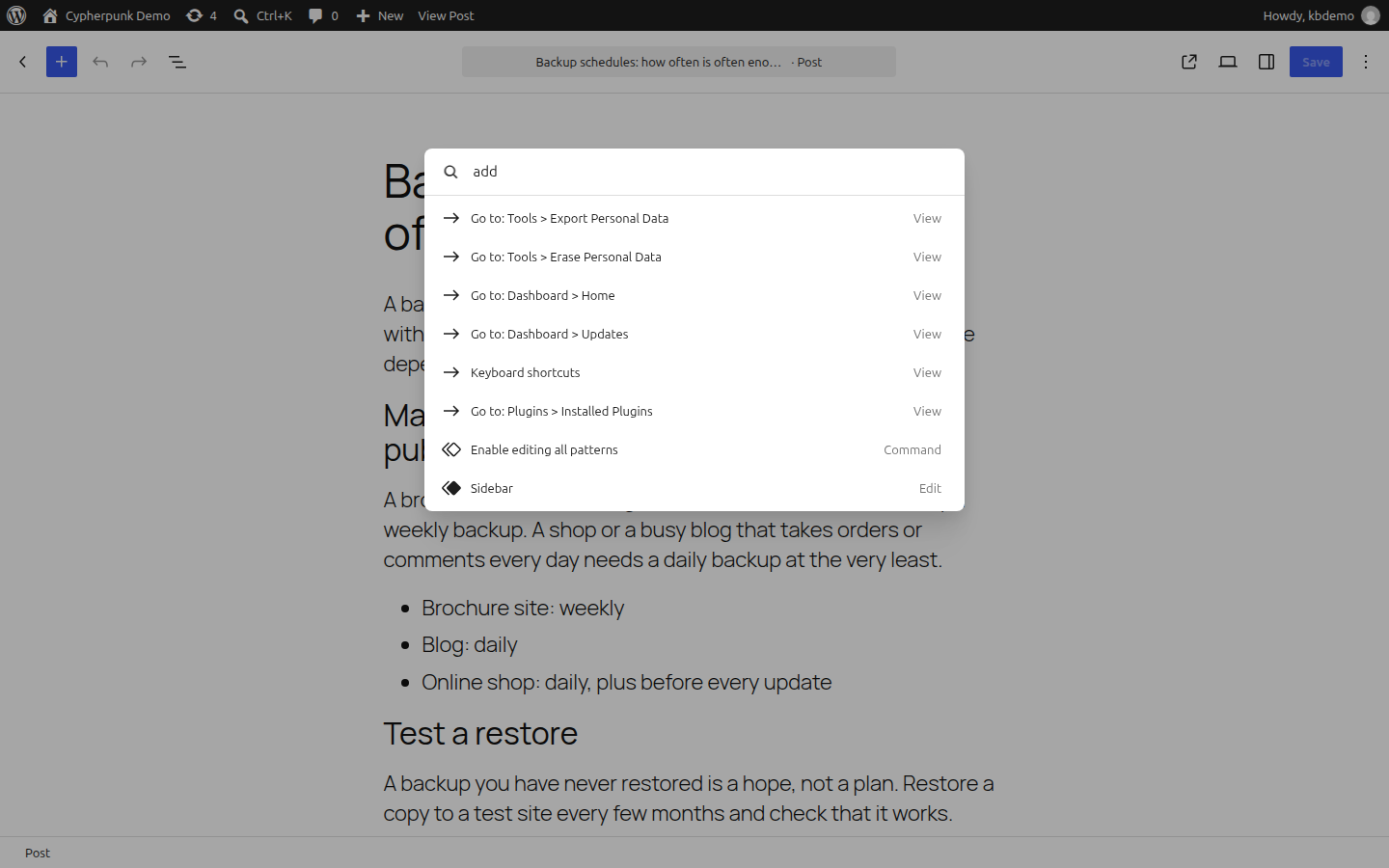
The command palette is a search box for the whole of WordPress. Press Ctrl + K (Mac: Cmd + K) and type what you want: the name of a page to open it, "add new post", or a setting such as "permalinks". It is faster than finding the menu, and it works from the editor and the dashboard.
Find and Move Blocks With List View
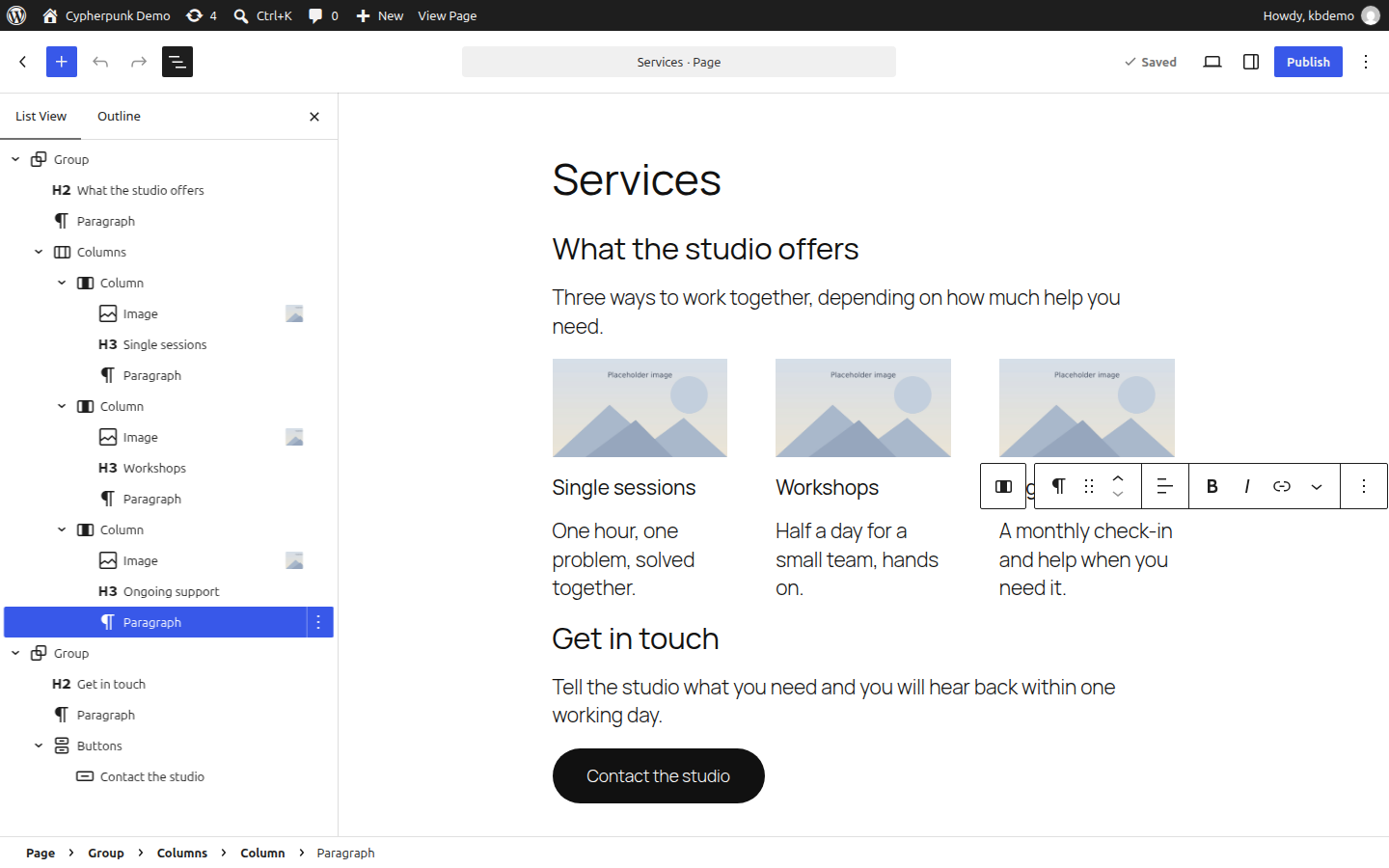
List View shows every block on the page as an outline, with groups and columns nested inside each other. Open it with Shift + Alt + O (Mac: Control + Option + O). Click a name to select that block, even one hidden inside a group, and drag names to reorder them. On a long page this is the quickest way to find the block you want.
Reuse Content With Synced Patterns
A synced pattern is a block, or group of blocks, that stays the same everywhere you use it. Edit it once and every page that uses it changes. Use one for opening hours, a contact block or a standard call to action.
- Select the blocks you want to reuse.
- Open the block's three-dot Options menu and choose Create pattern.
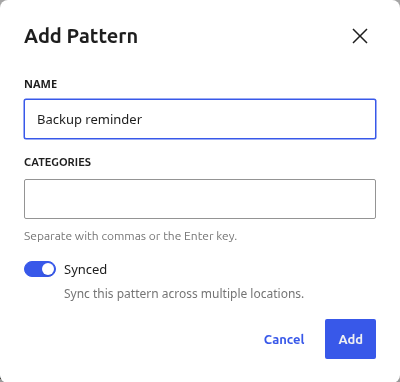
- Give it a name, leave Synced on, and select Add.
- To use it elsewhere, type
/and the pattern's name, or find it under Patterns in the inserter.
To change one copy without changing the others, select it, open Options and choose Detach. That copy becomes ordinary blocks; the rest stay synced.
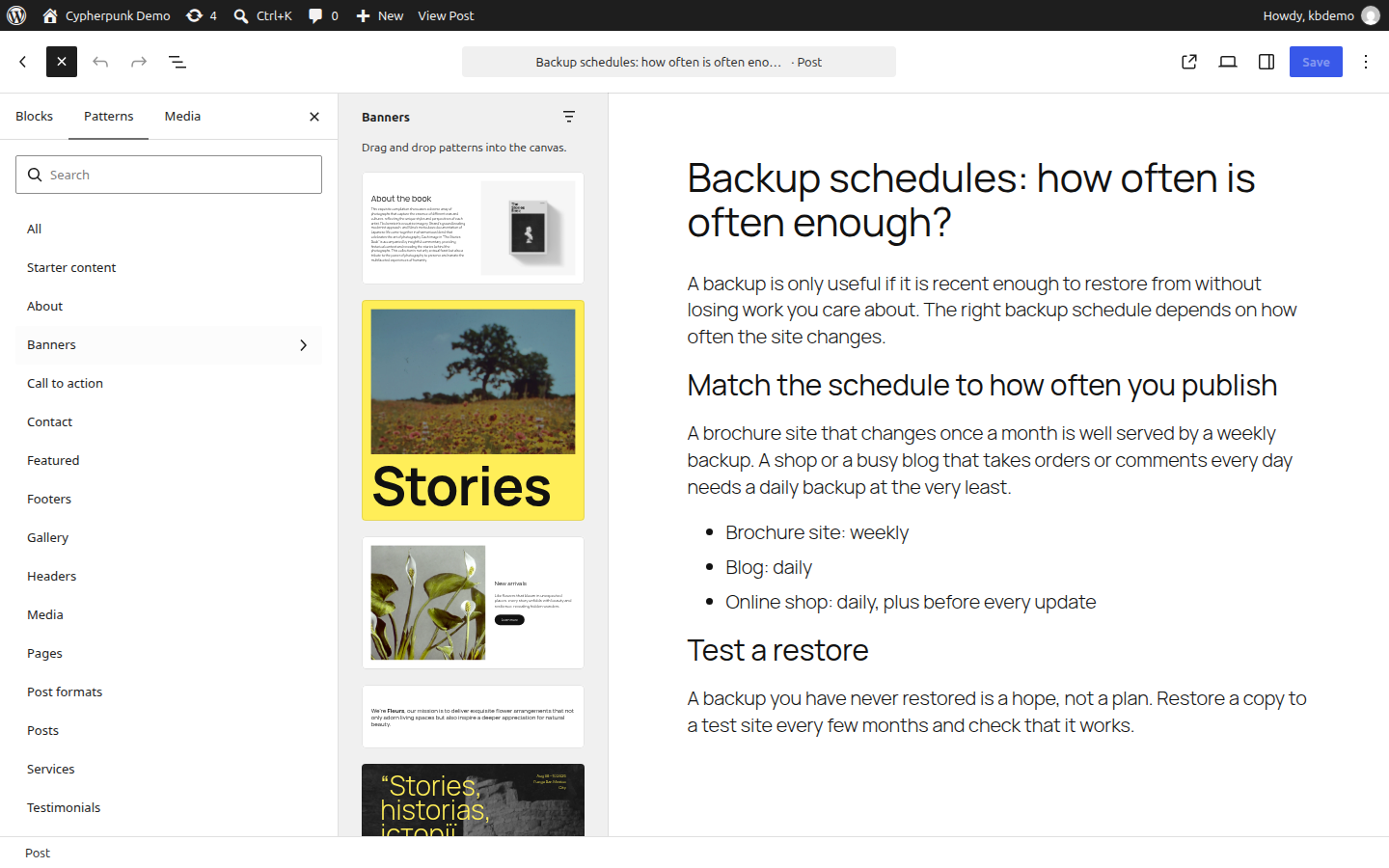
Patterns that are not synced are layouts you insert and then change freely. The inserter's Patterns tab holds the ones your theme provides.
Protect a Layout With Lock
When several people edit the site, lock the parts that should not move. Select a block, open Options and choose Lock. You can stop it being moved, removed, or both. Locking a group offers to lock the blocks inside it too.
Core Blocks to Try Before You Install a Plugin
| You want | Use this core block |
|---|---|
| An FAQ that opens and closes | Details, or Accordion for a set of panels |
| Call-to-action buttons | Buttons |
| An image with text over it | Cover |
| A photo gallery | Gallery |
| A list of your latest posts in a category | Query Loop |
| Notes at the foot of an article | Footnotes |
| A YouTube video or a social post | Embed |
| Links to your social profiles | Social Icons |
A table of contents block exists only as an experiment in the separate Gutenberg plugin, which is meant for testing. On a live site, a short list of links to your headings does the same job.
Write Without Distractions
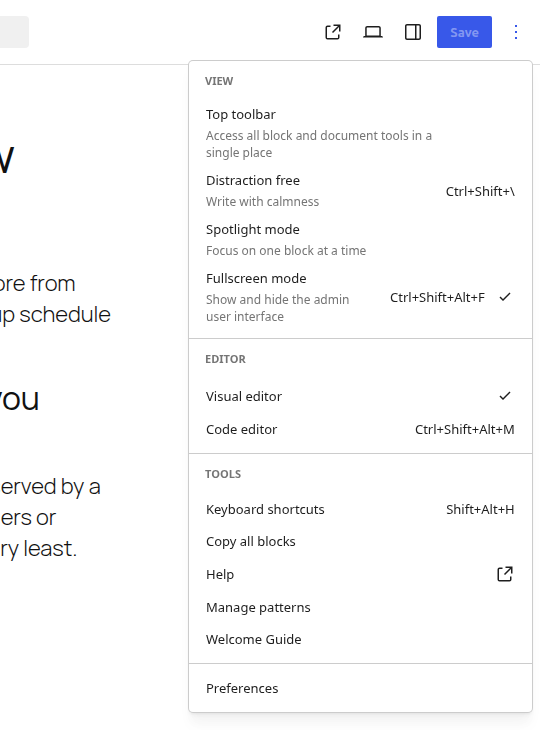
Distraction free mode hides the toolbars and sidebars while you write. Turn it on with Ctrl + Shift + \ (Mac: Shift + Cmd + \) or from the Options menu at the top right, under View.
Troubleshooting
- A shortcut does nothing: most act on a selected block. Click the block first. If your browser or operating system uses the same keys, use the toolbar or the Options menu instead.
- Ctrl + K makes a link instead of opening the palette: you have text selected, so the link shortcut wins. Click an empty part of the page first.
- Editing a block changed it on other pages: it is a synced pattern. Undo, then Detach that copy before you edit it.
- A block you expected is not in the inserter: it may come from a plugin or theme that is not active, or not exist in WordPress at all. Check the Core Blocks Reference before you install anything.
Let Noiz Keep WordPress Current
The editor gains features with each WordPress release, and you only get them if WordPress is kept up to date. WordPress Care does that every week, with a restore point taken before each update and checks afterwards.