DNS Records Explained: A, CNAME, MX, TXT and NS
DNS records are the lines in your domain's address book. Each one tells the internet where one part of your domain lives: the A record sends visitors to your website, the MX record sends email to your mailbox, and TXT records prove who you are to services like Google. This guide explains each record, which one to change for the job in front of you, and where to edit it on Noiz hosting.
Last reviewed: 11 November 2026, against the current Plesk Obsidian DNS Settings on Noiz hosting.
Before you start
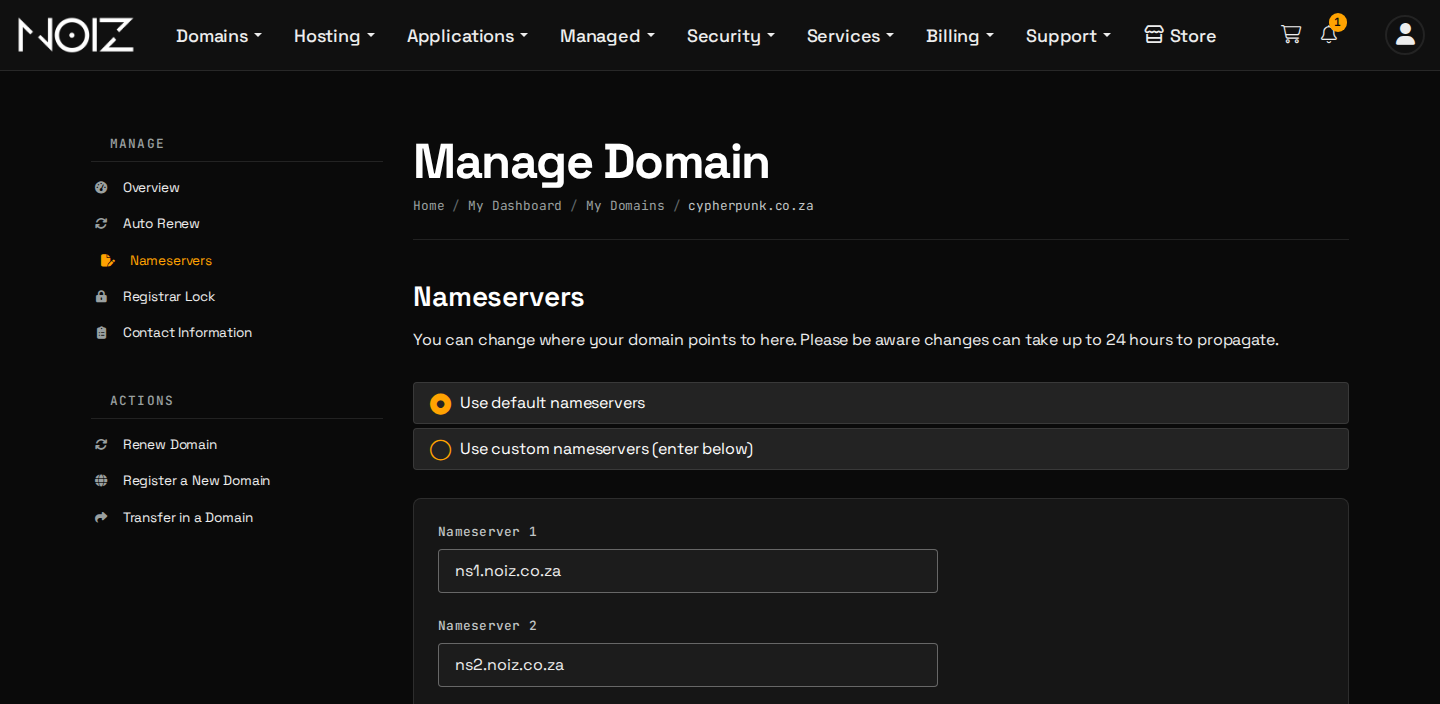
- Know which nameservers your domain uses. Records only matter where the domain's nameservers point. On Noiz hosting those are
ns1.noiz.co.zaandns2.noiz.co.za. - The values come from the service you are connecting. Your website service, mail provider or verification tool tells you exactly what to enter.
What are the main DNS record types?
| Record | Plain meaning | Example use |
|---|---|---|
| A | Name to an IPv4 address | yourdomain.com goes to the server that holds your website |
| AAAA | Name to an IPv6 address | The same, for IPv6 |
| CNAME | Name is an alias for another name | www.yourdomain.com follows yourdomain.com |
| MX | Where email for the domain is delivered | Mail goes to your mailbox host, lowest number tried first |
| TXT | A text note that services can read | SPF, DKIM, DMARC and verification codes |
| NS | Which nameservers are in charge | ns1.noiz.co.za and ns2.noiz.co.za |
| SRV | A service and its port | Chat and calendar services |
| PTR | An IP address back to a name | Mail servers use it to check a sender |
yourdomain.com stands for your own domain in every example.
Which record do you change for which job?
| You want to | Change this |
|---|---|
| Send your website to a new host | The A and AAAA records for @ (the bare domain) and the CNAME or A record for www |
| Move your email | The MX records, then SPF and DKIM in TXT |
| Verify the domain for Google, Microsoft or another service | Add the TXT (or CNAME) the service shows you |
Point a subdomain such as shop.yourdomain.com to another service |
A CNAME for shop, or the A record the service gives you |
| Move DNS to another provider | The NS records, set at your registrar in the console |
How do you edit DNS records on Noiz hosting?
If your domain uses the Noiz nameservers, you edit records in Plesk:
- Log in to Plesk from the console. How to log in to Plesk shows the single sign-on link.
- Go to Websites & Domains and open the domain's DNS Settings.
- Select Add Record, or select an existing record to change it.
- Enter the values you were given and select OK.
The full steps, including how to check the result, are in How to add and edit DNS records in Plesk. If your domain uses other nameservers, make the same change with that DNS host. Nameservers are changed in the console on the domain's Nameservers tab.
Why has your change not shown up yet?
Every record has a TTL (time to live): the number of seconds other computers may keep the old answer before asking again. A change reaches everyone once the old TTL has run out, which usually takes between a few minutes and a day or two. This is what people call propagation.
- Lower the TTL a day ahead of a planned move, so the old answer expires quickly.
- Check the authoritative answer, not your own computer's memory. On macOS or Linux,
dig @ns1.noiz.co.za yourdomain.com A +norecurseasks the Noiz nameserver directly. - Keep the old service running until the new one works, so visitors see one or the other.
Which mistakes cause the most trouble?
- A CNAME on the bare domain. A CNAME cannot share a name with MX or TXT records, so the bare domain uses A records instead.
- Two SPF records. A domain may publish one SPF policy. Add the new sender to the existing one.
- Deleting records you do not recognise. Verification and DKIM records look odd but matter. Save the list of records before you change anything.
- Changing MX without moving mailboxes. Mail goes where MX says, whether or not the mailboxes are there. Moving your website to Noiz without downtime explains the order.
- A full stop or URL in a field. Enter
www, nothttps://www.yourdomain.com/.
Need a hand?
Open a ticket in the console with the domain and the records you need. On a managed plan, we make the change for you.
Official Documentation Reference
- Plesk: Configuring DNS for a domain: primary, secondary and external DNS.
- RFC 1035: Domain names, implementation and specification: the standard for records and TTL.