This guide explains the four virtual hardware toggles that SolusVM exposes for a virtual server, APIC, ACPI, VNC and PAE, what each one actually changes at the hypervisor level, when it is sensible to switch one off, and how to confirm afterwards that the change took effect. These are not cosmetic preferences. Three of them alter the virtual hardware the operating system boots on, and one of them decides whether an out-of-band console exists at all when the network stops answering. Switching the wrong one off is a recognised way to make a working VPS unbootable or unreachable, so the reasoning behind each setting matters more than the click that changes it. This article is for anyone with access to a VPS managed through SolusVM, whether that is an end user in the client area or an administrator working on a customer's virtual server.
Last reviewed: 27 July 2026, against the current SolusVM release. This guide is maintained by Noiz and is kept current against SolusVM. It complements, and does not replace, the official SolusVM documentation linked below.
Official Documentation Reference
- SolusVM Documentation: Introduction to SolusVM, Common Notation and Glossary, the entry point for the legacy SolusVM 1 documentation set that the classic client area belongs to
- SolusVM Documentation: PAE Enable/Disable, the documented
vserver-paeaction that the PAE toggle drives behind the scenes - SolusVM Documentation: Glossary, the official definitions of terms such as compute resource, management node, and virtual server
- libvirt: Hypervisor Features, the clearest published description of what the
acpi,apicandpaefeature flags mean in a virtual machine definition - Linux kernel: The Kernel's Command-Line Parameters, the authoritative reference for
acpi=off,noapic,nolapicand the related boot options mentioned below - Linux manual page:
logind.conf(5), which documentsHandlePowerKey, thesystemd-logindsetting that makes a modern Linux guest react to a virtual power button press - Linux manual page:
acpid(8), the ACPI event daemon that older, non-systemd guests rely on for the same job - Linux kernel: High Memory Handling, useful background on why 32-bit systems need PAE to address more than 4 GB of RAM
Prerequisites
- Access to log in to the SolusVM control panel. The address you log in at is given in the welcome email for your VPS.
- A maintenance window. Every one of these settings needs the virtual server to stop and start again before it takes effect, so plan for downtime rather than discovering it.
- Knowing which virtualisation type your VPS uses. These toggles apply to full virtualisation, meaning KVM and Xen HVM. You can check this on the VPS information screen if you are not sure, as described in how to check the RAM, IP, disk capacity and virtualisation details in SolusVM.
- A recent backup or snapshot if you intend to change APIC, ACPI or PAE. Two of these three can stop a guest booting, and the console is your only route back in.
What Each Toggle Actually Does
SolusVM presents all four as identical On and Off dropdowns, which badly understates how different they are. Three of them, APIC, ACPI and PAE, are virtual hardware features passed to the guest at power-on: they change what the emulated machine looks like to the operating system, in much the same way a BIOS option changes what a physical machine looks like. VNC is not a guest feature at all. It is a service running on the host node that gives you a screen and a keyboard for the virtual machine, and turning it off changes nothing inside the guest.
ACPI, and why graceful shutdown depends on it
ACPI, the Advanced Configuration and Power Interface, is the standard that lets an operating system discover and control the hardware's power management. In a virtual machine it does two jobs that matter.
The first is the one people notice. ACPI is the mechanism by which a graceful shutdown or restart works. When you click Shutdown or Reboot in SolusVM, the hypervisor does not reach inside the guest and stop it. It raises an ACPI power button event, which is the virtual equivalent of briefly pressing the power button on a physical server. The operating system sees that event and runs its own shutdown sequence: services stop cleanly, write buffers are flushed to disk, filesystems are unmounted and marked clean. On a systemd-based Linux distribution the event is handled by systemd-logind through its HandlePowerKey setting; on older or non-systemd systems it is handled by the acpid daemon. Either way, if ACPI is switched off in SolusVM, that event has nowhere to land. The panel will report the request as sent, the guest will carry on running as though nothing happened, and the only remaining way to stop the machine is a forced power off, with all the risk that carries. The relationship works in both directions and is worth committing to memory: no ACPI means no graceful shutdown, which means every stop becomes the equivalent of pulling the plug. If graceful shutdowns are already failing on your VPS, this setting is the first thing to check, and the difference between a forced and a graceful shutdown in SolusVM explains exactly what you lose when the graceful path is unavailable.
The second job is less obvious and catches people out. On x86 systems, ACPI also publishes the tables that describe the machine's topology, including the MADT table that enumerates the processors. A modern Linux kernel uses those tables to find the CPUs. Disable ACPI on a multi-vCPU virtual server and the guest can come up seeing only one processor, or fail to bring the others online, which looks like a mysterious performance collapse rather than a configuration change. Boot-time thermal, timer and interrupt routing behaviour can shift as well.
ACPI should be left On in virtually every case. The only real reason to disable it is a guest operating system so old or so unusual that its ACPI implementation is broken and prevents boot, and that is a diagnosis you reach after seeing the machine hang, not a precaution taken in advance.
APIC, and what happens to interrupts without it
APIC, the Advanced Programmable Interrupt Controller, is the modern replacement for the original PC interrupt controller, the 8259 PIC. Interrupts are how devices get the processor's attention: a network card announcing a packet, a disk announcing a completed write, the timer announcing a tick. The old PIC design supports only 16 interrupt lines and has no concept of more than one processor. The APIC design removes both limits, which is why it exists.
Turning APIC off tells the hypervisor to present the guest with the legacy controller instead. The consequences follow directly from that:
- Multiple vCPUs stop being useful. Without an APIC there is no mechanism for one processor to interrupt another, so symmetric multiprocessing does not work. A guest with several vCPUs will typically boot on one of them or not boot at all.
- Interrupt lines become scarce. Devices are forced to share the small pool of legacy interrupt lines, which shows up as poor throughput on disk and network under load rather than as an obvious error.
- Timer behaviour changes. The local APIC is a common timer source. Removing it pushes the guest onto older timer hardware, which on some kernels produces clock drift or unusually high timer overhead.
APIC should be left On. The genuine exception is a very old guest operating system with a known APIC bug, where the vendor's own advice is to boot with noapic or nolapic. Note that if the fix you have been given is a kernel command-line parameter, apply it as a kernel parameter inside the guest rather than switching the virtual hardware off in SolusVM. The kernel parameter is reversible from the boot menu; the panel setting is not reachable at all if the machine will not boot.
VNC, and the console you only miss when you need it
VNC is different in kind from the other three. It does not change the guest's virtual hardware. With VNC on, the host node runs a small server attached to the virtual machine's emulated graphics and keyboard, and the SolusVM client area connects to it to give you a console. That console is out of band, meaning it does not depend on the guest's network stack, its firewall, or its SSH service being alive. It is what shows you a filesystem repair prompt waiting for an answer, a firewall rule that has locked you out, a kernel that panicked during boot, or a network configuration change that took the interface down. How to access a VPS via VNC in SolusVM covers using it.
The argument for switching VNC off is attack surface. The VNC server listens on the host node, and anyone who reaches it with the right password gets a console session that is equivalent to sitting at the machine, before any of the guest's own authentication applies. The argument against switching it off is that you are removing the one recovery route that works when everything inside the guest has failed, which is precisely the moment you will want it.
In practice the better answer is almost always to leave VNC On and treat its password as a root-equivalent credential: set a long, unique one and change it if it has ever been shared. How to change the VNC password in SolusVM covers that. Switch VNC off only if a policy requires it, and only once you are confident of another way in, such as a serial console or a working rescue mode.
One practical detail: turning VNC on or off changes the console service, not the running guest, so nothing inside the operating system notices. It still needs the virtual machine to be stopped and started before the change is live, because the console is attached when the machine is created on the host node.
PAE, and why it only matters on 32-bit systems
PAE, Physical Address Extension, widens the page table entries a 32-bit x86 processor uses, taking the amount of physical memory the system can address past the 4 GB ceiling that plain 32-bit addressing imposes. It is also the feature that makes the NX no-execute bit available on 32-bit systems, which is a meaningful security property, not just a capacity one.
Everything about PAE follows from one fact: it is a 32-bit concern only. A 64-bit guest addresses far more memory natively and does not care about this toggle. If your VPS runs a 64-bit operating system, which almost every current distribution and Windows release is, this setting has no practical effect on it.
Where it does matter, it matters absolutely:
- Most 32-bit Linux distributions ship a PAE-enabled kernel as standard, and a PAE kernel will not boot on a processor that does not advertise the feature. The failure is explicit rather than subtle, along the lines of
This kernel requires the following features not present on the CPU: pae, followed by a halt. If a 32-bit guest stops dead at that message, this toggle is the cause. - A handful of very old 32-bit operating systems predate PAE or implement it badly, and need it switched off to install or boot.
- A 32-bit guest with more than 4 GB of RAM assigned cannot use the memory beyond that ceiling without PAE. The RAM is allocated and paid for, and the guest simply will not see it.
Leave PAE On unless a specific old operating system tells you otherwise. On the SolusVM side, this toggle corresponds to the documented vserver-pae action, linked above, which is worth knowing if you ever automate the change.
When the settings are not there at all
If you cannot find these controls, the usual reason is virtualisation type. Container-based virtual servers such as OpenVZ share the host node's kernel and have no BIOS, no virtual interrupt controller and no power management layer of their own, so APIC, ACPI and PAE are meaningless for them and are not offered. Xen PV guests are paravirtualised and likewise do not present emulated firmware. Beyond that, the SolusVM client area is configurable, and a provider can choose not to expose these settings to end users, in which case the change has to be made by whoever administers the SolusVM master server for your VPS.
How to Turn APIC, ACPI, VNC or PAE On or Off
- Log in to your SolusVM control panel using the address in your VPS welcome email.
- If your account holds more than one virtual server, select the one you want to change. Check the hostname and main IP address before going any further, because nothing in the confirmation step tells you which server you picked.
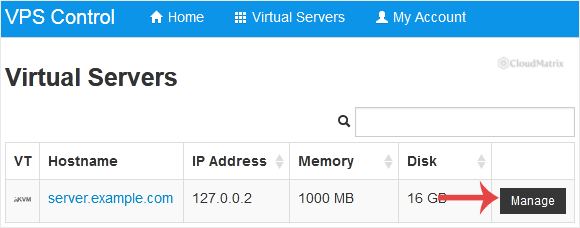
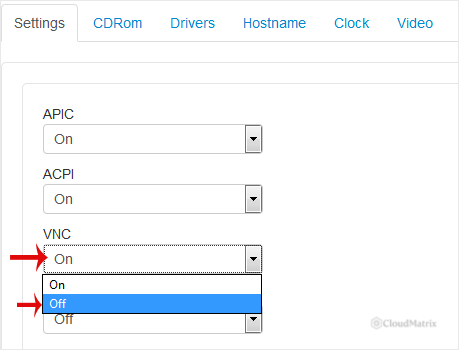
- Scroll down to the Settings tab. The APIC, ACPI, VNC and PAE controls are grouped there, each with its own On and Off dropdown.
- Set the dropdown for the feature you want to change. In the example below, VNC is being switched to Off by selecting Off from the dropdown beneath the VNC label.
- Change one setting at a time and apply it before moving on to the next. If two changes are made together and the guest then fails to boot, you have no way of telling which one caused it.
- Stop and start the virtual server so the new configuration is applied. SolusVM records the change immediately, but the guest keeps the virtual hardware it was given when it was powered on, so nothing is different until the machine is created again on the host node.
Getting the restart order right
A reboot from the SolusVM panel is usually enough. If you want certainty, or if the guest comes back visibly unchanged, do a full shutdown followed by a boot. A full power cycle is the only way to be sure the machine has been rebuilt from the current configuration.
There is one ordering trap that is easy to walk into. If you are switching ACPI off, use the graceful shutdown now, while ACPI is still active in the running guest. Once the machine restarts without ACPI, graceful shutdown stops working, and every subsequent stop has to be forced. Doing it in the wrong order means the very first thing you do after the change is exactly the thing this setting has just broken.
A related point applies to VNC. If you are turning VNC off, confirm your other access route works before the machine restarts. After the restart there is no console to fall back on, and a mistake in a firewall or network configuration then has no local remedy.
How to Confirm the Change Actually Took Effect
The panel showing Off only tells you SolusVM stored the request. Check inside the guest, over SSH or on the console, once it is back up.
ACPI
ls /sys/firmware/acpi
dmesg | grep -i acpi | head
If /sys/firmware/acpi exists and is populated, the kernel found and is using ACPI tables. With ACPI disabled, the directory is absent and the boot messages say so. Confirm the handler is running too, since ACPI being present is no use if nothing is listening for the event:
systemctl status systemd-logind
systemctl status acpid
On a systemd distribution, systemd-logind is the one that matters and acpid may not be installed at all. On an older system it is the other way round. The real end-to-end test is behavioural: issue a graceful shutdown from the panel and watch the machine actually go down.
APIC
dmesg | grep -iE 'apic|pic' | head
grep -c ^processor /proc/cpuinfo
lscpu | head
The boot messages state which interrupt controller was found. The processor count is the practical check: if the VPS was sold with several vCPUs and the guest now reports one, APIC is the first suspect. cat /proc/interrupts is also worth a look, since the routing column names the controller in use.
PAE
grep -o -m1 ' pae ' /proc/cpuinfo
uname -m
free -h
The first command reports whether the CPU is advertising the PAE flag to the guest. uname -m tells you whether this is even relevant: x86_64 means you are on a 64-bit system and PAE is not your problem. On a 32-bit guest with more than 4 GB assigned, free -h is the honest test of whether the extra memory is visible.
VNC
There is nothing to check inside the guest, because nothing inside the guest changed. Open the console from the SolusVM client area. If it connects and you get a login prompt, VNC is on. If it refuses, it is off, or the console password needs setting.
Troubleshooting
- The setting was changed but nothing is different in the guest: the virtual server has not been rebuilt from the new configuration. A guest-initiated restart from inside the operating system is not always sufficient. Do a full shutdown and boot from the panel.
- Graceful shutdown and reboot stopped working after a change: ACPI is off, or the guest has no handler for the power event. Turn ACPI back on, boot the machine, and check that
systemd-logindis running, or thatacpidis installed and enabled on an older distribution. Until then, stopping the machine means forcing it, so expect a filesystem check on the next boot. - The VPS lost most of its CPUs after a change: this is the classic signature of APIC or ACPI being off. Without an APIC there is no multiprocessing, and without ACPI the kernel may not enumerate the processors at all. Turn the setting back on and power cycle.
- A 32-bit guest halts at "This kernel requires the following features not present on the CPU: pae": PAE is off and the installed kernel needs it. Turn PAE on and boot again. Nothing inside the guest can be changed to work around this, because the guest never gets far enough to run.
- The guest will not boot after a change and you have no console: this is why VNC should be the last thing you ever disable. Set the feature you changed back to its previous value, power cycle, and if that does not recover the machine, ask whoever administers the SolusVM master server to attach a console or start the virtual server in rescue mode.
- The console connects but shows a blank or frozen screen: that is usually the guest itself, not the VNC setting. A kernel panic, a boot hang, or a blanked virtual terminal all look like this. Press a key or send Ctrl+Alt+Del from the console if the viewer offers it, and read whatever text appears rather than power cycling straight away.
- The Settings tab does not show these options: the virtual server is most likely container-based or paravirtualised, where they do not apply, or the client area has been configured not to expose them. Confirm the virtualisation type first, then ask the administrator of the SolusVM master server if it is one that should have them.
- You want to try a boot-time workaround rather than change the panel: for interrupt and power management problems, kernel parameters such as
noapic,nolapicandacpi=offcan be applied from the guest's boot menu for a single boot. That is the safer experiment, because it is undone by rebooting, whereas a panel change persists and may leave a machine that cannot start.
If a change to these settings leaves a VPS unbootable or unreachable and the panel controls are not recovering it, escalate to the team that runs the SolusVM master server for your VPS, whose contact details are in your VPS welcome email. Noiz clients can open a support ticket with the Noiz support team; include the VPS hostname and main IP address, which setting was changed and to what, the time the change was made, and anything visible on the console.






