This guide shows you how to open the VNC console for a VPS from Virtualizor, the panel Noiz VPS clients use to manage their servers. VNC gives you a screen and keyboard attached directly to the virtual machine, exactly as though you had walked up to a physical server and plugged a monitor into it.
That distinction is the whole point of the feature. Every other way of reaching a VPS depends on the server itself co-operating: SSH needs the SSH daemon running, the network configured and the firewall letting you through. VNC needs none of that. It attaches at the hypervisor level, outside the guest operating system, so it keeps working when the server has locked you out of itself.
Last reviewed: 27 July 2026, against the current Virtualizor release and its end-user panel. This guide is written for Noiz hosting and is kept current against Virtualizor. It complements, and does not replace, the official Virtualizor documentation linked below.
Official Documentation Reference
Prerequisites
- Your Virtualizor end-user panel URL and login details, which are in your Noiz VPS welcome email.
- An active Noiz VPS service.
- The VPS must be powered on. VNC shows you the virtual machine's screen, and a machine that is switched off has no screen to show. If yours is off, start it first with How to Start or Boot Your VPS in Virtualizor.
- A current desktop browser. The console runs in the browser itself, so nothing needs installing on your computer.
When You Actually Need VNC
Most of the time SSH is the better tool, and it is faster, supports copy and paste properly and lets you move files. Reach for VNC in the situations where SSH cannot help you, which are the situations that matter most:
- The firewall has locked you out. A mistyped rule, a changed office IP address or an over-eager brute-force blocker will shut SSH in your face. The console is not affected, because it never touches the guest's firewall.
- Networking on the VPS is broken. A bad network configuration change, a wrong netmask or gateway, or an interface renamed by a kernel update all take the server off the network without stopping it running. On the console you can see it sitting there perfectly healthy and fix the configuration.
- SSH itself will not start. A broken configuration file, a full disk or a failed upgrade can leave the SSH daemon dead while everything else is fine.
- The server will not finish booting. This is the big one. A failed file system check, a missing disk in
/etc/fstab, a kernel that will not load or a GRUB menu waiting for input all stall the boot before the network ever comes up. Only a console can show you the error, and only a console can answer the prompt. Without VNC, a server stuck at boot simply looks dead. - You are installing an operating system by hand. A manual install from an ISO happens entirely on the console, because there is no operating system yet to connect to. See How to Manually Install or Reinstall an OS Using Virtualizor for a Customized Installation.
- You have forgotten the root password. Resetting it means booting into single-user or rescue mode and editing the boot entry, which is keyboard work at the console.
The practical habit worth forming: before you change anything that could cut your own connection, such as a firewall rule, an SSH port, a network interface or the sshd configuration, confirm you can open the VNC console first. Verifying your escape route takes ten seconds and saves an afternoon.
Open the VNC Console
- Log in to your Virtualizor end-user panel.
- From the left-hand menu, click List VPS.
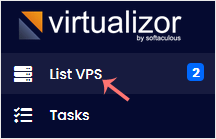
- Hover over the row for the VPS you want to reach. The row highlights. Click the Manage icon on that row.

- At the top right of the management page, click the VNC icon.

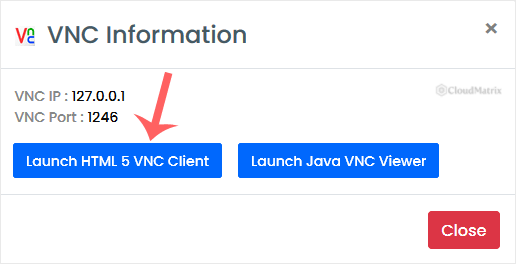
- A panel opens offering the console options. Click Launch HTML 5 VNC Client.
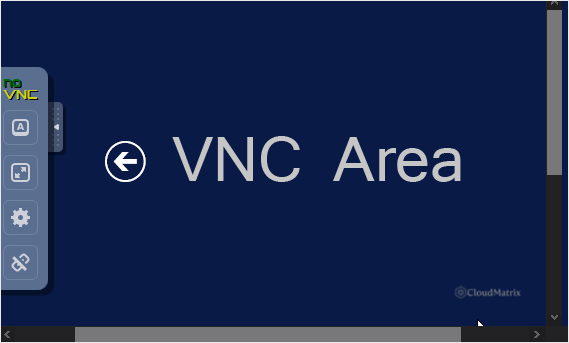
- The console opens and shows the virtual machine's screen, which will look something like this:
Use the HTML5 Client, Not the Java One
Older Virtualizor panels offered a Java VNC viewer alongside the browser client, and older guides still tell you to use it. Ignore that advice. Browsers removed support for Java applets years ago, so the Java option cannot run in a modern browser at all. If a screen or an old note mentions a Java viewer or warns that VNC needs Java installed, it is describing the legacy path. The HTML 5 client is the one to use, and it needs nothing installed on your computer.
The same panel also shows the raw VNC host, port and password. Those are for connecting with a standalone VNC application instead of the browser, which is occasionally useful on a bad connection. Treat that password as a live credential for full console access to your server, because that is exactly what it is. Do not paste it into a chat or a ticket.
Working in the Console
The console behaves like a physical monitor and keyboard, with the limitations that implies.
- Copy and paste usually will not work the way you expect. Your clipboard belongs to your computer, not to the virtual machine, so a long command has to be typed by hand. This is the single most common frustration with console work, and it is why SSH remains the better tool whenever SSH is available. Some console clients offer a clipboard or "send text" control in a side toolbar; use it if it is there.
- Ctrl+Alt+Del has to be sent deliberately. Pressing it on your keyboard will be caught by your own operating system, not passed through. Use the console's own key control to send it.
- Key combinations your browser owns get intercepted. Anything the browser treats as a shortcut, such as Ctrl+W or Ctrl+T, closes or opens a browser tab rather than reaching the server. Full-screen mode in the console reduces the collisions.
- Keyboard layout is the guest's, not yours. If the operating system on the VPS is set to a different layout, punctuation characters will land in the wrong place. That bites hardest when typing a password full of symbols, so if a password you are certain about keeps failing, suspect the layout before you suspect the password.
- The console is text-only on most servers. A Linux VPS without a desktop installed shows a plain login prompt, which is normal and not a fault.
- The session is live, not a recording. If the screen is blank, the server may simply have blanked it after a period of inactivity. Press a key and it will usually redraw.
Security Notes Worth Knowing
- Console access is total access. Anyone who can reach it can boot into rescue mode and change the root password, which is precisely why it works when everything else has failed. Protect the Virtualizor panel login accordingly, and change it if you ever suspect it has been shared. See How to Change the Password of Your Virtualizor Account.
- The VNC password shown in the panel is a standing credential for that VPS, not a one-time code. It stays the same until you change it, so change it if it has ever been shared, pasted into a ticket or seen on a screen share. See How to Change the VNC Password in Virtualizor, and note that the VPS has to be stopped and started from the panel before a new VNC password takes effect.
- Close the console tab when you have finished. An open console left on an unlocked laptop is a logged-in root session in all but name.
Troubleshooting
Symptom: the VNC icon is greyed out. The VPS is powered off. Start it, then reopen the console.
Symptom: the VNC icon is not on the management page at all. VNC has not been enabled for that virtual machine, which is a property of the VPS rather than anything you have done wrong. Turn it on as described in How to Enable or Disable APIC, ACPI and VNC in Virtualizor, remembering that the setting only takes effect after the VPS is power cycled.
Symptom: the console window opens but stays black. First press a key, since the screen may just be blanked. If it stays black, the virtual machine may have only recently been started and not yet produced any output, so give it a moment and reload. A console that is black immediately after a forced power off usually means the server is still running a file system check and has not reached a login prompt.
Symptom: the console fails to connect, times out or disconnects immediately. The browser client connects back to the Virtualizor panel on its own ports rather than the normal web ports, and restrictive corporate, university or guest networks routinely block them. Test from a different connection, such as a mobile hotspot, before assuming the server is at fault. Virtualizor also documents this happening when VNC was enabled on a VPS after that VPS was created, in which case a stop and start from the panel resolves it.
Symptom: your typing does not appear. Click once inside the console area first, because it needs keyboard focus. If characters appear but the wrong ones do, it is a keyboard layout mismatch inside the guest operating system.
Symptom: the console shows a login prompt but your password is rejected. Check the layout point above, then confirm you are using the operating system's root password and not your Virtualizor panel password. They are separate credentials and are often confused.
Symptom: the screen is frozen and nothing responds, including Ctrl+Alt+Del. The guest operating system has hung rather than the console failing. A hard reset from the panel is the next step, keeping in mind that it is an abrupt power cycle.
Symptom: the console works but the server is unreachable from the internet. That confirms the fault is in networking or the firewall rather than the server being down, which is useful information. Check the interface configuration, the routing table and the firewall rules from the console.
Related Guides
- How to Manually Install or Reinstall an OS Using Virtualizor for a Customized Installation
- How to Start or Boot Your VPS in Virtualizor
- How to Reboot or Restart a VPS in Virtualizor
- How to Forcefully or Gracefully Shut Down the VPS in Virtualizor
Need a Hand?
If the console will not open, or it opens and shows a server stuck at a boot error you do not recognise, open a support ticket from your Noiz client area. Include what the console screen shows, since that message is usually the fastest route to a diagnosis. The support team can confirm the console service is healthy on the host node and help you recover a VPS that will not boot on its own.






