If your VPS is offline, you can power it back on yourself from the Virtualizor end user panel. No support ticket is needed for a routine start. This guide shows you where the control lives, what to expect while the machine boots, and what to check when a VPS refuses to stay running.
Virtualizor and other panels use several words for the same action. Start, Boot and Power On all mean the same thing here: bringing a stopped virtual machine back to life from cold.
Last reviewed: 27 July 2026, against the current Virtualizor release. This guide is written for Noiz hosting and is kept current against Virtualizor. It complements, and does not replace, the official Virtualizor documentation linked below.
Official Documentation Reference
Prerequisites
- An active Noiz VPS with Virtualizor end user panel access.
- The panel address, username and password supplied with your VPS details. Virtualizor's end user panel listens on port
4083over HTTPS by default, so the address usually looks likehttps://yourserver.example.com:4083. - A VPS that is genuinely stopped rather than suspended. A suspended VPS will not start until the suspension is lifted, and the panel will tell you so.
Start the VPS
Step 1: Log in to Virtualizor
Log in to your Virtualizor control panel with the credentials Noiz issued for the VPS. These are separate from your Noiz client area login.
Step 2: Open the VPS list
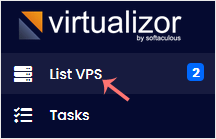
In the left side panel, click List VPS. This page shows every virtual machine on your account along with its current power state, so it is also the quickest way to confirm that the VPS really is offline rather than unreachable for some other reason.
Step 3: Open the VPS you want to start
Hover your mouse over the row for the appropriate VPS. The line will highlight. Click the Manage icon in that highlighted row to open the management screen for that machine.

If you have more than one VPS, check the hostname and IP address in the row before you click. Starting the wrong machine is harmless, but starting the wrong one while you are troubleshooting another will cost you time.
Step 4: Click Start
On the top right of the management screen, click the Start icon. The panel queues the power-on task and the status indicator switches to online once the hypervisor has brought the machine up.

What to Expect After Starting
- Virtualizor reports the VPS as online as soon as the virtual machine is powered on. That is not the same as the VPS being ready to use.
- The operating system then boots and starts its own services. Allow a few minutes before you expect SSH, a web server, or a mail service to answer.
- If the VPS was previously powered off hard rather than shut down cleanly, the filesystem may run a consistency check on the next boot. That can add several minutes on a large disk, and it is normal.
- Test with a ping to the VPS IP address first, then SSH. If ping answers but SSH does not, the machine is up and a service inside it is still starting or has failed.
Troubleshooting
Symptom: the Start icon is greyed out or missing. The VPS is already running, or your account does not have power control for that machine. Check the status shown on the List VPS page first.
Symptom: the VPS starts and immediately stops again. This is almost always something inside the virtual machine rather than the panel. The usual causes are a full disk, a corrupted or half-finished kernel update, or a boot order that is pointing at an empty virtual CD or ISO instead of the disk. Watch the boot messages on the console to see which.
Symptom: nothing happens when you click Start. Refresh the page and check the status again. Power tasks are queued, so a busy node can take a moment to act. If the state does not change, the VPS may be suspended.
Symptom: the panel says the VPS is suspended. A suspended VPS cannot be started from the end user panel by design. Suspensions are applied for account or abuse reasons and are lifted by Noiz, not by the panel. Open a support ticket.
Symptom: the VPS is online in Virtualizor but you cannot reach it. The virtual machine is running and the problem is inside it: a firewall rule, a network configuration change, or a service that failed to start. Use the VNC console to log in directly and look, since VNC does not depend on the VPS network being healthy. See How to Access VPS via VNC in Virtualizor.
Related Power Controls
- How to Forcefully or Gracefully Shut Down Your VPS in Virtualizor
- How to Reboot or Restart Your VPS in Virtualizor
Use Restart rather than Power Off followed by Start whenever the VPS is still responsive. A restart asks the operating system to close down cleanly first, which avoids the filesystem check and the risk of losing unwritten data.
Need a Hand?
If your VPS will not start, keeps stopping on its own, or comes up without its services, open a ticket from the Noiz client area with the VPS hostname and the time the problem started. Noiz can inspect the hypervisor side of the machine and confirm whether the fault sits with the node or inside your operating system.






