This guide shows you how to change the password you use to sign in to your Virtualizor end-user panel, the control panel Noiz VPS clients use to manage their servers. The change is made from inside the panel and takes only a moment, so it is worth doing on a regular schedule and immediately if you suspect the credential has been exposed.
Important: this changes your panel password only. It is not the root or administrator password of the operating system running on your VPS, and it is not your Noiz client area password. See Which Password Are You Actually Changing? below, because confusing the two is the single most common mistake with this task.
Last reviewed: 27 July 2026, against the current Virtualizor release. This guide is written for Noiz hosting and is kept current against Virtualizor. It complements, and does not replace, the official Virtualizor documentation linked below.
Official Documentation Reference
- Virtualizor End User: Change Account Password
- Virtualizor End User: Account Settings
- Virtualizor End User Documentation
Prerequisites
- Your Virtualizor end-user panel URL and your current login details, which are in your Noiz VPS welcome email.
- Working access to the panel. If you cannot sign in at all, see Troubleshooting, as this procedure cannot recover a lost password.
- A new password prepared in advance, ideally generated and stored in a password manager.
Which Password Are You Actually Changing?
A VPS involves several separate passwords that are easy to mix up. Changing one has no effect on the others.
- Virtualizor panel password (this article): the credential that signs you in to the Virtualizor end-user panel, where you reboot, reinstall, and monitor the VPS. Changing it does not touch anything inside the server itself.
- VPS root or administrator password: the operating system login used for SSH or Remote Desktop. This is set separately, and is covered in How to Change the VPS Root/Admin Password in Virtualizor.
- VNC password: used only for console access to the VPS screen, and managed on its own settings page.
- Noiz client area password: your billing and support login at noiz.co.za, which is entirely separate from the VPS panel.
If your goal is to lock an intruder out of the server, changing the panel password alone is not enough. Change the operating system password as well, and rotate any SSH keys.
Change Your Virtualizor Account Password
- Log in to your Virtualizor end-user panel. If you are not sure of the address, see How to Log in to Virtualizor Control Panel.
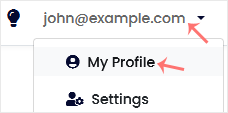
- At the top right of the panel, click your username, then choose My Profile from the dropdown menu.
- Open the Account Password tab.
- Enter your new password in the fields provided, then click Change Password.
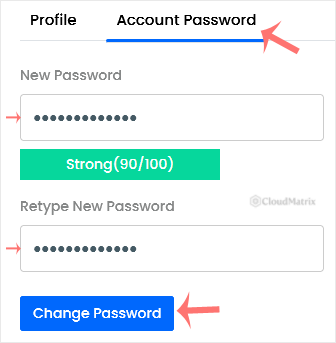
The panel confirms the change straight away. There is no email confirmation step and no delay, so the new password is live the moment the confirmation appears.
What Happens After the Change
A few consequences catch people out, so it is worth knowing them before you click the button:
- The old password stops working immediately. There is no grace period. Make sure the new password is recorded somewhere safe before you submit it.
- Browsers and password managers keep offering the old value. Update the saved entry, otherwise the next sign-in attempt fails and looks like the change did not apply.
- The server itself is unaffected. Websites, email, and services running on the VPS carry on as normal, and no reboot is needed. Nothing is interrupted by a panel password change.
- Existing API keys stay valid. If anything automated talks to Virtualizor using an API key, that key is a separate credential and is not rotated here. Rotate it separately if the account may have been compromised.
Choosing a Password That Holds Up
Panel logins are exposed to the internet and see automated guessing attempts constantly, so treat this credential seriously:
- Use at least 16 characters, generated at random rather than composed by hand.
- Never reuse a password that protects anything else, and in particular never reuse the VPS root password here.
- Store it in a password manager rather than a note or a spreadsheet.
- Pair it with two-factor authentication, which is the single biggest improvement you can make to panel security. See How to Enable or Disable the VPS Login Alert in Virtualizor for how to switch it on.
Troubleshooting
The new password is rejected as too weak: Virtualizor enforces a minimum complexity rule. Add length and mix character types, and avoid dictionary words, your domain name, and anything based on your username.
There is no Account Password tab on My Profile: on some deployments the panel administrator restricts self-service password changes. Contact Noiz support and the password can be reset for you.
You cannot log in to change the password: this procedure needs a working session, so it cannot help you recover a forgotten password. Open a support ticket from your Noiz client area and the support team will verify your identity and issue a reset.
The change appeared to work but the new password fails: this is almost always the browser autofilling the old value. Clear the saved credential for the panel, type the new password manually, and try again in a private browsing window to confirm.
You changed the panel password but can still not reach the server over SSH: SSH uses the operating system password, not the panel password. Change the root password instead, using the article linked above.
Need a Hand?
If you are on a Noiz managed VPS plan, or you believe your panel account has been accessed by somebody else, open a support ticket from your Noiz client area. The support team can reset the panel password, help you rotate the server credentials, and check the account for signs of unauthorised access.






