This guide shows you how to change the VNC password on a VPS from Virtualizor, the panel Noiz VPS clients use to manage their servers. The VNC password protects the virtual console attached to your server, the out-of-band screen and keyboard you fall back on when SSH or Remote Desktop will not let you in.
Important: this is not your Virtualizor login password and it is not the root or administrator password of the operating system on the VPS. Three separate credentials are in play and they are easy to confuse, so the section Which Password Is This? below sets them apart before you change anything.
Last reviewed: 27 July 2026, against the current Virtualizor release and its end-user panel. This guide is written for Noiz hosting and is kept current against Virtualizor. It complements, and does not replace, the official Virtualizor documentation linked below.
Official Documentation Reference
Prerequisites
- Your Virtualizor end-user panel URL and login details, which are in your Noiz VPS welcome email.
- An active Noiz VPS running on hardware virtualisation. The VNC console, and therefore the VNC password, is a KVM feature.
- A short maintenance window, because the new password only becomes live once the VPS is power cycled.
Which Password Is This?
Most support tickets about this task are really a case of the wrong password being changed. Three credentials sit around a Noiz VPS and each one opens a different door.
- The VNC password is what this guide changes. It belongs to the virtual console device on the virtual machine, so it lives on the host node beside the VPS configuration rather than inside your operating system. Changing it has no effect on anything running on the server.
- Your Virtualizor panel password signs you in to the management panel itself, where you can reboot, reinstall and reconfigure the VPS. Change it in How to Change Your Virtualizor Account Password.
- The root or administrator password is the operating system credential you use over SSH or Remote Desktop, and the one you type at the console login prompt once VNC has connected. Change it in How to Change the VPS Root or Admin Password in Virtualizor.
The practical distinction: the VNC password gets you a picture of the screen, and the root password gets you logged in to what is on it. If you can see a login prompt but cannot get past it, the VNC password is working perfectly and the problem is the operating system credential.
Change the VNC Password
- Log in to your Virtualizor end-user panel.
- From the left-hand menu, click List VPS.
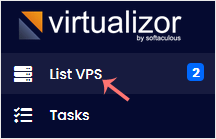
- Hover over the row for the VPS you want to change. The row highlights. Click the Manage icon on that row.

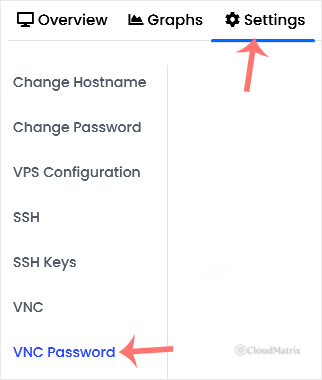
- Open the Settings tab and choose VNC Password.
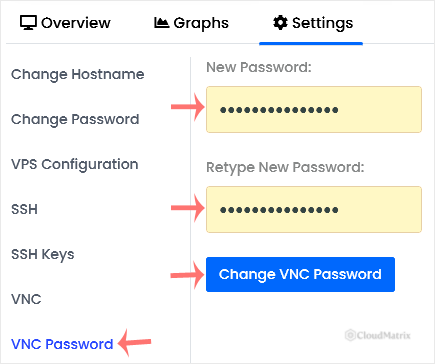
- Type the new password, type it again to confirm, and click Change VNC Password. Virtualizor confirms that the VNC password has been changed successfully.
- Power cycle the VPS. Use Restart from the panel, or Stop followed by Start. The console is configured when the virtual machine is built at boot, so the new password becomes live at the next start and not before.
The Gotchas Worth Knowing
- Eight characters is the practical limit. Classic VNC authentication is built around an eight byte key, so a great many hypervisor and viewer combinations only ever check the first eight characters of what you typed. A twenty character password is not twenty characters of protection, and worse, it can behave inconsistently depending on which client you connect with. Set exactly eight characters, make them random, and treat the console password as a single-purpose credential rather than something you reuse.
- A reboot from inside the operating system is not enough. Running
rebootover SSH restarts the guest, but the virtual machine keeps running with the console definition it was created with. Stop and start it, or restart it from Virtualizor, so the machine is built again from its configuration. - Changing it does not kick anyone off. A console session that is already connected stays connected until the power cycle. If you are changing the password because you think someone else has it, the reboot is the part that actually ends their access, so do not leave it until later.
- You rarely type this password yourself. When you launch the console from inside Virtualizor, the panel authenticates the session for you. The password matters when a client asks for it directly, which is why a stale or mistyped one often shows up as nothing more useful than a console that refuses to connect.
- Reinstalling the operating system will not reset it. The credential belongs to the virtual machine configuration on the host node, not to anything inside the guest, so wiping and rebuilding the server leaves the VNC password exactly as it was. If you have lost it, set a new one here instead of reinstalling.
- It is a hardware virtualisation feature. Virtualizor documents the VNC password for KVM. On container-based virtualisation there is no emulated graphics device to attach a console to, so the option will not be on the screen at all. That is normal rather than a fault.
- The console still sits behind your panel login. Changing the VNC password hardens one layer. If your Virtualizor account password is weak or shared, the console is reachable regardless, so treat the two as a pair.
Troubleshooting
Symptom: the password saved but the console still accepts the old one. The VPS has not been power cycled since the change, or it was rebooted from inside the operating system. Restart it from Virtualizor.
Symptom: the new password is rejected by an external VNC viewer. The password is almost certainly longer than eight characters and the viewer is sending a truncated version of it. Set an eight character password and power cycle again.
Symptom: the VNC Password option is not under Settings. Either the VPS is on a virtualisation type without a virtual console, or VNC is switched off for the machine. Check the VNC tick box first, as covered in How to Enable or Disable APIC, ACPI and VNC in Virtualizor.
Symptom: the console connects and then shows a black screen. The password worked. That is usually a healthy server whose console has blanked after boot, so press Enter and wait for the login prompt to redraw.
Symptom: the console connects but the login is refused. The VNC password is doing its job and the operating system credential is the one at fault. Reset the root or administrator password instead.
Related Guides
- How to Access Your VPS via the VNC Console in Virtualizor
- How to Change the VPS Root or Admin Password in Virtualizor
- How to Change Your Virtualizor Account Password
Need a Hand?
If the VNC password will not save, the option is missing from the Settings tab, or the console still refuses to connect after a power cycle, open a support ticket from your Noiz client area. The support team can check the virtual machine definition on the host node and confirm what the VPS was actually built with.






