Virtualizor can perform a power action on your VPS for you at a date and time you choose, without you being logged in. This is called a self shutdown timer, and despite the name it is not limited to shutting down: the same form schedules a start, a stop, a restart or a hard power off. This guide shows you how to set one from the Virtualizor end user panel on your Noiz VPS, and covers the two things that catch people out: the clock the timer runs against, and the fact that a timer fires once and then leaves the VPS wherever it put it.
Last reviewed: 27 July 2026, against the current Virtualizor end user panel release. This guide is written for Noiz hosting and is kept current against Virtualizor. It complements, and does not replace, the official Virtualizor documentation linked below.
Official Documentation Reference
Prerequisites
- An active VPS on your Noiz account.
- Your Virtualizor end user panel login. If you are not sure where to sign in, see How to Log In to the Virtualizor VPS Control Panel.
- A decision on what the timer should do and when. Read the warning further down before you point one at a live server.
Set the Timer
Step 1: Log in to Virtualizor
Sign in to your Virtualizor VPS control panel.
Step 2: Open the VPS list
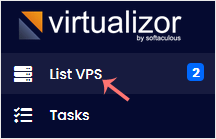
In the left side panel, click List VPS.
Step 3: Manage the VPS
Hover over the row for the VPS you want to schedule. The row highlights and the action icons become available. Click the Manage icon on that row.

If you have more than one VPS, check the hostname and IP address on the row before you click. Scheduling a shutdown against the wrong server is an easy mistake to make from a list view.
Step 4: Open Self Shut Down
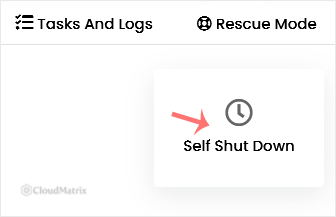
On the VPS management page, click Self Shut Down.
Step 5: Choose the time and the action
Fill in the Date, Hour and Minute, choose the Action you want carried out, then click Submit.
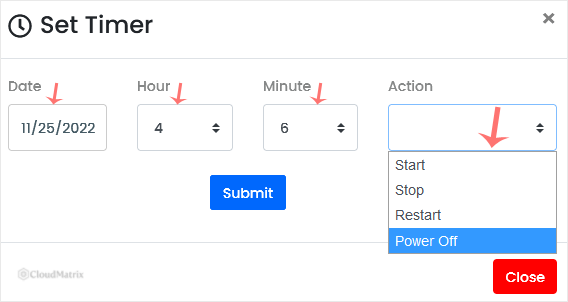
Virtualizor confirms once the timer is saved. The schedule is held by the host node, not inside your VPS, so it still fires if the guest operating system is busy, hung or powered off.
What Each Action Does
- Start: boots a VPS that is currently powered off. Useful as the second half of a pair, for example stop at 23:00 and start at 06:00.
- Stop (shut down): asks the guest operating system to shut down cleanly. This relies on the guest responding to the ACPI power signal.
- Restart: a reboot, equivalent to clicking restart by hand at that moment.
- Power off: cuts the virtual power immediately, with no chance for the guest to flush writes or close databases. Treat it the same way you would treat pulling the plug on a physical machine, and reserve it for a VPS that is already unresponsive.
For the manual equivalents of these actions, see How to Start or Boot Your VPS in Virtualizor, How to Force or Gracefully Shut Down a VPS in Virtualizor and How to Reboot or Restart a VPS in Virtualizor.
Before You Point a Timer at a Production VPS
The classic mistake is a forgotten timer. Somebody sets a shutdown for a one-off maintenance window, the maintenance finishes early, and nobody clears the schedule. Days later the VPS goes down in the middle of the working day and the outage looks like a hardware fault. There is no confirmation prompt at the moment the timer fires and no warning email beforehand, so nothing tells you it is coming.
Protect yourself with three habits:
- Set a calendar reminder for the same date and time you enter in Virtualizor, so a human is watching when it fires.
- If the plan changes, delete the timer straight away rather than leaving it to fire harmlessly. See How to Delete the Self-Shutdown Timer in Virtualizor.
- Re-open Self Shut Down after saving and confirm the stored date, time and action read back the way you intended. To adjust one, see How to Edit the Self-Shutdown Timer in Virtualizor.
Things Worth Knowing
- The time is server time, not your time. Virtualizor carries the action out at the time specified on the server hosting your VPS. If you are working from a different time zone to the node, convert first. Get this wrong and the action lands hours away from where you expected it.
- A timer is one-off, not recurring. Virtualizor schedules a single action at a single moment. If you need a nightly restart, schedule it inside the guest operating system with cron or a systemd timer instead, so the job is repeatable and lives with the server.
- Nothing brings the VPS back on its own. After a stop or a power off, the VPS stays down until you start it manually or a second timer with the Start action fires. If the window is meant to be temporary, schedule both halves.
- A clean shutdown needs a co-operative guest. The stop action signals the guest through ACPI. If ACPI is disabled for the VPS, or the guest has crashed, the signal is ignored and the VPS keeps running. Test a manual shutdown once before you trust an unattended one.
- Applications do not know a timer exists. Databases, queue workers and long-running jobs get whatever notice the guest gives them and no more. Stop application services yourself in the run-up to a scheduled stop if data consistency matters.
Troubleshooting
Symptom: the scheduled time passed and nothing happened. Check the clock first, since the schedule runs on server time rather than your local time. Then re-open Self Shut Down and confirm the timer is still stored. A timer saved against a different VPS in the list is the other common cause.
Symptom: the stop action fired but the VPS is still online. The guest did not act on the ACPI shutdown signal. Confirm ACPI is enabled for the VPS and that the guest shuts down cleanly when you trigger it by hand. As a last resort the power off action will bring it down regardless, at the cost of an unclean stop.
Symptom: the VPS went offline with no explanation. Check for a forgotten timer before assuming a fault. Open Self Shut Down for that VPS and look at what is stored there.
Symptom: the Self Shut Down option is not visible. The available features depend on your VPS product and the permissions set on the account. Open a support ticket with Noiz and the option can be checked for you.
Need a Hand?
If you would rather Noiz scheduled the maintenance window, or a timer has taken a production server offline and you need it back, open a support ticket from your Noiz client area with the VPS hostname and the time the action was meant to run. Noiz can inspect the schedule on the host node and bring the VPS back up for you.






