A self-shutdown timer in Virtualizor is a scheduled power action: at a date and time you choose, Virtualizor automatically starts, stops, restarts or powers off your VPS. This guide shows you how to change an existing timer on a Noiz VPS, so you can move the scheduled time, correct a wrong date, or switch the action without deleting the timer and starting again.
You may see this feature referred to as the self-shutdown timer, a scheduled power action, or simply a VPS timer. In the Virtualizor end-user panel it is always listed under Self Shut Down.
Last reviewed: 27 July 2026, against the current Virtualizor release. This guide is written for Noiz VPS hosting and is kept current against Virtualizor. It complements, and does not replace, the official Virtualizor documentation linked below.
Official Documentation Reference
- Virtualizor: Self Shutdown: the reference section covering the self-shutdown feature.
- Virtualizor: Start Self Shutdown: documents the exact fields a timer holds, including the four action values and the expected date format.
- Virtualizor: VPS Management: the wider VPS management reference, covering the other actions available against a VPS.
Prerequisites
- Your Virtualizor end-user panel login details for the VPS, supplied by Noiz when the service was provisioned.
- At least one self-shutdown timer already saved against the VPS. If none exists yet, create one first: How to Set Self Shutdown/Start/Reboot Timer for Your VPS in Virtualizor.
Edit an Existing Self-Shutdown Timer
Step 1: Open the VPS list
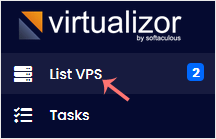
Log in to your Virtualizor control panel, then click List VPS in the left-hand menu.
Step 2: Open the VPS you want to change
Hover over the row for the appropriate VPS. The row highlights and its action icons appear. Click the Manage icon on that row.

Step 3: Open Self Shut Down
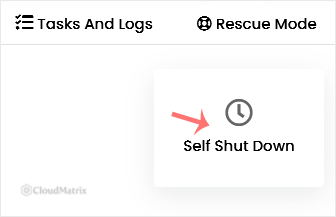
Click Self Shut Down.
Step 4: Choose the timer to edit
Virtualizor lists every timer saved against the VPS. If more than one is listed, hover over the row you want. The row highlights, then click Edit on that row.
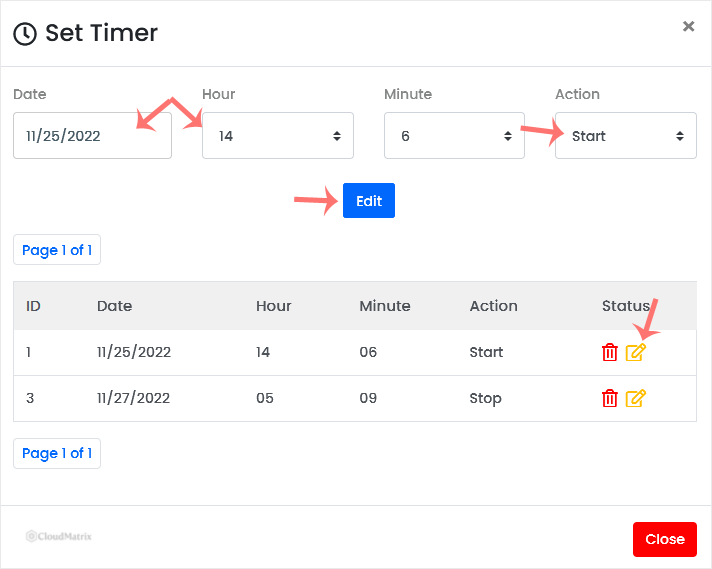
Check the action and time on the row before you click Edit, not after. Timers are listed by their stored values rather than by any name you gave them, so on a VPS with several timers it is easy to open the wrong one.
Step 5: Change the values and save
Adjust the fields as needed, then click Edit to save. A timer holds only these values:
- Action: one of
Start,Stop,RestartorPower Off. These are four distinct actions in Virtualizor, so re-read the selection after changing it:StopandPower Offare not interchangeable, and picking the wrong one on a live server is the difference between a clean stop and an abrupt one. - Date: the calendar date the action runs.
- Hours and Minutes: the time of day, on a 24-hour clock.
Editing updates the timer in place. It does not create a second one. If you want the VPS to perform two actions, for example stop at night and start in the morning, save a separate timer for each rather than editing one back and forth.
Things Worth Knowing Before You Save
The date format is month first
Virtualizor stores self-shutdown dates in mm/dd/yyyy order, which is the opposite of the dd/mm/yyyy convention used in South Africa and Ireland. A timer entered as 09/03/2026 means 3 September, not 9 March. Use the date picker rather than typing the date freehand, and read the saved value back once to confirm it lands where you expect.
The clock that matters is Virtualizor's, not your laptop's
The timer fires against the panel's own clock, interpreted in the timezone set in your Virtualizor account preferences. That timezone is not taken from your browser or your operating system, so a timer set from a device in a different timezone will not necessarily run at the local hour you had in mind. Confirm the timezone in your Virtualizor preferences before scheduling anything time-sensitive, and take note of the current time Virtualizor itself displays.
A self-shutdown timer is not a maintenance plan
A scheduled stop or power off takes the VPS offline at the appointed moment regardless of what is running on it. If the server hosts a database, a queue worker or anything mid-write, schedule the action for a genuinely quiet window and make sure your own backups have completed first. Virtualizor will carry out the action you asked for; it will not wait for a busy application to finish.
Troubleshooting
- The Edit option does not appear when you hover: the row only exposes its controls on hover, and very narrow browser windows can push the controls out of view. Widen the window or scroll the table horizontally.
- The timer ran a day earlier or later than expected: almost always the
mm/dd/yyyydate order. Reopen the timer and read the date back in month-first order. - The timer ran at the wrong hour: check the timezone in your Virtualizor account preferences, then re-save the timer against that timezone.
- Your changes do not appear in the list: the save is only committed when you click Edit on the form itself. Navigating away from the form, or closing it with the browser back button, discards the changes.
- You no longer need the timer at all: remove it rather than setting it to a far-future date. See How to Delete the Self-Shutdown Timer in Virtualizor.
Related Guides
- How to Set Self Shutdown/Start/Reboot Timer for Your VPS in Virtualizor
- How to Delete the Self-Shutdown Timer in Virtualizor
If a timer is not firing as scheduled, or you are unsure whether a stop action is safe for the workload on your VPS, open a ticket with the Noiz support team and include the VPS hostname and the timer you set. Noiz can check the action from the server side and advise on a safer schedule.






