A self-shutdown timer tells Virtualizor to power your VPS down at a scheduled time. When you no longer want that to happen, you delete the timer. This guide shows you how to remove a self-shutdown timer from a VPS in the Virtualizor end-user panel, and explains what deleting the timer does and does not change.
Deleting is the right choice when you want the schedule gone entirely. If you only want to move the time or change the action, edit the existing timer instead of deleting and rebuilding it.
Last reviewed: 27 July 2026, against the current Virtualizor release. This guide is written for Noiz hosting and is kept current against Virtualizor. It complements, and does not replace, the official Virtualizor documentation linked below.
Official Documentation Reference
- Virtualizor documentation: Self Shutdown
- Virtualizor documentation: Delete Self Shutdown
- Virtualizor documentation: Manage VPS
- Virtualizor documentation: End User panel guide
Prerequisites
- Your Virtualizor end-user login details, supplied by Noiz when the VPS was provisioned.
- At least one self-shutdown timer already set on the VPS. If none exists, there is nothing to delete.
- The name or IP address of the VPS you are working on, so you delete the timer on the right machine.
Deleting a Self-Shutdown Timer
-
Log in to your Virtualizor control panel.
-
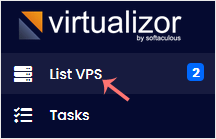
From the left side panel, click List VPS.
-
Hover your mouse over the appropriate VPS so that its row is highlighted, then click the Manage icon in that row.

-
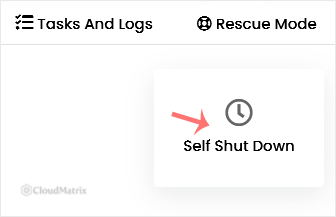
Click Self Shut Down.
-
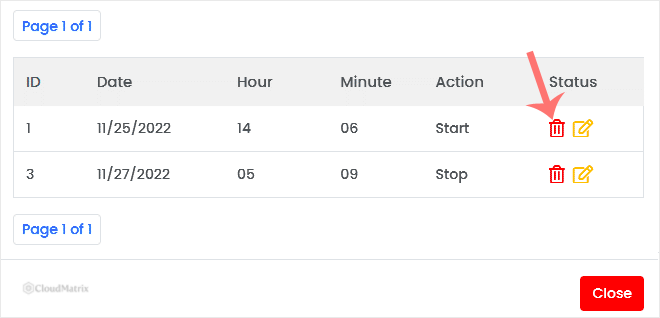
If more than one timer is listed, hover over the one you want to remove so that its row is highlighted, then click the Delete button in that row.
-
Confirm with OK when prompted. The timer disappears from the list and no longer runs.
What Deleting a Timer Actually Changes
Reading the deletion correctly saves a support ticket later, so it is worth being precise about it.
- It cancels a future action, not a past one. Deleting the timer stops the scheduled shutdown from happening again. It does not power a VPS back on that the timer has already shut down. If the server is already off, start it from the VPS management screen.
- The VPS itself is untouched at the moment of deletion. A running VPS keeps running, and services on it are not restarted. Removing the schedule is a control-panel change, not a server action.
- Timers are per-VPS. Deleting a timer on one VPS has no effect on any other VPS in your account, even if they share the same schedule. Repeat the steps on each machine.
- Deletion is immediate and is not reversible. There is no undo and no bin to restore from. If you remove the wrong timer, create it again from scratch.
- Check the time zone before you assume a timer is wrong. Scheduled times follow the time configured in the panel, which is not always the local time on your desk or inside the guest operating system. A timer that appears to fire at the wrong hour is usually a time zone mismatch rather than a fault, and editing it is a better fix than deleting it.
- Scheduling inside the VPS is separate. If the guest operating system also has its own shutdown scheduled, through a cron job or a systemd timer for example, removing the Virtualizor timer will not stop it. Check inside the VPS as well when a shutdown keeps recurring.
Troubleshooting
Symptom: There is no Self Shut Down option on the VPS management screen. You may be looking at the wrong VPS, or the option may not be exposed for that virtualisation type. Go back to List VPS, confirm the hostname or IP address, and open Manage again. If it is still absent, contact Noiz support.
Symptom: The Delete button does nothing when clicked. The confirmation step uses a browser dialog. If your browser suppresses dialogs on that page, or a script blocker is active, the confirmation never appears and nothing is deleted. Allow dialogs for the panel, or try a different browser, then repeat the deletion.
Symptom: The timer is gone from the list, but the VPS still shuts down on schedule. Something outside Virtualizor is triggering it. Check for a scheduled task inside the guest operating system, and check whether a second timer with a similar time is still listed.
Symptom: The timer list is empty even though a shutdown was scheduled. A timer that has already run may no longer be listed. Nothing further is needed in that case, because a schedule that has already fired will not repeat unless it was created as a recurring one.
Related Articles
- How to Set Self Shutdown/Start/Reboot Timer for Your VPS in Virtualizor
- How to Edit the Self-Shutdown Timer in Virtualizor
Need a Hand?
If a timer will not delete, or a VPS keeps shutting down after the schedule has been removed, open a ticket from your Noiz client area with the VPS hostname or IP address and the time the shutdown occurred. The Noiz support team can check the schedule against the server logs and confirm what triggered it.






