Your Noiz VPS is managed through Virtualizor, and the part of Virtualizor you log in to is called the end user panel. From there you can start, stop and reboot the server, open a console, reinstall the operating system, view resource graphs and manage networking. This guide shows you how to find your credentials, reach the correct address, sign in, and get past the handful of login problems that account for almost every support ticket on this subject.
The product name is spelled Virtualizor, not "Virtualizer". Searching the vendor documentation with the wrong spelling returns nothing.
Last reviewed: 27 July 2026, against the current Virtualizor release and its end user panel. This guide is written for Noiz hosting and is kept current against Virtualizor. It complements, and does not replace, the official Virtualizor documentation linked below.
Official Documentation Reference
- Virtualizor end user panel documentation (the full feature index)
- List VPS (the page you land on after signing in)
- Manage VPS
- Two factor authentication (end user panel)
Prerequisites
- An active VPS service with Noiz.
- Your VPS welcome email, which contains the control panel address, your username and your initial password.
- A current desktop or mobile browser. No plugin, client or VPN is required.
Step 1: Find Your Login Details
Everything you need was sent in your VPS welcome email when the server was provisioned. Noiz does not publish panel hostnames on the website, so treat that email as the authoritative record and keep it somewhere you can find again.
The welcome email contains three items, in this shape:
- Control Panel URL:
https://cp.example.com:4083(or the same address written as an IP address, for examplehttps://198.51.100.25:4083). Replacecp.example.comwith the hostname in your own email. - Username: your email address.
- Password: the initial panel password.
If the welcome email has been lost, do not guess. Open a ticket from the Noiz client area and Noiz will resend the connection details to the account holder.
Three Different Passwords, One VPS
This is the single most common source of confusion, so it is worth being explicit. A Noiz VPS involves three separate credentials that are not interchangeable:
- Noiz client area login: for billing, invoices and support tickets at noiz.co.za/login. Changing this does nothing to the VPS.
- Virtualizor panel login: the credentials in this guide. This controls the server from the outside (power, reinstall, console, networking).
- VPS root or administrator password: used for SSH or Remote Desktop inside the operating system. Virtualizor can reset it, but it is a different password.
If a password is rejected, check which of the three you are actually typing before assuming anything is broken.
Step 2: Open the Control Panel Address
Paste the control panel URL from your welcome email into the browser address bar exactly as it was sent, including the port number after the colon.
The port matters. Virtualizor does not run the end user panel on the ordinary web ports by default:
4083is the end user panel over HTTPS. This is the one you want.4082is the same panel over plain HTTP. Use4083instead so the session is encrypted.4085and4084belong to the Virtualizor administrator panel, which is reserved for Noiz staff. Your credentials will never work there, and a rejected login on those ports is expected behaviour, not a fault.
Typing the hostname without the port lands you on whatever is being served on port 443 for that name, which is usually not Virtualizor. That produces a blank page, a certificate error or an unrelated website, and it is very often mistaken for the panel being down.
If the address in your welcome email has no port on the end, that is deliberate: the panel has been published on the standard HTTPS port for your service. Use it as written.
About the Certificate Warning
If the panel is reached by its IP address rather than by its hostname, the browser may warn that the certificate does not match. The certificate is issued for the hostname, not for the raw IP, so the mismatch is expected. Use the hostname form of the URL from your welcome email and the warning disappears. Persistent certificate errors on the hostname form are worth a support ticket.
Step 3: Sign In
- On the Sign in panel, enter your email address in the first field. The field is labelled Email because the end user login is your email address, not a system account name such as
rootoradmin. - Enter your Password in the second field. Use the eye icon at the right of the field to reveal what you have typed, which is the quickest way to catch a stray space pasted in from the welcome email.
- Click Login.
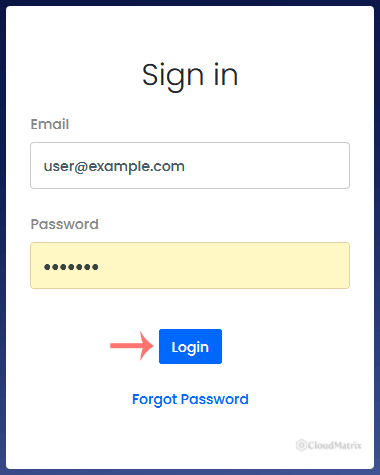
If two factor authentication is enabled on your account, a one time code is requested on the next screen. Enter the code from your authenticator app, or the code emailed to you, depending on which method is configured. Two factor is worth enabling on any account that can power off or reinstall a production server: see the Virtualizor two factor documentation for the setup steps.
Step 4: What You See After Logging In
A successful login lands you on List VPS, which shows every server on your account with its power state. Click a server to open its management view, where the work is divided across tabs including Overview, Graphs, Settings, Install, Tasks And Logs, Services, Networking, Rescue Mode and Backups.
Your name in the top right corner opens the account menu, which holds My Profile, Settings (language, timezone, theme and security options, including two factor authentication) and Logout. A dark theme is available from the same settings area if you prefer it.
Two habits are worth forming on first login:
- Change the initial password. The password in the welcome email has travelled through your mailbox in plain text. See How to Change the Password of Your Virtualizor Account.
- Bookmark the full URL including the port. It saves rediscovering the welcome email every time.
Troubleshooting
Symptom: the page will not load at all, or the browser reports a connection timeout. The panel port is not a standard web port, and some corporate, school and public Wi-Fi networks only permit outbound traffic on ports 80 and 443. Test the same URL from a mobile connection. If it loads there, the block is on the network you were using, not on the server.
Symptom: "Invalid login" although the password is definitely correct. Check for a trailing space picked up when copying from the email, confirm you are using the email address rather than a system username, and confirm you are on the end user port and not the administrator port. If it still fails, use the Forgot Password link on the sign in page to send a reset to the email address on the account.
Symptom: the reset email never arrives. Check the spam folder first. If the account email address is out of date, it cannot be fixed from the login screen: see How to Change Your Virtualizor Account Email Address, or raise a ticket so Noiz can verify the account holder and correct it.
Symptom: you can log in, but the VPS itself is unreachable over SSH or Remote Desktop. The panel and the server are independent. A panel login proves the management layer is healthy; it says nothing about the operating system inside the VPS. Open the console from the server's management view to see what the machine is actually doing. See How to Access VPS via VNC in Virtualizor.
Symptom: the panel loads, but the server list is empty. The account you signed in with is not the account the VPS is attached to. This happens when a colleague ordered the service. Log in with the address that received the welcome email.
Getting Help
If the panel is unreachable from more than one network, or the login is rejected after a password reset, raise a ticket from the Noiz client area. Include the exact URL you tried, the error text or a screenshot, and whether the same address works from a different connection. That detail lets Noiz separate a network problem from a panel problem on the first reply instead of the third.






