Spam filtering is not switched on by default for every domain, and a mailbox with no filtering in front of it will happily accept everything sent to it. This guide shows you how to turn on Apache SpamAssassin for a domain on your Noiz hosting account in DirectAdmin, and, more usefully, how to decide what it should actually do with the messages it catches so that you block the junk without quietly losing real mail.
A note on naming before you start. The upstream software is called Apache SpamAssassin, but the DirectAdmin menu simply labels it SpamAssassin Setup. They are the same thing, so search the panel for "SpamAssassin" rather than "Apache".
Last reviewed: 27 July 2026, against the current DirectAdmin release and its Evolution interface, and the current Apache SpamAssassin release. This guide is written for Noiz hosting and is kept current against DirectAdmin. It complements, and does not replace, the official DirectAdmin and Apache SpamAssassin documentation linked below.
Official Documentation Reference
- DirectAdmin: filtering incoming spam
- DirectAdmin: preventing spam
- DirectAdmin: e-mail
- Apache SpamAssassin: documentation
- Apache SpamAssassin: configuration reference, including scoring
Prerequisites
- An active Noiz hosting account on DirectAdmin, and your DirectAdmin username and password.
- At least one domain on the account with mail hosted on the Noiz server. If your MX records point somewhere else, the mail never reaches this server and enabling SpamAssassin here will have no effect.
- Access to the mailboxes on that domain, so you can check the spam folder for anything caught by mistake in the first week.
Enable SpamAssassin
1. Log in to DirectAdmin
Sign in to your DirectAdmin account with the username and password on your Noiz welcome email.
2. Open SpamAssassin Setup
In the E-mail Manager section, click SpamAssassin Setup. If the section is collapsed or the entry is not visible, type SpamAssassin Setup into the navigation filter box at the top of the menu and the option will appear. Click it.

If your account holds more than one domain, check the domain selector at the top of the page before you go any further. SpamAssassin settings in DirectAdmin are held per domain, not per account, so enabling it on one domain does nothing for the others. Each domain you host has to be switched on separately.
3. Click Enable SpamAssassin
The button sits at the top right of the page. Click Enable SpamAssassin.
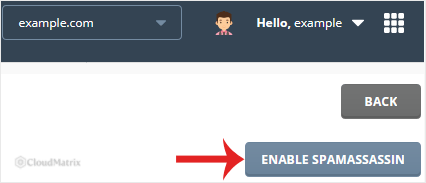
Filtering starts immediately on mail that arrives from this point onwards. There is no propagation delay and nothing to restart, but nothing already sitting in a mailbox is re-examined. SpamAssassin only ever sees messages as they arrive, so a full inbox stays exactly as it is.
4. Set what happens to spam, then save
Once SpamAssassin is enabled, the page expands into its settings. Two of them matter far more than the rest:
- The score at which a message is treated as spam. SpamAssassin does not answer yes or no. It runs each message through hundreds of tests and adds up a score. A higher score means more spam-like. The threshold you set here is the point at which a message is considered spam.
- What to do with a message that reaches the threshold. DirectAdmin lets you deliver it as normal, deliver it into each mailbox's own spam folder, send it to a single catch-all address, or delete it outright.
Choose your options and click the save or update control at the foot of the page. Nothing is applied until you do.
Choosing a Threshold You Will Not Regret
This is the decision that determines whether SpamAssassin helps you or costs you a customer, so it is worth thirty seconds of thought.
- A threshold of 5 is the long-standing default and is where most people should start. It catches the great bulk of obvious spam and rarely touches legitimate mail.
- Lowering the threshold catches more spam and more real mail with it. Going below 5 gets aggressive quickly. Marketing newsletters, automated invoices, booking confirmations and mail from small senders with imperfect SPF or DKIM records all score a few points without being spam at all.
- Raising the threshold is the safe direction if you are nervous. Set it to 6 or 7, watch what still gets through for a week, then tighten it.
- Do not set deletion on day one. Deleted mail is gone. There is no copy on the server, nothing in a quarantine, and Noiz support cannot retrieve it. Run with the spam folder option for at least a fortnight, look at what lands there, and only consider deletion once you are confident the threshold is right for your mail.
If you do want a deletion rule eventually, the sensible pattern is to keep the normal threshold conservative and reserve deletion for very high scores only, where a message has failed so many tests that it cannot plausibly be genuine.
What Enabling Actually Changes
- It applies to every mailbox on the domain. DirectAdmin holds these settings at domain level, so all addresses on that domain get the same threshold and the same spam handling. There is no per-mailbox override on this screen.
- It only affects incoming mail. Nothing you send is scored or filtered by this.
- It sits on top of whatever the server already does. Noiz servers already reject a large volume of mail at the connection stage, before it is ever accepted for delivery. SpamAssassin is the layer that judges what survives that first pass, which is why enabling it still makes a visible difference even though obvious junk was already being turned away.
- Aliases and forwarders are a special case. Filtering happens on delivery to this server. If an address simply forwards to an external mailbox, the message is scored here, but the forwarding destination applies its own filtering as well, and forwarded spam is a common reason for a forwarding address to get a poor reputation with the receiving provider.
The First Two Weeks
Spam filtering is not a set-and-forget switch on the day you turn it on. Two habits make the difference:
- Check the spam folder daily at first. Anything legitimate sitting in there tells you the threshold is too low, or that a particular sender needs allowing. This is also the window in which a missed invoice or a customer enquiry is still recoverable.
- Move messages to and from the spam folder rather than deleting them. Where server-side training is running, moving a missed spam into the spam folder, and dragging a wrongly caught message back out, is what teaches the filter about your specific mail. Emptying the folder immediately teaches it nothing.
If a specific sender is repeatedly caught, an allow entry for that address or domain is a cleaner fix than raising the threshold for everything. Conversely, if one persistent sender keeps getting through, block that sender specifically rather than dropping the threshold and risking everything else. See How to Block Email Using Spam Filters in DirectAdmin for the targeted approach.
Things Worth Knowing
- No filter is perfect, and one that tried to be would be worse. Spam filtering trades false negatives against false positives. A filter tuned to catch absolutely everything will also bin real mail. Aim to catch most spam and lose no legitimate mail, not the other way round.
- Spam getting through does not mean SpamAssassin is off. Check the message headers of something that slipped past. A scored message carries SpamAssassin's own headers showing the score it was given and which tests it matched. If the score is just below your threshold, that is a tuning question, not a fault.
- Your own domain being spoofed is a different problem. If you receive spam that appears to come from your own address, the fix is correct SPF, DKIM and DMARC records rather than a lower spam threshold.
- Mail clients have their own junk filters too. Outlook, Apple Mail and Thunderbird all file mail locally. If a message vanishes but is not in the server-side spam folder, check the client's own junk folder before assuming SpamAssassin took it.
- Turning it off is one click. If the filtering causes more trouble than it solves, it can be switched off just as easily. See How to Disable Apache SpamAssassin in DirectAdmin.
Troubleshooting
- Symptom: SpamAssassin Setup is not in the menu. The feature is not enabled on your hosting package. Open a ticket with Noiz support and it can be checked against your plan.
- Symptom: you enabled it but nothing appears to be filtered. Confirm you were on the right domain in the selector, and confirm the mail for that domain actually reaches the Noiz server by checking where its MX records point. Mail routed to another provider never touches this filter.
- Symptom: legitimate mail is being caught. Raise the threshold by a point or two and add an allow entry for the sender concerned. Do not compensate by disabling filtering entirely.
- Symptom: a message is missing and is not in the spam folder. Check the mail client's own junk folder first. If deletion was configured, the message is gone and cannot be recovered, which is exactly why deletion should not be your first setting.
- Symptom: the spam folder is not visible in webmail or a mail client. It may need subscribing to. In an IMAP client, look for a folder subscription or "show all folders" option and tick the spam folder there.
- Symptom: spam volumes jumped suddenly after months of quiet. Your address has most likely appeared in a new list. Tighten the threshold slightly and review the spam folder for a few days, and open a ticket with Noiz support if the volume is extreme.
Related Guides
- How to Disable Apache SpamAssassin in DirectAdmin
- How to Block Email Using Spam Filters in DirectAdmin
- How to Block a Spammy Domain Using Spam Filters in DirectAdmin
- How to Remove Email Spam Filters in DirectAdmin
- How to Access Your Email From DirectAdmin
Need a Hand?
If SpamAssassin Setup is missing from your panel, if legitimate mail is being caught after you have tried adjusting the threshold, or if you want the mail logs checked to see what a particular message scored and why, open a ticket with Noiz support. Include the domain, the affected address, and the date and sender of an example message, and the support team will take it from there.






