Spam filters in DirectAdmin are blocking rules that reject unwanted mail before it ever reaches your mailbox. Over time those rules accumulate, and sooner or later one of them starts catching mail you actually want: a supplier whose domain you blocked years ago, a size limit that now rejects legitimate invoices, or a stop word that turns out to be common in ordinary business email. This guide shows you how to remove a spam filter from a domain hosted on Noiz DirectAdmin hosting, and explains what does and does not change once the rule is gone.
Last reviewed: 27 July 2026, against the current DirectAdmin release and its Evolution interface. This guide is written for Noiz hosting and is kept current against DirectAdmin. It complements, and does not replace, the official DirectAdmin documentation linked below.
Official Documentation Reference
- DirectAdmin Docs: Preventing SPAM
- DirectAdmin Docs: Filtering incoming spam
- DirectAdmin Docs: Email troubleshooting
- DirectAdmin Docs: Evolution skin
Prerequisites
- Your DirectAdmin login details for your Noiz hosting account.
- At least one spam filter already in place on the domain you want to change.
- The email address, domain, word or size limit you intend to unblock, so you delete the right rule and not a neighbouring one.
What DirectAdmin Spam Filters Actually Do
The Spam Filters tool holds a per-domain list of block rules, each one made up of a Block By type and a value. There are four types:
- Email: blocks a single sender address.
- Domain: blocks every sender at a given domain.
- Word: blocks messages containing a chosen stop word.
- Size: blocks messages above a size limit you set in kilobytes or megabytes.
These rules are applied by the mail server at delivery time, so they act on every mailbox on the domain and on webmail, phones and desktop clients alike. That is different from spam scoring, which grades a message and files it as suspicious rather than refusing it outright, and different again from the junk rules built into Outlook, Thunderbird or Apple Mail, which run on your own device. Removing a rule here only changes the server-side block list.
Removing a Spam Filter
Step 1: Open the Spam Filters tool
Log in to DirectAdmin, then under E-mail Manager select SPAM Filters. If the menu is long, type spam into the navigation filter box at the top of the sidebar and the entry appears on its own. Depending on your DirectAdmin build the entry may read Spam Filters rather than SPAM Filters; it is the same tool.

Step 2: Confirm you are on the right domain
Spam filters are stored per domain, not per account. If your hosting package holds more than one domain, use the domain selector at the top of the DirectAdmin interface to switch to the domain you want to change before you delete anything. A rule removed from yourdomain.com leaves an identical rule on yourotherdomain.com completely untouched, which is the single most common reason people report that a deletion "did not work".
Step 3: Select the filters you want to remove
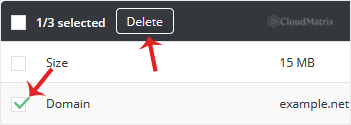
The list shows each rule with its Block By type on the left and the blocked value on the right. Tick the checkbox beside every rule you want gone. The toolbar at the top of the list updates to show how many of the total you have selected, for example 1/3 selected, which is worth a glance before you continue.
Step 4: Delete and confirm
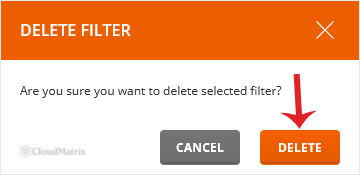
Click Delete in the toolbar. DirectAdmin opens a Delete Filter confirmation box asking whether you are sure you want to delete the selected filter. Click Delete again to complete the removal, or Cancel to back out with nothing changed.
The rule disappears from the list immediately and the mail server starts accepting matching messages from the next delivery onwards.
What Changes, and What Does Not
- Deletion is immediate and permanent. There is no undo and no recycle bin for spam filters. If you are removing several rules at once and are not completely sure about all of them, note the type and value of each rule first so you can recreate it later.
- Mail already blocked cannot be recovered. Messages that matched the rule while it was active were refused at delivery and were never stored on the server, so they cannot be retrieved afterwards. Ask the sender to send the message again once the rule is gone.
- Spam scoring keeps running. Removing a Block By entry does not switch off the server's spam scoring, so a genuinely spammy message from a now-unblocked sender may still be marked as suspicious or filed into a spam folder.
- Other domains are unaffected. Repeat the steps above for each domain that carries a copy of the rule.
Troubleshooting
Symptom: the sender is still not getting through after the filter was removed. Check the domain selector first, since an identical rule on a second hosted domain is the usual culprit. Then check for a junk or blocked-senders rule inside your own mail client or webmail, which lives on your device rather than on the server.
Symptom: the Delete button stays greyed out. Nothing is selected. Tick at least one checkbox in the list; the toolbar counter confirms the selection.
Symptom: SPAM Filters does not appear under E-mail Manager. The feature is not enabled on your hosting package, or you are logged in at a level that does not expose it. Contact Noiz support and it can be checked for you.
Symptom: you deleted the wrong rule. Recreate it using the matching guide below; there is no built-in restore.
Related Guides
- How to Block Email Using Spam Filters in DirectAdmin
- How to Block a Spammy Domains Using Spam Filters in DirectAdmin
- How to Block Emails Containing the Stop Word in DirectAdmin
- How to Block Emails by Size Using Spam Filter in DirectAdmin
If mail from a particular sender is still going missing after the filter is removed, open a ticket with the Noiz support team and include the sender's address and the approximate date and time of a message that did not arrive. Noiz can trace the delivery on the server and tell you exactly where it stopped.






