If one particular sender keeps mailing you and you want the messages stopped at the server rather than in your mail client, you can block that address from the SPAM Filters page in DirectAdmin. This guide shows you how, and explains what a sender block does and does not achieve, so you pick the right tool for the problem.
Last reviewed: 27 July 2026, against the current DirectAdmin release. This guide is written for Noiz hosting and is kept current against DirectAdmin. It complements, and does not replace, the official DirectAdmin documentation linked below.
Official Documentation Reference
- DirectAdmin: Filtering incoming spam, including the wildcard formats accepted by the block list
- DirectAdmin: Preventing SPAM overview
- DirectAdmin: E-mail maintenance and customisation
Prerequisites
- A Noiz hosting account on a DirectAdmin server, and your DirectAdmin login details (sent in your welcome e-mail).
- The exact sender address you want to block, copied from the message headers rather than typed from memory.
- The e-mail domain in question must be hosted on the same account. Filters are stored per domain, so a block on one domain does not cover another.
Before You Block: Is a Sender Block the Right Fix?
A sender block is an exact-match rule. It is the right tool for a specific, persistent, real sender: a mailing list that ignores unsubscribe requests, a former supplier, a single nuisance address. It is a poor tool for general spam, for two reasons:
- Senders rotate. Bulk spam is sent from a fresh address, and often a fresh domain, every few days. Blocking one address means the next message simply arrives from another.
- Sender addresses are forged. The visible From address on a spam message is frequently someone else's, so a block can end up silencing an innocent third party while the spam keeps arriving.
For volume spam, score-based filtering on the same SPAM Filters page does far more work: it judges each message on many signals at once and acts on the total score, which is why it keeps working when the sender changes. Use score-based filtering as the everyday defence, and sender blocks as targeted additions on top of it.
Block a Sender Address in DirectAdmin
Step 1: Open SPAM Filters
- Log in to your DirectAdmin account.
- In the E-mail Manager section, click SPAM Filters. If you cannot see it, type SPAM Filters into the navigation filter box at the top of the menu and click the result.

If your account hosts more than one domain, check the domain selector at the top of the page before you make any changes, so the filter lands on the domain that is actually receiving the mail.
Step 2: Add the Address to the Block List
- In the E-mail Filters area, open the Block By drop-down menu and choose Email.
- In Value, type the full e-mail address you want to block, for example
[email protected]. - Click Block.
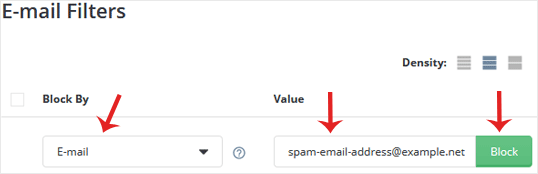
The address appears in the list of active filters straight away and takes effect on the next message that arrives. Mail already sitting in your mailbox is not affected, so delete anything you have already received from that sender yourself.
To block further addresses, repeat this step for each one. There is no need to reopen the page between entries.
Step 3: Use Wildcards Where One Address Is Not Enough
DirectAdmin accepts wildcard patterns in the same Value field, which is what makes sender blocking practical when an address keeps shifting. Useful forms include:
*@example.com, every sender at that domainsales@*.com, that mailbox name across any .com domainsales@example.*, that mailbox name across every top-level domain variant
Wildcards are powerful and easy to over-apply. A pattern such as @*.com blocks a very large share of legitimate business mail, so start narrow, and widen only if the nuisance mail continues. If your goal is to block a whole domain rather than a pattern, use the Domain option instead, which is covered in its own guide below.
What Happens to Blocked Mail
Blocked messages are stopped at the mail server, before they reach your mailbox or your Spam folder. You do not get a notification, and there is nothing to review later. That is the point of the feature, but it is also the risk: if you block an address in error, mail from that sender disappears silently until you remove the entry. Keep a note of what you have blocked and why, especially on shared or role mailboxes, and review the filter list occasionally.
If you also maintain a whitelist, whitelist entries take priority over block entries. An address that appears in both lists is delivered.
Troubleshooting
- Symptom: mail from the sender is still arriving. Check the address in the message headers against the entry you created, character for character. Spammers commonly vary the mailbox name or use a look-alike domain. Confirm too that the filter is on the domain that is actually receiving the message.
- Symptom: the block worked for a few days, then the mail returned. The sender changed address. Either move to a wildcard pattern or a domain block, or lean on score-based filtering instead of chasing individual addresses.
- Symptom: a legitimate sender has gone quiet since you added a filter. Remove the entry, then ask the sender to resend. Nothing was queued, so the original messages are gone.
- Symptom: the page or the option labels look different from the screenshots. DirectAdmin skins and versions vary slightly, and this page is named SpamAssassin Setup in some builds. The Block By and Value fields work the same way.
- Symptom: SPAM Filters does not appear in the menu at all. The feature may not be enabled on your hosting package. Contact Noiz support and it can be checked for you.
Related Guides
- How to Block a Spammy Domains Using Spam Filters in DirectAdmin
- How to Block Emails Containing the Stop Word in DirectAdmin
- How to Remove Email Spam Filters in DirectAdmin
If spam is getting through despite your filters, or you would rather have the filtering tuned for you, open a ticket with Noiz support and the mail filtering on your account can be reviewed.






