If the same spammer keeps mailing you from a stream of throwaway addresses that all share one domain, blocking individual addresses becomes a losing game. DirectAdmin lets you block the whole sending domain in one entry, so every current and future address at that domain is refused. This guide shows you how to do that on your Noiz DirectAdmin hosting, and, just as importantly, when not to.
Last reviewed: 27 July 2026, against the current DirectAdmin release. This guide is written for Noiz hosting and is kept current against DirectAdmin. It complements, and does not replace, the official DirectAdmin documentation linked below.
Official Documentation Reference
Prerequisites
- Your DirectAdmin login details, supplied by Noiz when your hosting was set up.
- At least one domain with e-mail hosted on the account.
- The exact sending domain taken from the spam itself, not from a link inside the message.
Read This Before You Block a Whole Domain
A domain block is a blunt instrument. It is the right tool for a domain that exists only to send you rubbish, and the wrong tool for almost everything else.
- Never block a large mail provider. Blocking
gmail.com,outlook.com,yahoo.com,icloud.comor any other shared provider silently cuts off every legitimate person who happens to use that provider, including clients, suppliers and your accountant. If the spam comes from a shared provider, block the individual address instead. - Sender addresses are easy to forge. Spam frequently carries a fake From domain, sometimes a real business that has nothing to do with the sender. Blocking a forged domain stops nothing and may block a genuine contact later on.
- Blocked mail is refused, not filed away. A block causes the mail server to reject the message rather than drop it into a Junk or Spam folder, so there is no quarantine to review and nothing to restore if you get it wrong. Treat the block list as something you check occasionally rather than something you set and forget.
If the spam is arriving from one or two specific addresses, or you want to filter on a word or phrase in the message, use How to Block Email Using Spam Filters in DirectAdmin instead.
Block a Domain in DirectAdmin
1. Open the SPAM Filters tool
Log in to DirectAdmin. In the E-mail Manager section, click SPAM Filters. If you cannot see the section, type SPAM Filters into the navigation filter box at the top of the menu and the entry will appear.

The page that opens is headed E-mail Filters. That is the same tool: the menu entry and the page title use different names, which catches people out when they are following older instructions.
2. Choose the right domain
Filters are stored per domain, not per account. If more than one domain is hosted on your account, use the domain selector at the top of the page to switch to the domain that is receiving the spam before you add anything. A filter added under the wrong domain will look correct and do nothing.
3. Set Block By to Domain
Under Block By, choose Domain from the drop-down menu.
4. Enter the sending domain
In the Value field, type the domain on its own: no http://, no www., no @ and no address in front of it. For example, type example.net, not [email protected] and not www.example.net.
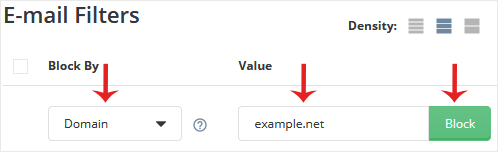
5. Click Block
Click the green Block button. The domain is added to the list below and takes effect on the next message that arrives. Mail already sitting in your mailbox is not touched, so delete anything that got through before the block.
To block further domains, repeat steps 3 to 5. Each entry covers one domain, so add subdomains such as mail.example.net as separate entries if spam keeps arriving from them.
Troubleshooting
Symptom: spam from the same domain still arrives after the block. Check that you added the filter under the correct domain, and compare the domain in the block list against the sender address on the newest message. Spammers rotate domains constantly, so example.net today is often example-net-mail.co tomorrow. If the domain changes with every message, blocking domains will not keep up and the spam score filter is the better answer.
Symptom: a client or supplier says their mail bounces. Check the block list for their domain, and for any large provider you may have blocked in frustration. Remove the entry using How to Remove Email Spam Filters in DirectAdmin, then ask them to resend.
Symptom: the block list keeps growing and the spam keeps coming. That is the signal to stop adding entries. A long list of dead domains slows nothing down but protects nothing either. Contact Noiz support so the server-side spam scoring can be reviewed for your domain.
Related Articles
- How to Block Email Using Spam Filters in DirectAdmin
- How to Remove Email Spam Filters in DirectAdmin
If spam is getting through in volume, or you are not sure whether a domain is safe to block, open a ticket with Noiz support. Noiz can review the mail logs for your domain and tune the server-side filtering rather than leaving you to fight it one entry at a time.






