This guide shows you how to switch off Apache SpamAssassin for your DirectAdmin account on Noiz hosting. Disabling it stops SpamAssassin scoring your incoming mail and stops any action you had built on that score, such as tagging subject lines or moving suspected spam to a separate folder. You may see the feature referred to as SpamAssassin Setup, spam filtering, or simply the spam filter; they all refer to the same tool inside DirectAdmin.
Last reviewed: 27 July 2026, against the current DirectAdmin release and its Evolution interface. This guide is written for Noiz hosting and is kept current against DirectAdmin. It complements, and does not replace, the official DirectAdmin and Apache SpamAssassin documentation linked below.
Official Documentation Reference
- DirectAdmin Docs: Preventing SPAM
- DirectAdmin Docs: Filtering incoming spam
- Apache SpamAssassin: Documentation
- Apache SpamAssassin: Configuration reference
Prerequisites
- Your DirectAdmin username and password for your Noiz hosting account.
- SpamAssassin currently enabled on the account. If it is already off, the Disable SpamAssassin button will not be shown.
- A note of your current spam score threshold and the action you have set, in case you want to restore the same configuration later.
Read This Before You Disable Spam Filtering
Turning SpamAssassin off means every message addressed to your account is delivered unfiltered. Nothing is scored, nothing is tagged, and nothing is diverted to a spam folder. Phishing attempts, scam invoices, and bulk marketing all land in the same inbox as legitimate mail, and the volume increase on a long-published address can be substantial.
Disabling is the right move in a small number of cases, for example when you are diagnosing a delivery problem and need to prove that the spam filter is not the cause, or when a downstream system of your own already filters the mail. In most other situations, tuning the filter is a better answer than switching it off. See Better Alternatives to Disabling below.
Disable SpamAssassin in DirectAdmin
-
Log in to your DirectAdmin account.
-
In the E-mail Manager section, click SpamAssassin Setup. If you cannot see the section, type
SpamAssassin Setupinto the navigation filter box at the top of the sidebar and the item will appear. Click it.
-
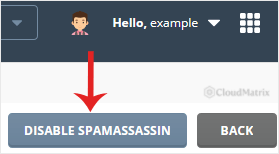
Click Disable SpamAssassin. The button sits at the top right of the SpamAssassin Setup page.
-
DirectAdmin confirms that SpamAssassin has been disabled. The change applies to mail arriving from that point onward.
What Changes After You Disable It
- New mail is no longer scored or tagged. Subject-line tagging, spam headers, and any rule you had set to act on a score all stop.
- Mail already in a spam folder stays there. Disabling the filter does not move older messages back to your inbox, so check that folder before you empty it.
- Anything already deleted stays deleted. If your action was set to delete high-scoring mail, disabling stops future deletions but recovers nothing.
- Server-side protections are separate. Noiz applies mail platform protections at the server edge, and those are independent of your account-level SpamAssassin setting. Disabling SpamAssassin changes only the per-account filtering you control.
- Your mail client keeps its own junk filter. Outlook, Thunderbird, Apple Mail, and webmail junk folders work independently. If mail is still being filed as junk after you disable SpamAssassin, the client is doing it, not the server.
Better Alternatives to Disabling
If the real problem is that legitimate mail is being caught, one of these usually solves it without leaving the account unprotected:
- Raise the score threshold. A higher required score makes the filter less aggressive while still catching obvious spam. Move in steps of one point rather than jumping several at once.
- Change the action instead of the sensitivity. Setting SpamAssassin to move suspected spam to a folder, rather than delete it, means nothing is ever lost while you tune the score.
- Allowlist the sender. If a single supplier or client keeps getting flagged, add that address or domain to the allowlist in SpamAssassin Setup and leave the rest of the filtering alone.
- Block a specific nuisance sender. If the goal is the opposite, stopping one persistent sender, see How to Block Email Using Spam Filters in DirectAdmin.
Re-enabling SpamAssassin
You can turn the filter back on at any time from the same SpamAssassin Setup page. Set your score threshold and delivery action again after enabling, then send yourself a test message to confirm the filter is running. Full steps are in How to Enable Apache SpamAssassin in DirectAdmin.
Troubleshooting
Symptom: There is no Disable SpamAssassin button. SpamAssassin is already disabled on the account. The page will offer an enable option instead.
Symptom: SpamAssassin Setup does not appear in the sidebar. The feature is not present on your hosting package, or you are logged in at the wrong level. Confirm you are in the user-level view rather than a reseller or admin view, then open a support ticket with Noiz if it is still missing.
Symptom: Mail is still going to a Spam or Junk folder after disabling. The filing is being done by your mail client or webmail junk filter, or by a forwarding rule elsewhere. Check the junk settings in the client you actually read mail in, and check for any account-level filters or forwarders in DirectAdmin.
Symptom: Spam volume becomes unmanageable within days. That is the expected outcome of unfiltered delivery on an exposed address. Re-enable SpamAssassin and tune the score threshold rather than leaving it off.
Need a Hand?
If you are disabling SpamAssassin to chase down a delivery problem, Noiz can check the mail logs for the message in question and tell you exactly where it was filtered, which is usually faster than switching protection off and waiting. Open a ticket from your Noiz client area with the sending address, the recipient address, and the approximate time the message was sent.






