Your Noiz VPS has two or three separate passwords, and this article covers only one of them: the root (or Administrator) password of the operating system running inside the VPS. That is the credential you use for SSH, for console logins, and for anything that asks you to authenticate as the server's superuser. Virtualizor can reset it for you from the outside, which means you can recover access even when you have lost the password entirely and cannot log in to the VPS at all.
Last reviewed: 27 July 2026, against the current Virtualizor release. This guide is written for Noiz hosting and is kept current against Virtualizor. It complements, and does not replace, the official Virtualizor documentation linked below.
Official Documentation Reference
- Virtualizor Docs: Change Root Password (the vendor's reference for this feature, including the OpenVZ and KVM/Xen behaviour difference)
- Virtualizor Docs: Manage VPS (a tour of the management page these steps are performed on)
- Virtualizor Docs: List VPS
Know Which Password You Are Changing
This is the single most common source of confusion, so it is worth thirty seconds before you start. Changing the wrong one will not lock you out, but it will not solve your problem either.
- The VPS root/Administrator password (this article). Lives inside the server's operating system. Used for SSH, for the VNC console login prompt, and for
sudoor Administrator access. Virtualizor rewrites it on the VPS disk on your behalf. - Your Virtualizor account password. Lives in the Virtualizor panel itself and is what you type to log in to Virtualizor. It has nothing to do with the operating system on the VPS. See How to Change Your Virtualizor Account Password.
- The VNC password. Protects the remote console session before the operating system's own login prompt appears. It is separate again. See How to Change the VNC Password in Virtualizor.
If you can log in to Virtualizor but not to the server, you want this article. If you cannot log in to Virtualizor at all, you want article 4949 instead.
Prerequisites
- Access to your Virtualizor control panel, with the login details supplied by Noiz when the VPS was provisioned.
- A maintenance window of a few minutes. On KVM and Xen virtualisation the new password only takes effect after the VPS is power cycled, so any sites or services running on it will be briefly offline.
- A new password chosen in advance. Root is the most attacked account on any internet-facing server, so make it long and random rather than memorable.
Change the Root Password in Virtualizor
Step 1: Open the VPS list
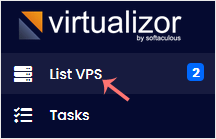
Log in to your Virtualizor control panel, then click List VPS in the left-hand menu.
Step 2: Open the VPS management page
Hover over the row for the VPS you want to change. The row highlights, and a set of action icons becomes available. Click the Manage icon on that row.

If more than one VPS is listed on your account, confirm you have the right one before going further. Match the hostname or the primary IP address rather than relying on list order, which can change.
Step 3: Open the Change Password panel
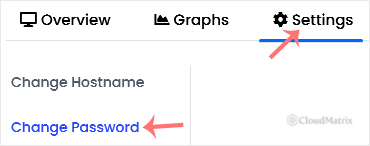
On the VPS management page, click Settings, then choose Change Password.
Step 4: Enter and apply the new password
Type the new root password, then confirm by clicking Change Password.
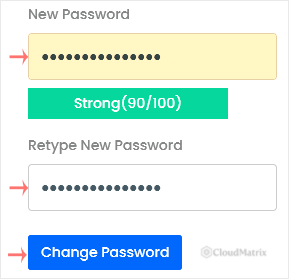
Virtualizor will report success straight away. On KVM and Xen this success message means the change has been accepted and queued, not that it is live yet. Do not close the panel and assume you are finished. Continue to step 5.
Step 5: Power off the VPS
At the top right of the management page, choose Poweroff.

Step 6: Start the VPS again
Once the VPS shows as stopped, click Start.

Booting typically takes a minute or two, sometimes longer on a larger server. When it is back up, log in over SSH or the console with the new password.
Why the Power Cycle Is Required
On OpenVZ containers the new root password applies immediately and no restart is needed. On KVM and Xen, which is what most modern VPS platforms use, Virtualizor cannot reach inside a running guest operating system to edit its password file. Instead it writes the change to the VPS disk from the host side and applies it as the machine comes back up. Until that happens, the old password is still the live one.
This is also why you should do the stop and start from Virtualizor. Running reboot or shutdown -r from inside the VPS is a guest-initiated restart and will not necessarily trigger the host-side step that applies the queued password. If you have already rebooted from the command line and the new password still does not work, perform a proper Poweroff followed by Start in the panel and try again.
The related power controls are covered in more detail in How to Force or Gracefully Shut Down a VPS in Virtualizor and How to Start or Boot Your VPS in Virtualizor.
Choosing a Root Password That Holds Up
Every VPS with a public IP address gets automated SSH login attempts against root within hours of coming online. That is normal background noise on the internet, but it means a weak root password is found quickly rather than eventually.
- Use at least 16 characters, generated randomly, and store it in a password manager rather than a note or a spreadsheet.
- Do not reuse the password from your Virtualizor account, your Noiz client area, or any hosting control panel on the server. Those are separate systems and a breach of one should not hand over the others.
- Avoid the domain name, the hostname, the company name, or the year. Those are the first things a dictionary attack tries.
- Better still, once you are back in, add an SSH key and disable password authentication for
rootaltogether. A key cannot be guessed, and you keep the root password purely as a console fallback for the day SSH is unavailable.
Troubleshooting
Symptom: the new password is rejected after the restart. Confirm the VPS actually stopped and started rather than only rebooting, then retry. Also check for a stray leading or trailing space picked up when the password was pasted into the form, and confirm your keyboard layout matches at the login prompt, which catches out anyone typing symbols on a non-UK layout through a console.
Symptom: the password was accepted but the VPS did not come back up. Open the console and watch it boot so you can see where it stops. See How to Access Your VPS via the VNC Console in Virtualizor. A VPS that fails to boot is a separate fault from the password change and needs diagnosing on its own.
Symptom: the console asks for a password before you reach the operating system's login prompt. That is the VNC password, not the root password. Reset it using article 4959.
Symptom: the form saves but nothing changes, on a VPS where SSH key authentication is already enforced. The root password has genuinely been reset; SSH is simply refusing password logins by policy. Use your key, or connect through the console where the password does apply.
Symptom: Change Password is missing or greyed out. The option can be restricted at the plan level, or the VPS may be suspended. Contact Noiz support and the password can be reset for you.
Getting Help From Noiz
If you are locked out of the server and the reset is not taking effect, open a ticket from your Noiz client area with the VPS hostname or IP address and a note of what you have already tried. Noiz support can verify the password change from the host side and confirm whether the VPS is booting correctly. If your VPS is on a managed plan, Noiz can perform the reset and the restart for you at a time that suits your traffic.






