Every VPS has a set of numbers attached to it: how much RAM it was given, how much disk it has and how much of that is used, which IP addresses belong to it, how much bandwidth it has consumed this cycle, and which virtualisation technology it runs on. All of that lives in the Virtualizor end user panel, and you do not need to log in to the server itself to read any of it.
This guide shows you where each figure is, what the Type column actually means for what you are allowed to do inside your VPS, and how to interpret the numbers so they match what you see when you log in to the operating system.
The virtualisation type matters more than most people expect. It decides whether you can run Docker, install a VPN, load a kernel module, or ask for a different operating system. Check it before you buy software that depends on any of those.
Last reviewed: 27 July 2026, against the current Virtualizor release and its end user panel. This guide is written for Noiz hosting and is kept current against Virtualizor. It complements, and does not replace, the official Virtualizor documentation linked below.
Official Documentation Reference
Prerequisites
- An active Noiz VPS, and the Virtualizor end user login details supplied when the server was set up.
- The Virtualizor end user panel address for your server. It runs on its own port, separate from the admin panel, so it is not reachable on the usual web address. See How to Log in to Virtualizor Control Panel if you are not sure.
- Nothing needs to be installed and the VPS does not need to be running. These figures are readable whether the server is online or powered off.
Check the Virtualisation Type from the VPS List
-
Log in to your Virtualizor end user panel.
-
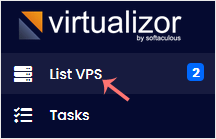
In the left sidebar, click List VPS. On some builds this is shown as List All or sits under a Virtual Servers heading, but it is the same page.
-
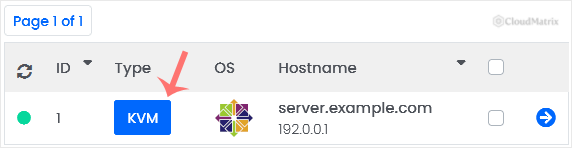
The list shows one row per VPS on your account. The Type column is the virtualisation technology your server runs on, usually
KVMorOpenVZ, and sometimesLXC,XenorProxmoxdepending on the platform the server was built on.The same row also shows the VPS ID, its hostname, its primary IP address, and whether it is currently running or suspended. If you have a long list, the search filters at the top of the page let you narrow it by ID, IP address, hostname, status or type.
Open the VPS to See RAM, IP, Disk and Bandwidth
-
Click the VPS you want to inspect. If your account holds several, check the hostname and IP in the row before you click, because the management pages that follow act on whichever server you opened.
If your account holds only one VPS, Virtualizor may take you straight to its management page when you log in and you will not see the list at all. That is normal.

-
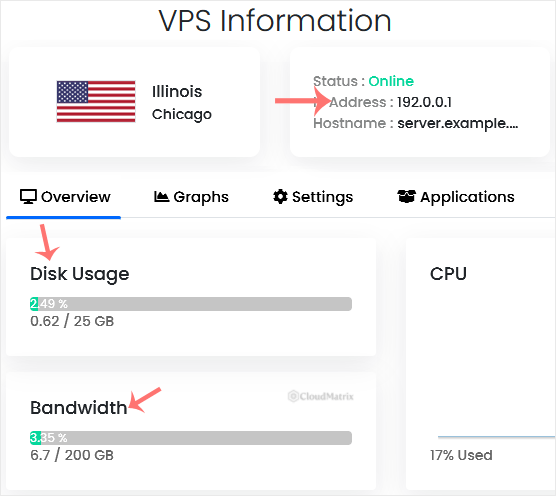
The VPS Information panel on the management page carries the full specification: allocated RAM, allocated and used disk space, CPU cores and CPU allocation, the primary IP address and any additional addresses, the hostname, the operating system template, and bandwidth used against the allowance for the current cycle.
What the Virtualisation Type Means for You
This is the one field on the page with real consequences, so it is worth understanding rather than just noting.
KVM, Xen and other full virtualisation
A KVM server is a full virtual machine. It boots its own kernel, exactly as a physical machine would, and the resources allocated to it are its own.
- You can replace or upgrade the kernel, load kernel modules, and run anything that needs them: Docker, WireGuard, OpenVPN, full
nftablesoriptablesrulesets, custom filesystems. - You can install effectively any operating system, including Windows and the BSDs, and you can boot from an ISO image.
- Memory is dedicated. What the panel says you have is what the operating system sees, and tools such as
free -hreport your VPS rather than the host. - You get a real console over VNC, so you can recover a server that has lost network connectivity.
If you have a choice and you intend to run containers, a VPN, or anything that touches the kernel, KVM is the type you want.
OpenVZ, LXC and other container virtualisation
An OpenVZ or LXC server is a container. It shares the host machine's kernel instead of booting its own, which makes it lighter and quicker to provision, but it also draws some hard limits.
- You cannot change the kernel or load kernel modules. Anything that depends on a module the host does not already provide will not run.
- Docker, some VPN software, and firewall rules relying on less common netfilter modules may be unavailable or restricted.
- Only Linux templates are offered. There is no Windows and no BSD on a container.
- Memory reporting can be confusing. Depending on the platform,
freeandtopinside the container may reflect the host machine rather than your own allocation, so the panel figure is the one to trust for what you are entitled to. - Swap behaves differently or may not exist at all, so a memory spike that a KVM server would survive by swapping can instead end in the process being killed.
None of that makes a container a poor choice. For a straightforward web or application server it is efficient and perfectly capable. It only becomes a problem when software further down the line assumes kernel access, which is why checking the type first saves an afternoon.
If you are not certain which type suits what you are planning, ask Noiz support before you build the server rather than after. Changing virtualisation type means rebuilding on a different platform, not flipping a setting.
Reading the Numbers Correctly
- Disk usage in the panel can lag. Virtualizor polls usage on a schedule rather than continuously, so the figure may be minutes or longer behind reality. If you are actively deleting files to free space,
df -hinside the VPS is the live answer and the panel will catch up. - Panel disk usage and
df -hwill not match exactly. On KVM the panel measures the whole virtual disk image, which includes the swap partition, filesystem overhead and space reserved for the root user. Your own view from inside sees only the mounted filesystem. A gap of a few per cent is expected, not a fault. - RAM shown inside the VPS is usually slightly under the allocation. The kernel and firmware reserve a little at boot. Losing a few tens of megabytes off the figure is normal.
- Bandwidth is per cycle, not lifetime. The counter resets at the start of each billing cycle. If the number looks alarmingly high, check how far into the cycle you are before drawing conclusions.
- The primary IP is the one that matters for DNS and mail. Additional addresses are listed alongside it. Reverse DNS is normally set on the primary, so use that one when pointing a hostname or configuring outbound mail.
- Never set an IP inside the operating system that is not listed here. The addresses assigned in Virtualizor are the only ones routed to your VPS. Typing a different address into the network configuration will take the server off the network, and recovering it then means a VNC console session.
- Hostname is recorded in two places. The hostname Virtualizor shows is its own record of the server. Changing it inside the operating system does not update Virtualizor, and updating it in Virtualizor pushes the change into a running VPS only where the template supports it. Keep the two in step deliberately.
Troubleshooting
- Symptom: the Type column is blank or shows something unfamiliar. Some builds label containers
OpenVZ 7orLXCand full virtual machinesKVM,Xen,XenServerorProxmox. If the column is genuinely empty, the panel has lost contact with the host node. Open a ticket rather than acting on the blank. - Symptom: there is no List VPS entry in the sidebar. You are on a single VPS account and Virtualizor has opened the server directly, or you have logged in to the admin panel rather than the end user panel. The two run on different ports.
- Symptom: disk shows nearly full but you cannot find the files. Look at logs and old backups first, usually under
/var/logand/var/backups, then at package caches. On a KVM server also check whether the filesystem has run out of inodes withdf -i, which fills up independently of space and produces the same "no space left" errors. - Symptom: the panel says the VPS has more RAM than the operating system reports. Expected on a container, where the reporting tools may not be container-aware, and expected in a small way on KVM because of boot-time reservation. Trust the panel for entitlement.
- Symptom: bandwidth is climbing with no traffic you recognise. Backups leaving the server, package updates, and bot or scanner traffic all count. If the rise is sudden and large, treat it as a possible compromise and contact Noiz support.
- Symptom: the figures look stale across the whole page. Refresh the page rather than relying on the cached view, and if it persists the statistics collection on the host may have stalled. Support can force a refresh from the master server.
Related Guides
- How to Log in to Virtualizor Control Panel
- How to Check Whether the VPS Status is Online or Offline in Virtualizor
- How to Change Hostname in Virtualizor
- How to Access VPS via VNC in Virtualizor
Need a Hand?
If the specification in the panel does not match what you ordered, if you need more RAM or disk on an existing VPS, or if you are unsure whether your virtualisation type will support a piece of software before you commit to it, open a ticket from your Noiz client area. Include the VPS hostname or IP address and what you are trying to run, and the support team will confirm what the server can do and what an upgrade would involve.






