This guide shows you how to tell at a glance whether a VPS is powered on or powered off, using Virtualizor, the panel Noiz VPS clients use to manage their servers. It also explains what the status indicator really measures, because "online" in Virtualizor answers a narrower question than most people expect.
Last reviewed: 27 July 2026, against the current Virtualizor release and its end-user panel. This guide is written for Noiz hosting and is kept current against Virtualizor. It complements, and does not replace, the official Virtualizor documentation linked below.
Official Documentation Reference
Prerequisites
- Your Virtualizor end-user panel URL and login details, which are in your Noiz VPS welcome email.
- An active Noiz VPS service. A cancelled or terminated service no longer appears in the panel at all.
Check the Status in Virtualizor
- Log in to your Virtualizor end-user panel.
- From the left-hand menu, click List VPS.

- Each VPS in the list has a small coloured circle beside it, just under the refresh icon. A green circle means the VPS is online (powered on). A red circle means it is offline (powered off or stopped).
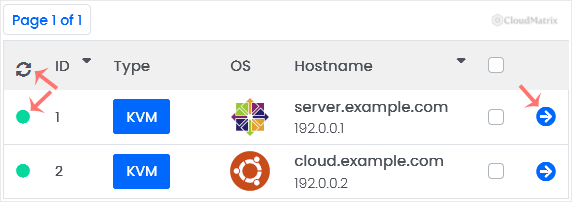
- Click the refresh icon to poll the server again and update the indicator.
The indicator is a snapshot from the last poll, not a live feed. If you have just started, stopped or rebooted the VPS, give it a few seconds and click refresh rather than trusting the colour that was already on screen.
What Green and Red Actually Mean
The status circle reports one thing only: whether the virtual machine is running on the host node. It is the equivalent of asking whether a physical server's power light is on.
- Green does not mean your website or services are working. A VPS can be powered on and reachable while the web server, database or mail service inside it has crashed, or while the operating system has failed part-way through boot. If the panel shows green but nothing responds, the fault is inside the VPS, not at the power level.
- Red means the machine is not running. Nothing inside it is reachable, including SSH, so the fix has to come from the panel or from Noiz support, never from inside the server.
- A suspended VPS shows as offline. Suspension is applied outside the VPS and powers it off, so the red circle is expected and starting it from the panel will not stick until the suspension is lifted.
Client Area Status Is Not the Same as Power Status
Your Noiz client area shows a status against the VPS service itself, such as Active, Suspended or Cancelled. That is a billing and provisioning state. It tells you the standing of the account, not whether the machine is switched on. A service can sit at Active in the client area while the VPS is powered off in Virtualizor, and both readings are correct.
Use the client area to confirm the service is in good standing and to reach the panel or open a ticket. Use Virtualizor for the power state. When the two disagree in a way you cannot account for, and particularly when the service reads Suspended, the client area is the place to check for an unpaid invoice.
Troubleshooting
The VPS shows offline and you did not stop it: the most common cause is a shutdown issued from inside the server. Running shutdown -h now, poweroff or halt over SSH powers the machine off and it will not come back on its own, because there is nothing left running to bring it up. Start it again from Virtualizor. Use reboot when you want the server to come back.
It went offline on its own: check whether the VPS ran out of memory, whether an automatic update triggered a shutdown rather than a reboot, and whether the service is suspended for an unpaid invoice. If none of those apply, open a ticket so Noiz can check the host node.
The status will not change after you click start: refresh the page rather than only the indicator, then check for a queued task in the panel. A start that immediately reverts to offline usually means the VPS is suspended, or that the operating system is failing at boot and needs console access to diagnose.
Green circle, but the site is down: the machine is up and the problem is a service inside it. Connect over SSH and check the web server, database and disk space before assuming anything is wrong with the VPS itself.
Need a Hand?
If a VPS is stuck offline, will not start, or shows a status you cannot explain, open a support ticket from your Noiz client area. The support team can check the host node, confirm the true power state and start the server for you.






