This guide shows you how to block incoming mail that contains a particular word or phrase, using the Stop Word option in the DirectAdmin spam filters on your Noiz hosting account. It is the right tool when the unwanted mail is not tied to one sender or one domain, but keeps repeating the same recognisable text, such as a scam subject line or a phrase used by a bulk sender who changes address constantly. You may see the feature called a stop word, a block word, or a keyword filter; all three describe the same setting.
Stop word blocking is powerful and blunt in equal measure. Read Choosing a Stop Word That Will Not Cost You Mail before you add one, because a badly chosen word silently discards wanted mail, with no warning to you and and often no warning to the person who sent it either.
Last reviewed: 27 July 2026, against the current DirectAdmin release. This guide is written for Noiz hosting and is kept current against DirectAdmin. It complements, and does not replace, the official DirectAdmin documentation linked below.
Official Documentation Reference
- DirectAdmin Docs: Preventing SPAM
- DirectAdmin Docs: Filtering incoming spam
- DirectAdmin Docs: The Evolution interface
Prerequisites
- Your DirectAdmin username and password for your Noiz hosting account.
- The domain the rule should apply to, if the account hosts more than one.
- A few samples of the unwanted mail open in front of you, so you can choose text that genuinely appears in it.
What a Stop Word Actually Does
DirectAdmin turns the entry you save into a mail server rule that inspects incoming messages for that text before they reach any mailbox on the domain. Five behaviours are worth understanding before you add one:
- It matches text, not senders. The rule ignores who sent the message. If the text is present, the message is blocked, whoever it came from. That is exactly why it works on spam that rotates through hundreds of throwaway addresses, and exactly why it is risky.
- It is a substring match, not a whole-word match. A stop word of
cashalso matchescashflow,cashierand the surnameCashmore. This is the single most common cause of mail going missing after someone adds a stop word. - The text does not have to be in the subject line. A match anywhere in the message counts, so the word can be hiding in a quoted reply, a signature block, a marketing footer, or a link in the body.
- Blocked mail is discarded, not quarantined. A message caught by a stop word does not land in a Spam or Junk folder for you to review. It is dropped. There is nothing to check, nothing to release and nothing to recover, and the sender is not told that the message failed to arrive.
- Settings are stored per domain. DirectAdmin keeps the spam filter configuration against the domain, not against an individual mailbox. A stop word added while
yourdomain.comis selected applies to every address onyourdomain.com, includinginfo@,accounts@and any address a colleague reads.
Block Emails by Stop Word in DirectAdmin
-
Log in to your DirectAdmin account.
-
In the E-mail Manager section, click SPAM Filters. If you cannot see the section, type
SPAM Filtersinto the navigation filter box at the top of the sidebar and the item will appear. Click it.
-
If the account hosts more than one domain, choose the correct domain from the selector at the top of the page before you add anything. The rule applies to the domain that is selected at the moment you click Block.
-
Under Block By, select Stop Word from the drop-down menu.
-
In the Value field, type the word or phrase you want to block. To reduce partial matches, type a space before and after the word, for example
cashrather thancash. See the caveat on that technique below.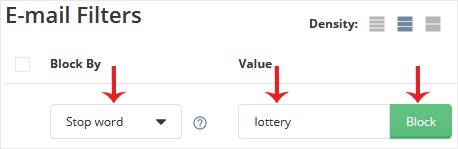
-
Click Block. The entry appears in the list of active filters on the same page, and it takes effect for mail arriving from that point onward.
-
Repeat the process for each additional stop word. You can add as many as you need, and each one is stored as a separate entry so you can remove them individually later.
Choosing a Stop Word That Will Not Cost You Mail
Because a blocked message is discarded rather than filed away, a bad stop word is invisible. Nobody complains, nothing appears in a folder, and you find out weeks later when a customer asks why you never replied. These rules keep that from happening:
- Prefer a distinctive phrase over a single word. Blocking
claim your prize nowis far safer than blockingprize. The longer and odder the string, the less chance it collides with real correspondence. - Search your existing mail first. Before you save a candidate, search your mailbox for that exact text. If it turns up in messages you were glad to receive, choose something else. Two minutes of searching is cheaper than a lost invoice.
- Never block a word from your own trade. An accountant blocking
invoice, a recruiter blockingvacancyor a letting agent blockingdepositwill lose the exact mail the business runs on. - Understand what the space trick does and does not do. Wrapping the word in spaces gives you a rough word boundary and stops
cashmatchingcashflow. It also means the word will no longer match when it sits at the very start of a line, immediately before a full stop or comma, or wrapped in HTML formatting. Expect it to trade some false blocks for some misses. - Do not rely on it to catch every message. Mail is often sent as formatted HTML, and a word can be broken up by markup or encoded in a way the rule does not see. A stop word is a reasonable way to cut down a nuisance, not a guarantee.
- Keep a note of what you blocked and why. The filter list shows you the value but not the reason or the date. A short note in your own records makes it obvious later which entries are still earning their place.
Test the Filter Before You Trust It
Send yourself two test messages from an outside address, ideally a personal webmail account. Put the stop word in the first and leave it out of the second. The second should arrive normally. The first should never appear anywhere, including the Spam folder, and do not assume the sender will be told: depending on how the rule is applied they may get a delivery failure or nothing at all. That silence is the confirmation that the rule is working, and it is also the reason to be careful with it.
If the test message with the stop word does arrive, check that you were editing the right domain and that the entry is listed on the SPAM Filters page. Give it a minute or two and try again before assuming it has failed.
Remove or Change a Stop Word
Stop words cannot be edited in place. To change one, remove the old entry and add a new one. Removal is done from the same SPAM Filters page, and the steps are covered in How to Remove Email Spam Filters in DirectAdmin. Removing a stop word restores normal delivery for new mail, but it does not bring back anything that was already discarded.
When a Different Filter Suits the Job Better
- One persistent sender or one bad domain. Blocking the address or the domain is far more precise than blocking text. See How to Block Email Using Spam Filters in DirectAdmin.
- General, everyday spam. Scoring-based filtering handles the broad volume far better than any keyword list, and it files suspected spam somewhere you can review it rather than deleting it. See How to Enable Apache SpamAssassin in DirectAdmin.
- Mail you want to see but file separately. A stop word cannot sort mail, only destroy it. Use a rule in your mail client or webmail to move messages into a folder instead.
Troubleshooting
Symptom: Legitimate mail has stopped arriving since you added a stop word. Assume the stop word is the cause until proven otherwise. Remove the entry, then work out which text in the missing messages matched it. Mail discarded while the rule was active cannot be recovered, so ask the sender to resend once the rule is gone.
Symptom: The unwanted mail still gets through. The exact text may not be present in every message, or it may be broken up by HTML formatting. Open one of the messages that got through, view its source or original, and confirm the string really is there in the form you typed it.
Symptom: Stop Word is not listed in the Block By drop-down. Confirm you are on the SPAM Filters page rather than SpamAssassin Setup, which is a separate item with its own options.
Symptom: SPAM Filters does not appear in the sidebar. The feature may not be included on your hosting package, or you may be logged in at reseller or admin level rather than user level. Switch to the user-level view, and open a ticket with Noiz if it is still missing.
Symptom: A colleague on the same domain has lost mail and you never touched their mailbox. Spam filter settings are held per domain, so any stop word you added affects them too. Review the full list of entries on the SPAM Filters page.
Need a Hand?
If mail has gone missing and you are not sure whether a stop word is responsible, Noiz can check the mail logs for the message and tell you precisely where it was dropped, which is usually faster than removing rules one at a time and waiting to see what changes. Open a ticket from your Noiz client area with the sending address, the receiving address, and roughly when the message was sent.






