DirectAdmin lets you reject incoming mail that is larger than a size you choose, using the SPAM Filters tool in the E-Mail Manager. This guide shows you how to set that rule on Noiz DirectAdmin hosting, and, just as importantly, how to pick a threshold that stops bulk rubbish without bouncing the invoices and artwork your customers actually send you.
Last reviewed: 27 July 2026, against the current DirectAdmin release and its default Evolution interface. This guide is written for Noiz hosting and is kept current against DirectAdmin. It complements, and does not replace, the official DirectAdmin documentation linked below.
Official Documentation Reference
Prerequisites
- Login details for your DirectAdmin account on Noiz hosting.
- At least one domain with email hosted on the account.
- A decision on the largest message you are willing to accept. Read the sizing section below before you commit to a number.
What the Size Filter Actually Does
The size filter is applied per domain, not per mailbox. Once you set it, every address on that domain is covered, including any catch-all, forwarders and aliases. There is no way to exempt a single mailbox from within this tool.
The rule is enforced while the message is still being delivered, so an oversized message is refused rather than accepted and quietly binned. That has two consequences worth knowing before you switch it on:
- The sender is told. A size limit is normally enforced while the message is still being transferred, so a genuine correspondent will often get a delivery failure telling them the message was too large. Do not rely on that, though: whether a notice reaches the sender depends on their mail server, so treat a blocked message as one they may never know about. That is better than silence, but it still means someone has to try again another way.
- Nothing is kept. A blocked message is not held in a quarantine, a spam folder or a queue. It cannot be released or recovered afterwards. If you block something you needed, the only remedy is to raise or remove the limit and ask the sender to resend.
The filter applies to mail arriving at the domain. It has no effect on messages you send out.
How to Block Emails by Size in DirectAdmin
Step 1: Open SPAM Filters
- Log in to your DirectAdmin account.
- In the E-Mail Manager section, click SPAM Filters. If you cannot see the section, type
SPAM Filtersinto the navigation filter box at the top of the menu and the entry will appear. Click it.

Step 2: Choose the domain and the rule type
- If the account holds more than one domain, select the domain the rule should apply to from the domain selector at the top of the page. Rules do not carry across domains, so repeat the process for each one you want protected.
- Under Block By, choose Size from the drop-down menu.
Step 3: Set the size and save
- In Value, choose the unit, KB or MB, and enter the number.
- Click Block.
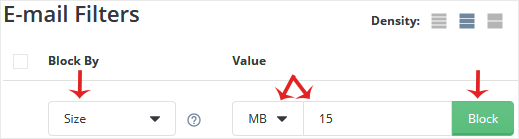
The rule takes effect on the next message that arrives, and the new entry is listed on the same page so you can review or remove it later. If you enter MB and the value 5, every incoming message larger than 5 MB is refused.
Choosing a Size Limit That Will Not Break Legitimate Mail
This is where most people get caught out. The limit is measured against the whole message as it travels over the wire, not against the size of the file the sender picked off their desktop.
- Attachments are inflated in transit. Files are encoded for email transport, and that encoding adds roughly a third to their size. A 5 MB PDF typically arrives as about 6.8 MB of message. On top of that sit the headers, the message body and any HTML signature or embedded logo.
- Plan for about 1.4 times your intended ceiling. If you genuinely want to accept attachments up to 10 MB, set the filter somewhere around 14 MB. Setting it to exactly 10 MB will reject a great many 8 MB and 9 MB files.
- Several attachments count together. The limit is on the whole message, so four 3 MB photos in one email are measured as one large message, not four small ones.
- Threads grow. A long reply chain that keeps quoting an attached document can cross a tight limit late in the conversation, long after the first message got through fine.
A practical starting point for a normal business mailbox is a limit in the region of 20 MB to 30 MB. That is comfortably above everyday invoices, contracts, purchase orders and photographs, while still turning away the very large payloads that are almost never legitimate.
Be aware that the Noiz mail platform already enforces its own overall message size ceiling. Your filter can only ever be stricter than that ceiling, never more permissive. Setting a very high value here does not raise the platform limit.
If your business regularly needs to receive genuinely large files such as video, design source files or print-ready artwork, a size filter is the wrong tool. Ask senders to share a download link instead. It is faster for them, it does not sit in your mailbox quota, and it removes the size question entirely.
Testing the Rule
Do not assume the threshold behaves the way you expect. Confirm it:
- From an external address, such as a personal webmail account, send a message with an attachment comfortably below your limit. It should arrive normally.
- Send a second message with an attachment comfortably above the limit. It should not arrive. Check the sending account for a delivery failure notice, which usually appears within a few minutes, but do not treat its absence as proof the limit is not working: check the mailbox itself.
- Send a third with an attachment just under the limit. This is the one that exposes encoding overhead. If it bounces, your limit is tighter in practice than the number suggests, and you should raise it.
Test from an outside provider rather than from another mailbox on the same domain, so that the message travels the same path a real sender's message would.
Troubleshooting
Symptom: A customer says an important email bounced with a size or message-too-large error. Raise or remove the size rule, then ask them to resend. The original message cannot be recovered, so it has to be sent again.
Symptom: The rule appears to do nothing. Check that you set it against the correct domain. Rules are per domain and do not apply to other domains on the same account. Also confirm the unit, since a value entered in KB is a thousand times smaller than the same value in MB.
Symptom: Small messages are being blocked. You have almost certainly set the value in KB when you meant MB. Remove the rule and add it again with the correct unit.
Symptom: Large mail still gets through after the limit was raised. The platform-wide message size ceiling still applies. A domain filter cannot lift it.
Symptom: You want the rule gone entirely. Follow How to Remove Email Spam Filters in DirectAdmin.
Related Articles
- How to Remove Email Spam Filters in DirectAdmin
- How to Block Emails Containing the Stop Word in DirectAdmin
Need a Hand?
If you are unsure what threshold suits your mail flow, or you suspect a size rule is blocking mail you need, open a support ticket from your Noiz client area. The Noiz team can review what is arriving at your domain and help you set a limit that holds back the junk without costing you real business mail.






