Downloading is how you pull a copy of your website files off the server and onto your own computer, whether you want a local backup before making changes, a copy of a single file to edit, or the whole site to hand to a developer. This guide shows you how to download files and directories from your Noiz hosting account using the FileZilla Client, and covers the parts that catch people out: choosing where the files land, hidden files that FileZilla will not show you by default, and what an FTP download does not include.
These steps apply to any Noiz hosting account, whichever control panel your account uses. FTP is a server-level service, so the connection details come from your hosting account rather than from any particular panel screen.
Last reviewed: 27 July 2026, against FileZilla Client 3.x (current stable series). This guide is written for Noiz hosting and is kept current against FileZilla. It complements, and does not replace, the official FileZilla documentation linked below.
Official Documentation Reference
- FileZilla Client Tutorial: the vendor walkthrough of the interface and first connection.
- Using FileZilla: Site Manager, the transfer queue, and directory comparison.
- FileZilla Network Configuration: active versus passive mode, firewalls, and router behaviour.
- FileZilla Client downloads: official builds only.
Prerequisites
- FileZilla Client installed on your computer. See How to Install FileZilla on Windows.
- An active FTP account on your hosting service, along with its username and password. These are the FTP details created in your hosting control panel, not your Noiz client area login and not your email password.
- The hostname to connect to, which is either your domain name or the server hostname shown in your Noiz welcome email.
- Enough free disk space on your computer for whatever you are about to pull down. A media-heavy site can easily run to several gigabytes.
Connect to Your Hosting Account
Open the FileZilla Client, then enter your host, username and password in the Quick Connect bar across the top of the window and click Quickconnect. Leave Port blank unless Noiz has given you a specific port.

For the full connection walkthrough, including how to require encryption rather than sending your password in clear text, see How to Connect to Your FTP Account Using FileZilla. Noiz recommends setting the connection up in the Site Manager with Encryption set to Require explicit FTP over TLS, because Quick Connect will quietly fall back to an unencrypted session if the negotiation fails.
Once you are connected, the FileZilla window splits into two halves. The left pane is your own computer. The right pane is the server. Downloading means moving files from right to left.
Choose Where the Files Will Land First
This is the step almost everyone skips, and it is the reason files go missing after a download. FileZilla saves downloaded files into whichever folder is currently open in the left pane. It does not ask you, and it does not use your browser's Downloads folder.
Before you download anything, navigate the left pane to the folder you want the files in, or create a new one there by right-clicking and choosing Create directory. A folder named after the site and the date, such as yourdomain-2026-07-26, saves a great deal of confusion later when you have several copies.
If you always want a particular site to download to the same place, open File then Site Manager, select the site, open the Advanced tab, and set Default local directory. FileZilla will then open that folder in the left pane every time you connect to that site.
Download Files and Directories
In the right pane, browse to the folder holding what you want. For website files this is normally the web root, commonly named public_html, httpdocs or web depending on the platform your account runs on. If the FTP user was scoped to a single site, you may already be in the right place at login.
- In the right pane, under the Filename column, click the file or directory you want.
- To select more than one item, hold Ctrl and click each item you want. To select a continuous block, click the first item, hold Shift, then click the last item. Ctrl and A together selects everything in the current folder.
- Right-click the selection and choose Download. Dragging the selection into the left pane does exactly the same thing, so use whichever you find easier.
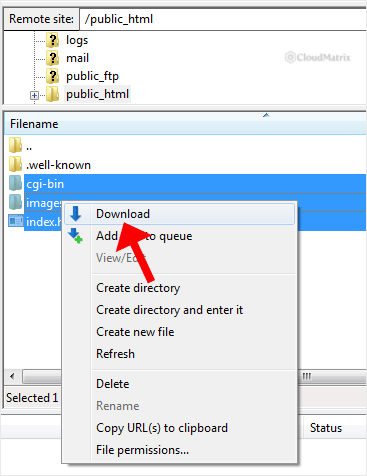
Selecting a directory downloads that directory and everything inside it, including all sub-directories, so there is no need to open it and select the contents by hand.
If you would rather queue several separate selections and start them all at once, choose Add files to queue instead of Download. Nothing transfers until you press the toolbar's Process queue button, which is useful when you are gathering files from folders scattered around the site.
Watch the Transfer and Confirm It Finished
The bottom of the FileZilla window is the transfer queue, and it has three tabs that matter:
- Queued files: what is still waiting or in progress, with a per-file progress bar and a running total.
- Failed transfers: anything that did not complete. This tab is the one to check before you assume a download worked, because FileZilla does not pop up a warning when individual files fail partway through a large batch.
- Successful transfers: everything that completed cleanly.
A large download can take anywhere from seconds to well over an hour. The limiting factor is usually your own upload and download line rather than the server, and thousands of tiny files take far longer than a single file of the same total size, because each one needs its own transfer negotiation.
If the queue stalls or files start failing, right-click inside the Failed transfers tab and choose Reset and requeue all files. FileZilla will retry only what did not make it, rather than starting the whole job again.
Gotchas Worth Knowing Before You Rely on the Copy
Hidden files are not shown by default
Files beginning with a dot, such as .htaccess, .env and .user.ini, are hidden on the server, and FileZilla will not list or download them unless you ask it to. A site backup missing its .htaccess file will lose its rewrite rules, redirects and access restrictions.
Open the Server menu and tick Force showing hidden files, then refresh the directory listing with F5. The dot files will appear, and you can select and download them along with everything else.
An FTP download is not a full site backup
FTP moves files, and nothing else. It does not include your databases, your email messages, your DNS records or your control panel settings. A WordPress, Joomla or similar site downloaded over FTP alone will not restore, because the content lives in the database rather than in the files.
To take a complete copy, download the files as described here and separately export the database from your control panel or from phpMyAdmin, then keep both together. If your plan includes a full account backup feature in the control panel, that route captures everything in one archive and is the better option for a genuine backup.
Permissions and ownership do not survive the trip
Windows and macOS do not store Unix file permissions the way the server does. When you upload the files back, permissions are reset to whatever your FTP user's defaults are, so a restored site sometimes needs its directory and file permissions corrected. Make a note of anything unusual before you download it.
Filenames your operating system will not accept
Linux servers allow characters in filenames that Windows refuses, including :, ?, * and |. Those files land in the Failed transfers tab with a file-writing error. Rename them on the server first, then download again. Linux is also case sensitive while Windows is not, so Logo.png and logo.png can coexist on the server but will collide on your computer.
Very long paths on Windows
Deeply nested folders, which are common in plugin and dependency directories, can push the full path beyond the Windows path length limit and fail silently at the end of the queue. Downloading into a short destination path such as C:\Sites\ rather than a folder buried inside your user profile avoids this.
Troubleshooting
Symptom: the download finished but you cannot find the files. They went into whatever folder was open in the left pane at the time. Look at the Successful transfers tab, which lists the full local path of every file it wrote, and search for one of those filenames on your computer.
Symptom: 550 Permission denied or Could not start transfer on some files. The FTP user does not have read access to those files. This usually happens with files created by a different system user, such as files written by a web application. Fix the permissions in your control panel's file manager, or ask Noiz support to check server-side ownership.
Symptom: Failed to retrieve directory listing, so you can browse nothing to download. This is nearly always a passive mode or firewall issue rather than a permissions one. In the Site Manager, open the Transfer Settings tab and set Transfer mode to Passive.
Symptom: files arrive at 0 bytes, or a text file opens as gibberish. The transfer type is wrong for that file. Open Transfer then Transfer type and confirm it is set to Auto, which is correct in almost all cases, then download the affected files again.
Symptom: the connection drops partway through a long download. FTP sessions time out when the control connection sits idle. Reconnect and requeue the failed files. FileZilla can resume a partly transferred file and will ask whether to Resume, Overwrite or Skip when it finds an existing local file of a different size.
Symptom: transfers are extremely slow. Open Edit then Settings then Transfers and raise Maximum simultaneous transfers to two or three. Going higher rarely helps and some servers will refuse the extra connections outright.
Symptom: Critical file transfer error with a local write failure. Your computer ran out of disk space, or the destination folder is one your user account cannot write to, such as a folder inside C:\Program Files. Choose a destination inside your own user folder or a drive with room.
Related Articles
- How to Install FileZilla on Windows
- How to Connect to Your FTP Account Using FileZilla
- How to Create or Delete a Directory Using FileZilla
- How to Upload the Index File to Your Website via FileZilla
Need a Hand?
If files keep failing to download, or you are unsure whether the copy you have taken is complete enough to restore from, open a ticket from your Noiz client area. Include the contents of the Failed transfers tab and the FileZilla message log from the top pane, and say which domain is involved. That log names the exact stage each transfer failed at, which lets the Noiz support team confirm the server side quickly rather than asking you to repeat the download.






