Directories, also called folders, are how you organise a website on the server. You might want an images folder for your graphics, a backup folder to park an old copy of a page, or a subfolder to hold a second site section. This guide shows you how to create and delete directories on your Noiz hosting account using the FileZilla FTP client, and covers the naming rules and deletion pitfalls that catch people out.
The steps below apply to any Noiz hosting account, whichever control panel your account uses. FTP is a server-level service, so the credentials and the folder actions are the same regardless of the panel you log in to for everything else.
Last reviewed: 27 July 2026, against FileZilla Client 3.x (current stable series). This guide is written for Noiz hosting and is kept current against FileZilla. It complements, and does not replace, the official FileZilla documentation linked below.
The screenshots in this article were captured on an earlier 3.x release. The menu wording and layout are effectively unchanged in the current version, so what you see on screen will match.
Official Documentation Reference
- FileZilla Client Tutorial: the vendor walkthrough of the interface and the file panes.
- Using FileZilla: browsing, the transfer queue, and directory comparison.
Prerequisites
- FileZilla Client installed on your computer. See How to Install FileZilla on Windows.
- An active FTP account on your hosting service, with its username and password to hand.
- A working connection to the server. See How to Connect to Your FTP Account Using FileZilla if you have not connected before.
Connect to Your Hosting Account
- Open the FileZilla Client.
- Enter your FTP Host, Username and Password in the Quick Connect bar across the top of the window, then click Quickconnect. Leave Port blank unless Noiz has given you a specific port.
- The Host is your domain name, in the form
ftp.yourdomain.comoryourdomain.com. Replaceyourdomain.comwith your own domain. If your domain is not yet pointed at the Noiz nameservers, use the server hostname from your Noiz welcome email instead. - The Username and Password are the FTP credentials issued or created for your hosting account. They are not your Noiz client area login and not your email password.
- The Host is your domain name, in the form

Once connected, your own computer's files appear in the left pane and your hosting account's files appear in the right pane. Everything in this guide happens in the right pane.
Create a Directory
- In the right pane, open the folder you want the new directory to live inside. For a folder that must be reachable on the web, that is your web root, commonly named
public_html,httpdocsorwebdepending on the platform your account runs on. Double-click the folder to enter it.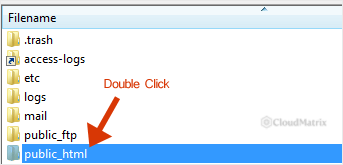
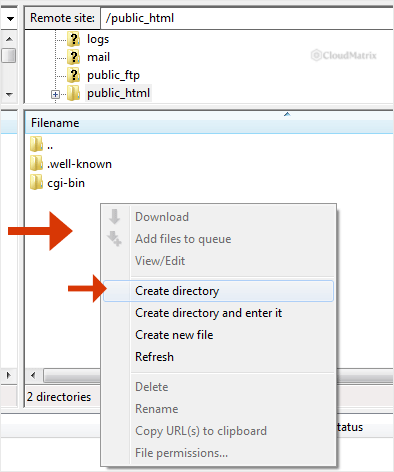
- Right-click on empty space in the file listing, below the existing filenames, and choose Create directory from the context menu. Choosing Create directory and enter it instead does the same thing and then opens the new folder for you, which saves a click if you are about to upload into it.
- Type the directory name, such as
images, and click OK. FileZilla pre-fills the box with a suggested name, so clear it before typing rather than typing after it.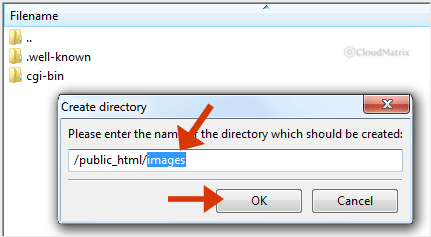
- The new directory appears in the listing. Double-click it to go inside. If it does not appear straight away, press F5 or right-click and choose Refresh to reload the listing from the server.
Name Directories Correctly
Noiz hosting runs on Linux, and Linux filenames are case sensitive. Images and images are two different folders, and a page linking to /images/logo.png will return a 404 error if the folder on the server is actually called Images. This is the single most common cause of "it worked on my PC but not on the live site", because Windows does not care about case and the server does.
To stay out of trouble:
- Use lowercase letters only.
- Use hyphens instead of spaces.
product-photosworks cleanly in a URL,product photosbecomesproduct%20photos. - Stick to letters, numbers, hyphens and underscores. Avoid
&,#,?,%and accented characters, which have special meanings in URLs. - Do not start the name with a dot unless you mean to. A leading dot makes the folder hidden, and FileZilla will not display it until you enable Server then Force showing hidden files.
A new directory created over FTP is owned by your FTP user and typically gets 755 permissions, which is what a web-served folder needs. You do not normally need to change anything. If a script later reports that it cannot write to the folder, right-click the folder, choose File permissions, and check the value there before changing it, as loosening permissions unnecessarily is a security risk.
Delete a Directory or File
- In the right pane, right-click the directory or file you want to remove.
- Choose Delete from the context menu, then confirm with Yes.
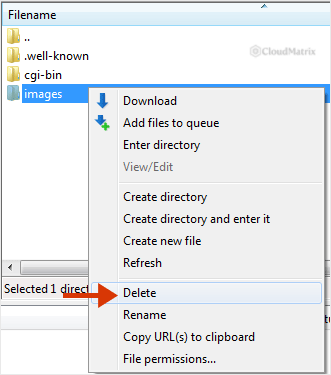
The same method removes single files. To remove several items at once, hold Ctrl and click each one, or hold Shift to select a range, then right-click the selection and choose Delete.
Before You Delete Anything
FTP deletion is permanent. There is no recycle bin on the server and no undo in FileZilla. Once the confirmation dialogue is accepted, the only way back is a restore from backup.
- Deleting a directory deletes everything inside it. FileZilla walks the folder and removes every file and subfolder within it, because FTP servers refuse to remove a directory that is not empty. On a folder with thousands of files this can take several minutes and the client will look busy while it works. Do not close FileZilla mid-deletion.
- Check for hidden files first. A folder that looks empty may still contain a
.htaccessfile or similar. Turn on Server then Force showing hidden files so you can see the full contents before deciding. - Download a copy if you are not certain. Dragging the folder from the right pane to the left pane pulls a full copy to your computer first. That takes a minute and turns an irreversible action into a reversible one.
- Do not delete the web root itself. Removing
public_html,httpdocsorwebtakes your site offline and can break the account's document root configuration. Empty its contents instead of deleting the folder. - Deleting a folder does not remove what pointed at it. Menu links, database records and CMS media references pointing to the old path will start returning 404 errors. Tidy those up in the site itself afterwards.
Troubleshooting
Symptom: 550 Permission denied or 550 Create directory operation failed. The FTP user does not have write access to the folder you are in. Confirm you are inside your own account's directory tree and not one level too high. An FTP user scoped to a single site cannot create or delete anything outside its own folder.
Symptom: 550 Directory not empty. The server rejected the removal because files remain inside. Open the folder, enable Force showing hidden files, delete the contents, then delete the folder.
Symptom: the new folder does not appear after you create it. The listing on screen is a cached view. Press F5 to refresh from the server.
Symptom: the folder exists but the URL returns a 404 error. Check three things in order. First, that the folder is inside the web root and not in the account home directory alongside it. Second, that the spelling and capitalisation in your link match the folder exactly. Third, that the folder contains an index file, since a folder with no index.html or index.php will not serve anything on its own.
Symptom: deletion appears to hang. Large directory trees are removed file by file over the connection, so this is usually slow progress rather than a stall. Watch the message log in the top pane. If it is still listing filenames, it is working.
Symptom: Connection closed by server partway through a long deletion. The session timed out. Reconnect and repeat the deletion, which will resume on whatever is left.
Related Articles
- How to Install FileZilla on Windows
- How to Connect to Your FTP Account Using FileZilla
- How to Upload the Index File to Your Website via FileZilla
- How to Download Files and Directories to Your Computer via FileZilla
Need a Hand?
If a directory will not create or delete, or you have removed something you needed back, open a ticket from your Noiz client area straight away. Include the full FileZilla message log from the top pane and the exact path involved. Acting quickly matters for accidental deletions, because backup retention is finite and the sooner a restore is requested the more likely the file is still recoverable.






