A CNAME record points one hostname at another hostname, so that www.yourdomain.com or shop.yourdomain.com resolves to wherever the target resolves. You will need to change one whenever a third-party service moves you to a new endpoint, or remove one when you stop using a service, move a subdomain back onto your own hosting, or need to clear a conflicting record out of the way. This guide shows you how to do both from the cPanel Zone Editor, and covers the details that catch people out: the trailing dot, records you should not delete, and why the change does not always appear straight away.
You will see CNAME records described as aliases, canonical name records or simply pointers. They all mean the same record type, and cPanel labels it CNAME.
Last reviewed: 27 July 2026, against cPanel & WHM version 134 (the current STABLE and LTS tier) and the 134 LTS release tier. The Zone Editor interface described here has been stable across recent cPanel releases, so the steps hold on older versions too. This guide is written for Noiz hosting and is kept current against cPanel. It complements, and does not replace, the official cPanel documentation linked below.
Official Documentation Reference
- cPanel: Zone Editor for the reference description of every field and control on the page.
- RFC 1912: Common DNS Operational and Configuration Errors for why a CNAME cannot sit alongside other records at the same name.
- RFC 2181: Clarifications to the DNS Specification for the authoritative treatment of TTLs and record sets.
Prerequisites
- Your cPanel username and password, and the login address for your server.
- The domain must be using your hosting server's nameservers. If the domain's DNS is hosted somewhere else, such as at your registrar or behind a third-party DNS provider, the cPanel Zone Editor will happily accept the change and nothing on the internet will act on it.
- The new target hostname, if you are editing rather than deleting. Get it from the service you are pointing at, in writing, rather than from memory.
- A note of what the record currently says, before you change it. Take a screenshot. It is the fastest way back if the change turns out to be wrong.
Before You Change Anything
A CNAME is a redirection at the DNS level. Anything that resolves that hostname follows the pointer, so the blast radius of an edit is wider than it looks. Before you touch the record, work out what depends on it.
Three things are worth knowing up front:
- A CNAME cannot share a name with any other record. If
shop.yourdomain.comhas a CNAME, it cannot also have an A record, a TXT record or an MX record. This is why cPanel refuses some changes that look reasonable, and it is also why you cannot put a CNAME on the root of the domain: the root already carries the zone's SOA and NS records. - Editing is safer than delete-and-recreate. Editing keeps the record in place and changes its value in one step. Deleting it and adding it again leaves a window where the hostname does not exist at all, which resolvers will cache as a negative answer.
- Removing a CNAME breaks whatever was using it. Service verification records, mail autodiscovery, CDN hostnames and third-party dashboards all commonly live on a CNAME. If you do not recognise a record, find out what it does before you delete it.
How to Edit a CNAME Record in cPanel
- Log in to your cPanel account.
- In the Domains section, click Zone Editor. If you cannot see it, type
Zone Editorinto the search box at the top of the cPanel home page.

- Find the domain you want to work on in the list. Each domain has a row of buttons under Actions, including shortcuts for adding an A record, a CNAME record or an MX record, and a Manage button that opens the full record list.
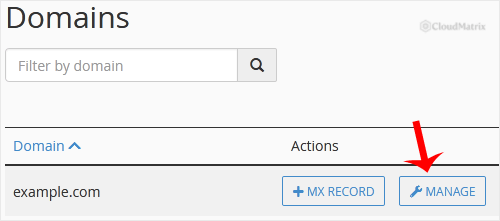
- Click Manage beside the domain. This opens every record in that zone.
- Narrow the list down. Use the type filter to show only CNAME records, or type part of the hostname into the search box. Zones on a busy account can run to dozens of records, and filtering removes the risk of editing the wrong row.
- Find the CNAME record you want to change and click Edit on that row.
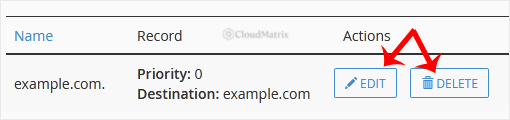
- Change the fields you need. Name is the hostname the record answers for, TTL is how long resolvers are allowed to cache the answer, and Record or CNAME is the target hostname it points at.
- Click Save Record. The change is written to the zone file immediately and the zone's serial number is bumped so that secondary nameservers pick it up.
How to Remove a CNAME Record in cPanel
- Follow steps 1 to 5 above to reach the record list for the domain and filter it to CNAME.
- Confirm you have the right row. Read the Name column, not the target, and check it character by character. Deleting the wrong record is a two-second mistake with a several-hour cache tail.
- Click Delete on that row, then confirm in the dialogue that appears.
The record is gone from the zone the moment you confirm. Resolvers that already have the old answer cached will keep serving it until the TTL expires, so the hostname does not stop working instantly for everyone.
If you are removing a CNAME so that you can put an A record on the same hostname, delete the CNAME first and add the A record second. The two cannot coexist, and cPanel will reject the A record while the CNAME is still there.
Getting the Target Right: the Trailing Dot
This is the single most common CNAME mistake, and it produces a record that looks correct in the interface and resolves to nothing.
A hostname that ends with a dot is fully qualified and absolute. A hostname without a trailing dot can be treated as relative to the zone it sits in, which means your own domain gets appended to it. Type ghs.googlehosted.com into the target field without the dot and you can end up with a record pointing at ghs.googlehosted.com.yourdomain.com, which does not exist.
Two habits avoid it entirely:
- Always type the target in full and end it with a dot, for example
target.example-service.com. - After saving, look at the value cPanel displays back to you in the record list. If your own domain has been appended to the end of the target, the record is wrong. Edit it and add the trailing dot.
The same logic applies to the Name field, in the other direction. Entering shop gives you shop.yourdomain.com, which is almost always what you want. Entering shop.yourdomain.com without a trailing dot can give you shop.yourdomain.com.yourdomain.com. Either type the short label on its own, or type the full hostname with a trailing dot.
Records You Should Not Delete
Some CNAME records in a cPanel zone are created by the server and are load-bearing. Deleting them takes services offline in ways that are not obvious until somebody complains.
mailandwebmail, which are how mail clients and browser webmail reach the server.cpanel,whmandautodiscover, which provide the friendly login and client-autoconfiguration hostnames.ftp, if you or anyone else still connects over FTP by name.- Verification records from services such as mail providers, analytics platforms or certificate authorities. These often look like random strings and appear to be junk. They are not, and removing one can invalidate a domain verification you completed months ago.
If you are not sure what a record is for, leave it alone and ask. A stale record costs nothing. A deleted one that mattered costs an outage.
How Long the Change Takes
The edit itself is instant on the server. What takes time is the cached copy of the old answer sitting in resolvers around the world, and that is governed by the record's TTL, not by any general propagation delay.
cPanel commonly creates records with a TTL of 14400 seconds, which is four hours. Until that many seconds have elapsed since a resolver last looked up the name, it will keep serving the old value without asking your nameservers again.
If you know a change is coming, plan for it:
- Lower the TTL on the record to
300seconds a day or so before the change. Wait for the old, longer TTL to expire so the short value is the one in circulation. - Make the actual change. It is now visible everywhere within about five minutes.
- Put the TTL back up to
14400once you are satisfied. Very short TTLs mean more lookups against your nameservers for no benefit once the change has settled.
Older guidance quoting 24 to 48 hours dates from an era of much longer default TTLs and slower zone transfers. Treat the record's own TTL as the number that matters, and allow a little extra for the handful of resolvers and devices that cache more aggressively than they should.
Verify the Change
Do not rely on loading the site in your browser. Browsers and operating systems keep their own DNS caches, and a browser will happily show you a page from cache long after the record behind it changed.
Query the record directly. On Linux or macOS:
dig +short CNAME shop.yourdomain.comOn Windows:
nslookup -type=CNAME shop.yourdomain.comTo check what your own nameservers are actually publishing, bypassing every cache in between, query them by name:
dig +short CNAME shop.yourdomain.com @ns1.noiz.co.zaIf the authoritative answer is correct but a public resolver still returns the old value, the record is right and you are simply waiting out a cached answer.
Troubleshooting
Symptom: there is no Zone Editor icon in cPanel. The feature has been removed from your hosting package's feature list, or DNS for the account is managed elsewhere. Open a ticket and ask which is the case before making changes at your registrar.
Symptom: the record saves without error but nothing changes. The domain's nameservers are almost certainly not the ones on this server. Check the delegation with dig +short NS yourdomain.com and edit the record wherever those nameservers point.
Symptom: cPanel refuses the change and mentions a conflict. Another record already exists at that name. A CNAME has to be the only record at its hostname, so remove or rename the conflicting A, TXT or MX record first.
Symptom: the target has your own domain appended to it. The trailing dot was missing when the record was saved. Edit the record and re-enter the target ending in a dot.
Symptom: the change is visible from one device but not another. That is caching, not an error. Flush the local DNS cache, restart the browser, or test from mobile data. If the authoritative query returns the new value, the record is correct.
Symptom: mail stopped working after a Zone Editor session. Check whether the mail CNAME or the domain's MX records were changed or removed. Mail routing depends on both, and an edit intended for a website subdomain can catch them by accident.
Symptom: the record disappeared on its own. Some cPanel operations rewrite parts of a zone, and a few third-party integrations manage their own records and will reinstate or remove them. If a record keeps reverting, something else is managing it, and that is worth identifying before you fight it.
Related Articles
- How to Edit or Remove a Record in cPanel for the same procedure applied to any record type, not just CNAME.
- How to Add a CNAME Record in cPanel for creating one from scratch.
- How to Edit or Remove an MX Record in cPanel for changing where mail for the domain is delivered.
- How to Create a Subdomain in cPanel when you want the hostname served from this account rather than pointed elsewhere.
Getting Help
If you are unsure what a record does, or a change has not taken effect the way you expected, open a ticket in the Noiz client area with the domain, the exact hostname, the value you set and the value you are seeing. On managed plans the Noiz team can check the zone as published by the nameservers, confirm whether the delegation points at this server, and restore a record you did not mean to remove.






