An MX record (mail exchanger record) tells every sending mail server on the internet which host accepts email for your domain. Editing or removing one changes where your inbound mail goes, and it takes effect on live traffic. This guide shows you how to change or delete an existing MX record in cPanel's Zone Editor, and covers the parts that make MX different from every other record type: priority ordering, the routing setting cPanel keeps separately from the zone, and what actually happens to mail while the change spreads.
Related guides: to create a new MX record, see How to Add an MX Record in cPanel. For the general case covering A, CNAME, TXT and the rest, see How to Edit or Remove a DNS Record in cPanel. This article is the MX-specific version, because MX records carry consequences the others do not.
Last reviewed: 27 July 2026, against cPanel & WHM version 134 (the current STABLE and LTS tier). This guide is written for Noiz hosting and is kept current against cPanel. It complements, and does not replace, the official cPanel documentation linked below.
Official Documentation Reference
- Zone Editor: the cPanel interface reference for every field and button used below, including the Manage Zone view.
- Email Routing: what Local, Backup and Remote Mail Exchanger do, in cPanel's own words.
- RFC 5321, section 5.1: how a sending server resolves MX records, and why an MX target must not be a CNAME or an IP address.
- RFC 7505 (Null MX): the correct way to declare that a domain receives no mail at all, instead of deleting every MX record.
Prerequisites
- Login details for the cPanel account that holds the domain.
- The replacement values, if you are editing rather than deleting. Your mail provider supplies a hostname and a priority number for each mail host. Use the values in front of you, not the examples here.
- Confirmation that this server answers DNS for the domain. The next section shows the check.
- The Zone Editor icon visible in cPanel. If it is missing, the feature has been switched off for the hosting package rather than removed from cPanel.
Before You Touch Anything
Two checks take a minute each and prevent the two failure modes that dominate MX support tickets.
Confirm You Are Editing the Live Zone
cPanel edits the zone file stored on the server it runs on. If the domain's nameservers point somewhere else, that file is never consulted, and your careful edit changes nothing at all. On Noiz hosting the authoritative nameservers are ns1.noiz.co.za and ns2.noiz.co.za. Check what the domain currently uses:
dig NS yourdomain.com +shortReplace yourdomain.com with your own domain. On Windows without dig installed, nslookup -type=ns yourdomain.com does the same job. If the answer is a registrar's nameservers, a CDN, or a separate DNS platform, that is where the MX record lives and that is where it must be edited. A domain proxied through a third-party DNS service keeps its DNS there permanently, not only during setup.
Copy the Existing Record First
There is no undo in Zone Editor and no recycle bin. Before you change or delete anything, copy the full row (name, TTL, type, priority, destination) into a text file. Reconstructing an MX record whose hostname you cannot remember, while mail is bouncing, is a bad evening that costs nothing to avoid.
Be aware that this change affects live mail delivery. Unlike a website record, where a mistake produces an obvious error page, a wrong MX usually fails silently: messages are accepted somewhere you are not looking, or they bounce back to the sender without ever reaching you. Plan the change for a quiet period if the domain carries real mail.
Open Zone Editor and Find the MX Records
- Log in to your cPanel account.
- In the Domains section, click Zone Editor. Depending on your cPanel theme and build, this section may be labelled Domains or Domains & DNS, and some newer builds open a combined DNS interface. The record list and the actions behave identically.

- Zone Editor lists every domain on the account. Beside each one, under Actions, sit shortcut buttons for adding common record types and a Manage link. The shortcut buttons only add records, so they are no help here.
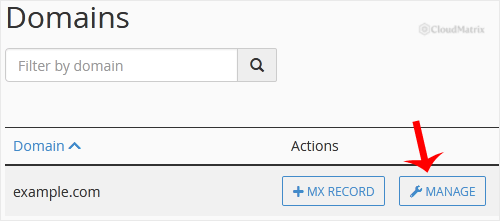
- Click Manage beside the domain you want. The full record table opens.
- Filter the table by MX using the record type selector at the top. On a busy zone this turns dozens of rows into the two or three that matter, and it lets you see the complete MX set at once, which is the only way to judge priority sensibly.
Read the whole MX list before acting. Most cPanel accounts are created with an MX record pointing at the server itself, typically mail.yourdomain.com at priority 0. If you are moving mail elsewhere, that self-pointing record is usually the one causing trouble, and leaving it in place beside an external record is the single most common reason mail goes missing after a migration.
Edit an MX Record
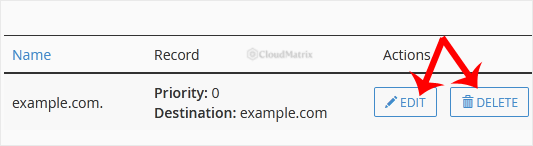
- Click Edit on the MX row you want to change.
- The row becomes editable in place. Adjust the Priority, the Destination and the TTL as needed.
- Click Save Record.
Points to watch while the row is open:
- The destination must be a bare hostname. Something like
mx1.mailprovider.example. Not an IP address, not a URL, no protocol prefix, no port, no trailing slash. cPanel adds the trailing dot for you, but check the saved value afterwards, because a target stored without one can be interpreted relative to the zone and resolve asmx1.mailprovider.example.yourdomain.com. - The target must not be a CNAME. RFC 5321 requires an MX to point at a name with an A or AAAA record. Some sending servers tolerate a CNAME target and some refuse it outright, which produces mail that arrives from certain senders and not others.
- The record type cannot be changed. If a row needs to become a different type entirely, delete it and add a new one.
- TTL is in seconds. The cPanel default of
14400is four hours, which is how long the old value can linger elsewhere on the internet. See the timing section below.
Remove an MX Record
- Click Delete on the MX row.
- Confirm when cPanel prompts you.
Removing an MX record is the right move in exactly two situations: the host it names no longer accepts your mail, or it is a leftover from a previous mail setup that now competes with the current one. Retiring a mail provider means deleting every one of its MX records, not just the first, since a forgotten backup entry will quietly keep receiving mail whenever the primary host is briefly unreachable.
Do not delete all MX records to stop a domain receiving mail. With no MX published, sending servers fall back to the domain's A record under RFC 5321 and attempt delivery to your web server, which produces confusing bounces rather than a clean refusal. The correct way to declare that a domain receives no mail is a null MX as defined in RFC 7505: a single record with priority 0 and a destination of . (a lone dot). Zone Editor's quick-add form sometimes rejects the bare dot, in which case add it from the Manage screen or ask Noiz support to place it for you.
Priority: The Lowest Number Wins
Priority is the field most often changed in the wrong direction, because the intuitive reading is backwards. It is a preference number, not a score, so a lower value means a more preferred server.
A sending server gathers every MX record for the domain, sorts them ascending by priority, and tries the lowest first. Only if that host refuses or times out does it move to the next. A typical pair looks like this:
10 mx1.mailprovider.example: tried first, carries all mail under normal conditions.20 mx2.mailprovider.example: tried only when the first host is unreachable.
What this means when you are editing:
- The numbers themselves are meaningless in isolation, only their order relative to each other counts.
10and20behave exactly like1and2. The convention of spacing by ten simply leaves room to slot a host in later without renumbering. - Two records sharing a priority are treated as equals and sending servers spread traffic between them. Do that deliberately for load sharing, never by accident when editing, because half your mail will start arriving somewhere unintended.
- Raising the priority number on an old record does not retire it. It demotes it to a backup, and it will still receive mail every time the preferred host has a hiccup. If a host should no longer receive mail, delete its record.
- A backup MX only helps if that host is actually configured to queue and forward for your domain. An unconfigured backup accepts messages and then has nowhere to put them, which is worse than having no backup at all.
Check Email Routing After the Change
This step is missing from most MX guides and it is the reason a change can look perfect from outside while half the mail vanishes. cPanel keeps a routing decision for each domain that is separate from the zone file, and editing the MX record does not update it.
If that decision still says the server handles the domain's mail, then anything sent from an account on the same server to your domain is dropped into a local mailbox and never leaves the machine. Contact form messages from your own website are the classic casualty.
- Go to Email > Email Routing in cPanel.
- Select the domain.
- Choose the setting that now matches reality:
- Automatically Detect Configuration: the server reads the MX records in the local zone and routes accordingly. Sensible in most cases.
- Local Mail Exchanger: mailboxes live on this server. Correct even when an external filtering or gateway service sits in front of it.
- Backup Mail Exchanger: the server queues mail and holds it until a lower-numbered exchanger is reachable again.
- Remote Mail Exchanger: the server never delivers locally and hands everything to the lowest-numbered exchanger. This is what you want once mailboxes have moved to an external provider.
- Click Change.
Automatic detection reads only the local zone file and performs no live DNS lookup. So if you edited the external MX but left the original self-pointing record in place, automatic detection still sees a local mail exchanger and keeps mail on the server. Remove the old record first, then set routing.
One consequence worth planning for: once routing is remote, cPanel mailboxes for that domain stop receiving new mail, but existing messages stay on the server. Export or forward anything you still need before cutting over, because changing the routing migrates nothing.
How Long the Change Takes
Older guidance says to allow 12 to 24 hours. That figure is a leftover from an era of slow zone transfers and it is not how caching works.
The edit is live on the Noiz nameservers within seconds. What takes time is the rest of the internet noticing, and that is governed by the TTL on the record as it was before you changed it. Any resolver holding the old value keeps serving it until its copy expires, which at the cPanel default of 14400 is up to four hours. Some networks round TTLs up, so allow a little more.
TTL planning therefore happens before the change, not after:
- A day or so ahead of a planned move, edit the MX records and lower the TTL to
300(five minutes). Save and leave it. - Wait for the old TTL to elapse so resolvers pick up the short one.
- Make the real change. It now propagates in minutes.
- Once you are satisfied, restore the TTL to something sensible such as
14400. Permanently short TTLs add latency and query load for no benefit.
Keep the old mailboxes reachable for a few days after a switch. Mail already queued for the previous server will still be delivered there, and it does not follow you.
Verify the Change
Ask the authoritative nameserver directly, which bypasses every cache between you and it:
dig @ns1.noiz.co.za yourdomain.com MX +shortIf that returns the new set, the edit saved correctly and anything still wrong is caching elsewhere. To see what the wider internet currently receives, query a public resolver instead:
dig MX yourdomain.com @1.1.1.1 +shortThe output lists each priority and hostname. Confirm the list matches what your mail provider asked for, with no leftovers, and then send a test message from an address outside your own domain and outside the server.
Troubleshooting
Symptom: the record saved without error but dig still returns the old MX. Either the TTL has not expired, or the domain's DNS is not served by this server. Re-run the nameserver check at the top of this article before changing anything else.
Symptom: mail from outside arrives at the new provider, but messages from your own website or from another account on the same server never turn up. Email Routing is still set to Local Mail Exchanger, or a self-pointing MX was left in the zone. Fix both, in that order.
Symptom: mail arrives at the old host intermittently after the change. An old MX record is still published at a higher priority number, so it is being used as a fallback. Delete it rather than demoting it further.
Symptom: cPanel rejects the destination as invalid. You have entered an IP address, a URL, or a hostname with a trailing slash. The destination must be a bare fully qualified hostname that resolves to an A or AAAA record.
Symptom: mail bounces with a message about too many hops or a delivery loop. Two servers each believe the other is responsible, almost always because an MX points at a host configured to forward back to the same domain. Check the routing setting on both ends.
Symptom: senders receive "550 relay not permitted" or "no such user here" from a server you have just moved away from. The MX moved but the old server still believes it owns the domain. Set that domain to Remote Mail Exchanger there, or remove the domain from it once the migration is complete.
Symptom: outbound mail started landing in spam folders after the MX change. Changing where mail is received usually means changing where it is sent from too. Update the SPF TXT record to authorise the new provider and remove the old one, publish the new DKIM selector record, and review the DMARC record at _dmarc.yourdomain.com. cPanel's Email > Email Deliverability screen reports on SPF and DKIM for domains it still handles.
Symptom: a deleted MX record reappears. Something else is regenerating it. Check whether the domain still exists in the Domains interface and whether Email Routing is set to Local Mail Exchanger, which can cause the server to restore its own mail exchanger entry.
Symptom: your cPanel does not look like the screenshots above. Newer builds fold Zone Editor into a combined DNS interface where the Edit and Delete actions work identically, or your Noiz package may use a different control panel entirely. The record values are the same in every panel and only the screen changes.
Getting Help
MX changes affect live mail, and mistakes tend to surface as messages that quietly go elsewhere rather than as an obvious failure. If you are migrating a busy domain, are unsure which of several MX records should be removed, or have already made a change and mail has stopped arriving, open a ticket in the Noiz client area. Include the domain name, the records your mail provider asked for, and the output of dig MX yourdomain.com @1.1.1.1 +short. Noiz support will check the zone, the routing and the authentication records together, and on managed plans will carry out the cutover and confirm the authoritative answer before you rely on it.






