A CNAME (Canonical Name) record is a DNS alias. It tells the internet that one hostname is really just another name for a different hostname, and that resolvers should go and look up that other name instead. CNAME records are how you point www.yourdomain.com at your main site, hand a subdomain over to a third-party service such as a help desk or status page, or satisfy a vendor's domain-verification requirement.
This guide shows you how to add a CNAME record in the cPanel Zone Editor, what to type into each field, and the rules that cause most CNAME records to silently fail. Replace yourdomain.com throughout with your own domain name.
Last reviewed: 27 July 2026, against cPanel & WHM version 134 (the current STABLE and LTS tier). This guide is written for Noiz hosting customers and is kept current against cPanel. It complements, and does not replace, the official cPanel documentation linked below.
Official Documentation Reference
- cPanel Zone Editor (full interface reference)
- CNAME record type reference
- The ALIAS DNS record (what to use when a CNAME is not legal)
- RFC 1912: Common DNS Operational and Configuration Errors
Prerequisites
- Your cPanel username and password.
- The exact target hostname supplied by whoever you are pointing the record at. A CNAME target is always a hostname, never an IP address.
- Confirmation that the cPanel server is authoritative for the domain. See the section below, because this is the single most common reason a correctly typed CNAME record does nothing.
First, Check That cPanel Actually Controls the Zone
The Zone Editor edits the DNS zone file stored on the cPanel server. Those edits only reach the wider internet if the domain's nameservers are the cPanel server's nameservers. If the domain's nameservers point somewhere else, the zone file you are editing is ignored and nothing changes in public DNS.
Check your nameservers at your domain registrar, or from a terminal:
dig NS yourdomain.com +shortIf the answer is a set of nameservers belonging to the cPanel server, carry on. If the answer is a DNS provider such as a CDN, a registrar's own DNS, or the Noiz nameservers ns1.noiz.co.za and ns2.noiz.co.za, then the CNAME record must be created there instead, and editing the cPanel zone will have no effect at all.
Adding a CNAME Record
1. Log in to cPanel
Sign in to your cPanel account.
2. Open the Zone Editor
In the Domains section of the cPanel home screen, click Zone Editor. If you cannot see it, type zone into the search box at the top of the page.

3. Find your domain in the list
The Zone Editor lists every domain and subdomain on the account. Each row carries quick-add buttons under Actions for the record types people add most often, plus a Manage button that opens the full record list for that zone.
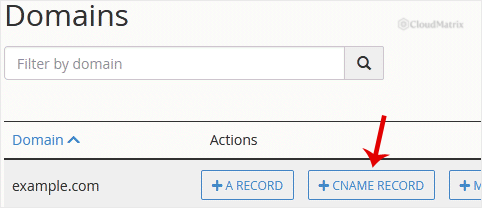
Make sure you are working on the correct row. If the account holds several domains, a CNAME added to the wrong zone will appear to succeed and then do nothing useful.
4. Click CNAME Record and fill in the two fields
Click CNAME Record on your domain's row. A small dialogue box opens with two fields.
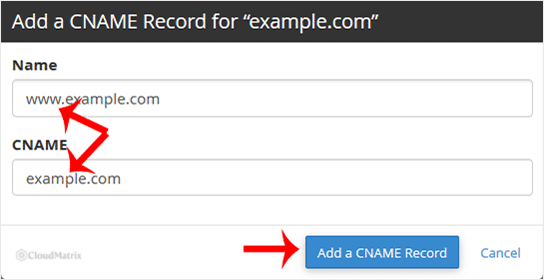
- Name: the alias you are creating, entered as the short label only. Type
wwwand cPanel stores it aswww.yourdomain.com.for you. Do not typewww.yourdomain.comhere, because cPanel appends the zone name again and you end up with the broken recordwww.yourdomain.com.yourdomain.com. - CNAME: the destination hostname, entered fully qualified and ending with a full stop, for example
yourdomain.com.orghs.googlehosted.com.The trailing full stop is what stops cPanel treating the value as relative to your zone. An IP address is not valid here.
5. Save the record
Click Add A CNAME Record. A green confirmation message appears at the top of the page when the zone has been written successfully.
Click Manage on the same domain and check the stored record. This takes five seconds and catches the trailing-full-stop mistake immediately: a target that reads ghs.googlehosted.com.yourdomain.com. is wrong and needs editing.
CNAME Rules That Catch People Out
- A CNAME must be the only record at that name. This is a hard rule of the DNS specification, not a cPanel limitation. If
wwwalready has an A record, you must delete the A record before the CNAME can work. Leaving both in place produces inconsistent results depending on which resolver a visitor uses. - Never put a CNAME on the bare domain. Your root domain
yourdomain.comalready carries the mandatory SOA, NS and usually MX records, so a CNAME there is illegal and will break your email. If a provider asks you to point the root domain at a hostname, use cPanel's ALIAS record type instead, available under Manage then Add Record. - A CNAME cannot point to an IP address. If all you have been given is an IP, you need an A record (IPv4) or AAAA record (IPv6).
- Subdomains created in cPanel already have an A record. If you created
shop.yourdomain.comas a subdomain and now want to point it at an external service, remove or edit the existing record rather than stacking a CNAME on top of it. - Pointing a hostname off the server breaks its SSL certificate issuance. Once a subdomain resolves elsewhere, the cPanel server can no longer prove control of it, so AutoSSL will stop renewing that name. The destination service becomes responsible for serving a valid certificate.
- Chained CNAMEs are legal but slow. A CNAME pointing at another CNAME resolves, but every hop is an extra lookup. Point at the final hostname where you can.
Verifying the Record
Query the record directly rather than trusting a browser, which caches aggressively:
dig CNAME www.yourdomain.com +short
nslookup -type=cname www.yourdomain.com
To confirm the change reached the authoritative server before caches expire, ask that server directly:
dig CNAME www.yourdomain.com @ns1.yourdomain-nameserver.tld +shortIf the authoritative server returns the new value but public resolvers do not, the record is correct and you are simply waiting on caching.
TTL and Propagation
Propagation is not a delay in publishing your change. The change is live on the authoritative nameserver the moment cPanel confirms it. What takes time is the expiry of the old answer that resolvers around the world cached before you made the change, and that period is governed by the TTL that record had previously.
The quick-add dialogue box does not expose a TTL field, so a new record inherits the zone default, commonly 14400 seconds (4 hours). To set a shorter TTL, open Manage, edit the record and adjust the value.
Practical guidance: if you know a change is coming, drop the TTL on the existing record to 300 seconds a day beforehand, then make the change and restore a sensible TTL afterwards. For a brand new name that has never been queried, the record is usually usable within minutes. In the worst case, allow up to 24 hours, because a minority of networks and devices hold cached answers longer than the TTL asks them to.
Troubleshooting
- Symptom: the record saves but public DNS never changes. The domain's nameservers are not the cPanel server's nameservers. Run
dig NS yourdomain.com +shortand make the change wherever those nameservers are hosted. - Symptom: cPanel refuses to save, or reports a conflict. Another record already exists for that exact name. Open Manage, delete or edit the conflicting A, AAAA or TXT record, then add the CNAME.
- Symptom: the destination reads yourtarget.com.yourdomain.com. The trailing full stop was missing from the CNAME field. Edit the record and re-enter the target ending in a full stop.
- Symptom: email stopped working after the change. A CNAME was added at a name that also carries MX records, most likely the bare domain. Delete it and use an ALIAS record or an A record instead.
- Symptom: the browser still shows the old site. Test with
digfirst. If DNS is correct, clear the browser cache and flush the local resolver cache before assuming the record is wrong. - Symptom: certificate warnings on the new hostname. The name now resolves to a third-party service, so that service must issue the certificate. Complete its SSL setup, and expect AutoSSL on the cPanel server to stop covering the name.
Need a Hand?
DNS is unforgiving about detail, and a single misplaced full stop can take a site or a mailbox offline. If a CNAME is not behaving as expected, or you are not sure whether a change belongs in cPanel or at your DNS provider, open a ticket from the Noiz client area with the domain name and the exact record you are trying to create. The Noiz support team will confirm where the zone is authoritative and make the change with you.






