Every DNS record your domain publishes, the address that points visitors at your website, the mail routing, the verification strings for third-party services, lives in a single zone file. On a Noiz cPanel account you manage that zone from Zone Editor, found under Domains. This guide covers the general case: finding any record, changing it, and deleting it safely. It also covers the two things that catch people out most often, namely editing a zone that is not actually being used, and expecting the change to appear instantly.
If you specifically need a record type walkthrough, see How to Edit or Remove a CNAME Record in cPanel or How to Edit or Remove an MX Record in cPanel. This article is the general guide that applies to A, AAAA, CNAME, MX, TXT, SRV and CAA records alike.
Last reviewed: 27 July 2026, against cPanel & WHM version 134 (the current STABLE and LTS tier). This guide is written for Noiz hosting and is kept current against cPanel. It complements, and does not replace, the official cPanel documentation linked below.
Official Documentation Reference
- Zone Editor, the cPanel interface reference for the screens shown here
- RFC 1035, the specification that defines what each record type may contain
- RFC 2308, negative caching, which explains why a record you just deleted can still be answered for a while
Prerequisites
- A Noiz hosting account whose control panel is cPanel, and your cPanel login details.
- The domain must be listed in your cPanel account, either as the main domain, an addon domain, or a subdomain.
- The exact value you intend to publish. Copy verification strings from the source rather than retyping them, since a single wrong character silently fails.
First, Check Whose DNS You Are Editing
This is the step people skip, and it is the reason most Zone Editor changes appear to do nothing at all.
cPanel will happily let you edit a zone file for any domain on your account, whether or not the internet is asking that server for answers. The zone only takes effect if the domain's authoritative nameservers are the Noiz hosting nameservers, ns1.noiz.co.za and ns2.noiz.co.za. If your domain is pointed at Cloudflare, at your registrar's own DNS, or at a previous host, then that provider holds the live zone and edits in cPanel change nothing that anyone can see.
Check before you start:
dig NS yourdomain.com +shortReplace yourdomain.com with your own domain. On Windows, nslookup -type=ns yourdomain.com does the same job. If the answer is not the Noiz nameservers, make your change in whichever control panel matches the answer you got, or move DNS to Noiz first.
Step 1: Open Zone Editor
- Log in to your cPanel account.
- In the Domains section, click Zone Editor.

Depending on your cPanel theme and version, this section may be labelled Domains or Domains & DNS, and newer builds may take you to a combined DNS interface. The record list and the actions are the same in both.
Step 2: Open the Zone for Your Domain
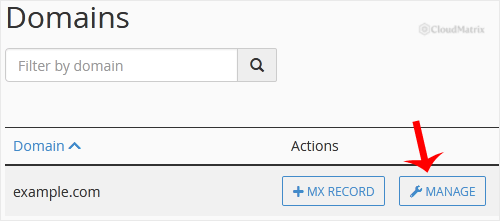
Zone Editor lists every domain on the account. Beside each one, under Actions, are shortcut buttons for adding common record types and a Manage link.
The shortcut buttons only add records. To change or delete anything that already exists, you need the full list, so click Manage beside the domain you want.
Step 3: Find the Record
The Manage screen shows the whole zone, which on a busy domain can run to dozens of entries. Two controls make this manageable:
- The Filter or record type selector at the top, which narrows the list to a single type such as
A,MXorTXT. - The search box, which matches on the record name. Searching for
wwwor for the subdomain you are working on is usually faster than scrolling.
Read the Name column carefully before you act. cPanel displays names fully qualified with a trailing dot, so the record for the domain itself appears as yourdomain.com. and a subdomain record as shop.yourdomain.com.. Records for mail, webmail, cpanel, cpcalendars, cpcontacts and autodiscover are service records created by cPanel, not stray entries.
Step 4: Edit a Record
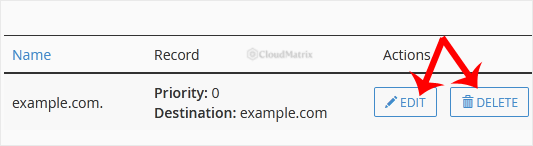
- Click Edit on the row you want to change.
- The row becomes editable in place. Change the TTL, the Record value, and for MX records the Priority, as required.
- Click Save Record.
A few things to know while that row is open:
- The record type cannot be changed. If an entry needs to become a different type, for example an A record that should be a CNAME, delete it and add a new one. Editing will not offer you a type drop-down.
- TTL is in seconds. The cPanel default is
14400, which is four hours. See the section below before you leave it alone. - Trailing dots matter. For CNAME, MX and SRV targets, a value ending in a dot is treated as absolute. A value without one is treated as relative to the zone, so
mail.example.comentered without the dot can resolve asmail.example.com.yourdomain.com. cPanel normally appends the dot for you, but check the saved value afterwards. - Long TXT values are fine. DKIM keys and similar strings longer than 255 characters are split across chunks automatically. Paste the value in full and do not add your own quotes.
Step 5: Remove a Record
- Click Delete on the row.
- Confirm when cPanel prompts you.
There is no undo and no recycle bin. Before deleting anything, copy the whole row into a text file. Reconstructing a record you cannot remember the value of is the sort of small problem that turns into an evening.
Records Worth Leaving Alone
Deleting the wrong entry takes a site or its mail offline immediately, and the effect can persist for hours because of caching. Treat these as off limits unless you know exactly why you are changing them:
- SOA and NS records. These define the zone itself. Removing them breaks the domain outright.
- The A record for the domain and for
www. These are what put your website on the internet. - MX records and the
mailA record, if you receive email on the domain. Delete these and inbound mail stops, usually bouncing rather than queueing. - SPF, DKIM and DMARC TXT records. Removing them will not stop mail leaving, but it will get a growing share of it filed as spam. cPanel manages these through Email Deliverability, which is the correct place to fix them.
- CAA records. These control which certificate authorities may issue certificates for the domain. Deleting or mis-editing one can block automatic SSL renewal.
- Service subdomain records such as
cpanel,webmail,webdisk,cpcalendarsandcpcontacts. Removing these breaks the shortcut URLs you and your mail clients use.
How Long the Change Actually Takes
Older guidance says to allow 12 to 24 hours. That figure is a leftover from an era of slower zone transfers, and it is not how caching works.
The change is live on the Noiz nameservers within seconds. What takes time is the rest of the world noticing, and that is governed by the TTL on the record as it was before you edited it. Any resolver that had already looked up the old value will keep serving it until its copy expires. At the cPanel default of 14400, that is up to four hours. Some networks round TTLs up, so allow a little more.
The practical consequence is that TTL planning happens before the change, not after:
- A day or so before a planned migration or cutover, edit the record and lower the TTL to
300, which is five minutes. Save it and leave the value alone. - Wait for the old TTL to elapse so that resolvers pick up the short one.
- Make the real change. It will now propagate in minutes.
- Once you are satisfied, set the TTL back to
14400. Permanently short TTLs add latency and unnecessary query load.
Deletions behave slightly differently. A resolver that asks for a record you have removed caches the absence of it as well, controlled by the negative caching value in the SOA record. That is why a deleted entry can seem to linger even after its own TTL has passed.
Verify the Change
Do not judge the result from your browser, which has its own cache, and neither does your operating system tell the whole story. Ask the authoritative nameserver directly, which bypasses every cache between you and it:
dig @ns1.noiz.co.za yourdomain.com A +short
dig @ns1.noiz.co.za yourdomain.com MX +short
dig @ns1.noiz.co.za yourdomain.com TXT +short
If that returns the new value, your edit saved correctly and everything remaining is caching elsewhere. To see what the wider internet is currently getting, run the same query without the @ns1.noiz.co.za part, or check from a public resolver with dig @1.1.1.1 yourdomain.com A +short.
On Windows without dig installed, nslookup yourdomain.com ns1.noiz.co.za gives the equivalent authoritative answer.
Troubleshooting
Symptom: the record saves but nothing changes anywhere. The domain's nameservers are not the Noiz ones, so a different provider is answering. Run dig NS yourdomain.com +short and edit the zone wherever that points instead.
Symptom: cPanel rejects the record with a validation error. The value does not match what the type allows. The usual causes are a full URL entered where a hostname is expected, an IP address in a CNAME, or stray quotation marks pasted along with a TXT value. Enter hostnames and addresses only, with no http:// prefix and no trailing slash.
Symptom: adding a CNAME fails, or the CNAME is ignored. A name that has a CNAME cannot also have other records. Delete the conflicting A or TXT record at that same name first, and note that the zone apex, the bare yourdomain.com, can never hold a CNAME.
Symptom: a deleted record comes back. Something else in cPanel is regenerating it. Subdomain and addon domain A records are recreated as long as the domain exists in the Domains interface, so remove the domain there rather than in the zone. DKIM and SPF TXT records are managed by Email Deliverability and will be restored by it.
Symptom: mail stopped after an edit. Check that the MX record still exists with the correct priority, and that any A record its target depends on is still present. Restore from the copy you took before editing, then allow the TTL to elapse.
Symptom: your cPanel does not look like the screenshots above. Either your account is on a newer cPanel build where Zone Editor has been folded into a combined DNS interface, in which case the record list and the Edit and Delete actions work identically, or your Noiz package uses a different control panel altogether. Use the guide matching your panel, or contact Noiz support.
Need a Hand
If you are unsure which record controls the behaviour you want to change, or a change has not taken effect after the TTL should have expired, open a ticket in the Noiz client area. Include the domain, the record name and type, the value you expected, and the output of dig @ns1.noiz.co.za yourdomain.com ANY. On managed plans Noiz will make the change and confirm the authoritative answer for you before you rely on it.






