If your cPanel account hosts more than one website, you do not have to run them all on the same PHP release. cPanel lets you set a different PHP version for each domain, addon domain and subdomain in the account, so an older application that is not yet ready to move can stay where it is while everything else runs on a current release.
This guide shows you how to do that with MultiPHP Manager in cPanel, and covers the parts that catch people out: how addon domains and subdomains are listed, what the inherit setting actually does, and why a change sometimes appears to do nothing.
Last reviewed: 27 July 2026, against cPanel & WHM MultiPHP Manager on the current release tier, and against the PHP release schedule published by php.net. This guide is written for Noiz hosting and is kept current against cPanel. It complements, and does not replace, the official cPanel documentation linked below.
Official Documentation Reference
- cPanel documentation: MultiPHP Manager for cPanel
- cPanel documentation: MultiPHP Manager for WHM (server-wide defaults)
- cPanel documentation: MultiPHP INI Editor
- php.net: Supported PHP versions and end-of-life dates
Prerequisites
- Login details for your cPanel account.
- At least two domains in the account (a primary domain plus an addon domain or subdomain).
- A recent backup of the site you are about to change, in case the application does not tolerate the new PHP version.
Choose the PHP Version First
Before you change anything, decide which release each site should run. Only PHP versions that still receive security fixes are safe to run on a public website. PHP 7.x and PHP 8.0 and 8.1 are long past end of life and receive no patches at all, so treat any site still pinned to them as work that needs doing rather than a setting you leave alone.
Check the current list on the php.net supported versions page, then pick the newest release your application, theme and plugins actually support. The safe pattern is to move up one minor release at a time, test, and repeat, rather than jumping several releases in one go.
The examples below use PHP 8.4 on example1.com and PHP 8.3 on example2.com. Replace those with your own domains and the versions your sites need.
Set a Different PHP Version per Domain
1. Log in to cPanel
Log in to your cPanel account.
2. Open MultiPHP Manager
In the Software section, click MultiPHP Manager.

3. Set the version for the first domain
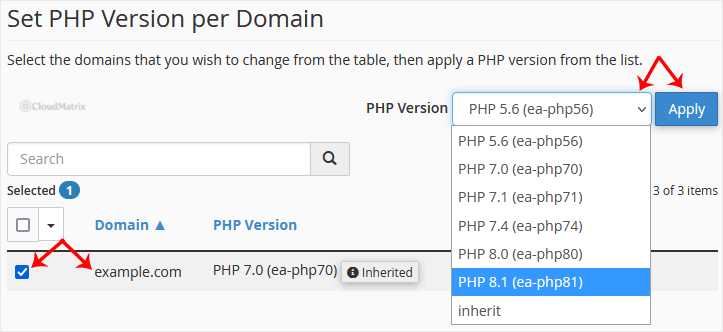
Scroll down to the Set PHP Version per Domain table. Tick the checkbox next to the domain you want to change, choose the release you want from the PHP Version drop-down menu, and click Apply.
In this example, example1.com is set to PHP 8.4.
4. Set the version for the second domain
Repeat the same steps for the next domain. Tick example2.com, choose PHP 8.3 from the PHP Version drop-down menu, and click Apply.
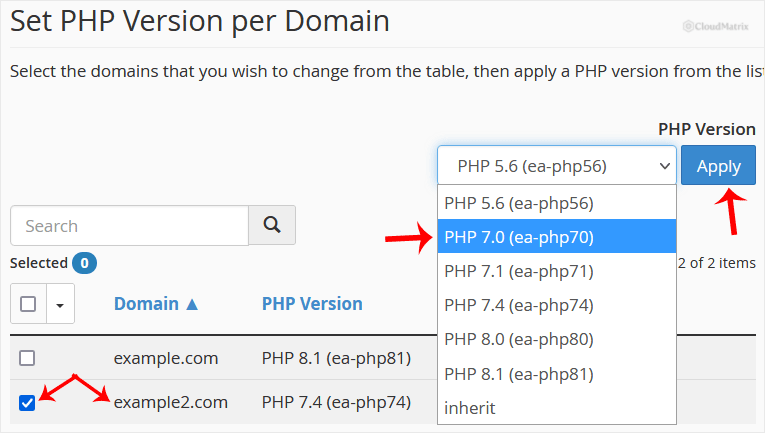
Both domains now run different PHP versions. The table reflects the change immediately, and new requests to each site are served by the version shown against it.
The screenshots above were taken on an earlier cPanel release, so the list of available PHP versions in your account will be longer and more current than the one pictured. The layout and the steps are unchanged.
What to Watch Out For
Addon domains and subdomains are separate rows
Every addon domain, subdomain and parked domain gets its own row in the table, and its own PHP version. Changing the primary domain does not change the others. If a site is not behaving after a change, confirm you edited the row for the exact hostname the browser is requesting, including any www or subdomain variant listed separately.
The "inherit" setting
A domain set to inherit follows the server-wide default PHP version rather than holding a version of its own. That is convenient, but it means the site can move to a different PHP release when the server default is updated. If a site is fragile or pinned to an older application, set an explicit version instead of leaving it on inherit so it never moves without you.
PHP-FPM is a per-domain setting too
MultiPHP Manager also exposes a PHP-FPM toggle per domain. Switching PHP-FPM on or off restarts the handler for that domain and can briefly interrupt requests, so do it outside busy periods. Leave it as it is unless you have a specific reason to change it.
An .htaccess handler line can override your choice
Old migrations and some installers leave hard-coded PHP handler lines in .htaccess, typically an AddHandler or AddType line referencing php5-script, php7 or a similar value. Those lines win over the MultiPHP Manager setting, so the panel shows one version while the site runs another. Check the .htaccess file in the affected document root and remove any stale handler lines before assuming the panel is at fault.
CloudLinux PHP Selector, if your account has it
On accounts where CloudLinux PHP Selector is available, the version you pick in MultiPHP Manager is the starting point, and extensions plus per-site PHP settings are then managed in Select PHP Version. If you change the version here, re-check that the extensions your application needs are still ticked, because extension selections are per version and do not carry across automatically.
Version numbers in the drop-down move over time
The list of installed PHP versions changes as releases reach end of life and are removed from the server. A version that is present today may not be offered in a year. Plan to revisit the setting when your application vendor certifies a newer release rather than leaving it fixed indefinitely.
Troubleshooting
Symptom: the site returns a blank white page or a 500 error straight after the change. The application is not compatible with the version you selected. Set the domain back to the previous version in MultiPHP Manager, confirm the site returns, then update the application, theme and plugins before trying again.
Symptom: a phpinfo() page or the application dashboard still reports the old version. Clear any full-page or object cache the site uses, then reload in a private browsing window. If it still reports the old version, look for an AddHandler or AddType line in .htaccess as described above.
Symptom: the version you want is not in the drop-down menu. That release is not installed on the server, usually because it is end of life. Pick the nearest supported release, or contact Noiz support to confirm what is available.
Symptom: the change applies but reverts later. The domain is set to inherit and is following the server default. Select the explicit version you want instead.
Related Guides
- How to Change the PHP Version on Your Domain in cPanel
- How to Set the PHP Version per Directory in cPanel
- How to Reset the PHP Version to the Default Version in cPanel
- How to Change the PHP Version via CloudLinux Selector in cPanel
Need a Hand?
If you are not sure which PHP version a site can safely run, or a site broke after a version change, open a ticket with Noiz support from your client area. Include the domain, the version you moved from and to, and the exact error you are seeing. If your hosting plan uses a control panel other than cPanel, Noiz support will point you at the equivalent setting for your account.






