Some applications need a specific version of PHP: an older shopping cart that has not been updated in years, a plugin that has not caught up with the latest release, or a modern framework that refuses to install on anything below a certain version. In cPanel you can set the PHP version separately for each domain on the account, so one site can run an older build while another runs the newest, without either affecting the other.
The tool that does this is called MultiPHP Manager. You may also see it referred to as the PHP version switcher or the PHP version manager. It is not the same thing as the CloudLinux PHP Selector, which is a separate tool that some accounts have instead; there is a note further down on telling them apart.
Last reviewed: 27 July 2026, against cPanel & WHM version 134 (the current STABLE and LTS tier) and PHP 8.5. This guide is written for Noiz hosting and is kept current against cPanel and PHP. It complements, and does not replace, the official cPanel documentation linked below.
Official Documentation Reference
- cPanel Documentation: MultiPHP Manager for cPanel
- cPanel Documentation: MultiPHP INI Editor for cPanel (where the settings for each version live)
- cPanel Documentation: EasyApache 4 (how the server builds the PHP versions the list offers you)
- PHP: Supported Versions (the authoritative end-of-life dates)
- PHP Manual: Migrating from PHP 8.4.x to PHP 8.5.x (backward incompatible changes to check before you switch)
Prerequisites
- A hosting plan that uses cPanel, and the cPanel login for the account that holds the domain. If your control panel looks nothing like the screenshots below, you are probably on a Plesk or DirectAdmin plan, where the equivalent setting sits elsewhere; contact Noiz support and the team will point you at the right screen.
- The domain already added to the account, whether as the main domain, an addon domain or a subdomain.
- A recent backup of the site files and database. Changing the PHP version is reversible in seconds, but the errors an incompatible version throws are much easier to investigate from a known good copy.
- Some idea of which version your application actually needs. The next section covers how to decide.
Choose the Version Before You Change It
The list cPanel offers you will usually include several versions that are no longer maintained. Only the branches PHP still supports receive security fixes, and everything else is a liability on a public website. As at the review date above:
- PHP 8.5 and PHP 8.4 are in active support and receive both bug fixes and security fixes. One of these is the right target for anything actively maintained.
- PHP 8.3 and PHP 8.2 receive security fixes only. They are acceptable as a temporary landing spot, but 8.2 leaves security support at the end of December 2026, so treat it as a short-term position rather than a destination.
- PHP 8.1 and everything older, including the whole of PHP 7 and PHP 5, are end of life. No security patches are issued for them at all. If an application still requires one of these, the application is the thing that needs attention, not the PHP version.
Newest is not automatically best. Each major and minor release removes functions and changes behaviour, so an application written for PHP 7.4 can fail outright on 8.4. The sensible order is: check what the application vendor says it supports, move up one branch at a time, test the site properly after each move, and only then go further. For WordPress specifically, Tools then Site Health flags plugins and themes that are known to be incompatible before you switch.
Change the PHP Version for a Domain
1. Log In to cPanel
Sign in to the cPanel account that holds the domain. If you reach cPanel from the Noiz client area, make sure you have opened the right hosting package, since each package is a separate cPanel account with its own list of domains.
2. Open MultiPHP Manager
In the Software section of the cPanel home screen, click MultiPHP Manager. The quickest way to find it is to type multiphp into the search box at the top of the page.

3. Select the Domain
Scroll to the Set PHP Version per Domain table at the bottom of the page. Every domain, addon domain and subdomain on the account is listed there with the PHP version it currently runs. Tick the box beside the domain you want to change. The counter above the table confirms how many domains are selected.
4. Pick the Version and Apply
Choose the version you want from the PHP Version drop-down above the table, then click Apply. A green confirmation appears and the table refreshes with the new value.
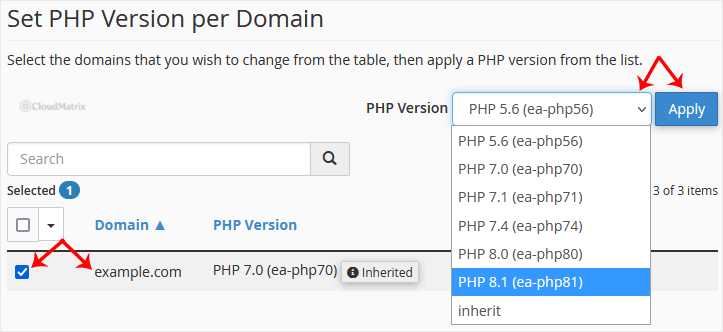
The screenshot is there to show you where the controls sit. The versions in your own drop-down will differ, because the list is built from whatever PHP builds the server administrator has installed, and those change over time.
The change itself takes a few seconds. Domains running PHP-FPM can take a minute or two longer, because the server has to rebuild and reload the pool configuration for that domain.
What "inherit" Means in That List
Alongside the numbered versions, the drop-down offers inherit, and domains set that way are tagged Inherited in the table. Inherit means the domain does not pin a version of its own; it follows the default PHP version set for the server.
That distinction matters more than it looks:
- Left on inherit, the domain moves automatically whenever the server default moves. That is usually what you want for a well maintained site, because it keeps you on a supported version without any effort.
- Pinned to a specific version, the domain stays exactly where you put it and ignores changes to the server default. That is what you want for an application with a hard version requirement, but it also means the domain can quietly end up on an unsupported version months later while nothing appears to be wrong.
If a domain's PHP version has changed on its own, inherit is almost always the reason. To put a pinned domain back on the default, select inherit and click Apply; the full walkthrough is in How to Reset the PHP Version to the Default Version in cPanel.
Changing Several Domains at Once
The table is built for bulk changes. Tick as many domains as you like before clicking Apply, and the selected version is set on all of them in one pass. The tick box in the table header selects everything, and the search box filters the list, which is useful on an account with dozens of subdomains.
One thing to watch: on a long list the table is paginated, and the header tick box only selects the rows on the page you are looking at. Check the Selected counter against the number of domains you meant to change before you apply.
Confirm the Change Took Effect
The value in the table tells you what cPanel has recorded, not necessarily what the website is serving. It is worth confirming independently, especially on a site that was moved in from another host.
- A phpinfo page. Create a file called
info.phpin the document root of the domain containing nothing but<?php phpinfo(); ?>, then openhttps://yourdomain.com/info.phpin a browser, replacingyourdomain.comwith your own domain. The version is at the very top. Delete the file as soon as you have read it. A phpinfo page publishes your server paths, loaded modules and configuration to anyone who finds it, and automated scanners look for exactly that filename. - WordPress. Go to Tools then Site Health then Info, and open the Server panel. The PHP version is listed there, along with the memory limit and the maximum upload size.
- Not
php -vover SSH. That command reports the version of the command-line PHP binary in your path, which is a different thing entirely from the version Apache uses to serve the website. The two are frequently different, and mistaking one for the other wastes a great deal of time.
What Changes Behind the Scenes
Knowing where the setting is stored explains most of the odd behaviour people run into.
For a domain served through the Apache PHP handler, cPanel writes a small block into the .htaccess file in the domain's document root. It looks like this:
# php -- BEGIN cPanel-generated handler, do not edit
<IfModule mime_module>
  AddHandler application/x-httpd-ea-php84 .php .php8 .phtml
</IfModule>
# php -- END cPanel-generated handler, do not edit
For a domain running PHP-FPM, the version lives in that domain's FPM pool configuration on the server instead, and no handler block is written to .htaccess. PHP-FPM is generally the better performing option, and it is what most current cPanel setups use.
Two consequences follow from this, and both catch people out:
- Each version has its own settings. Values such as
memory_limit,upload_max_filesize,post_max_sizeandmax_execution_timeare configured per PHP version, so a limit you raised on the old version does not follow you to the new one. Re-apply anything custom in MultiPHP INI Editor after switching. - Extensions are per version too. An extension the site depends on, such as an encoder loader,
imagickorsoap, is compiled separately for each PHP build. If it was never installed for the version you have just moved to, the site will break in a way that has nothing obvious to do with PHP versions.
Gotchas Worth Knowing
- Domains that share a document root cannot have different versions. A parked or alias domain serves the same files as the domain it is aliased to, and the handler block sits in the shared
.htaccess. Setting one to PHP 8.4 and the other to PHP 8.2 will not do what you expect, because they are reading the same file. Addon domains and subdomains with their own directories are unaffected by this. - A per-directory setting beats the domain setting. If a handler line has been placed in an
.htaccessfile inside a subfolder, that folder keeps running its own version regardless of what MultiPHP Manager says for the domain. See How to Set the PHP Version per Directory in cPanel. - Cron jobs do not follow the change. Scheduled tasks run the command-line PHP binary, not the web one. If a cron job needs a particular version, call it by full path, for example
/opt/cpanel/ea-php84/root/usr/bin/php /home/username/public_html/script.php, substituting your own account username and path. - The version you need may not be listed. The drop-down only offers the PHP builds installed on that server. If the version you require is missing, it has not been installed rather than being unavailable in principle; raise a ticket with Noiz support and ask.
- MultiPHP Manager missing from the Software section? Some accounts use the CloudLinux PHP Selector instead, which does the same job through a different interface and also lets you switch extensions on and off yourself. In that case follow How to Change the PHP Version via CloudLinux Selector in cPanel. If neither tool is present, the server is running a single PHP build and the version can only be changed by the administrator.
- Test on a copy first for anything important. On a busy or revenue-generating site, clone it to a staging subdomain, switch the clone, and check the checkout, the contact forms and the admin area before touching the live domain.
- Reverting is instant. If the site misbehaves, go straight back into MultiPHP Manager and select the previous version. Nothing about your files or database has been altered by the switch itself.
Troubleshooting
Symptom: 500 Internal Server Error immediately after applying the change. The most common cause is a second, older handler line left in .htaccess by a previous host or a manual edit, sitting outside the cPanel-generated block and now conflicting with it. Open .htaccess in the document root using File Manager and remove any AddHandler or AddType line that mentions a PHP version and is not inside the cPanel block.
Symptom: the browser downloads the .php file, or shows the PHP source code as plain text. The handler is not matching, so the web server is treating the script as a static file. Re-apply the version in MultiPHP Manager, which rewrites the handler block, and check that .htaccess is writable rather than locked at 0444.
Symptom: clicking Apply reports success, but the table still shows the old version after a reload. This is nearly always file permissions on .htaccess in the document root, or an immutable flag left behind by a security plugin. Fix the permissions and apply again.
Symptom: a fatal error mentioning a missing class or function, such as Call to undefined function. An extension the application relies on is not installed for the version you moved to. Confirm which one from the error message, then either move back to the previous version or ask Noiz support to have the extension enabled for the new one.
Symptom: "The encoded file requires a loader" or a similar encoder message. Files protected with ionCube or SourceGuardian need a loader built for that exact PHP version. Revert to the previous version, then ask your software vendor for files encoded for the version you want to run.
Symptom: a white screen with no error at all. PHP is failing before it can display anything. Turn on error display temporarily for that domain in MultiPHP INI Editor, or read the domain's error log through Metrics then Errors in cPanel, which will name the file and line.
Symptom: the site still reports the old version after the change. Something is caching. Purge any caching plugin, purge a CDN if one sits in front of the domain, and reload with a hard refresh. If a phpinfo page shows the new version but the application does not, the application is caching its own environment check.
Symptom: the version changed by itself some time later. The domain is set to inherit and the server default moved. Pin it explicitly if the application requires a fixed version.
Related Guides
- How to Set the PHP Version per Domain in cPanel
- How to Set the PHP Version per Directory in cPanel
- How to Reset the PHP Version to the Default Version in cPanel
- How to Change the PHP Version via CloudLinux Selector in cPanel
- Fix PHP Error: Allowed Memory Size of X Bytes Exhausted
Need a hand?
Switching PHP version is a two-click job when the application is ready for it, and a long afternoon when it is not. If you are unsure which version a site can safely run, if the version you need is not in the drop-down, or if the site broke the moment you applied the change, open a ticket in the Noiz client area with your domain name and the exact error you are seeing, and the support team will sort it out with you.






