Sometimes a single website needs more than one PHP version. A legacy shop sitting in /shop/ may only run on PHP 8.2, while the main site is happily on PHP 8.4. On cPanel you can handle this without moving anything to a separate account: set the PHP version for the whole domain in MultiPHP Manager, then override it for individual directories using a .htaccess file. This guide shows you how to do that on a Noiz cPanel account, and, just as importantly, when the technique will not work.
Last reviewed: 27 July 2026, against cPanel & WHM version 134 (the current STABLE and LTS tier). This guide is written for Noiz hosting and is kept current against cPanel. It complements, and does not replace, the official cPanel documentation linked below.
Official Documentation Reference
- MultiPHP Manager for cPanel, the interface reference, including the PHP-FPM rules
- MultiPHP Manager for WHM, for the server-wide defaults your account inherits
- PHP supported versions, so you can check whether the version you are pinning is still receiving security fixes
Prerequisites
- A Noiz hosting account whose control panel is cPanel, and your cPanel login details.
- The PHP version you want must already be installed on the server. cPanel accounts on EasyApache 4 typically offer PHP 7.4 and 8.1 through 8.5, but only the versions the server administrator has installed will appear in the drop-down.
- The domain must not be running under PHP-FPM. See the warning in the next section before you start, because this is the single most common reason the procedure appears to do nothing.
- File Manager access, with hidden files visible, or an FTP/SFTP client that can create dot-files.
How Per-Directory PHP Actually Works
MultiPHP Manager does not store the PHP version in a database that Apache consults at request time. When a domain uses the standard (non-FPM) PHP handler, cPanel writes a small block of Apache directives into the .htaccess file in that domain's document root. The block looks like this:
# php -- BEGIN cPanel-generated handler, do not edit
# Set the "ea-php84" package as the default "PHP" programming language.
<IfModule mime_module>
  AddHandler application/x-httpd-ea-php84 .php .php8 .phtml
</IfModule>
# php -- END cPanel-generated handler, do not edit
Apache reads .htaccess files from the top of the document root downwards, and directives in a subdirectory override the ones above it. That is the whole trick: drop a block naming a different ea-phpXX package into a subdirectory, and every PHP file at or below that point runs on that version instead. Nothing else about the account changes.
The PHP-FPM caveat, read this first. If PHP-FPM is enabled for the domain, Apache hands .php requests straight to a FastCGI pool that is configured outside .htaccess, and the AddHandler lines above are simply ignored. You can add them, save the file, and get no error and no change. Per-directory PHP versions via .htaccess only work when PHP-FPM is switched off for that domain. Check the PHP-FPM column in MultiPHP Manager before you spend time on this. If you need PHP-FPM and split versions at the same time, the supported answer is a separate domain, subdomain or hosting account for the odd-version application, and Noiz support can advise on the cleanest split.
Step 1: Open MultiPHP Manager
- Log in to your cPanel account.
- In the Software section, click MultiPHP Manager.

Step 2: Generate the Handler Code
The reliable way to get a correct handler block is to let cPanel write one for you, then copy it. This avoids typos in the package name, which is the usual cause of PHP files downloading instead of running.
- Scroll to the Set PHP Version per Domain table at the bottom of the page.
- Tick the domain on the left.
- Choose the version you want the subdirectory to use from the PHP Version drop-down on the right, then click Apply.
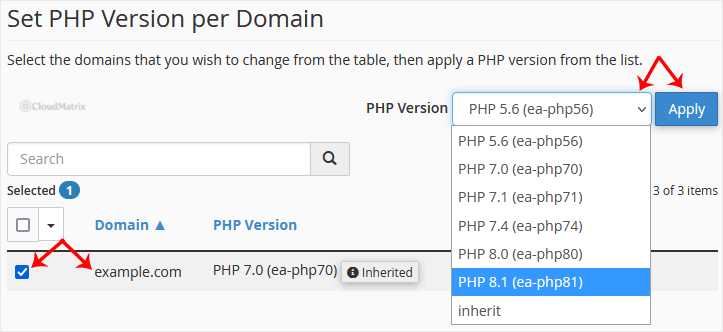
This temporarily sets the whole domain to that version. That is expected, and you will put it back in step 5.
Step 3: Copy the Generated Block
- Open File Manager and edit
/public_html/.htaccess. If you cannot see the file, enable Show Hidden Files (dotfiles) in File Manager's settings. - Find the block between the
# php -- BEGIN cPanel-generated handlerand# php -- END cPanel-generated handlermarkers, and copy it in full, including both comment lines.

Step 4: Create the Directory Override
Suppose you want /public_html/forums/ to run the version you just generated.
- In File Manager, navigate into
public_html/forums. - If a
.htaccessfile already exists there, edit it. If not, create a new file named exactly.htaccess, including the leading dot. - Paste the copied block at the top of the file, above any rewrite rules, and save.
Repeat for any other directory that needs the same version. The same block can be pasted into as many directories as you like.
Step 5: Put the Domain Back
Return to MultiPHP Manager and set the domain back to the version the rest of the site should use. The block you pasted into /forums/ stays where it is and keeps overriding the parent setting, so the two versions now coexist.
To pin a third directory to yet another version, repeat steps 2 to 5 with that version selected.
Step 6: Verify
Do not trust the interface, check the running version. Create a file called version-check.php in the directory you changed, containing:
<?php echo PHP_VERSION;Load https://yourdomain.com/forums/version-check.php in a browser (replace yourdomain.com with your own domain). It should print the version you pinned, while the same file placed in public_html prints the domain's version. Delete both test files afterwards, since leaving version information exposed is needless information for an attacker.
Things That Catch People Out
- Cron jobs and the command line are unaffected. The
.htaccesshandler only applies to requests served through Apache. A cron job, a WP-CLI command or a shell script uses the system default CLI binary. If a scheduled task belonging to the pinned application must run on the pinned version, call the versioned binary explicitly, for example/opt/cpanel/ea-php82/root/usr/bin/php /home/user/public_html/forums/cron.php. - PHP settings are still per-domain. Values you set in MultiPHP INI Editor apply to the domain, not to the pinned subdirectory. To adjust limits such as
memory_limitfor the subdirectory only, add aphp.inior.user.inifile inside that directory, which the pinned version will read. - Applications rewrite
.htaccess. WordPress, and many security and caching plugins, regenerate.htaccessand can drop your handler block. If a subdirectory reverts to the wrong version after a plugin change, check the file first. - Never keep two handler blocks in one file. Exactly one BEGIN/END pair per
.htaccess. Duplicates conflict and typically produce a 500 error. - Pinning is a bridge, not a destination. PHP 8.1 and earlier are end of life, PHP 8.2 leaves security support at the end of December 2026, and PHP 8.3 leaves it at the end of December 2027. Pin an old version to buy time while the application is updated, then remove the block. Running unsupported PHP in a public directory is a standing security risk regardless of how well the rest of the site is patched.
- Removing a PHP version breaks the pin. If the
ea-phpXXpackage named in your block is later uninstalled from the server, the directory will fail rather than fall back gracefully.
Troubleshooting
Symptom: the subdirectory still reports the domain's PHP version. PHP-FPM is almost certainly enabled for that domain, so the handler lines are being ignored. Check the PHP-FPM column in MultiPHP Manager. Failing that, confirm the file is named .htaccess and not htaccess or .htaccess.txt, and that it sits inside the directory you are testing.
Symptom: PHP files download as plain text instead of running. The handler names a package that is not installed, usually a typo such as ea-php83 written as ea-php38, or a version that has since been removed from the server. Regenerate the block using steps 2 and 3 rather than editing it by hand.
Symptom: 500 Internal Server Error immediately after saving. Look for a second handler block, or leftover directives from an older setup such as AddType application/x-httpd-php5 or a stray suPHP_ConfigPath line. Remove the older lines, keep one block, and reload.
Symptom: the version changes but the application breaks. The pinned version is missing an extension the application needs. Compare the output of phpinfo() in the pinned directory against the domain, then ask Noiz support to enable the missing extension for that PHP version.
Symptom: the panel does not look like the screenshots above. Your Noiz package is on a different control panel. The same per-directory idea exists elsewhere, but the interface and the exact directives differ, so use the guide that matches your panel or contact Noiz support.
Need a Hand
If a directory refuses to switch version, or you are unsure whether an application is safe to move forward instead of pinning back, open a ticket in the Noiz client area. Include the domain, the full path of the directory, the version you are trying to pin, and the exact contents of the .htaccess file. On managed plans Noiz will make the change and confirm the running version for you.






