On Noiz cPanel hosting that runs CloudLinux, the Select PHP Version tool (usually called the CloudLinux PHP Selector) lets you change the PHP version your account runs on, without opening a support ticket. This guide shows you where the tool lives, how to switch versions safely, and what changes underneath when you do.
The tool appears under a few different names depending on where you read about it: Select PHP Version is the cPanel icon label, PHP Selector is the CloudLinux product name, and alt-php is the name of the alternative PHP builds it switches between. They all refer to the same thing.
Last reviewed: 27 July 2026, against cPanel & WHM version 134 (the stable and LTS tier in cPanel's own wording) with the Jupiter interface, and against the PHP branches the PHP project currently supports (8.2, 8.3, 8.4 and 8.5, with 8.5.8 as the current release). This guide is written for Noiz hosting and is kept current against cPanel and CloudLinux. It complements, and does not replace, the official documentation linked below.
Official Documentation Reference
- CloudLinux OS Components: PHP Selector: what the Selector is, how the alt-php builds are packaged, and its known limitations.
- PHP: Supported Versions: the authoritative list of which PHP branches still receive bug fixes and security fixes, with end-of-life dates.
- cPanel: MultiPHP Manager: the separate, cPanel-native tool that some accounts have instead of (or alongside) the CloudLinux Selector.
Prerequisites
- A Noiz cPanel hosting account and its login details.
- A recent backup, or at least a note of which version you are switching away from. Switching back is a two-click job, but only if you remember where you started.
- Confirmation of what your application actually needs. Check the requirements page for your CMS or framework before you move it onto a newer branch.
Change the PHP Version
1. Open Select PHP Version
Log in to your cPanel account, scroll to the Software section, and click Select PHP Version. If you cannot find it, type PHP into the search box at the top of the cPanel home page.

2. Choose the version you want
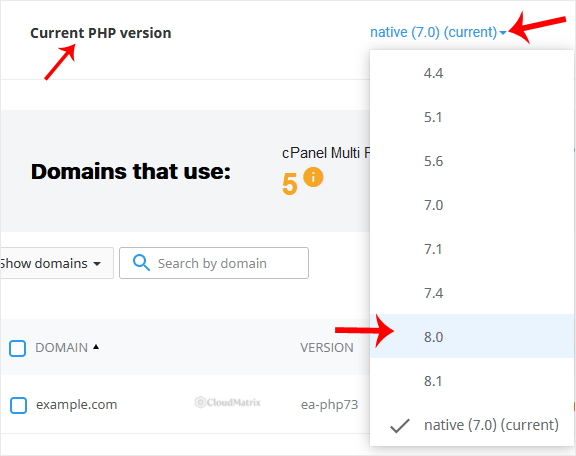
At the top of the page, next to Current PHP version, open the drop-down menu and pick the version you want to run. The list shows every PHP build available on the server, plus a native entry, which is the server's own system PHP rather than a CloudLinux alt-php build.
3. Apply the change
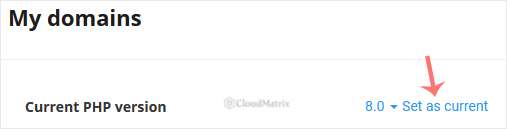
Click Set as current. The change applies straight away, so no restart is needed on your side. Load your site in a fresh browser tab and check that everything still renders and that the admin area still logs in.
What the Change Actually Affects
This is the part the button does not tell you, and it is where most follow-up tickets come from.
- The setting is account-wide, not per-domain. The CloudLinux Selector sets one PHP version for the whole cPanel account, so every domain, subdomain and add-on domain in that account moves together. If you need two sites on two different PHP versions, they need to live in separate cPanel accounts. Noiz support can advise on the cleanest way to split them.
- Extensions are stored per version. Each PHP version keeps its own list of enabled extensions. Switching from one version to another does not carry your extension choices across, so a site that needed
imagickorsoapon the old version will need them ticked again on the new one. Check the Extensions tab immediately after switching. - Options are stored per version too. The same applies to values on the Options tab, such as
memory_limit,max_execution_timeanddisplay_errors. A newly selected version starts on its own defaults, not on the values you tuned previously. - The native entry behaves differently. When native is selected, the Extensions and Options tabs are not available, because that build is managed by the server rather than by the Selector. Choosing a numbered alt-php version is the normal choice for a hosting account.
- Two tools can exist on one server. cPanel ships its own MultiPHP Manager, which works per-domain. The CloudLinux Selector works per-account. If both icons appear in your Software section, change the version in one place only and contact Noiz support to confirm which one governs your account, rather than setting a version in both and guessing which wins.
Choosing a Sensible Version
The Selector lists a lot of versions, and not all of them are a good idea.
- Stay on a supported branch. As of this review, the PHP project supports 8.2, 8.3, 8.4 and 8.5. Anything older than 8.2, including the entire 7.x series and PHP 8.0 and 8.1, has reached end of life upstream and no longer receives fixes from the PHP project. Check the supported versions page linked above before you commit, since branches drop off that list every year.
- Do not jump multiple major branches blind. Moving a site from 7.4 straight to 8.5 crosses several rounds of removed functions and changed behaviour. Move up one branch at a time, testing each step, and read your application's own upgrade notes as you go.
- Treat legacy branches as temporary. The Selector may still list end-of-life versions so that older applications keep running. That is a stopgap for buying time to update the application, not a destination. A site left on an unsupported branch will eventually run into both security problems and plugin incompatibility.
- Match the application, not the highest number. Newest is not automatically best. If your CMS, theme or plugin set has not certified the newest branch, pick the newest branch that it has.
Troubleshooting
- Symptom: the site returns a blank white page or a 500 error after switching. Switch straight back to the previous version to restore service, then investigate. In almost all cases the cause is either a missing extension on the new version or application code that is not compatible with the newer branch.
- Symptom: a feature that worked before now fails, for example image uploads or a payment callback. An extension is missing. Open the Extensions tab and re-enable the ones your application needs on the new version.
- Symptom: uploads or long imports now fail on size or time. The per-version defaults are lower than the values you had tuned. Raise them on the Options tab for the version you are now running.
- Symptom: the drop-down will not save, or Select PHP Version is missing entirely. Some hosting configurations manage PHP centrally and hide or lock the Selector. Contact Noiz support and state which version you need.
- Symptom:
phpinfo()or your CMS still reports the old version. Clear any full-page or object cache in your application and any caching layer in front of the site, then reload. Browsers and CDN caches frequently serve the pre-switch page for a while.
Related Guides
- How to Enable or Disable PHP Extensions Using the CloudLinux Selector in cPanel
- How to Increase or Decrease PHP Memory Limit via CloudLinux Selector in cPanel
- How to Enable or Disable PHP's display_errors via CloudLinux Selector in cPanel
If you are unsure which PHP version your site should be on, or a version change has broken something you cannot pin down, open a ticket with Noiz support. Include your domain name, the version you moved from and the version you moved to, and the exact error text. On managed plans, Noiz will test the upgrade path and move you across for you.






