Categories pile up quickly. A theme demo installs a handful, a plugin adds its own, someone creates a duplicate with a typo in the name, and before long the sidebar lists a dozen topics that nobody uses. This guide shows you how to delete a category in WordPress, what happens to the posts filed under it, and the two things worth checking before you click Delete, because term deletion has no trash and cannot be undone.
The short version: deleting a category never deletes posts. WordPress moves them somewhere else. Knowing exactly where is the difference between a tidy site and half an hour of hunting for content that appears to have vanished.
Last reviewed: 27 July 2026, against WordPress 7.0.2 (latest stable). This guide is written for Noiz hosting and is kept current against WordPress. It complements, and does not replace, the official WordPress documentation linked below.
Official Documentation Reference
- WordPress Documentation: Posts Categories screen
- WordPress Documentation: Categories
- WordPress Documentation: Settings Writing screen (where the default post category is set)
- WP-CLI: wp term delete
Prerequisites
- A WordPress site on your Noiz hosting account. If you are not sure how to reach the dashboard, see How to Log In to the WordPress Dashboard.
- A login with the Administrator or Editor role. Authors and Contributors can tick existing categories on their own posts but cannot delete any.
- A current backup if the site is live and the category holds a lot of posts. Category deletion itself is safe, but the reassignment it triggers touches every post in that category at once.
What Deleting a Category Actually Does
This is the part most guides skip, and it is the only part that can surprise you.
- Posts are never deleted. WordPress removes the category from each post and leaves the post itself published and untouched.
- Posts left with no category at all are moved to the default. WordPress requires every post to sit in at least one category, so if the category you deleted was a post's only one, that post lands in whichever category is set as Default Post Category under Settings then Writing. On most sites that is still Uncategorized.
- Posts that had other categories simply lose one. They keep the rest and are not touched by the default.
- Child categories are promoted, not deleted. If the category you delete has sub-categories, they survive and move up a level rather than disappearing with their parent.
- The archive URL stops working. The page at
https://yourdomain.com/category/the-slug/(replaceyourdomain.comandthe-slugwith your own) begins returning a 404 as soon as the category is gone. - There is no undo. Categories do not go to the trash. A deleted category can only be recreated by hand, and recreating it does not restore the posts that were filed under it.
None of this is a reason to avoid deleting categories. It is a reason to glance at the Count column first, so you know how many posts are about to be reshuffled.
Step 1: Log In to the WordPress Dashboard
Go to https://yourdomain.com/wp-admin and sign in with an Administrator or Editor account.
If the dashboard password has been mislaid, you do not have to reset it first. The WordPress management tooling in your Noiz control panel lists every installed site and offers a one-click login that signs you in as an administrator, so you can go straight to step 2 from there.
Step 2: Open Posts and Then Categories
In the left-hand dashboard menu, hover over Posts and click Categories.
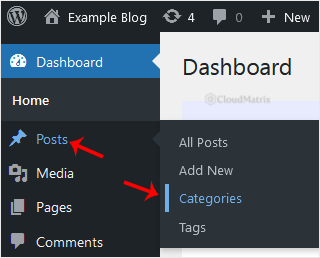
The screen splits into the Add New Category form on the left and the table of existing categories on the right. Before deleting anything, read across the row you have in mind:
- Name and Slug: the slug is the part that appears in the archive URL, so this tells you which public address is about to break.
- Count: how many published posts are currently filed there. Click the number to see exactly which posts they are. A count of
0means the category is safe to remove with no side effects at all. - Indentation: a category shown indented beneath another is a sub-category. Anything indented under the row you are deleting will be promoted to the top level.
Step 3: Hover Over the Category and Click Delete
Move your mouse over the category you want to remove. A row of links fades in underneath the name: Edit, Quick Edit, Delete and View. The Delete link is red.
Click Delete. Your browser shows a confirmation dialogue warning that the item will be permanently removed and that the action cannot be undone. Confirm with OK.
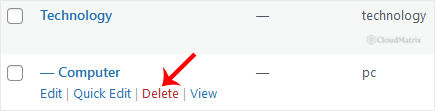
The row disappears from the table immediately and the reassignment happens in the same moment. There is no progress bar and no second screen, even on a category holding hundreds of posts.
Deleting Several Categories at Once
On a site inherited from someone else there is usually more than one category to clear out. The bulk action handles them in a single pass:
- Tick the checkbox beside each category you want to remove. The checkbox in the header row selects everything currently listed.
- Open the Bulk actions drop-down above the table and choose Delete.
- Click Apply.
Bulk delete does not ask for confirmation, so check your ticks before clicking Apply. Every post that ends up category-less goes to the default category in one go, which on a large clear-out can leave a lot of content sitting in Uncategorized. If that is not what you want, move the posts first using the section below.
The default category is skipped silently if you tick it as part of a bulk selection, since WordPress will not delete it under any circumstances.
Move the Posts Somewhere Sensible First
If the category you are deleting holds posts that belong somewhere specific, assign them before you delete rather than fishing them out of the default afterwards.
- Go to Posts then All Posts.
- Use the category filter above the list to show only the posts in the category you are about to delete, then click Filter.
- Tick the posts you want to move, choose Edit from Bulk actions and click Apply.
- Tick the correct category in the panel that opens and click Update.
Bulk edit can only add a category, never remove one, so the posts will briefly belong to both. Deleting the old category in the next step strips it from them and leaves the new one in place. That is the tidiest way to reorganise, and it means nothing touches the default category at all.
For a larger clear-out, see How to Manage WordPress Categories the Right Way, which covers merging and restructuring rather than deleting one at a time.
Why One Category Has No Delete Link
If a category shows Edit, Quick Edit and View but no Delete, and its row has no checkbox either, it is the site's default post category. WordPress hides the option rather than letting you remove the place it needs to file uncategorised posts.
The restriction follows the default setting, not the name. Set a different category as the default under Settings then Writing, and the old one becomes deletable straight away while the new default loses its own Delete link. The full walkthrough, including how to get rid of Uncategorized entirely, is in How to Rename the Default Uncategorized Category in WordPress.
Deleting Categories From the Command Line
If your Noiz plan includes SSH access and WP-CLI is available, this is far quicker for bulk tidying. Run these from the site's root directory.
List the categories with their IDs and post counts:
wp term list category --fields=term_id,name,slug,countDelete one by ID:
wp term delete category 12Delete several at once:
wp term delete category 12 15 18WP-CLI does not prompt for confirmation, and the same rules apply as in the dashboard: posts are reassigned to the default, children are promoted, and the default category itself cannot be removed. Take a database backup before a scripted clear-out on a live site.
Gotchas Worth Knowing
- The archive URL becomes a 404. If the category has been live long enough to be linked from elsewhere or indexed by search engines, put a permanent redirect in place from the old path to whichever category now holds that content. The rule is in How to Redirect a Page to Another Page or Website Using htaccess.
- Menu entries are cleaned up, custom links are not. A menu item added as a category object is removed automatically when the category goes. A menu item added as a Custom Link pointing at the same URL stays put and quietly leads to a 404. Check Appearance then Menus, or the navigation block in the site editor on a block theme.
- Widgets and blocks referencing the category by ID stop working. A category drop-down, a "recent posts from category X" block or a shortcode with the old ID will render empty rather than error, which is easy to miss. Load the front page after a clear-out and look for blank spaces.
- Posts have not disappeared. If content seems to go missing after a deletion, it is in the default category. Filter Posts then All Posts by that category to find it.
- Tags are separate. Categories and tags share the same underlying storage but are different taxonomies. Deleting a category leaves tags alone, and tags are managed under Posts then Tags.
- WooCommerce product categories are separate too. They live under Products then Categories and have their own default. Nothing you do on the post categories screen affects them.
- Caches keep the old category alive. A caching plugin, a server-side page cache or a CDN can carry on serving the deleted archive and the old sidebar list for a while. Purge the cache after deleting, then reload with a hard refresh.
- Never delete categories directly in the database. Removing rows from the term tables by hand leaves orphaned relationships and count values that no longer match reality, and if the deleted term was the default, WordPress starts recreating a fresh Uncategorized. Use the dashboard or WP-CLI so the cleanup runs properly.
- On multisite, each site is independent. Deleting a category on one site in a network changes nothing on the others.
Troubleshooting
Symptom: There is no Delete link on the row. That category is the site's default. Set a different one under Settings then Writing, and the link appears.
Symptom: The Categories item is missing from the Posts menu. Your role is below Editor, or a plugin has hidden the menu. Sign in with an Administrator account and check the role assigned to you under Users then All Users.
Symptom: Hovering shows no links, or clicking Delete does nothing. The row actions rely on dashboard JavaScript, which a plugin conflict or a script error will break. Open the browser console to see the error, then deactivate plugins one at a time to find the culprit.
Symptom: The category is gone but still appears on the front of the site. A cache is serving an old copy. Purge every layer of caching in front of the site and hard refresh. If it persists, the category list you are looking at may be a hard-coded menu item rather than a live list.
Symptom: The Count column shows numbers that do not match reality after a clear-out. Term counts are stored, not calculated live, and can drift. Editing and updating any post in the affected category forces a recount, and WP-CLI can rebuild them all with wp term recount category.
Symptom: A category you deleted has come back. Either a plugin recreates it on load, or an import has run again. Check recently active plugins, and confirm the default post category setting still points at a real category.
Symptom: You deleted the wrong category. There is no undo. Recreate it with the same name and slug so the archive URL works again, then filter the default category under Posts then All Posts and bulk-edit the affected posts back into it. If the category held a lot of posts and you cannot tell which ones they were, restoring the database from a backup taken before the deletion is the only reliable route.
Related Guides
- How to Add a New Category in WordPress
- How to Rename the Default Uncategorized Category in WordPress
- How to Manage WordPress Categories the Right Way
- How to Bulk Delete Posts in WordPress
- How to Remove Sample Posts, Pages and Comments From WordPress
Need a hand?
Deleting a category is quick, but a category that has been live for years is usually linked from more places than you expect. If you are on a managed Noiz plan and would like the redirects put in place at the same time, or you want the category structure of an inherited site rebuilt properly without losing traffic, contact the Noiz support team through the client area with your domain name and the team will assist.






