Every WordPress site starts with a single post category called Uncategorized, and every post published without a category chosen for it lands there. It is the one category WordPress will not let you delete, which is why the Delete link that appears on every other category is missing from its row. This guide shows you how to rename it into something useful, and, if you would rather it did not exist at all, how to remove it properly by promoting a different category to default first.
Renaming takes about thirty seconds. The part worth reading is what happens to the category's web address when you change its slug, because that is where sites quietly break.
Last reviewed: 27 July 2026, against WordPress 7.0.2 (latest stable). This guide is written for Noiz hosting and is kept current against WordPress. It complements, and does not replace, the official WordPress documentation linked below.
Official Documentation Reference
- WordPress Documentation: Posts Categories screen
- WordPress Documentation: Categories
- WordPress Documentation: Settings Writing screen (where the default post category is set)
- WordPress Documentation: Settings Permalinks screen (category base)
- WP-CLI: wp term update (rename a category from the command line)
Prerequisites
- A WordPress site on your Noiz hosting account.
- A dashboard login with the Administrator or Editor role. Authors and Contributors cannot manage categories.
- A decision on the new name. Changing the slug as well changes a live URL, so read the section on slugs before you type anything into that field.
Step 1: Log In to the WordPress Dashboard
Go to https://yourdomain.com/wp-admin (replace yourdomain.com with your own domain) and sign in.
If you have mislaid the dashboard password, you do not need to reset it to make this change. The WordPress management tooling in your Noiz control panel lists each installed site and offers a one-click login that signs you in as an administrator, so you can go straight to step 2 from there.
Step 2: Open Posts and Then Categories
In the left-hand dashboard menu, hover over Posts and click Categories.
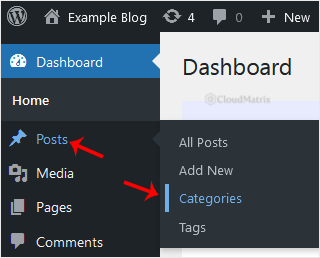
The screen splits in two: Add New Category on the left, and the table of existing categories on the right. Uncategorized is in that table, and on a new site it is usually the only entry.
Look at the Count column beside it before you go further. That number is how many published posts are currently filed under Uncategorized, and it tells you whether you are tidying up a label nobody sees or renaming a category that is already showing on the front of the site.
Step 3: Hover Over Uncategorized and Click Quick Edit
Move your mouse over the Uncategorized row. A small set of links fades in underneath the name.
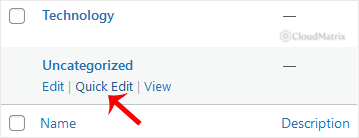
On every other category you would see four links: Edit, Quick Edit, Delete and View. On Uncategorized the Delete link is absent, and the row has no checkbox for the bulk Delete action either. That is not a bug or a permissions problem. WordPress is refusing, because this category is currently set as the site's default. The section further down explains how to change that.
Click Quick Edit. The row turns into two editable fields without leaving the page.
Step 4: Change the Name and Slug, Then Update
Quick Edit gives you exactly two fields:
- Name: what visitors see wherever the category is displayed, such as under a post title, in a sidebar widget, or in a breadcrumb trail. Change this to something that describes the content, for example
News,BlogorUpdates. - Slug: the version of the name used in the URL. Lowercase letters, numbers and hyphens only. Leaving it alone is safe. Changing it is not always safe, and the next section explains why.
Confirm with Update Category.
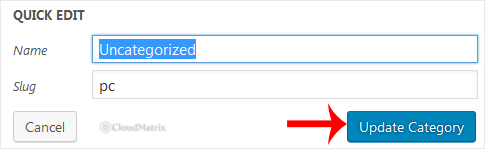
The table refreshes with the new name. Nothing else about the category has changed: it keeps the same numeric ID, the same posts, the same description, and it is still the site's default category. Every post that was filed under Uncategorized is now filed under the new name automatically, because it is the same category wearing a different label.
If you also want to add or edit the Description, or make the category a child of another one, use the full Edit link instead. Quick Edit deliberately exposes only the name and the slug.
What Changing the Slug Does to Your URLs
The slug is the piece of the category archive address that identifies the category. With WordPress permalinks set to anything other than plain, the archive lives at:
https://yourdomain.com/category/uncategorized/Change the slug to news and that page becomes:
https://yourdomain.com/category/news/The old address stops working and returns a 404. On a site that has been live for a while, that matters:
- Links to the old category archive from other sites, newsletters or social posts now land on an error page.
- Search engines have the old URL indexed and will drop it once they see the 404.
- Anything hard-coded in a theme, a menu item or a widget that points at the old path breaks.
Two things fix this. First, put a permanent redirect in place from the old path to the new one, which preserves both visitors and search ranking. The guide on redirecting a page using .htaccess covers the exact rule. Second, check Appearance then Menus for any menu item pointing at the old category, since custom links do not update themselves.
On a brand new site with no traffic and nothing indexed, none of this applies and you can change the slug freely.
Why Uncategorized Cannot Be Deleted
WordPress requires every post to belong to at least one category. If you publish a post and pick no category, WordPress has to file it somewhere, so it uses the category set as Default Post Category in the site settings. On a fresh install that is Uncategorized.
Because deleting the default would leave WordPress with nowhere to put uncategorised posts, the interface simply removes the option: no Delete link on the row, and no checkbox for the bulk action. The restriction applies to whichever category is set as default, not to the word "Uncategorized" itself. Promote a different category to default and the old one becomes deletable immediately, while the new default loses its own Delete link.
This is also why deleting a category never deletes the posts inside it. WordPress reassigns them to the default category instead. If posts seem to vanish after you delete a category, look in the default category rather than in the trash.
How to Remove Uncategorized Completely
If you want it gone rather than renamed, do it in this order.
1. Create the Category That Will Replace It
On the same Posts then Categories screen, fill in the Add New Category box on the left with the name you want, then click Add New Category. The full walkthrough is in How to Add a New Category in WordPress.
2. Make It the Default
Go to Settings then Writing. The first option on that screen is Default Post Category. Select your new category from the drop-down and click Save Changes.
3. Move the Existing Posts (Optional but Sensible)
If Uncategorized still holds posts, decide where they should go before you delete it. Deleting the category will sweep every one of them into the new default, which may not be where each of them belongs.
To place them deliberately, open Posts then All Posts, use the category filter at the top to show only Uncategorized posts, tick the ones you want, choose Edit from the Bulk actions menu and click Apply. Tick the correct category in the panel that opens, then click Update. Note that bulk edit can only add a category, not remove one, so the posts will briefly sit in both. Deleting Uncategorized in the next step removes it from them.
4. Delete the Old Category
Return to Posts then Categories. The Delete link now appears on the Uncategorized row. Click it and confirm. Full detail on this step is in How to Delete Categories in WordPress.
Renaming It From the Command Line
If your Noiz plan includes SSH access and WP-CLI is available, the same change is a single command run from the site's root directory. Uncategorized is term ID 1 on almost every install:
wp term update category 1 --name="News" --slug="news"To change which category is the default:
wp option update default_category 7Replace 7 with the ID of your chosen category, which you can find by hovering over its name in the dashboard and reading the tag_ID value in the status bar, or by running wp term list category --fields=term_id,name,slug. This route is worth knowing if you are setting up several sites and want the same tidy-up applied to each without clicking through the dashboard.
Gotchas Worth Knowing
- The old name can linger in caches. If a caching plugin, a server-side page cache or a CDN is in front of the site, the previous name may keep appearing on the public pages for a while. Purge the cache after renaming, then reload with a hard refresh.
- Category names must be unique. If the name you want already exists, WordPress rejects it. Slugs must be unique too, and if you enter one already in use, WordPress silently appends a number, giving you
news-2. - Pages do not use categories. Only posts do. Renaming Uncategorized has no effect on your pages, and a page will never appear in a category archive.
- WooCommerce keeps its own Uncategorized. Product categories are a separate taxonomy with a separate default, set under WooCommerce then Settings then Products. Renaming the post category leaves the product one untouched, and vice versa.
- The category ID never changes. Renaming affects the label and, if you choose, the slug. Anything referencing the category by ID, such as a widget, a shortcode or a theme template, carries on working.
- The word itself depends on the site language. On a site installed in another language the default category is named in that language, but it behaves identically and sits in the same place.
- The
/category/part of the URL is separate. That prefix is the category base, set under Settings then Permalinks. Changing a category slug does not touch it, and changing the base affects every category at once. - On multisite, each site is independent. Renaming the default category on one site in a network changes nothing on the others.
Troubleshooting
Symptom: There is no Delete link on the Uncategorized row. This is expected. It is the site's default post category. Set a different category as default under Settings then Writing, and the link appears.
Symptom: Hovering shows no links at all, or Quick Edit does nothing when clicked. Quick Edit relies on JavaScript in the dashboard. A plugin conflict or a JavaScript error will disable it. Use the Edit link to open the full category screen instead, which works without it, and check the browser console for the underlying error.
Symptom: The Categories item is missing from the Posts menu. Your user role does not include the capability to manage categories. Sign in with an Administrator account, or ask the site owner to raise your role.
Symptom: The category archive returns a 404 after changing the slug. Go to Settings then Permalinks and click Save Changes without altering anything. That rewrites the permalink rules and usually clears it straight away.
Symptom: The new name saved, but the site still shows "Uncategorized". Either a cache is serving an old copy, or what you are looking at is not the category name. Some themes print a hard-coded label, and some plugins add their own taxonomy. Check the Categories table to confirm the rename actually took.
Symptom: Uncategorized reappears after you thought you had removed it. WordPress recreates a default category if the ID recorded in its settings no longer points to a real category, which happens when a category is deleted directly in the database rather than through the dashboard. Set a valid default under Settings then Writing, then delete the stray one from the Categories screen.
Symptom: Posts disappeared after you deleted a category. They were not deleted. WordPress moved them into the default category. Open Posts then All Posts and filter by that category to find them.
Related Guides
- How to Add a New Category in WordPress
- How to Delete Categories in WordPress
- How to Remove Sample Comments and Posts From WordPress
- How to Redirect a Page to Another Page or Website Using htaccess
Need a hand?
Renaming a category is harmless, but changing a slug on an established site can cost you traffic if the old address is left returning a 404. If you are on a managed Noiz plan and would like the redirect put in place at the same time, or you want the category structure of an inherited site sorted out properly, contact the Noiz support team through the client area with your domain name and the team will assist.






