Categories are how WordPress groups your posts into topics. This guide shows you how to add a new category, what each field on the form actually controls, and the small decisions (slug and parent) that are awkward to change once posts and links exist. A post can belong to more than one category, and categories can be nested, so a little planning at this stage saves tidying up later.
Last reviewed: 27 July 2026, against WordPress 7.0.2 (latest stable). This guide is written for Noiz hosting and is kept current against WordPress. It complements, and does not replace, the official WordPress documentation linked below.
Official Documentation Reference
- Posts Categories Screen (every field on the screen, in detail)
- Settings Permalinks Screen (where the
/category/part of your archive URLs is set)
Prerequisites
- A WordPress site and your admin login details. If you are not sure where to sign in, see How to login to WordPress (Admin Dashboard).
- An account with the Administrator or Editor role. Authors and Contributors can assign existing categories to their posts but cannot create new ones.
Categories or tags?
Both group posts, but they behave differently and they are not interchangeable:
- Categories are hierarchical, so one category can sit under another. Every post must have at least one, and WordPress falls back to Uncategorized if you do not choose one. Treat them as the table of contents for your site.
- Tags are flat, optional, and much more granular. Treat them as the index at the back of the book.
A good rule of thumb: if you would put it in the site menu, it is a category. If it only makes sense as a keyword, it is a tag.
Add a new category
- Log in to your WordPress dashboard.
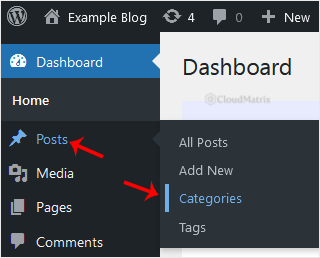
- In the sidebar menu, go to Posts and click Categories.
- Fill in the Add New Category form on the left of the screen:
- Name is the label people see, for example
Computers. Use the wording you want shown in menus and on the archive page. - Slug is the URL-safe version of the name. Leave it blank and WordPress generates one from the name (lower case, spaces turned into hyphens, accents stripped). Fill it in yourself when you want something shorter or cleaner than the name would produce.
- Parent Category stays on None for a top-level category. Choose an existing category here to make the new one a sub-category of it.
- Description is optional. Many themes print it at the top of the category archive page, and several SEO plugins use it as the archive meta description, so it is worth a sentence rather than leaving it empty.
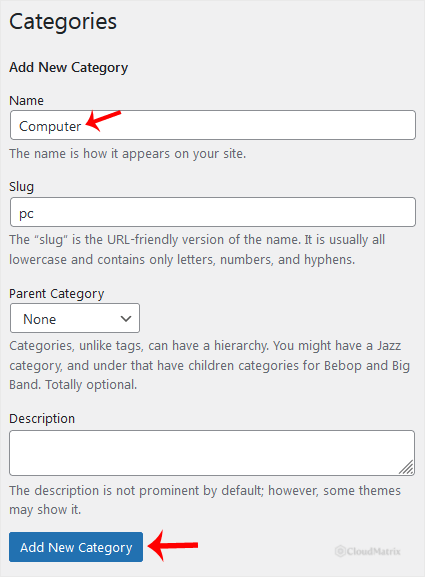
- Name is the label people see, for example
- Click Add New Category.
The category appears in the list on the right straight away, and it is immediately available in the Categories panel of the post editor. Its archive page lives at https://yourdomain.com/category/your-slug/ (replace yourdomain.com and your-slug with your own).
Choosing the slug and parent carefully
These two fields are the only part of the form that is genuinely difficult to change later.
- The slug becomes a public URL. Renaming it after posts are published breaks any existing link to that archive, including links from search results, newsletters and social posts. Pick it once, keep it short, and use hyphens rather than underscores. If you must change it later, put a redirect in place from the old path to the new one.
- Nesting shows up in the URL too when your permalink structure includes the category, so a sub-category of a sub-category produces long, unhelpful addresses. One level of nesting is usually plenty for a blog.
- A slug cannot clash with an existing page or post slug. If it does, WordPress silently appends a number, for example
news-2. Check the Slug column in the list after saving. - The
/category/prefix is site-wide, not per category. Change it once under Settings > Permalinks in the Category base field if you want something different.
Put posts into the new category
Creating a category does not move anything into it. Assign posts in whichever way suits the job:
- One post: open it in the editor and tick the category in the Categories panel in the right-hand sidebar. You can also create a category on the fly from there with Add New Category, which is quicker mid-write but gives you no control over the slug.
- A handful of posts: go to Posts > All Posts, hover a row and click Quick Edit, then tick the category.
- Many posts at once: on the same screen, tick the posts, choose Edit in the Bulk actions list, click Apply, then tick the category. Note that bulk edit only adds categories, it never removes the ones already set.
Make it the default category
If most new posts belong in your new category, set it as the fallback so you stop seeing Uncategorized. Go to Settings > Writing and choose it under Default Post Category. WordPress will not let you delete whichever category is currently the default, which is why Uncategorized normally has to be renamed or replaced rather than removed.
Troubleshooting
Symptom: the Categories menu item is missing. Your user role is below Editor, or a plugin has hidden the menu. Sign in with an Administrator account and check Users > All Users for the role assigned to you.
Symptom: "A term with the name provided already exists with this parent." A category (or a tag, since both share the same underlying storage) already uses that name at that level. Give it a different name, or pick a different parent.
Symptom: the saved slug is not the one you typed. Something else on the site already claims it, so WordPress added a suffix. Choose a more specific slug and save again.
Symptom: the category archive page returns a 404. Either the category has no published posts yet, or the permalink rules need rebuilding. Open Settings > Permalinks and click Save Changes without altering anything, which flushes and rewrites the rules.
Symptom: the new category does not show in the site menu. WordPress menus are built manually. Add it under Appearance > Menus (or in the site editor if your theme is block-based); it will not appear on its own.
Related reading
- How to Manage WordPress Categories the Right Way
- How to Delete Categories in WordPress
- How to Delete an Uncategorized Category in WordPress
Need a hand?
If your dashboard does not look as described above, or a category archive is still not behaving after a permalink flush, open a support ticket from your Noiz client area and the team will take a look at the site.






